
How to turn features and extensions on and off
Choose which tools and extensions show in your Offlico.
Updated 17 November 2026
Part 1 Your free tools
Step 1 Switch your free tools on and off
Go to Settings › Features; each switch saves at once. Every tool here comes with your plan and your free trial, and its tile in Extensions uses the same switch.
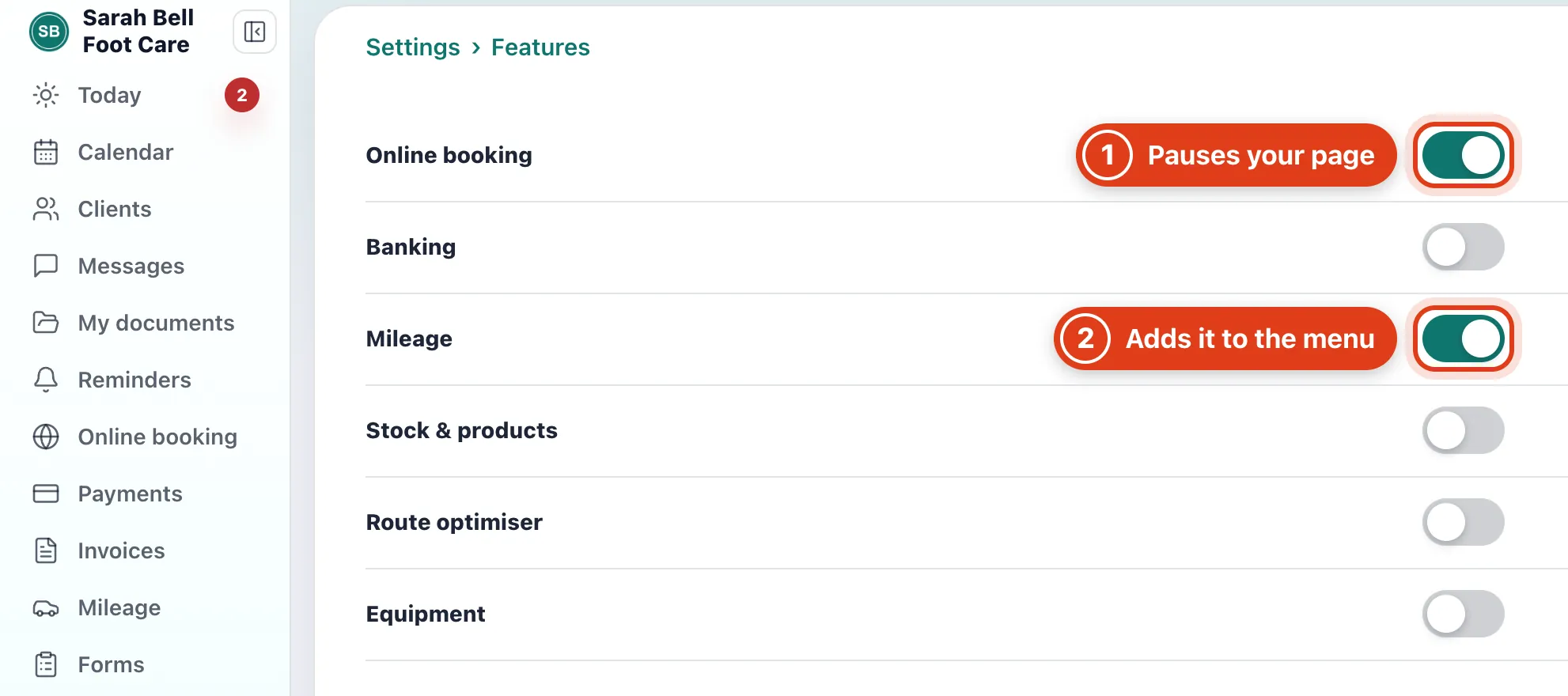
- Online booking off pauses your booking page. For example, a client opening your link sees Not taking online bookings right now and Try again.
- Mileage and the other tools show in your menu only while they're on; switching one off keeps what you saved in it. For example, switch Mileage off and back on and Tuesday's journeys are still there.
Part 2 Extensions
Step 2 Add an extension
Go to Extensions and click Install on a tile.
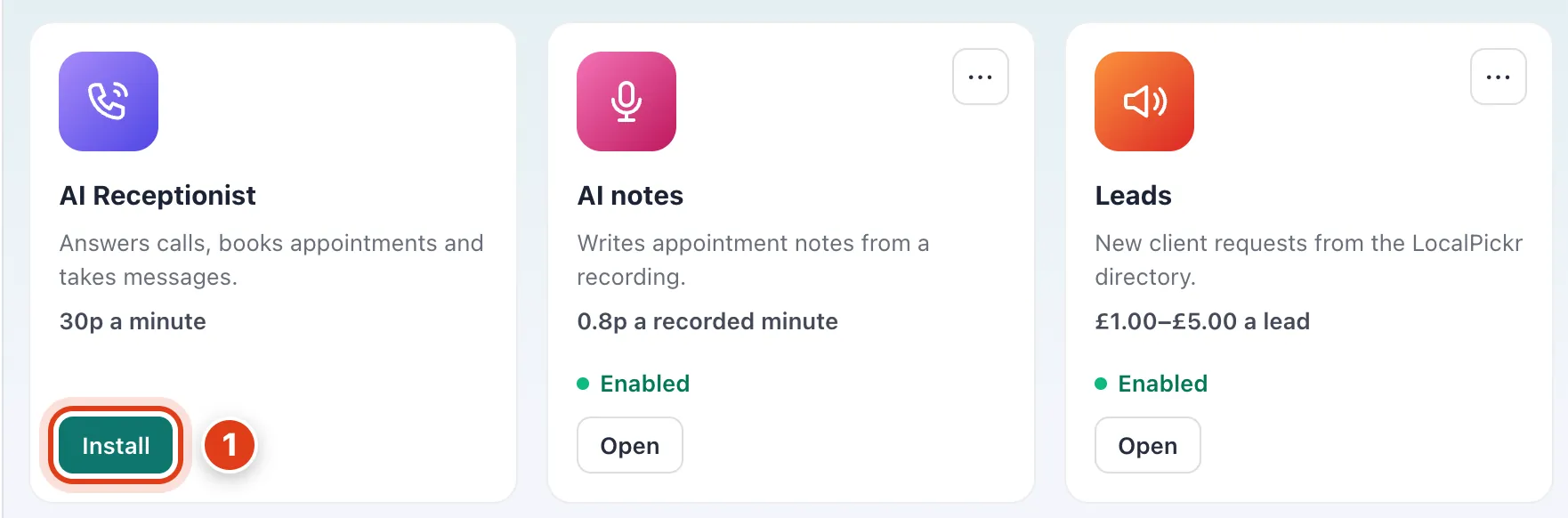
- Install on a paid one charges nothing; you pay its price from your credits only as you use it. For example, AI Receptionist charges nothing until its set up gets you a number, £5 once.
Step 3 Turn an extension off
Click ⋯ on its tile and choose Disable: it goes off at once, and the tile then offers Enable. Disabling AI Receptionist keeps its number; callers hear that it's temporarily unavailable and are asked to call again later.
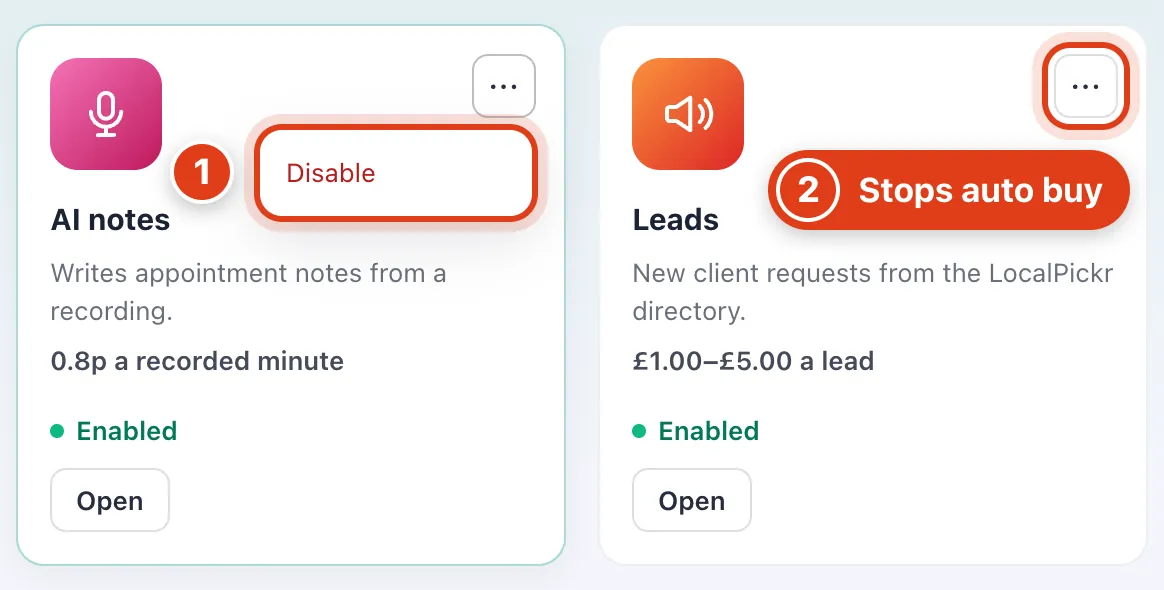
- Disable on AI notes hides its buttons on your visits; notes already written and your credits stay. For example, credits you topped up still pay for your text reminders.
- Disable on Leads stops auto buy and hides Leads from your menu. For example, with auto buy on for leads up to £3, no lead is bought while it's off.