
How to take card payments
Connect Stripe, then request, record and refund your clients' payments.
Updated 16 November 2026
Part 1 Connect Stripe
Step 1 Connect Stripe
Go to Payments and click Continue with Stripe.
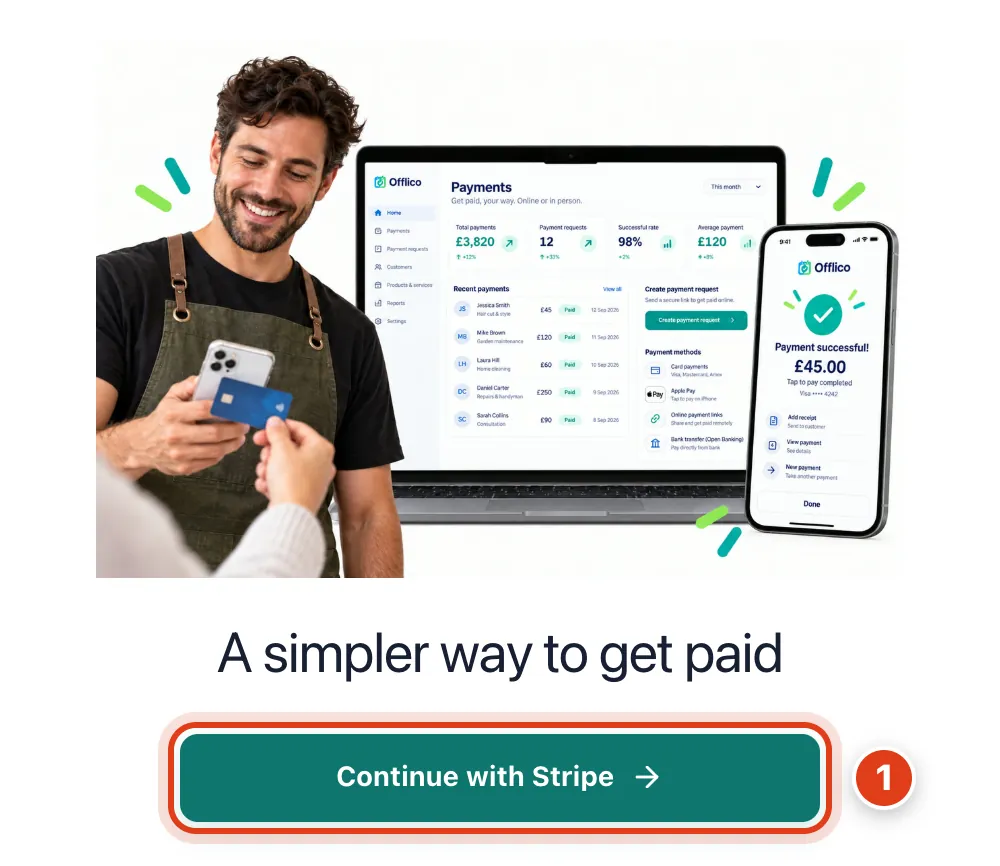
- Continue with Stripe asks for your business details the first time, then opens Stripe to set up your own Stripe account.
Step 2 Check your business details
Choose your Business type and check the details filled in from Business details.
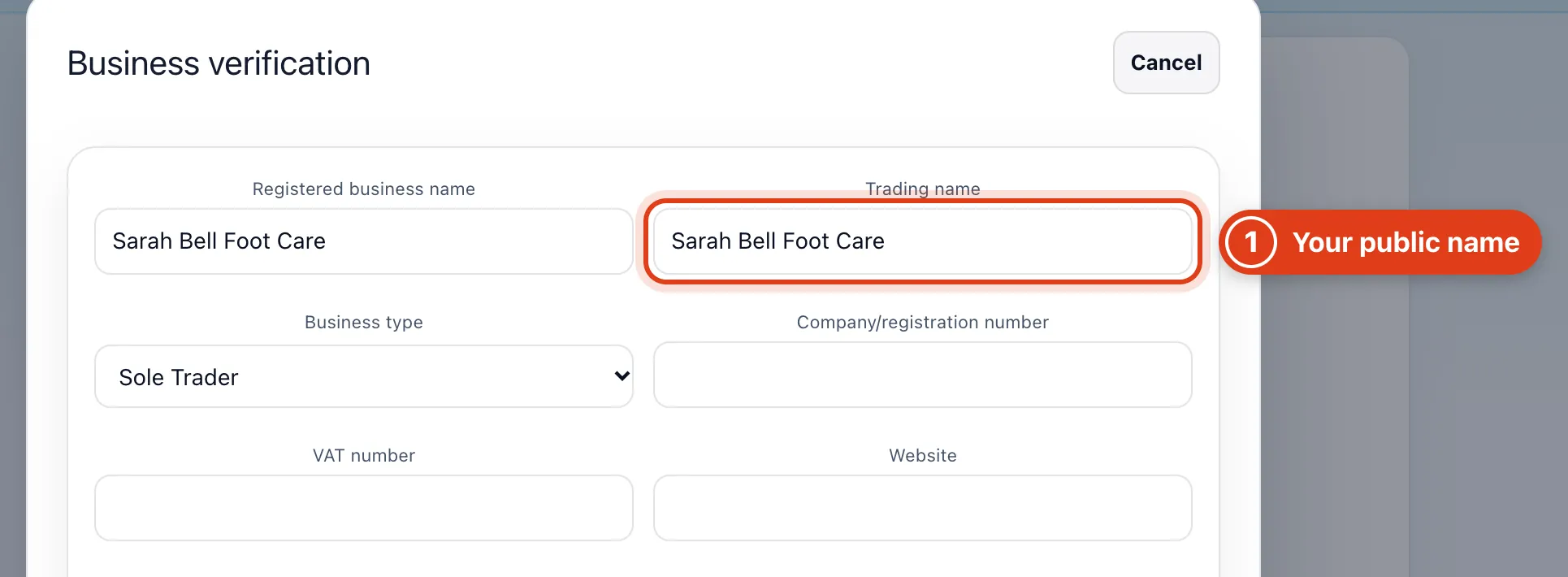
- Trading name is your name in Business details, the one clients see; change it there.
Step 3 Check your contact details
Further down, check the Primary contact details.
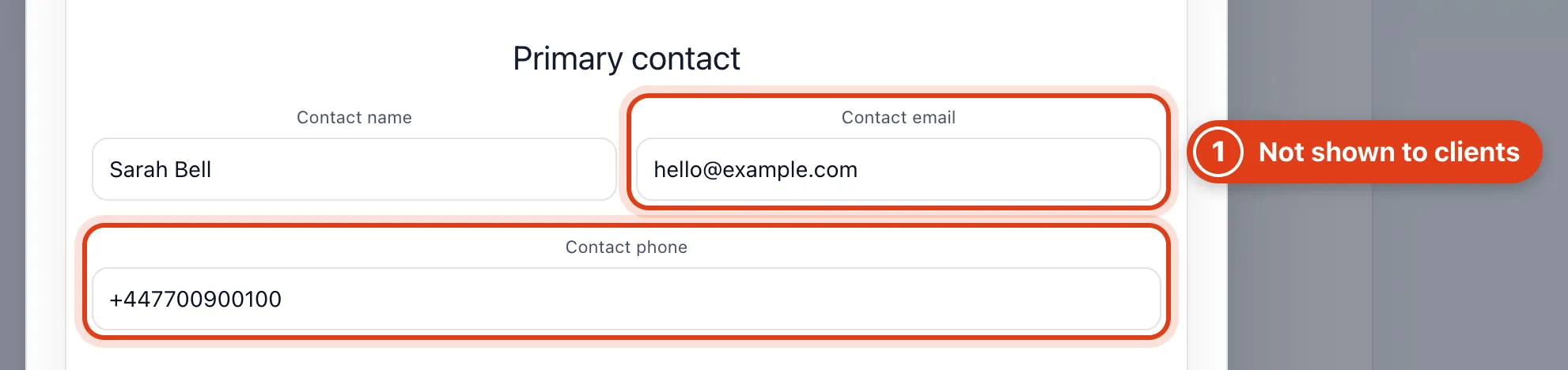
- Contact email and Contact phone don't change what your clients see; they keep seeing the ones in Business details. For example, with your mobile here, your booking page still shows 07700 900100.
Step 4 Submit for verification
Fill in Describe your services, tick the box below it, then Submit for verification.
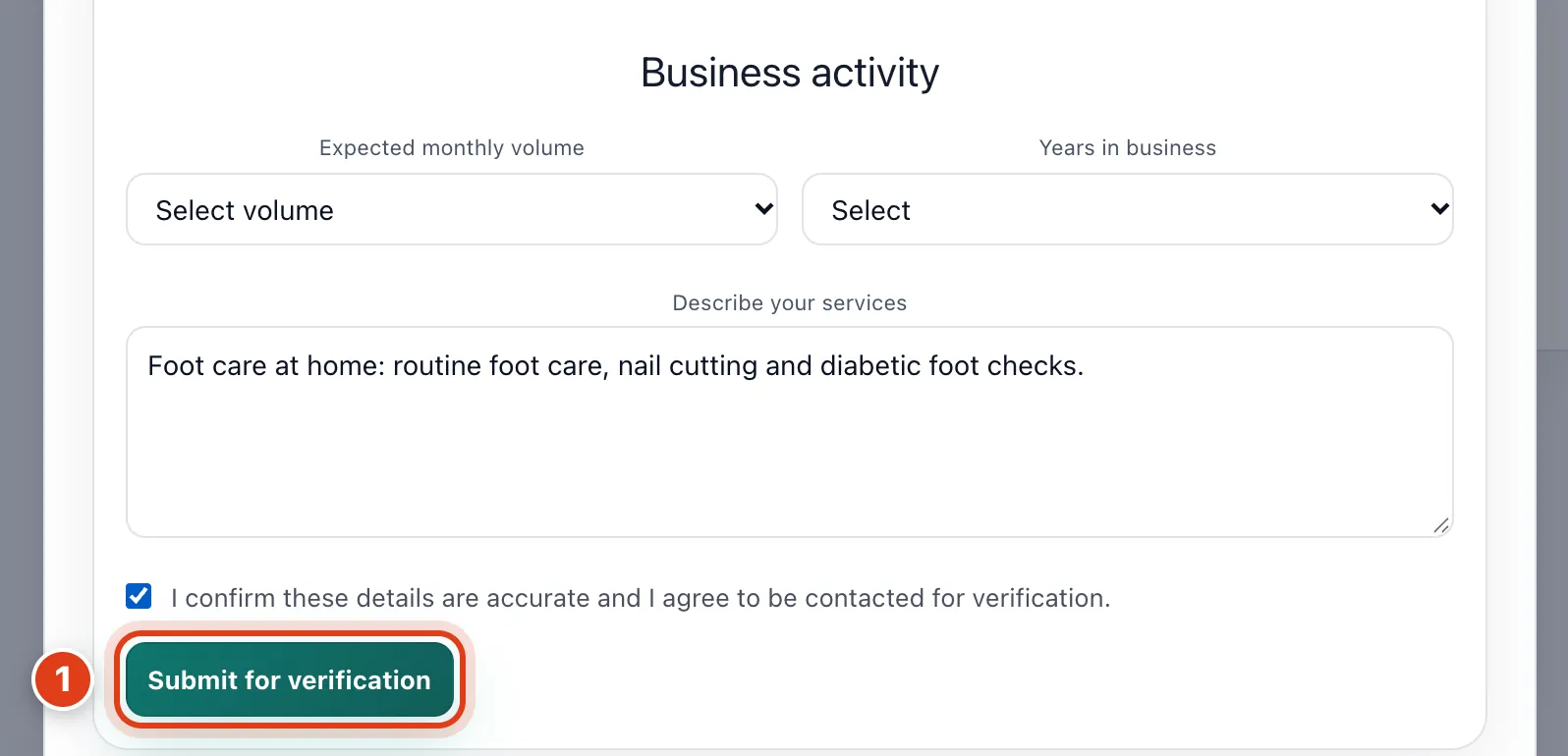
- Submit for verification approves complete details at once and opens Stripe. For example, a contact phone with a digit missing is declined instead, with Missing or invalid required details: Primary contact phone.
Step 5 Your Stripe account
Back from Stripe, Payments shows Stripe connected.

- Stripe connected shows once Stripe has checked your details; until then Payments says Stripe is reviewing your details.
- Manage Stripe opens your own Stripe account, where card payments land with no Offlico fee and are paid out to your bank. For example, of Joan Whitfield's £42 card payment only Stripe's own fee comes off.
Part 2 Get paid and give refunds
Step 6 See who owes you
Go to Payments to see what each client owes; Needs action opens first.
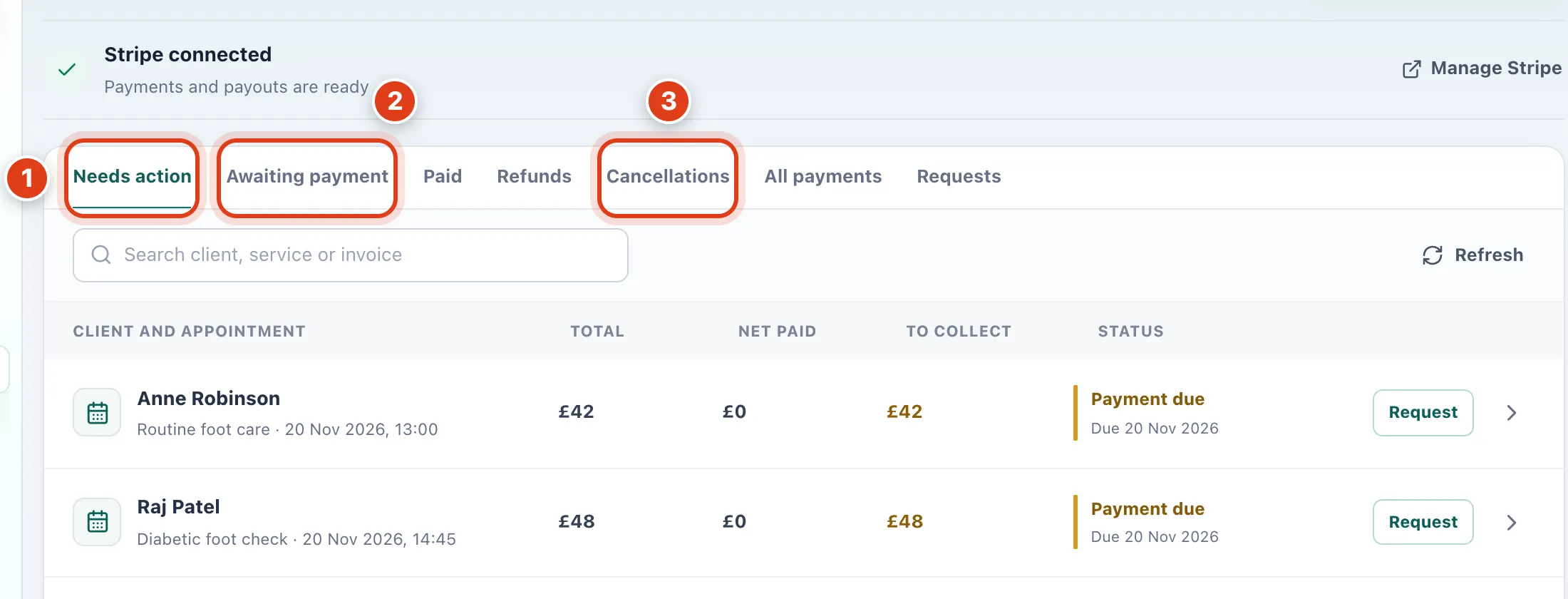
- Needs action lists money due that you haven't asked for, overdue and part paid visits, and failed refunds. For example, Linda Evans's unpaid £35 visit on 12 November shows Payment overdue.
- Awaiting payment lists what you've asked for and isn't paid yet; paid by card, a visit moves to Paid by itself.
- Cancellations lists cancelled visits with money to settle: see How to take deposits and set cancellation rules.
Step 7 Request a payment
Click Request payment, pick the visit and how to send it, then Send payment request.
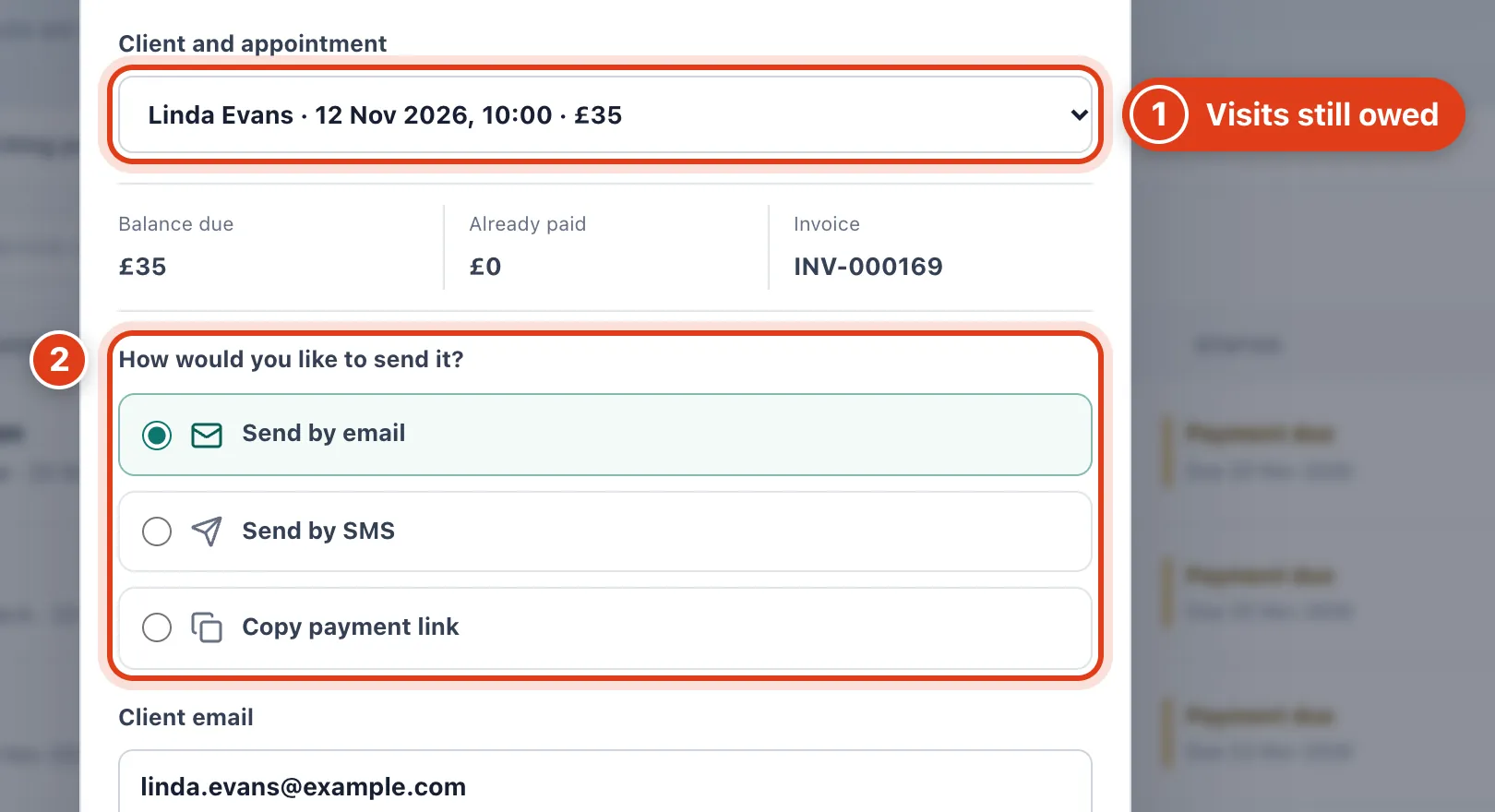
- Client and appointment lists visits with money still due, and the link asks for what's due when it's opened. For example, record £20 cash from Linda Evans and her £35 link asks for £15.
- How would you like to send it? starts on the client's own reminder method, else email; Send by SMS uses your text credits.
Step 8 Record cash or another payment
For money you took another way, click Record payment, then Record payment in the panel.
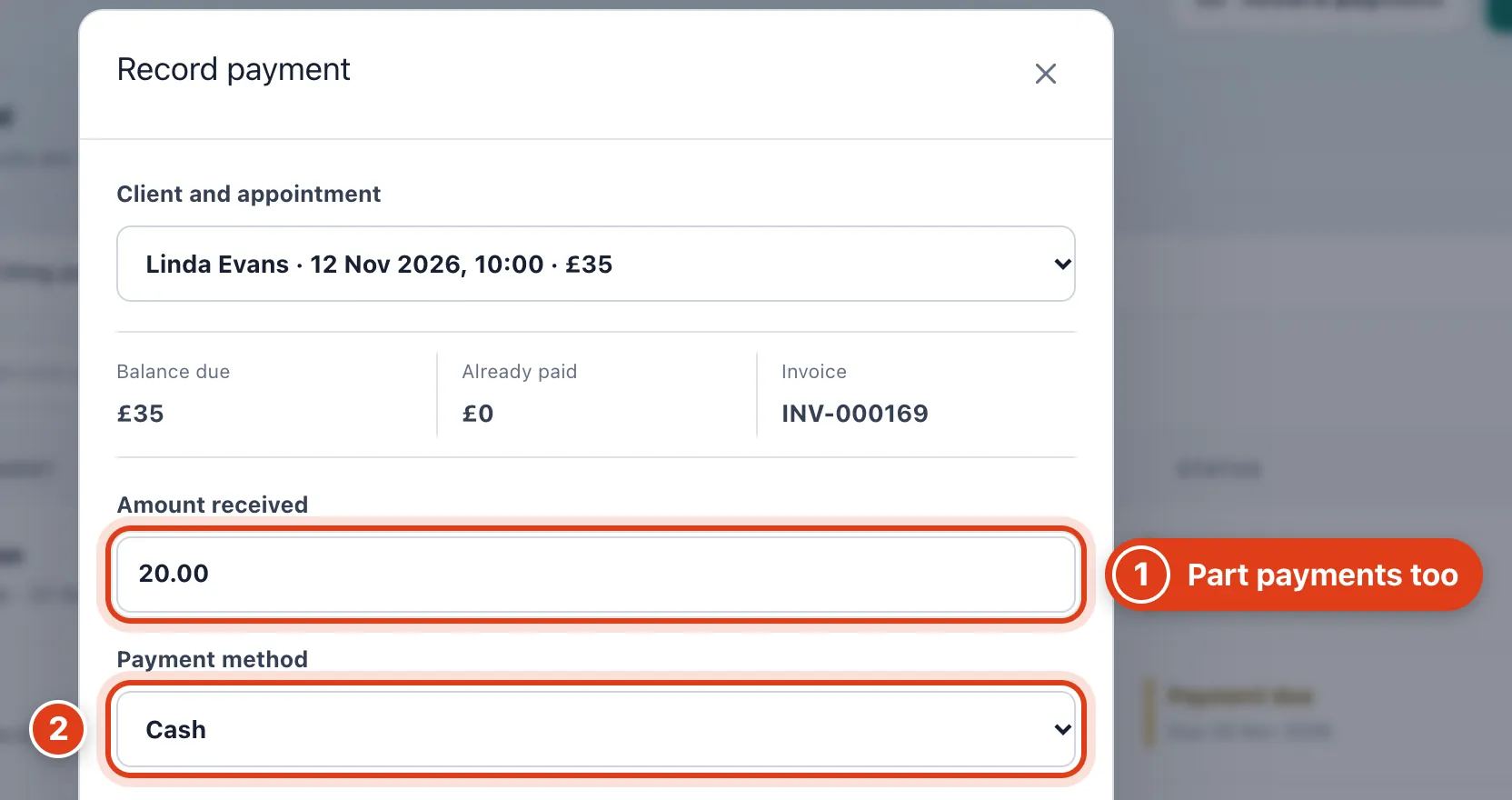
- Amount received can be less than the balance, never more, and the rest stays due. For example, Linda Evans pays £20 of £35 and her visit shows Balance due, £15 remaining.
- Payment method is only for your records: recording a payment moves no money, and Card taken elsewhere means another card machine.
Step 9 Refund a payment
Click the arrow at the end of the visit's row on Paid, then Refund beside the payment under Payment activity.
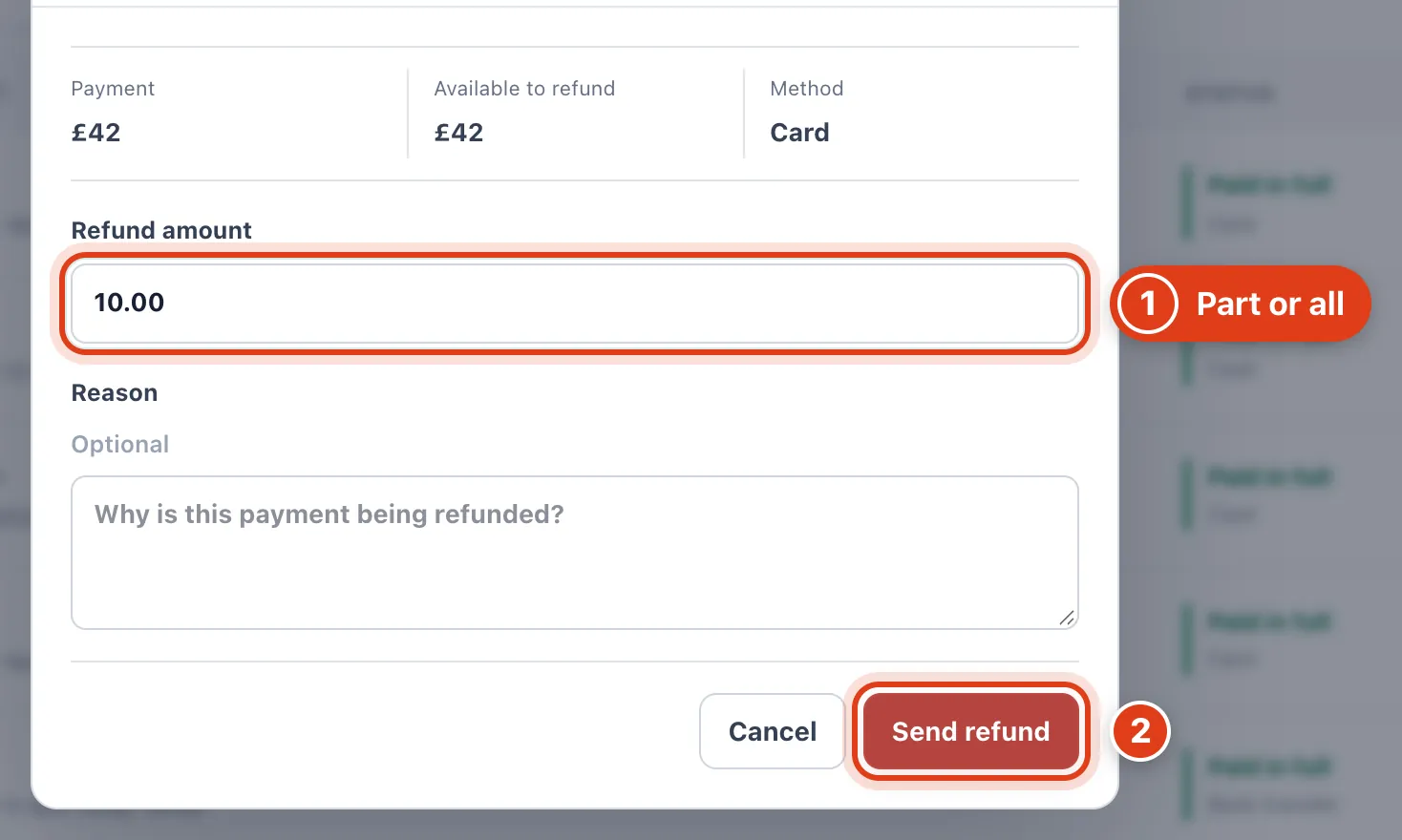
- Refund amount can be part of the payment, up to Available to refund. For example, after £10 back from Joan Whitfield's £42, Available to refund shows £32.
- Send refund returns the money to your client's card through Stripe. A cash payment shows Record refund instead, with I have returned this money to tick once you've paid it back.