
How to sell packages and gift vouchers
Sell packages of visits, monthly memberships and gift vouchers, and use them on visits.
Updated 17 November 2026
Part 1 Set up packages and memberships
Step 1 Create a package
Go to Settings › Packages, click Add package and fill in its Name, Sessions and Price.
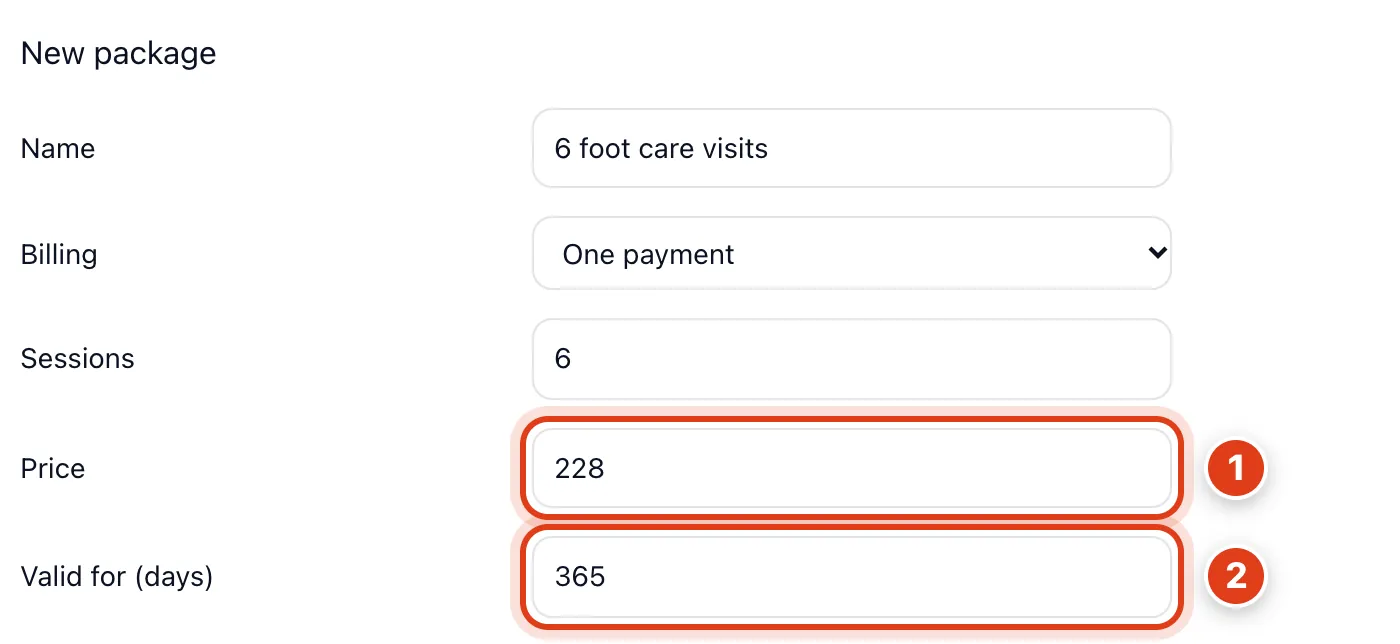
- Price is paid once for all the sessions, and a visit that uses one has nothing to pay for its service: for example, 6 sessions for £228 is £38 a visit instead of £42.
- Valid for (days) counts from the day you sell it and includes the last day: for example, with 365, a package sold on 17 November 2026 covers a visit on 17 November 2027 but not the 18th.
Step 2 Choose what it covers
Tick the Services covered, then Save. To stop selling a package, click Edit beside it and set Sell this package to No, hide it: clients who bought it keep their sessions.
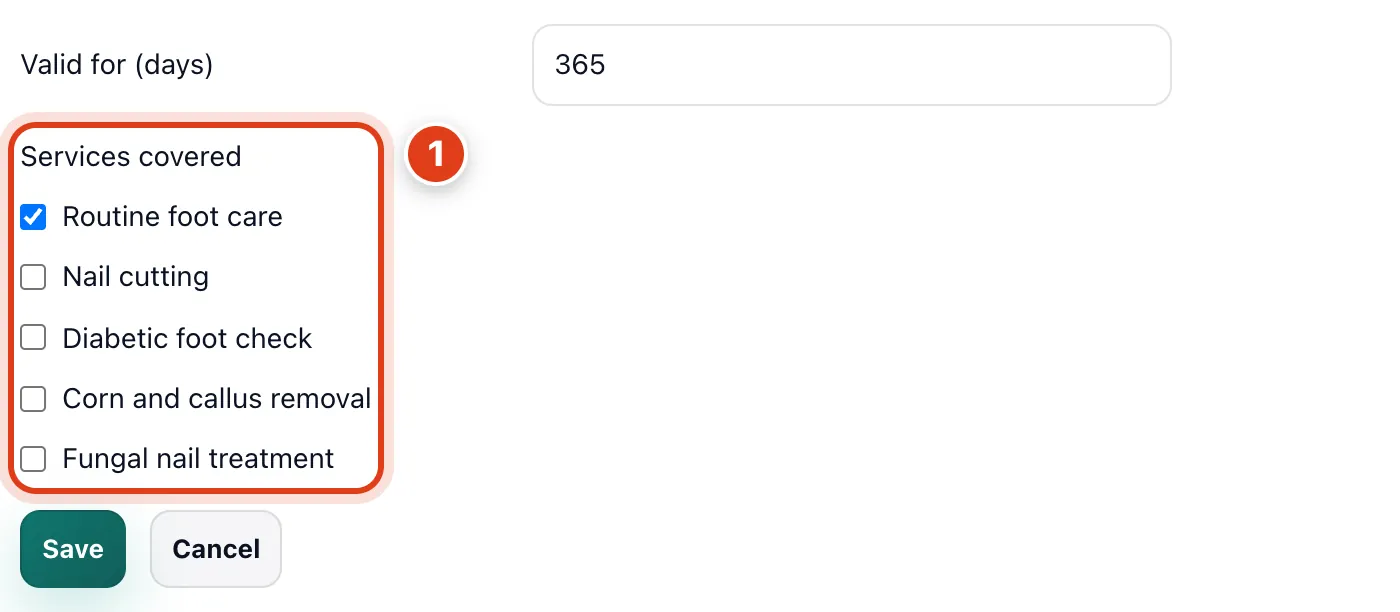
- Services covered lets a visit use a session only for a ticked service, or for any service when none is ticked: for example, with just Routine foot care ticked, a Nail cutting visit costs £35 as usual.
Step 3 Or make it a monthly membership
For a membership, set Billing to Every month, fill in Visits a month and Price a month, tick the Services covered, then Save.
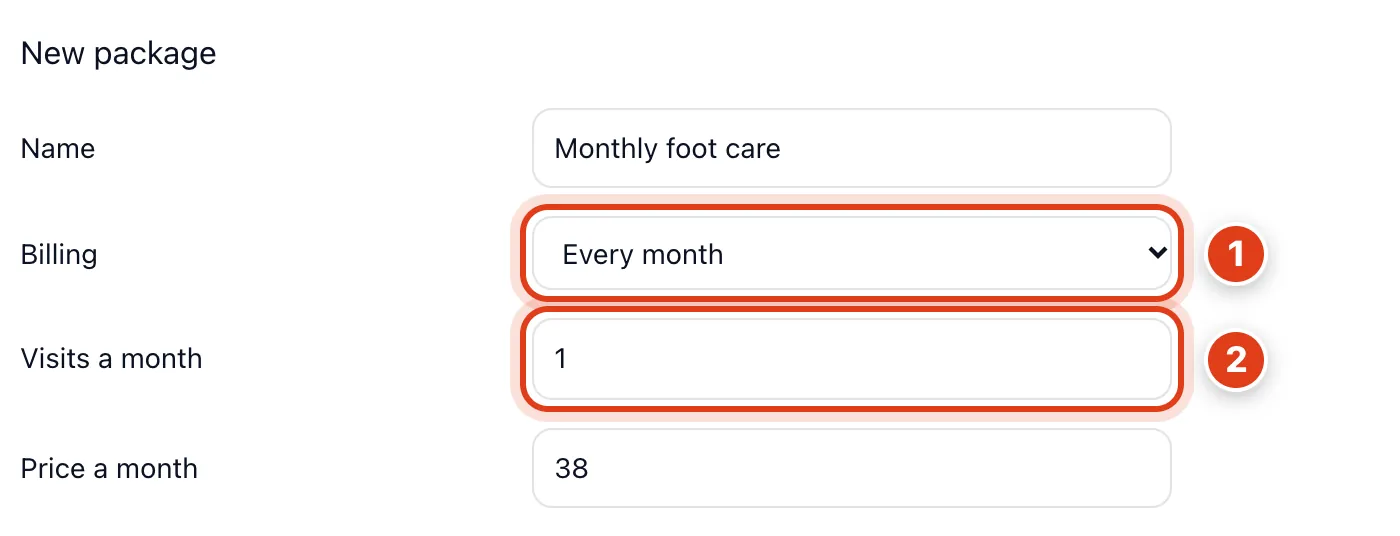
- Billing on Every month makes it a membership with no end date, renewing on the day of the month you sold it, and not sold on your booking page: for example, sold on 17 November, it renews on 17 December.
- Visits a month counts each month on its own, and unused visits don't carry over: for example, with 1, Margaret Hughes can use one visit from 17 November to 16 December and one more from 17 December.
Part 2 Sell them and use a session
Step 4 Sell a package to a client
On the client's page, open Packages, click Sell package, choose the package and how they paid, then Sell. With card payments set up, clients can also buy a One payment package under Packages on your booking page.
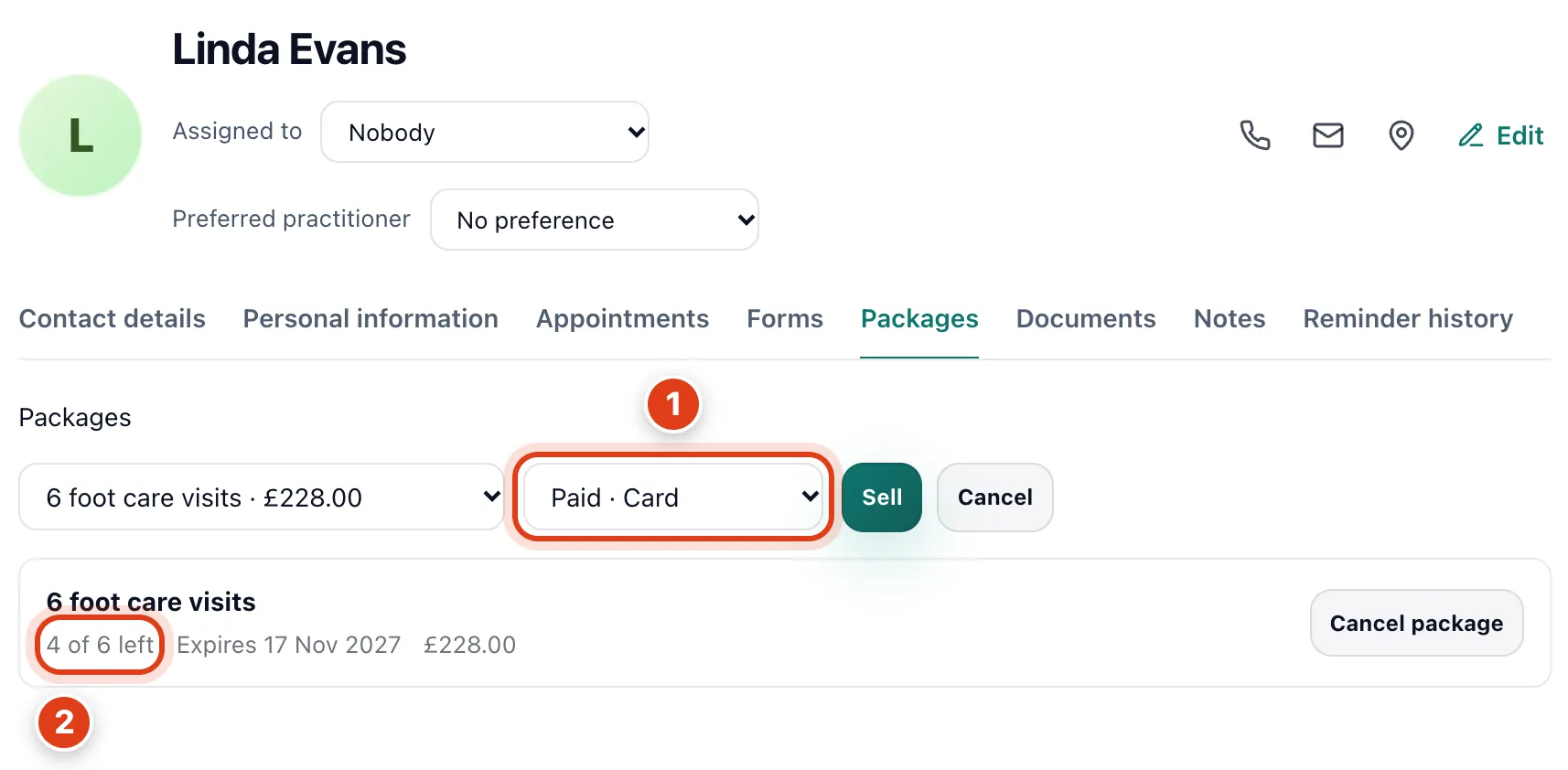
- Paid puts the price into your income the day it's paid; Not paid yet shows Not paid until you click Mark paid: for example, sold on 17 November and paid in cash on the 20th, £228 counts on the 20th.
- 4 of 6 left counts down as visits use sessions, from the package as sold: for example, if you change it to 10 sessions later, Linda Evans still has 4 of 6.
Step 5 Take a membership's monthly payment
Take each month's payment for a membership on the client's Packages tab. Cancel package on a package of sessions ends it at once: the sessions left can't be used and nothing is refunded.
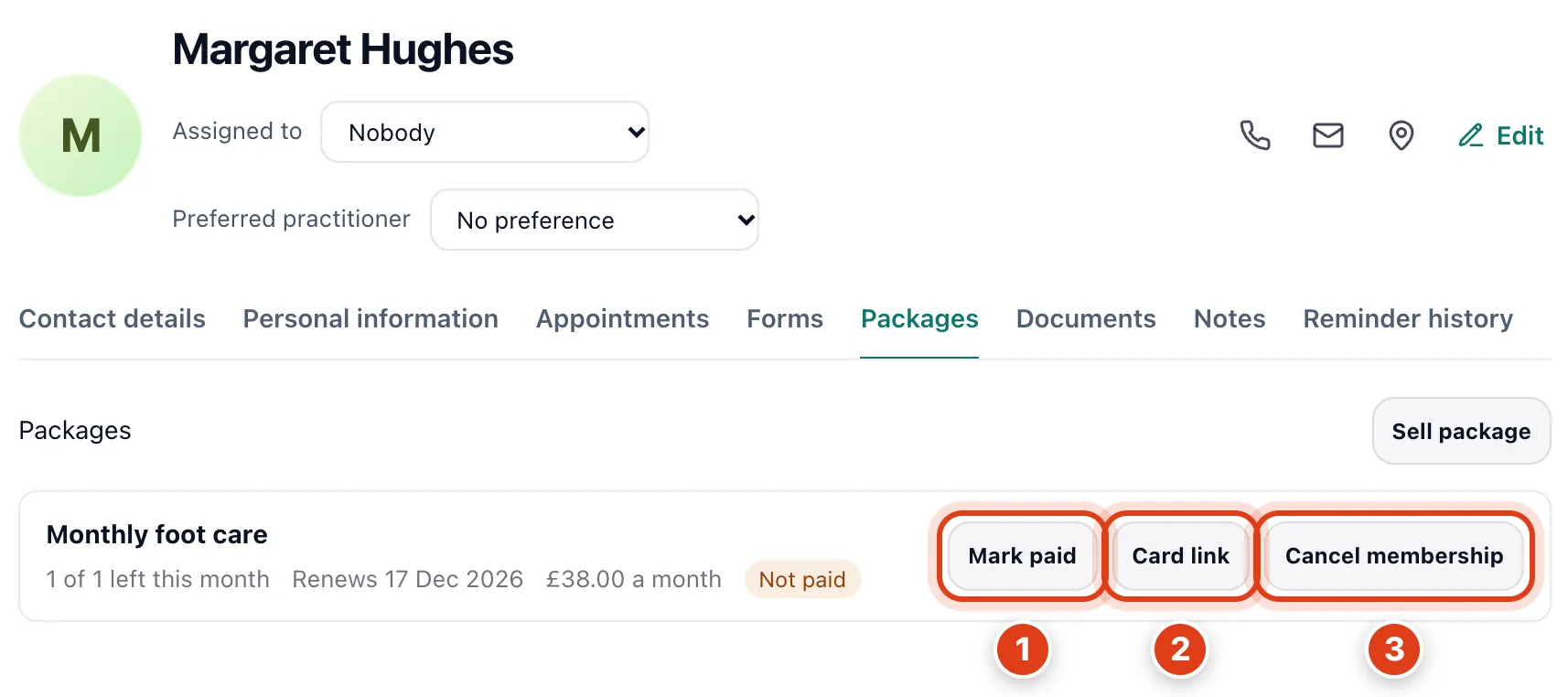
- Mark paid pays the current month only, so Not paid comes back when the next one starts: for example, Margaret Hughes's £38 covers 17 November to 16 December, then is due again on 17 December.
- Card link (with card payments set up) is a link your client opens to pay by card every month; if this month is paid, the first charge is on the Renews day: for example, 17 December.
- Cancel membership ends it after the current month: for example, cancelled on 1 December, Margaret Hughes's membership still covers a visit up to 16 December.
Step 6 Use a session on a visit
Open the client's visit and click Use package session: it then shows Session 3 of 6. Undo, or cancelling the visit, gives the session back; when two of their packages cover it, the one that runs out first is chosen.
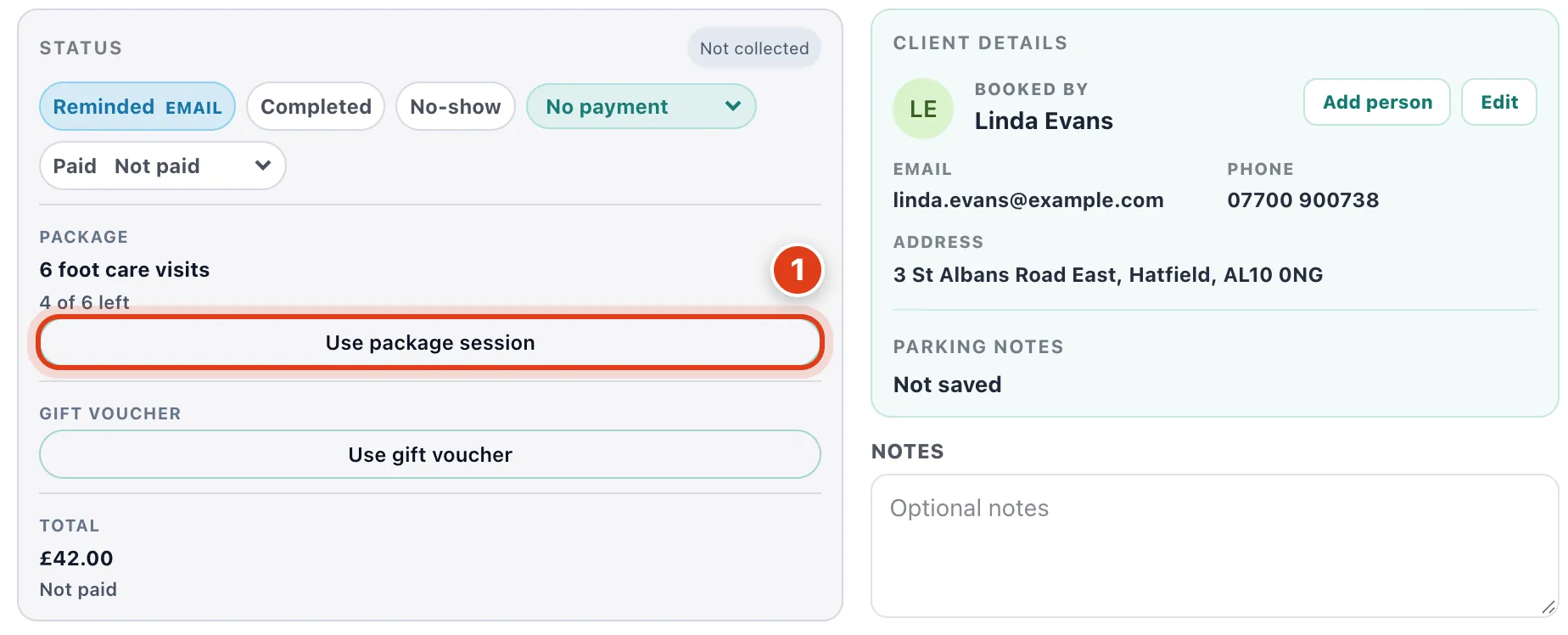
- Use package session takes the covered service off the visit's invoice, while add ons and travel stay to pay: for example, it takes £42 off Linda Evans's Routine foot care visit, leaving nothing to pay.
Part 3 Gift vouchers
Step 7 Sell gift vouchers on your booking page
Go to Settings › Gift vouchers, turn on Sell online, choose the Amounts and Valid for, then Save.
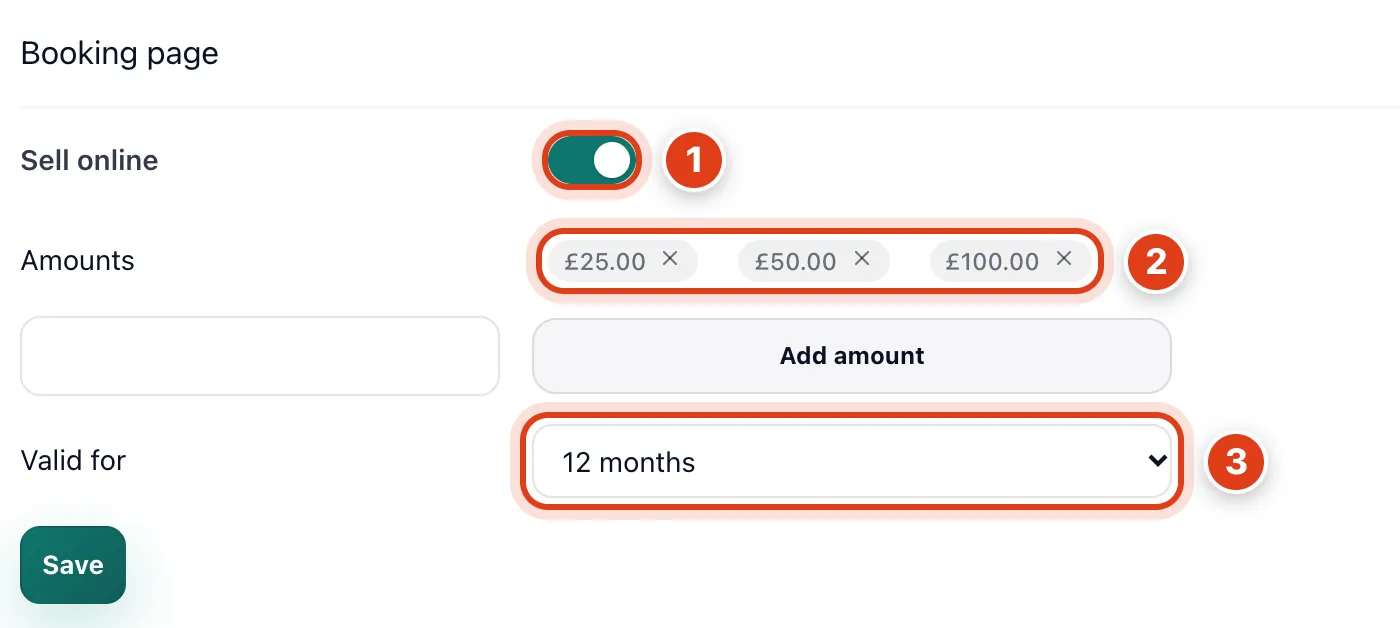
- Sell online adds Gift vouchers to your booking page once card payments are set up: clients pay by card, and the code is emailed to the person it's for, or else to the buyer.
- Amounts are the only values clients can choose, up to 6: for example, add £42 so a voucher pays for one Routine foot care.
- Valid for counts from the day a voucher is bought and includes the last day: for example, with 12 months, a voucher bought on 17 November 2026 works until 17 November 2027.
Step 8 Sell a gift voucher yourself
To sell one yourself, click Sell gift voucher, fill it in, then Sell. Valid for works as for online sales.
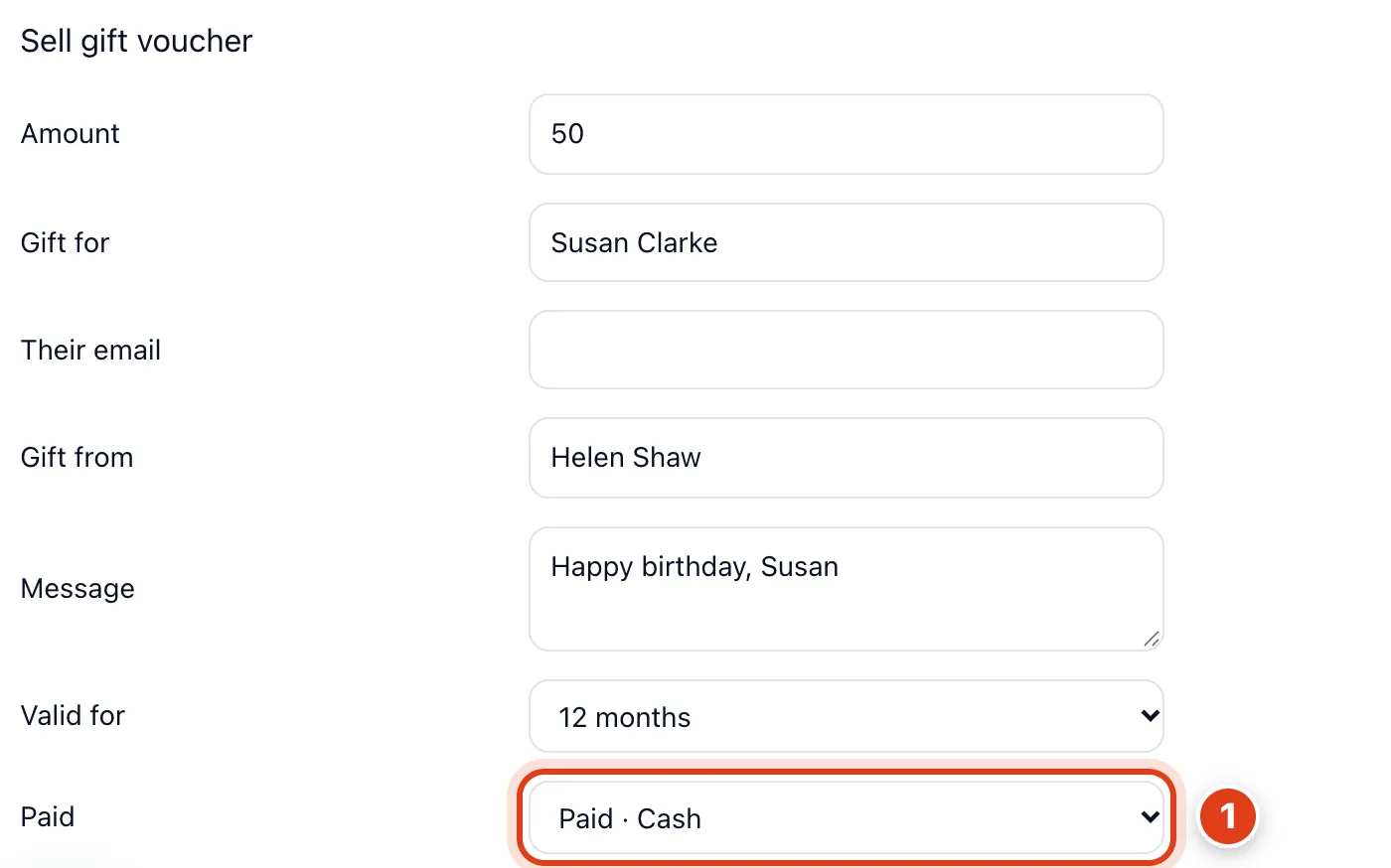
- Paid puts the amount into your income that day, except Free; a Not paid yet voucher's code won't work until you click Mark paid: for example, Susan Clarke can't spend it until Helen Shaw pays.
Step 9 Give your client the code
The voucher opens after Sell: click Copy and give your client the Code. To find it later, click Open beside it in the list. Void voucher stops the code working at once; nothing is refunded.
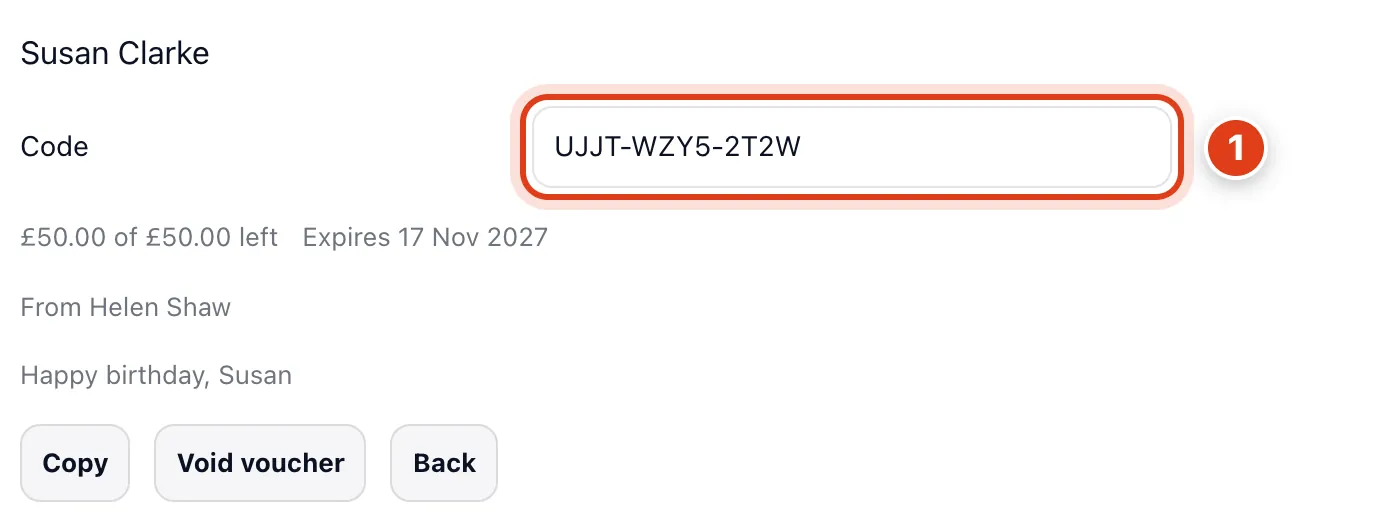
- Code is what your client gives you to pay for a visit, or types at Have a gift voucher? when they book online once card payments are set up.
Step 10 Use a gift voucher on a visit
Open the client's visit, click Use gift voucher, type the Code, then click Use. The voucher's box lists each visit it paid.
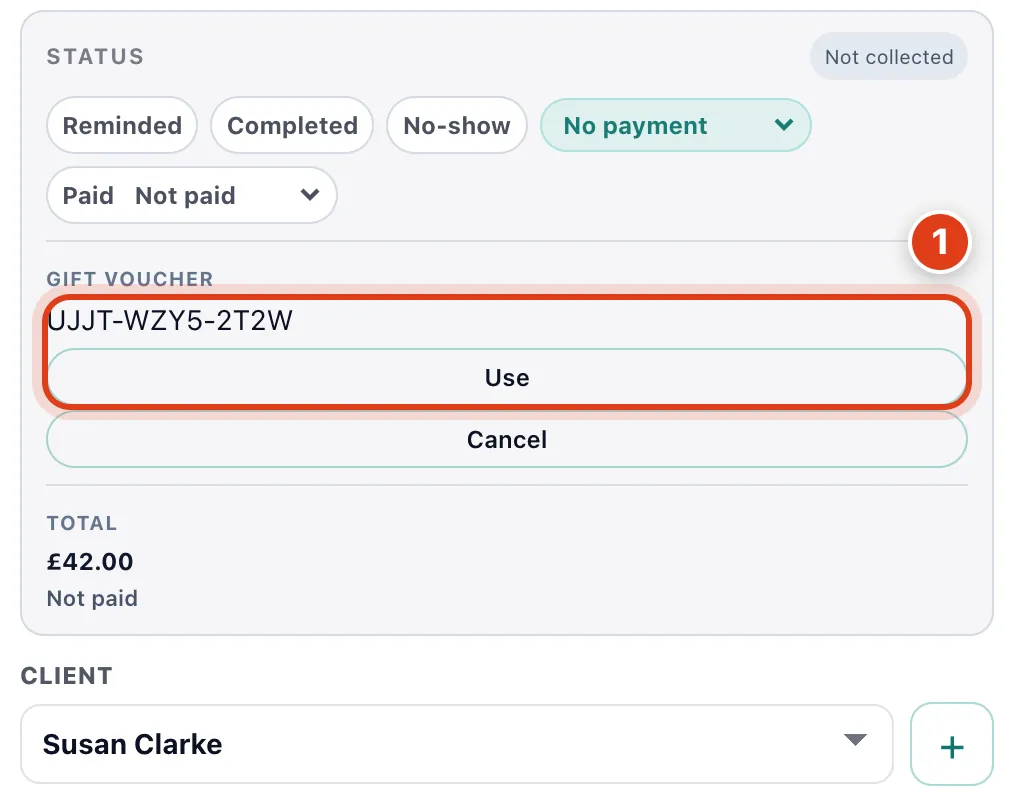
- Use pays the voucher's balance or what's left to pay, whichever is less: for example, Susan Clarke's £50 voucher pays a £42 Routine foot care in full and keeps £8 for next time.