
How to send invoices and get paid
Check, send and get paid for your invoices.
Updated 16 November 2026
Part 1 Check and send an invoice
Step 1 Find an invoice
Go to Invoices. Every visit you book gets its own invoice straight away, at the visit's price. Click one to open it; on the calendar, Invoice in a visit's panel opens it too.
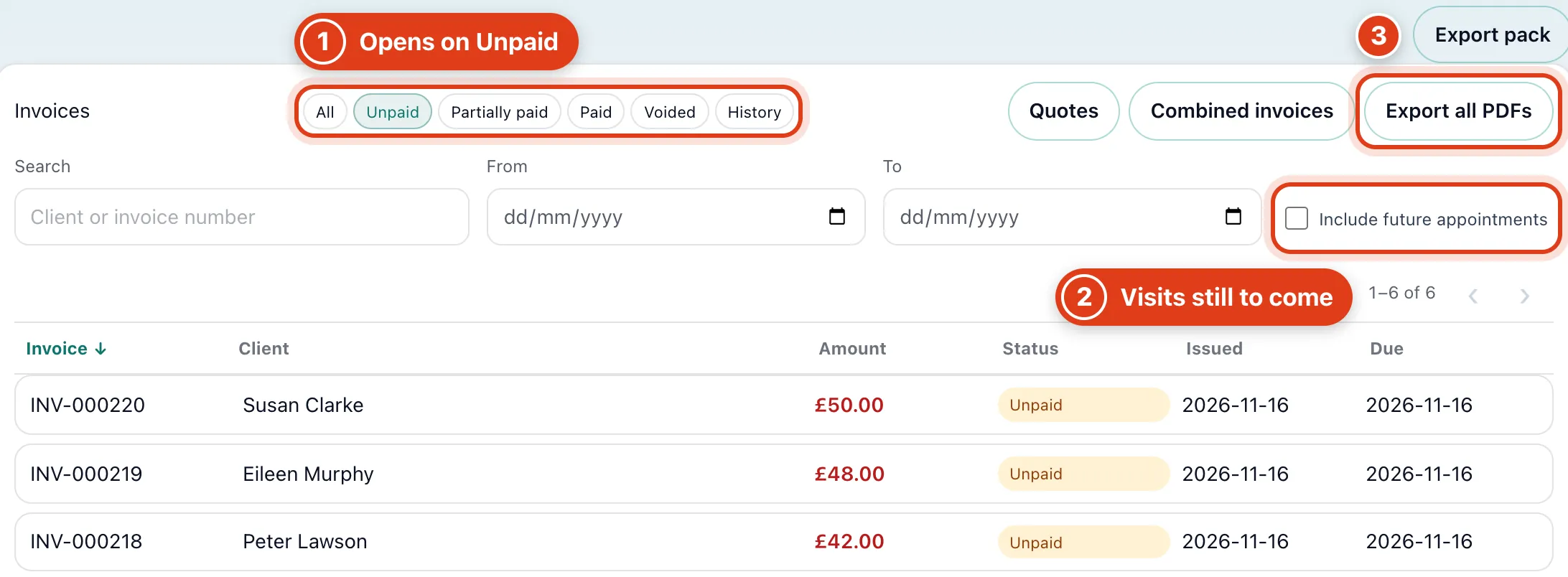
- The list opens on Unpaid; History lists the invoices you have emailed, with who got each one and when.
- Include future appointments shows invoices for visits after today. For example, Linda Evans's visit on 19 November is already invoiced but only listed from that day unless you tick it.
- Export all PDFs downloads every invoice as PDFs in one zip file, whatever the list shows: for example, with Unpaid on, the paid and voided ones come too.
Step 2 Check what's due
Open the invoice and click Details to see what the client owes and what you made on the visit.
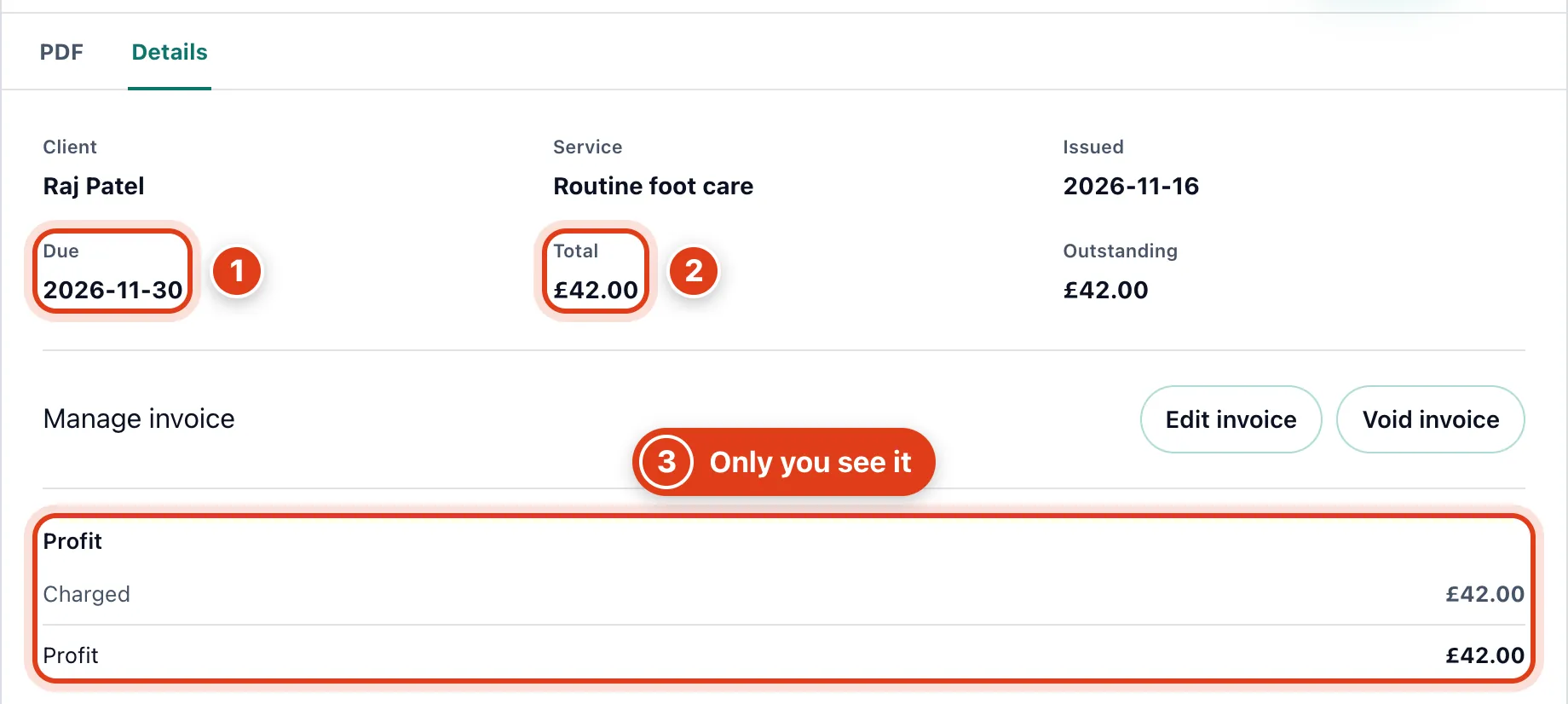
- Due is the visit day plus your Payment due days (Part 3). For example, with 14 days, a visit on 16 November is due on 30 November.
- Total is what the client pays. For example, if you charge VAT (Settings › Taxes) with prices including it, £42 is £35.00 plus £7.00 VAT.
- Profit is the total less VAT, parts at their stock price and expenses or mileage logged against the visit. For example, £42 with a £3.50 expense logged against it shows £38.50.
Step 3 Change the amount, items or who pays
Click Edit invoice, change what you need, then Save changes. An unpaid invoice follows its visit: change Raj Patel's visit to Nail cutting and it becomes £35.00.
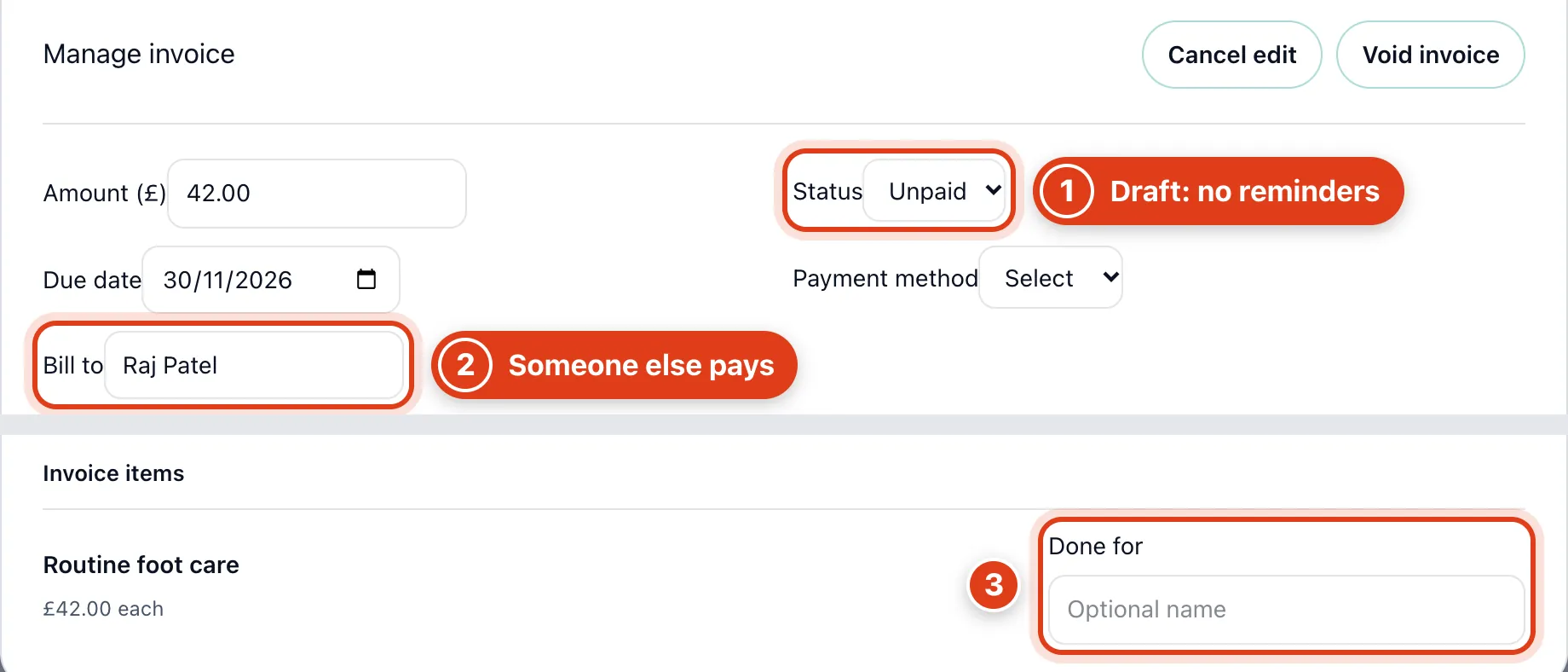
- Status set to Draft holds back the invoice's payment reminders until you set it to Unpaid again.
- Bill to makes another client pay. For example, bill it to Linda Evans: she gets the email and the link, and the PDF says Visit for Raj Patel.
- Done for adds a name to the line on the PDF. For example, Margaret Hughes makes it read Routine foot care for Margaret Hughes.
Step 4 Email it
Click Send, check the email, then Send invoice. To email invoices automatically, see Part 3.
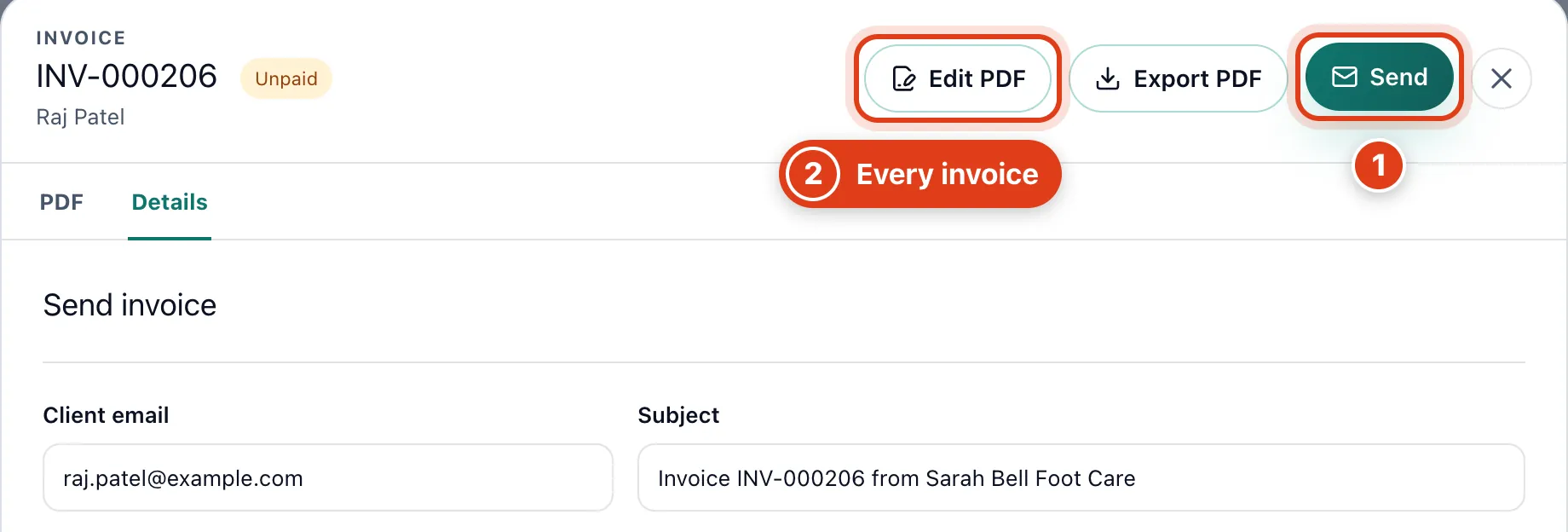
- Send invoice emails the PDF and a link to view it online to whoever pays. For example, billed to Linda Evans, Raj Patel's invoice goes to Linda.
- Edit PDF sets the look and wording of every invoice, not just this one: for example, a logo you add there shows on all of them.
Part 2 Get paid
Step 5 Record a payment
When a client pays you directly (cash, card machine or bank transfer), click Enter payment, then Record payment.
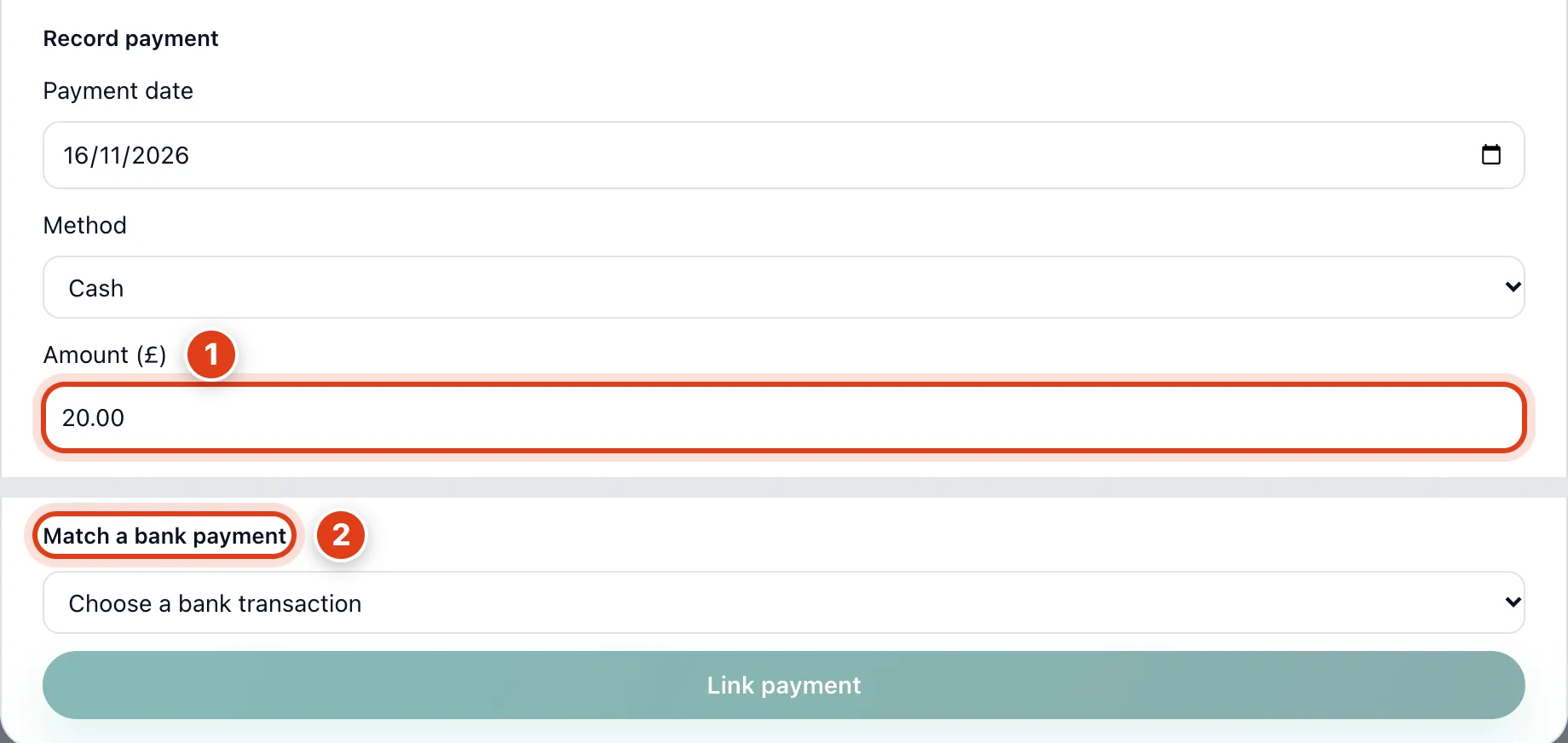
- Amount (£) starts at what's still due; type less for a part payment. For example, £20 of Raj Patel's £42 makes it Partially paid with £22.00 outstanding.
- Match a bank payment links a payment from your connected bank instead of typing it: see Connect your bank and match payments.
Step 6 Void an invoice you won't charge
Click Void invoice and give a reason. Unvoid invoice brings it back.
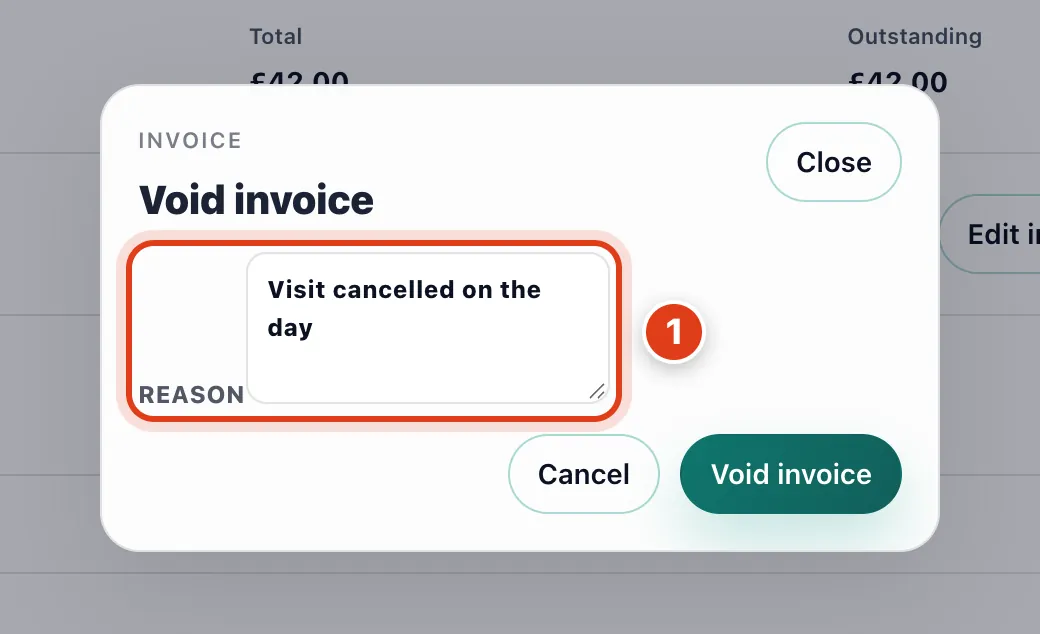
- Reason is kept in the invoice's Audit trail. Voiding stops its reminders and its payment link; with a payment recorded, for example £20 of £42, reverse the £20 first.
Step 7 Put several visits on one invoice
Click Combined invoices, then Combine visits, choose the client, tick their visits and click Create invoice. Its Mark paid then pays every visit on it.
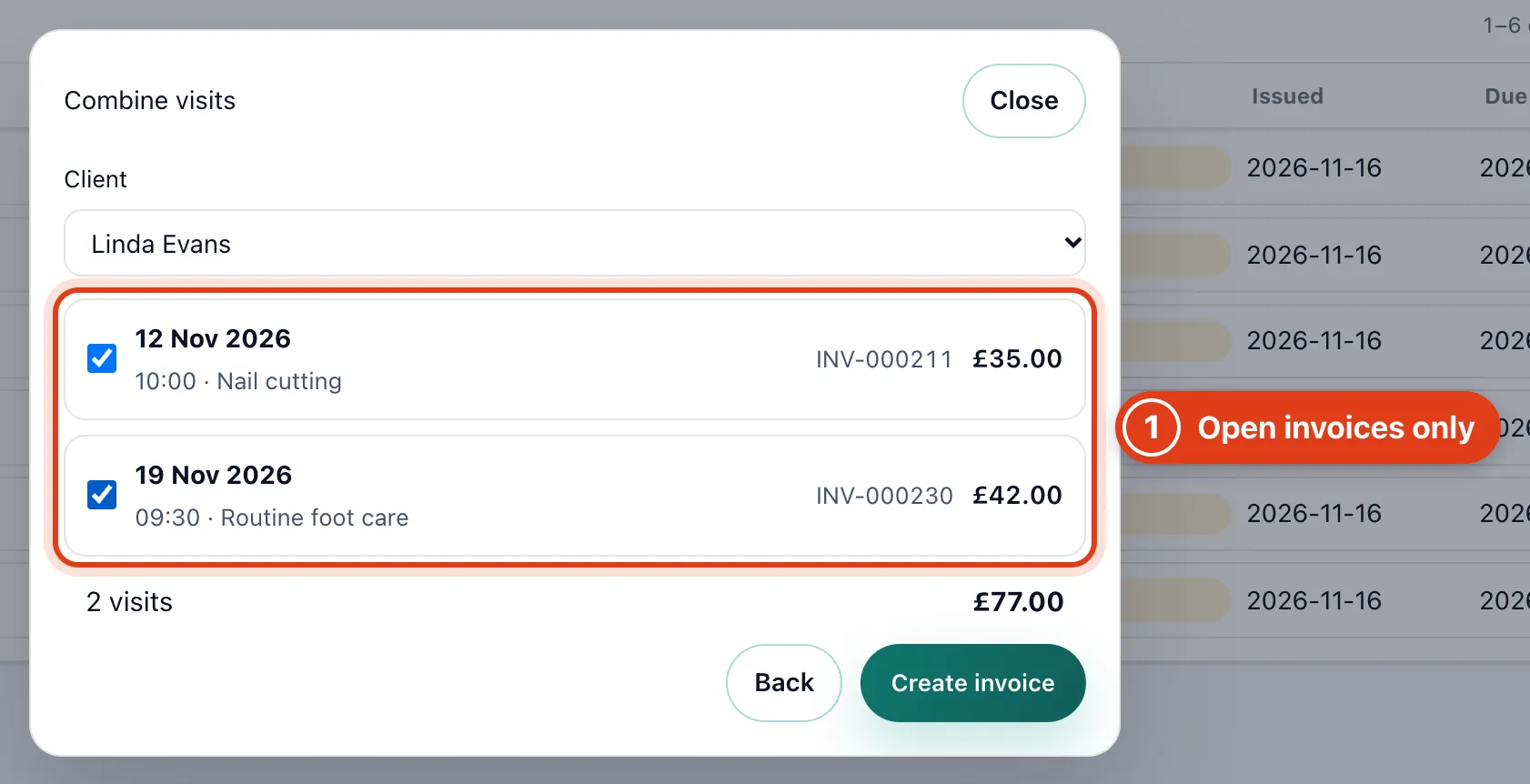
- Combined invoices puts a client's open visit invoices on one invoice with one number, total and PDF. For example, Linda Evans's £35 Nail cutting and £42 Routine foot care become one £77 invoice.
Part 3 Due dates, emails and reminders
Step 8 Set numbering, due dates and receipt wording
Go to Settings › Invoices, set how invoices are numbered and when they are due, then Save.
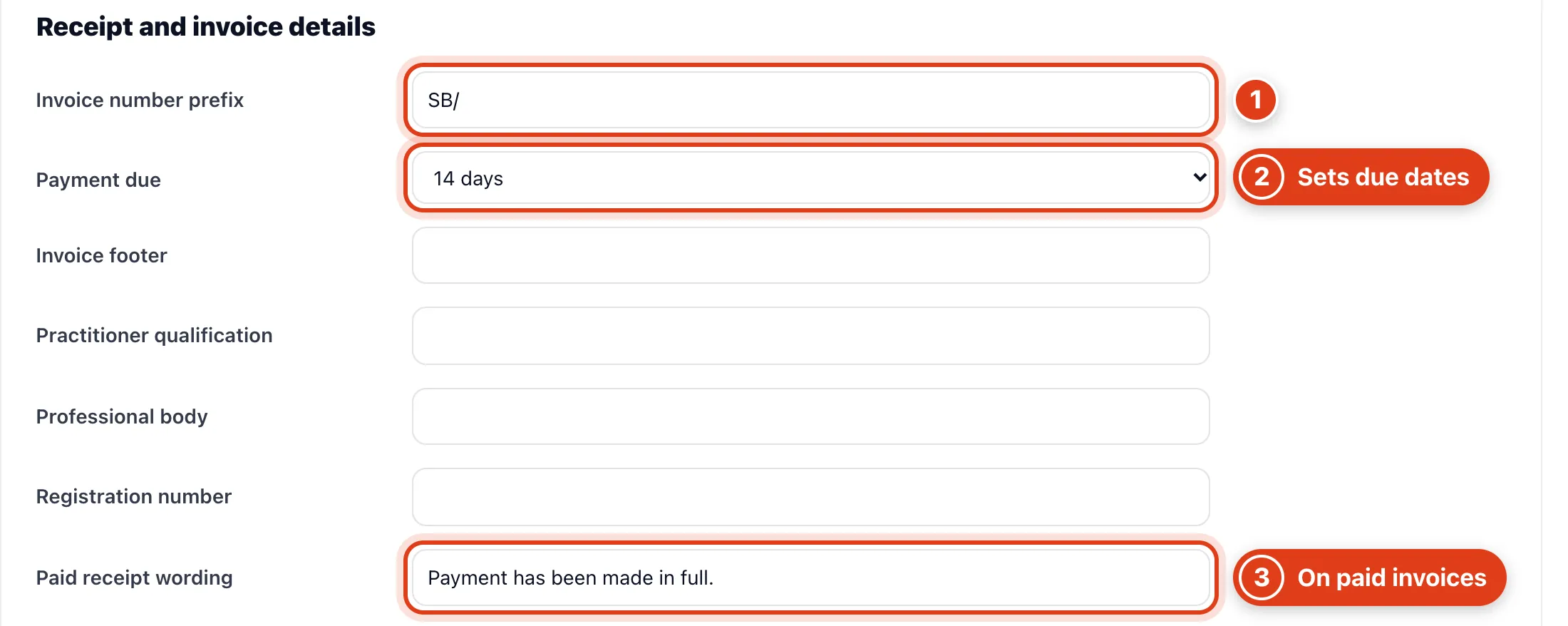
- Invoice number prefix goes in front of every invoice number, old ones too. For example, with SB/, Raj Patel's invoice becomes SB/000206.
- Payment due sets each new invoice's due date this many days after the visit. For example, with 14 days, a visit on 19 November is due on 3 December.
- Paid receipt wording prints under Payment confirmation on the PDF once an invoice is paid in full. For example, after Raj Patel pays his £42 it says Payment has been made in full.
Step 9 Give a team member their own numbers
Under Team, click Edit beside a team member, then Save.
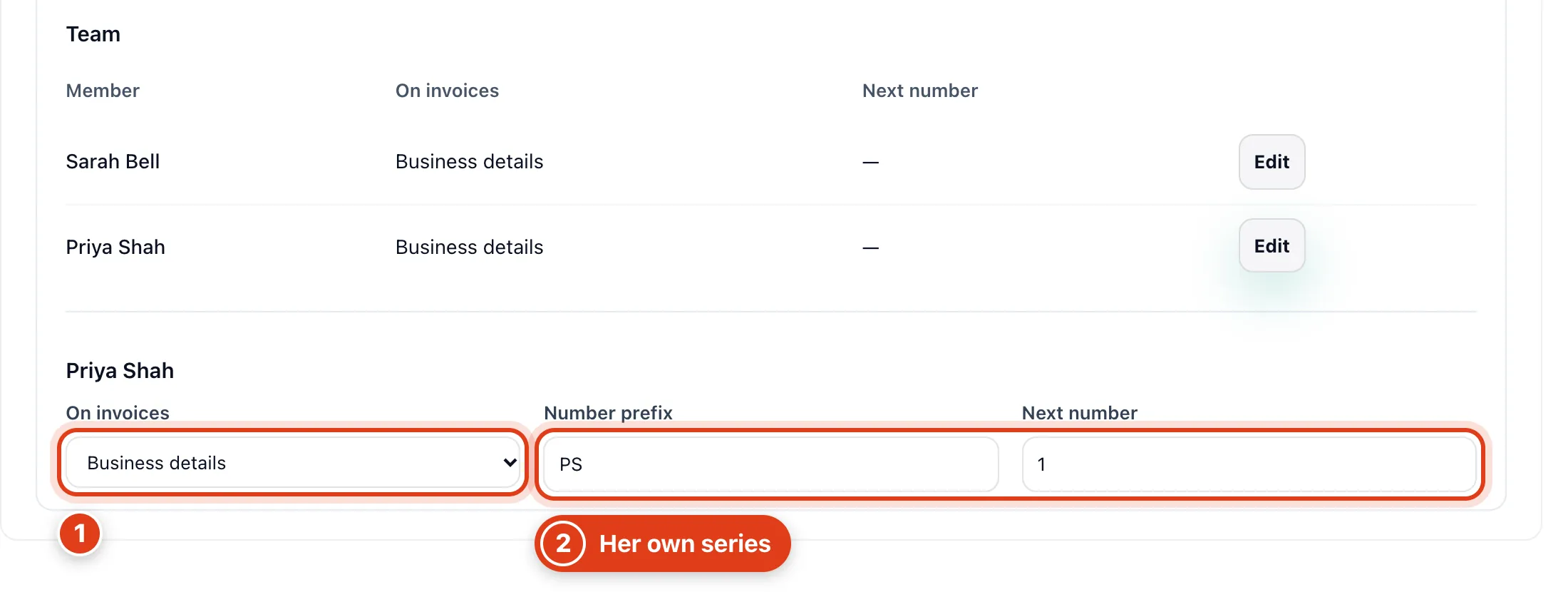
- On invoices set to Member's own details prints their trading name, address, VAT number, bank details and footer on their visits' invoices: for example, Priya Shah's clients see her sort code.
- Number prefix and Next number give them their own series. For example, with PS and 1, Priya Shah's next visits are invoiced as PS1, then PS2.
Step 10 Choose when invoices are emailed
Go to Settings › Payment reminders and choose how invoices go out, then Save.
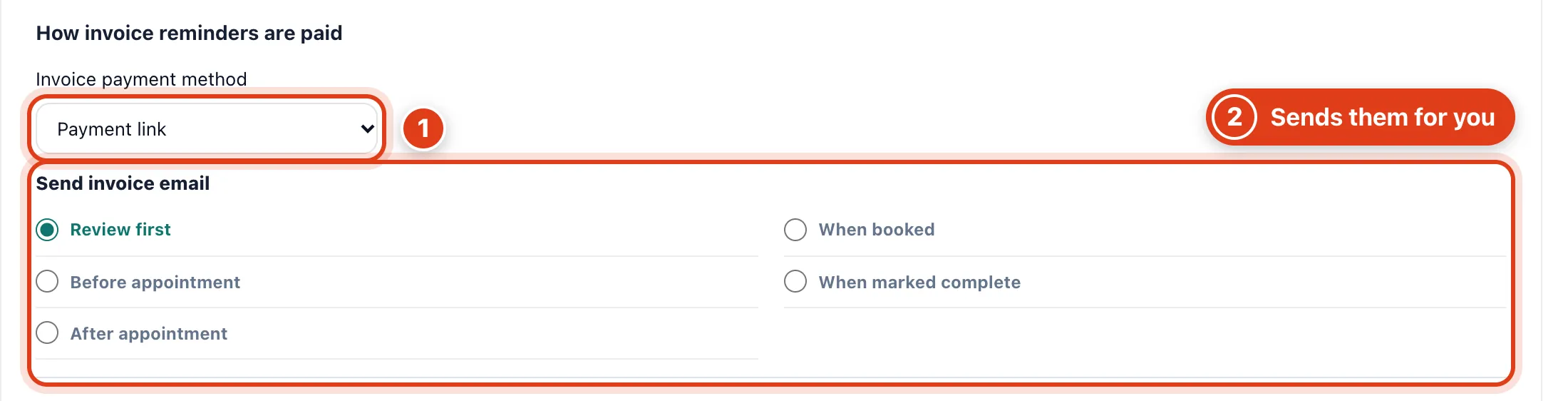
- Invoice payment method: Payment link lets clients pay by card and needs card payments set up; for example, with Bank transfer, Raj Patel's reminder shows your sort code and account number.
- Send invoice email: Review first sends nothing until you click Send. For example, When marked complete emails Raj Patel's invoice as soon as his visit is marked Completed.
Step 11 Chase unpaid invoices
Turn on Invoice reminders and choose when they go.
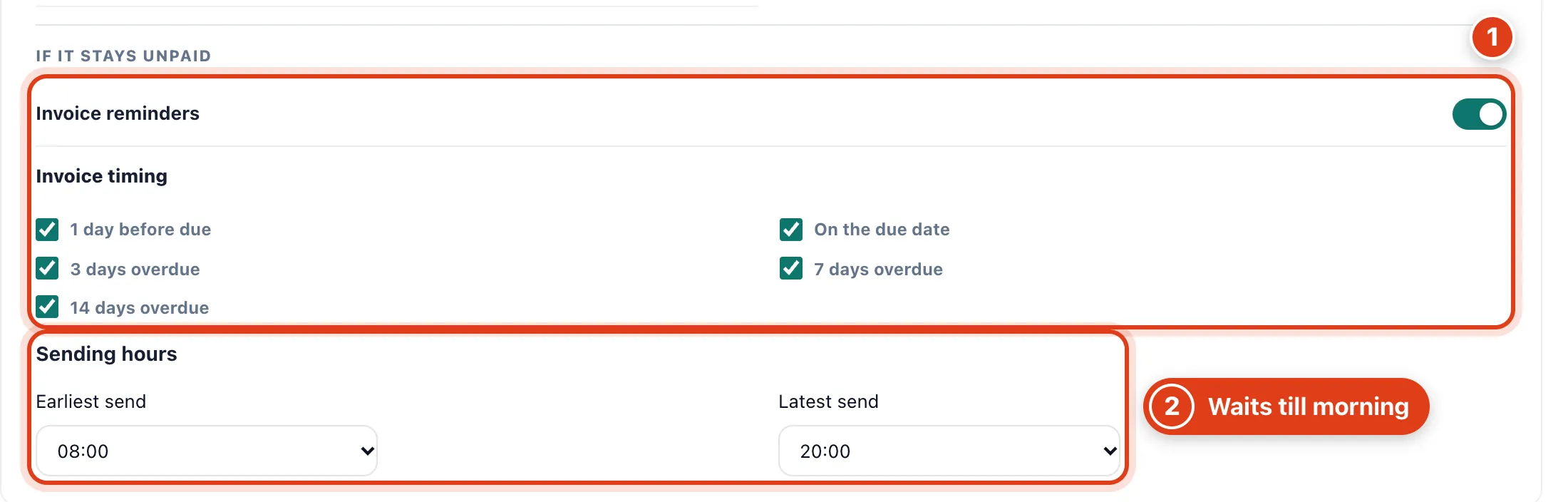
- Invoice reminders chase unpaid invoices for visits marked Completed and stop once paid. For example, Raj Patel's £42 due 30 November gets one on 29 and 30 November, then 3, 7 and 14 December.
- Sending hours keep every invoice email and reminder within these hours. For example, an invoice due to go at 20:30 goes at 08:00 the next morning.