
How to use Today and Tasks
Start your day on Today and clear what needs attention on Tasks.
Updated 17 November 2026
Part 1 Your day
Step 1 Choose whose day you see
Go to Today. In a team account, choose whose visits to see in Whose day, and clock in when you start work.

- Whose day starts on your own visits if you take appointments, else on Everyone. For example, Sarah Bell takes appointments, so Today opens on You; pick Priya Shah to see hers.
- Clock in adds each shift to Settings › Timesheets with its pay. For example, Priya Shah clocks in at 08:45 and out at 17:15: at £12.00 an hour that's 8 hours 30 minutes, £102.00.
Step 2 Tick off today's visits
In Today's schedule, mark each visit Reminded or Completed and choose how it was paid; each saves as you click. Navigate on Next appointment opens Google Maps directions to the visit.
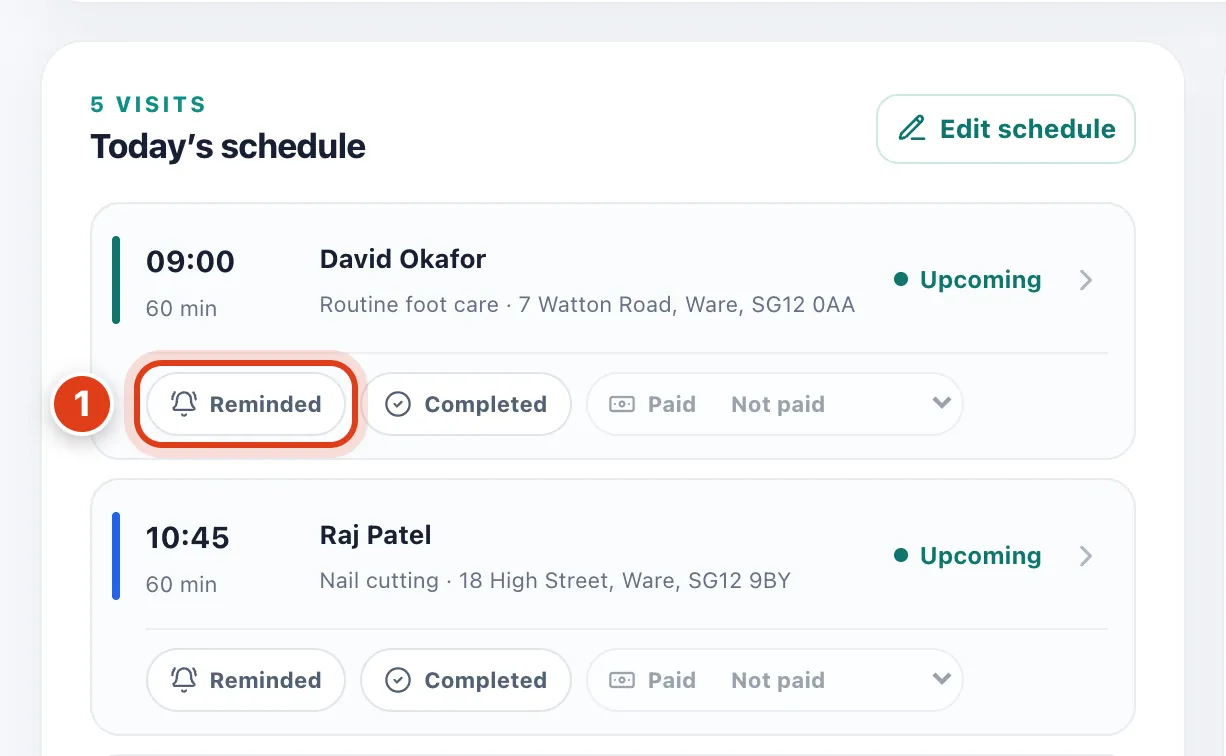
- Reminded records that you reminded the client yourself and clears their Remind task under Needs attention. For example, ring Dorothy Ward on her landline before today's visit, then click it.
Step 3 Post to your team
In a team account, click New message on the Message board to post to your team. A member whose Today board access is Read can read posts but not post or reply.
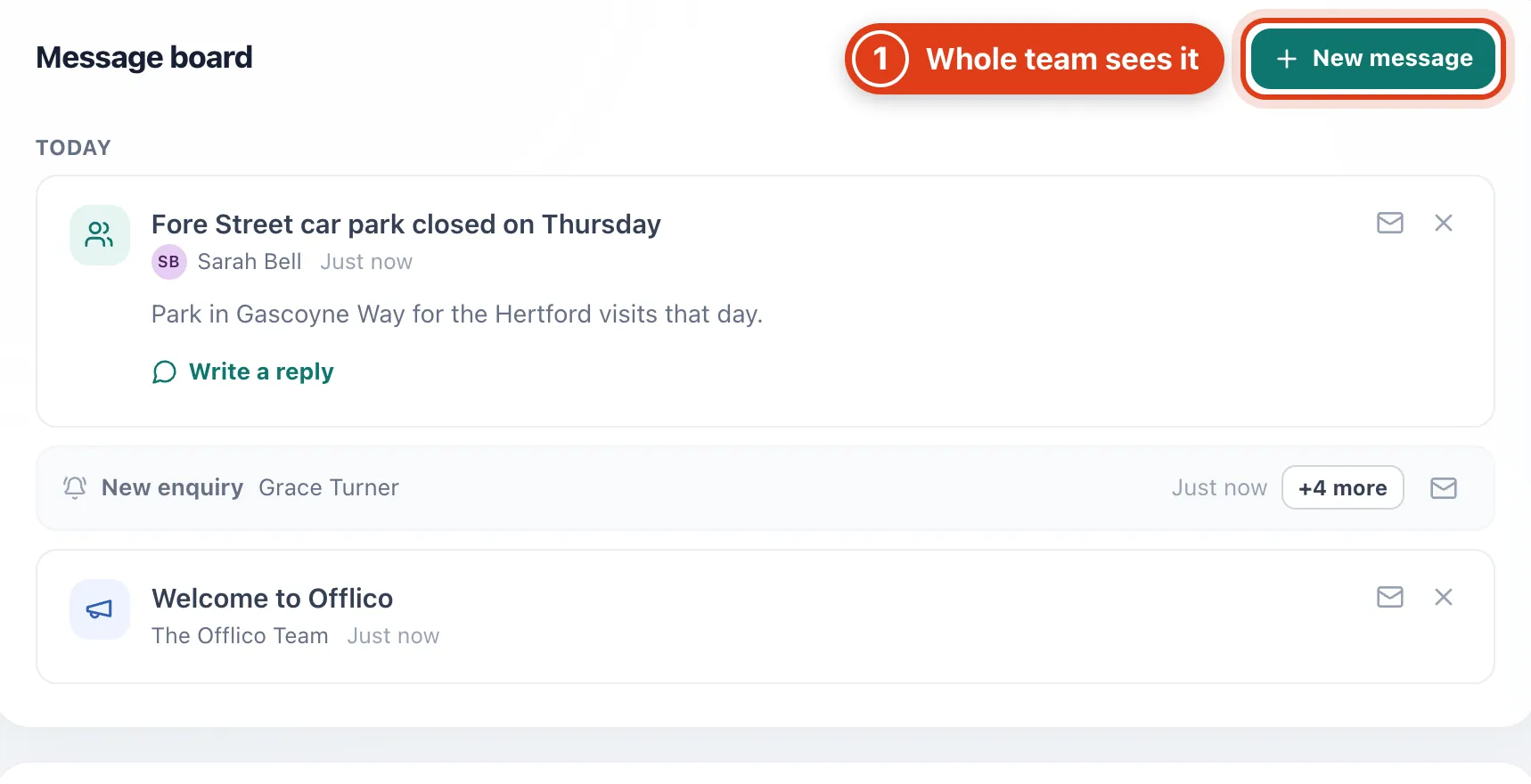
- New message posts to the Message board of everyone in your business. For example, post "Fore Street car park closed on Thursday" and Priya Shah sees it on her Today.
Part 2 What needs attention
Step 4 See what needs doing
Needs attention lists what Offlico has spotted: visits to complete or confirm, clients to remind or reply to, money to chase and checks on your account. Today shows the first five; See all lists every one on Tasks.
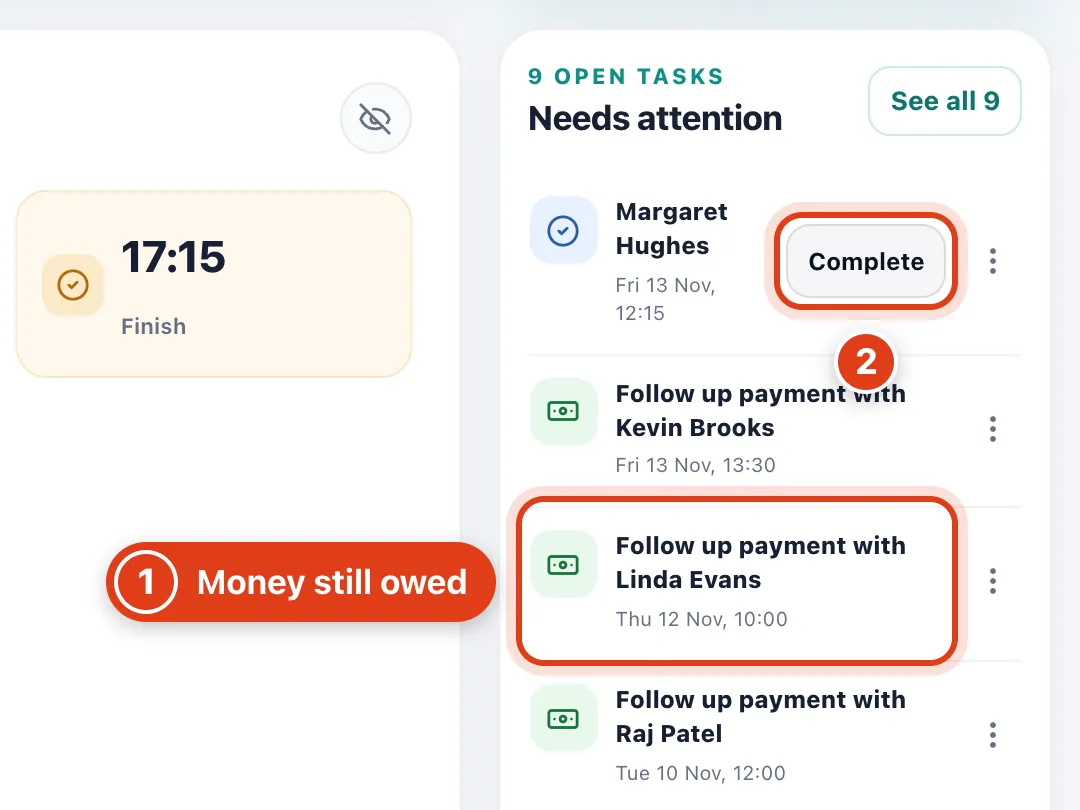
- Follow up payment comes from a visit marked Completed with money still owed. For example, Linda Evans's Nail cutting on Thursday 12 November shows here; recording her payment clears it.
- Complete shows on a visit still open after its end time. For example, Margaret Hughes's 60 minute visit at 12:15 on Friday 13 November shows here from 13:15 until it's marked Completed.
Step 5 Put a task off until tomorrow
Click the More options dots beside a task and choose Snooze until tomorrow, or mark it done.
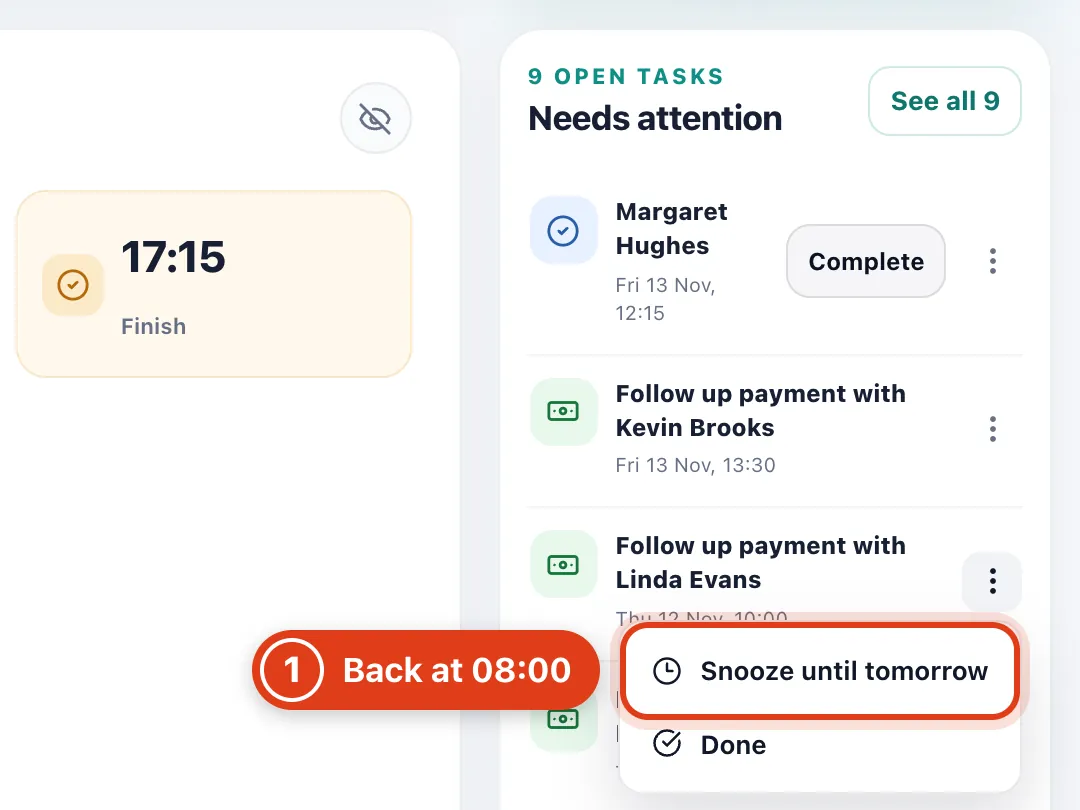
- Snooze until tomorrow hides the task until 08:00 the next morning. For example, snoozed at 10:15 on Monday, Follow up payment with Linda Evans waits under Snoozed on Tasks until 08:00 on Tuesday.
Step 6 Work through the full list
On Tasks, tasks are grouped Overdue, Today and Upcoming; tick several to snooze them or mark them done together. Snoozed, done and deleted tasks fold away at the bottom, where Restore brings one back.
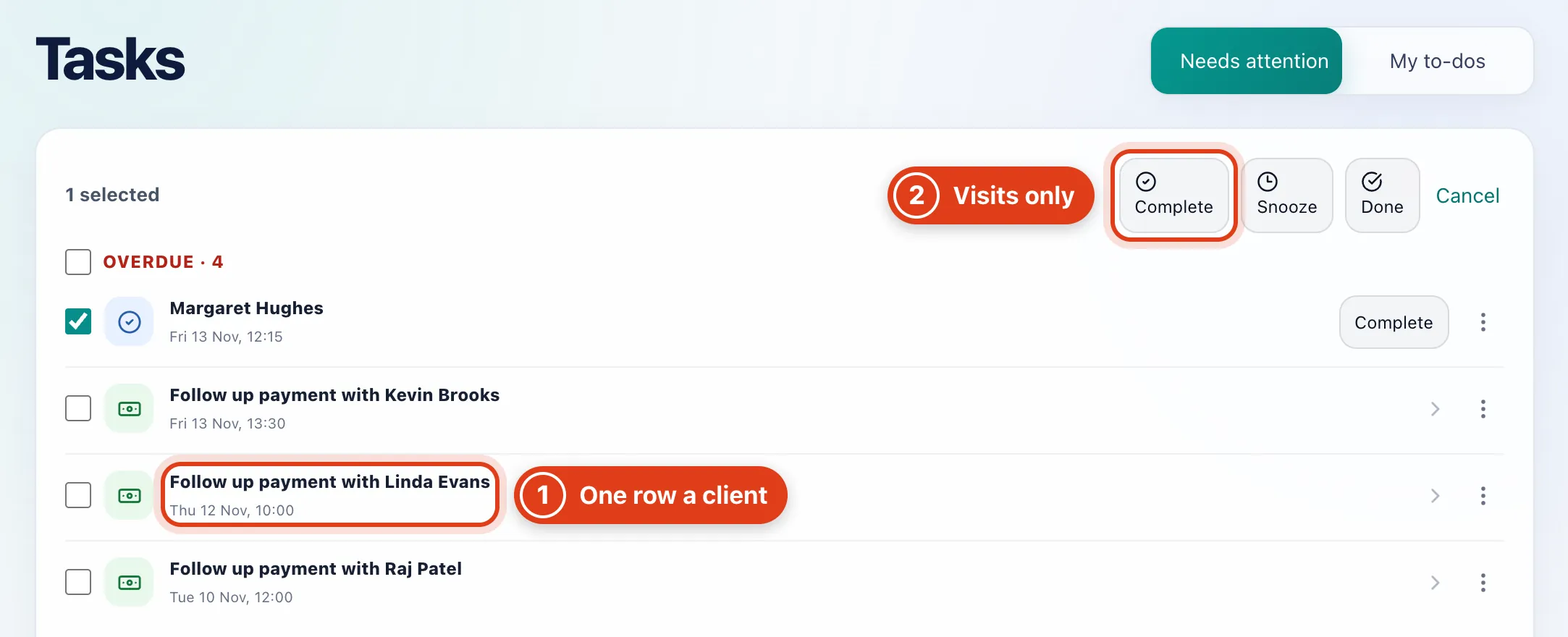
- Tasks of one kind for the same client share a row. For example, a second unpaid visit for Linda Evans would add its date to her Follow up payment row, not a new row.
- Complete is offered only while every ticked task is a visit to complete. For example, tick Margaret Hughes's visit and Follow up payment with Linda Evans together and you can only snooze them or mark them done.
Step 7 Keep your own to do list
Open My to dos and click Add task: what needs doing, a note and a due date.
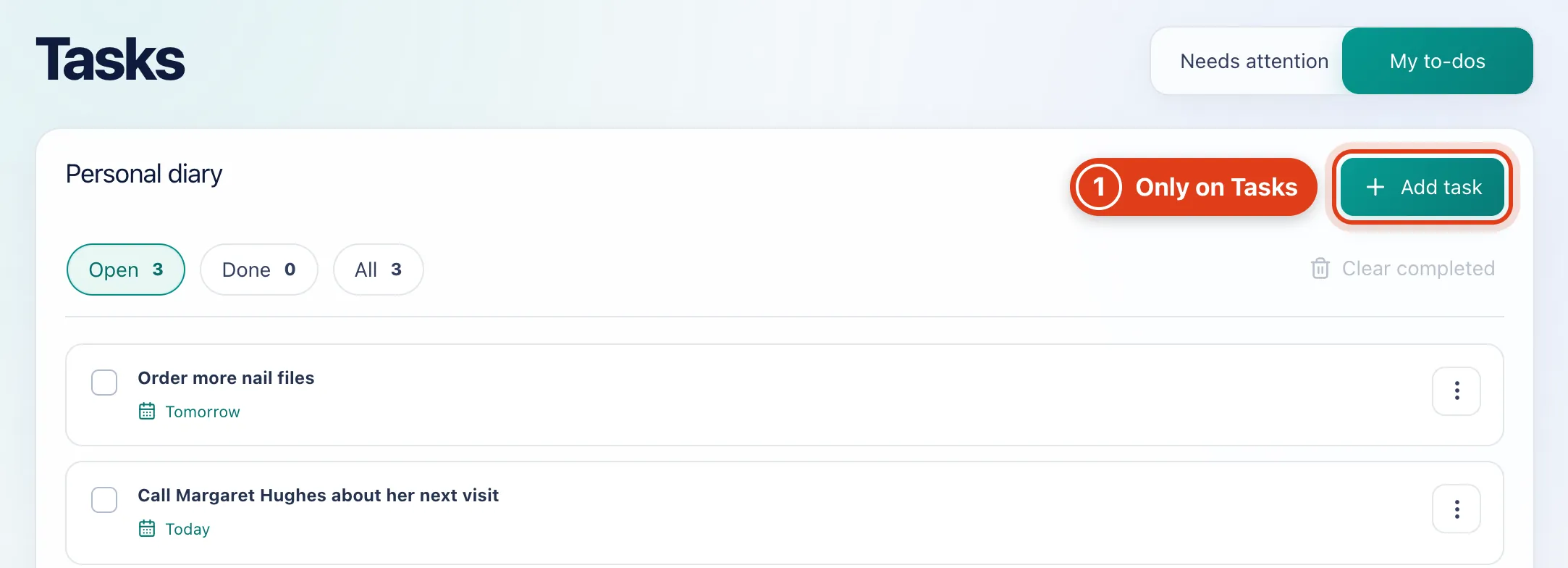
- Add task keeps the task on Tasks only: it doesn't show under Needs attention on Today, even when due. For example, "Order more nail files" stays here on its due date and Today doesn't list it.
Part 3 Arrange Today
Step 8 Choose what Today shows
Click Customise on Today. Add widgets, drag one by its handle, pick its size (S, M, L or Full) or remove it, then Save. As the owner, you can also set the layout your team starts with.
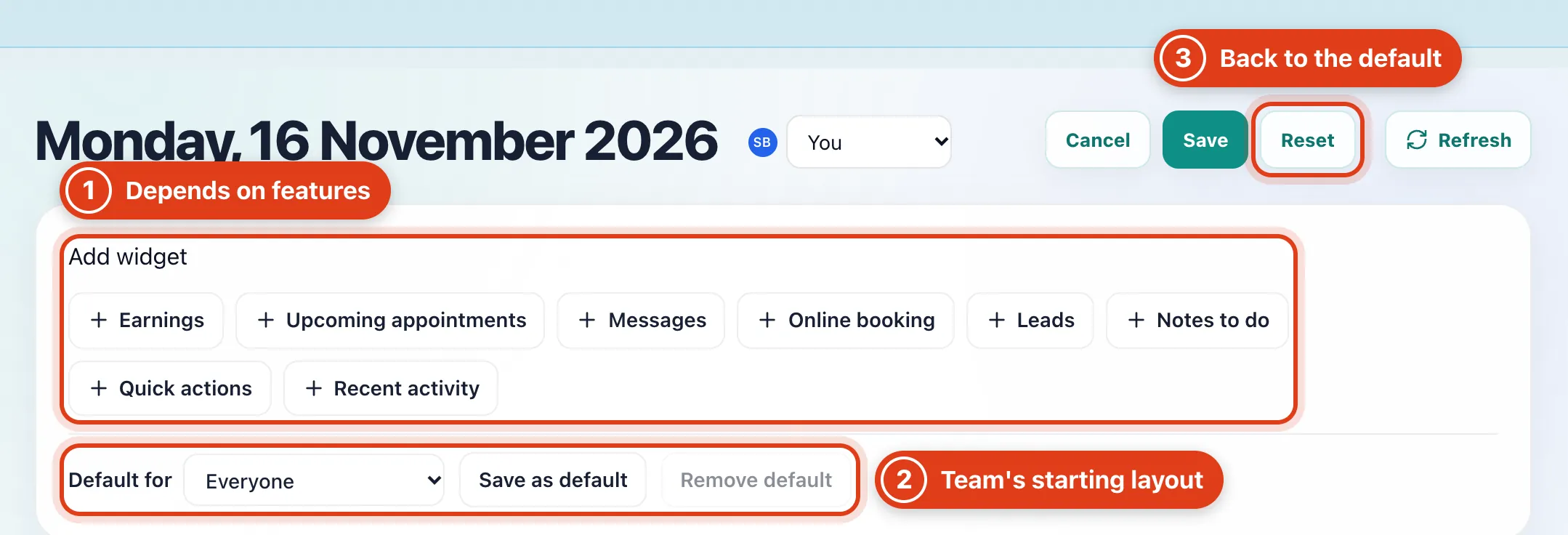
- Add widget offers only widgets for features that are on and that you may see. For example, Stock alerts appears once Stock is turned on in Extensions.
- Save as default for a role gives its members that layout until they save their own. For example, saved for Practitioner, it's what Priya Shah sees, minus Unpaid invoices: she can't see your finances.
- Reset swaps your layout for your role's default, else the default for Everyone, else Offlico's own; click Confirm reset, then Save. For example, Priya Shah gets the Practitioner default back.