
Client and finance settings explained
Set client questions, payment methods, tips and where your team's payments go.
Updated 17 November 2026
Step 1 Client fields
Go to Settings › Client fields, click Add question, type the question and choose its Answer type, then Save.
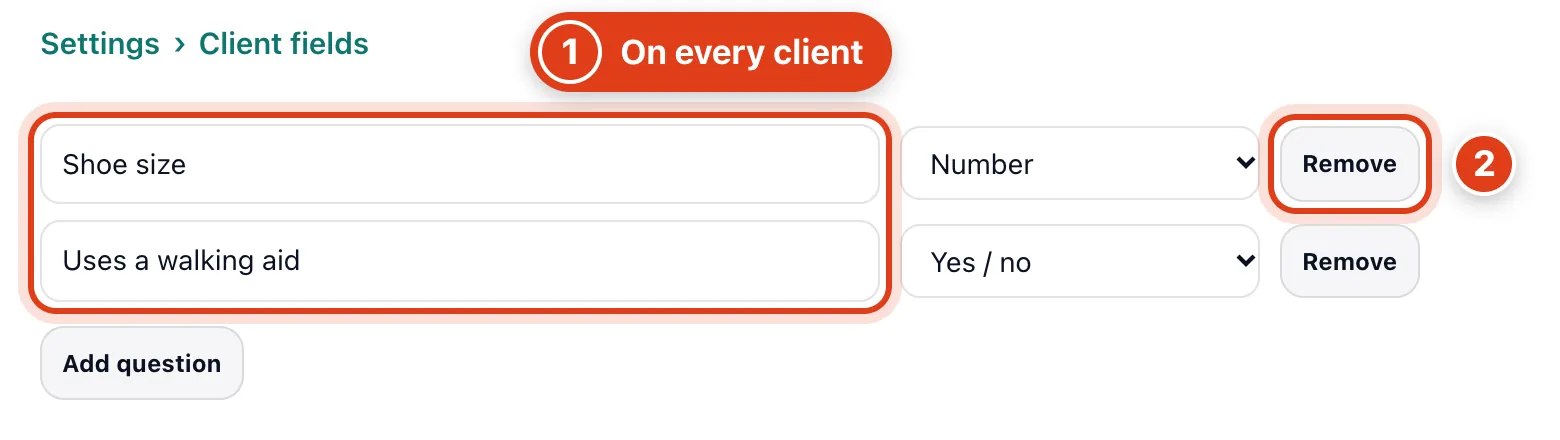
- Add question puts the question on every client's record under Custom questions, for your team to fill in; clients never see it. For example, add Shoe size and Linda Evans and Margaret Hughes both get it.
- Removing a question leaves each answer already given on that client, as their own question. For example, remove Shoe size after noting Linda Evans's 6 and her record still shows Shoe size 6.
Step 2 Payment methods
Go to Settings › Payment methods, which opens Bookings › Payments, switch on what clients can pay with, then Save.
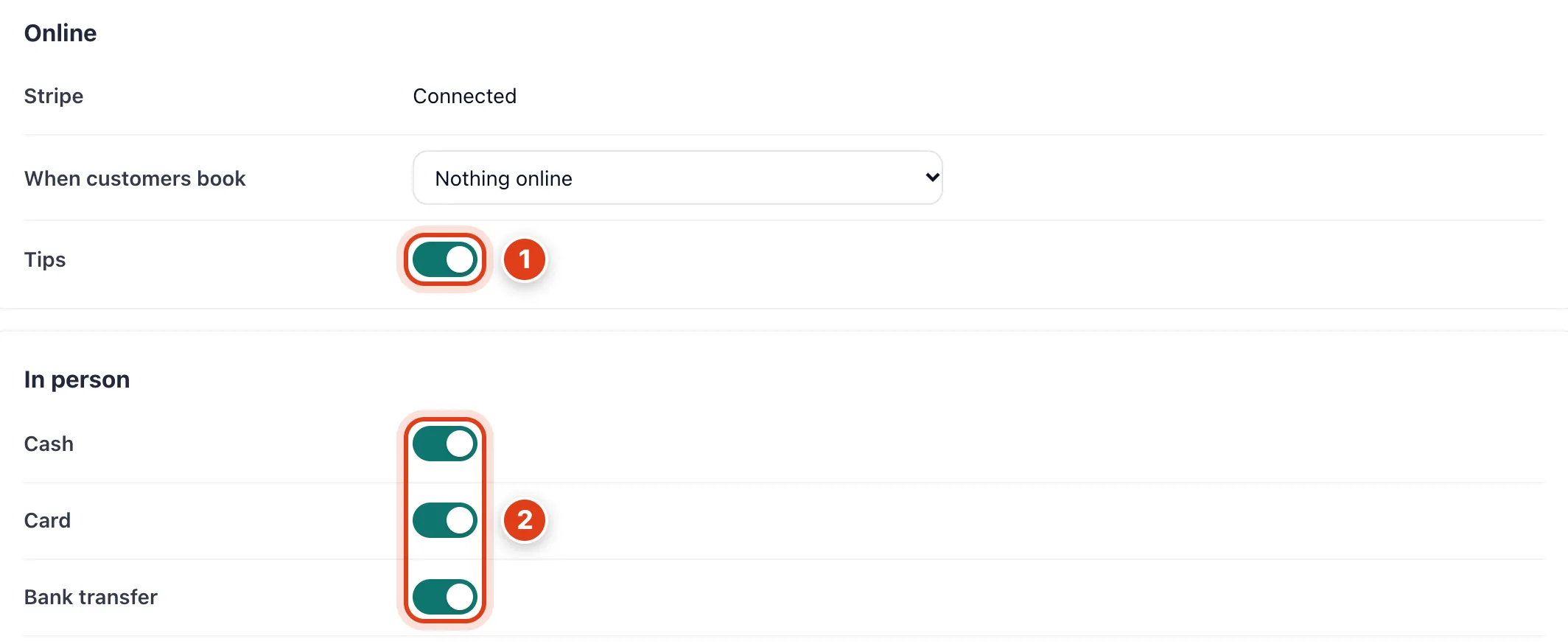
- Tips lets a client paying for a visit online, except a deposit, add 10%, 15%, 20% or their own amount. For example, 10% on Linda Evans's £42 Routine foot care adds £4.20.
- Cash, Card and Bank transfer are what your AI Receptionist offers callers, whatever your payment notes say. For example, with Cash and Card on it says "Payment on the day by cash or card."
Step 3 Bank details
With Bank transfer on, type your bank details under it, then Save.
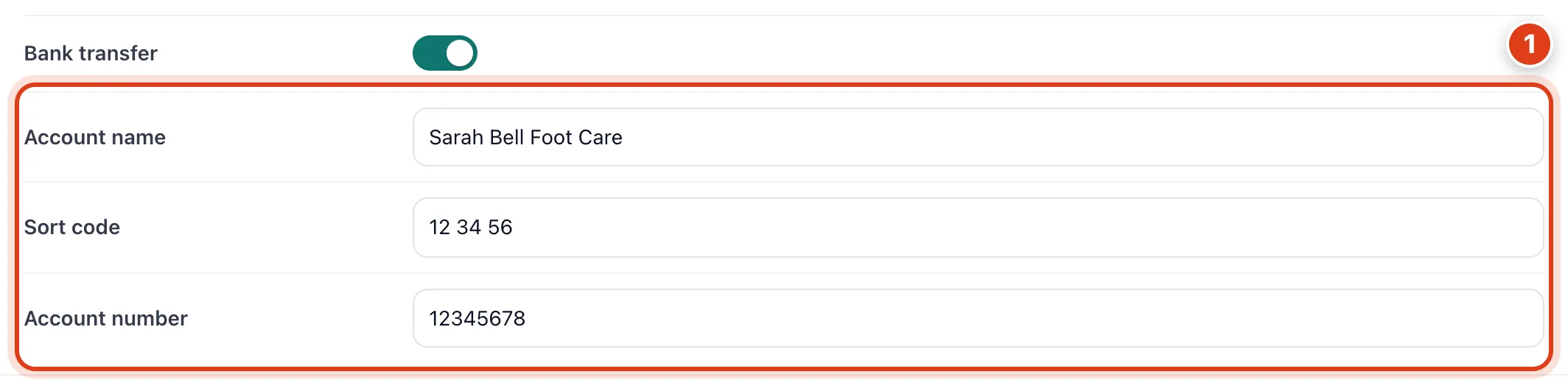
- Account name, Sort code and Account number print under Payment details on your invoices. For example, Linda Evans's invoice then shows Sort code 12 34 56 and Account 12345678.
Step 4 Payment collection
Go to Settings › Payment collection and, under Team, choose who takes payments and where each person is paid, then Save.
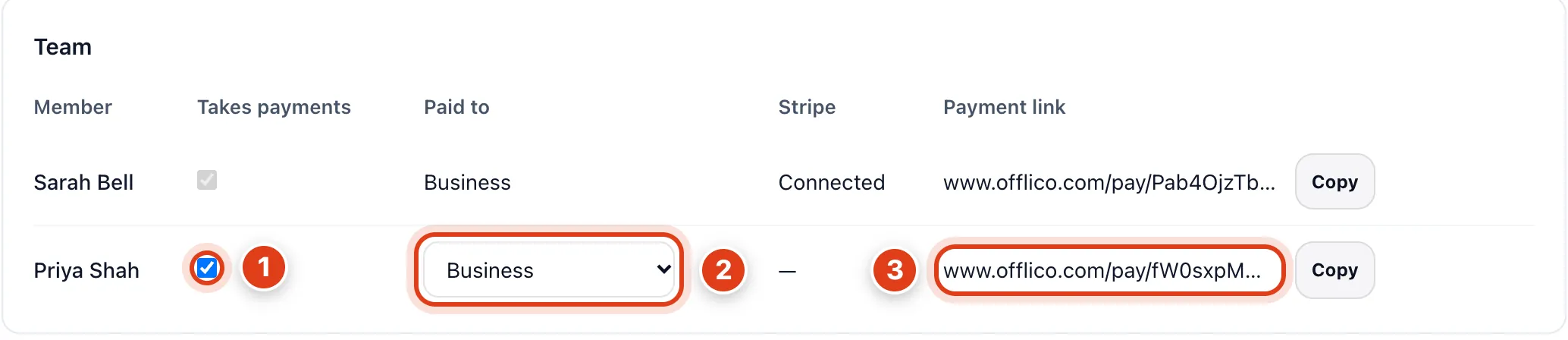
- Takes payments unticked stops that person taking card payments, marking visits paid and giving refunds, and turns off their Payment link. For example, Priya Shah can't mark Linda Evans's visit paid.
- Own Stripe account in Paid to sends card payments for their visits to their own Stripe once they connect it; the invoice stays yours. For example, Linda Evans's £42 for Priya Shah's visit goes to Priya.
- Payment link is that person's page where a client types an amount from £1 to £5,000 and pays by card, not tied to a visit. For example, if Linda Evans pays £42 there, her invoice stays unpaid until you record it.