
How to see your reports and export your data
See how your business is doing, export your records and set up VAT.
Updated 17 November 2026
Part 1 Your business at a glance
Step 1 Choose the dates
Go to Reports, pick a period or set From and To, and choose a Member to see one person's figures.
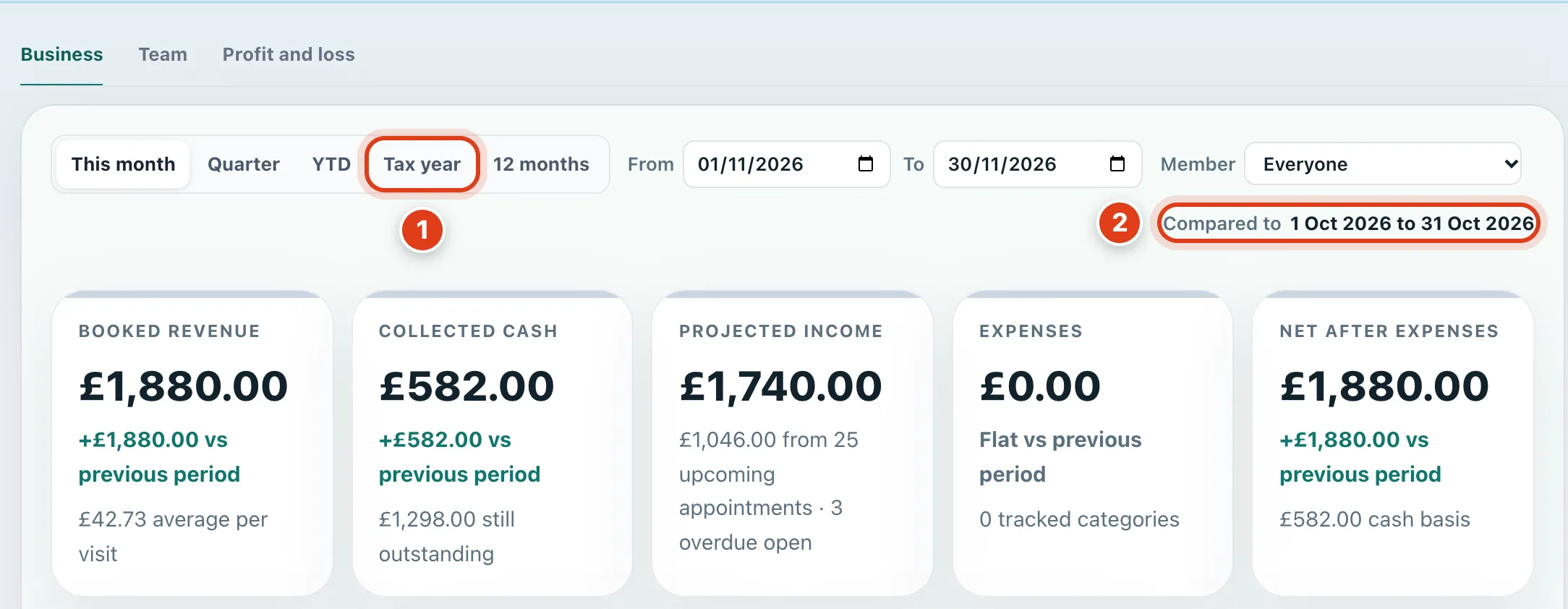
- Tax year shows the whole UK tax year you're in, months still to come included, while YTD ends today. For example, in November 2026 it shows 6 April 2026 to 5 April 2027.
- Compared to shows the dates every vs previous period line is measured against: the same number of days just before, or the whole month before. For example, 1 to 30 November compares with 1 to 31 October.
Step 2 See what's booked and what's paid
Net after expenses takes Expenses off Booked revenue, and its cash basis line takes them off Collected cash.
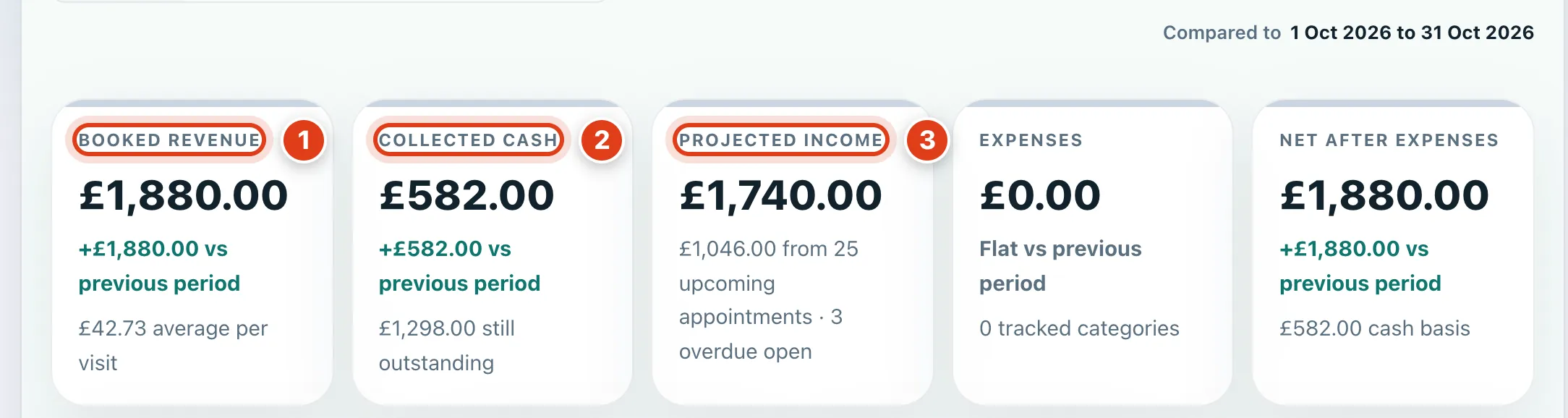
- Booked revenue adds up every visit in the dates that isn't cancelled, visits still to come included. For example, a £42 Routine foot care on 30 November counts in November before it happens.
- Collected cash is what was paid on your invoices in the dates, less refunds. For example, a £42 invoice from October paid on 3 November counts in November.
- Projected income adds Completed visits to the ones still to come and leaves out past visits not marked Completed. For example, a £42 visit last Tuesday drops out until you mark it Completed.
Step 3 Read your visit figures
The visit figures below follow the same dates and Member.
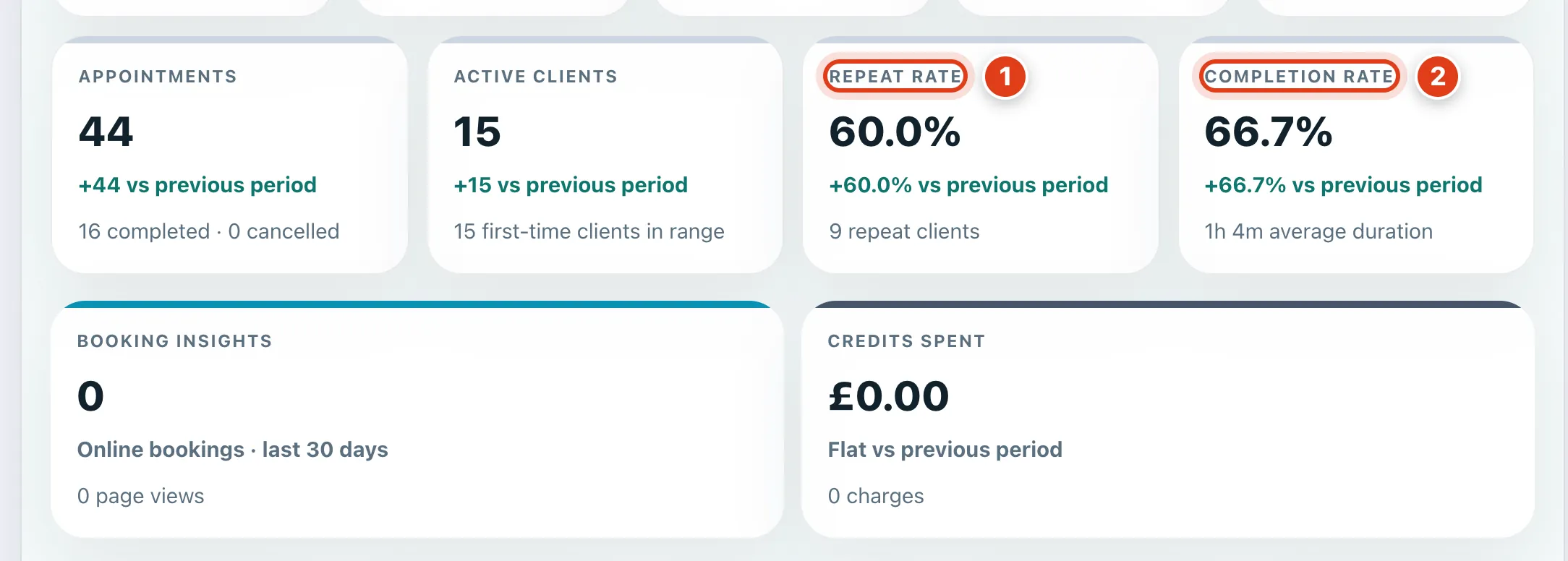
- Repeat rate is the share of clients seen in the dates so far who had two or more visits. For example, 9 of 15 clients is 60.0%.
- Completion rate is the share of visits in the dates up to today that are Completed; cancelled ones count against it. For example, 16 of 24 is 66.7%.
Part 2 Your team
Step 4 Compare your team
On a team account, click Team to see everyone side by side for the same dates.
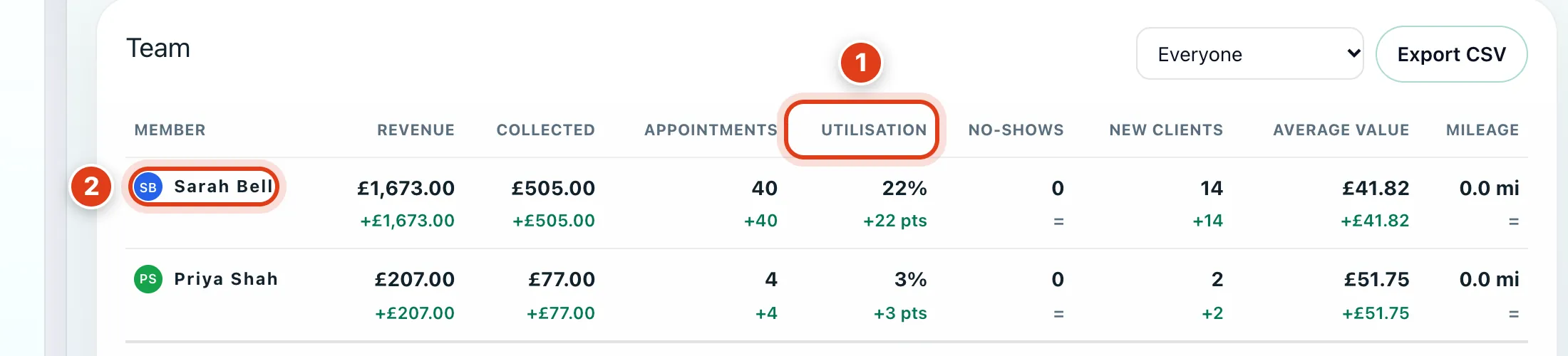
- Utilisation is the share of a member's working hours, less time off and breaks, filled with visits. For example, 2 hours of visits out of 9 working hours is 22%.
- Clicking a member's name opens Business with Member set to them.
Part 3 Profit and loss
Step 5 See your profit and loss
Click Profit and loss and set From and To. It shows while Banking, Invoices or Mileage is on.
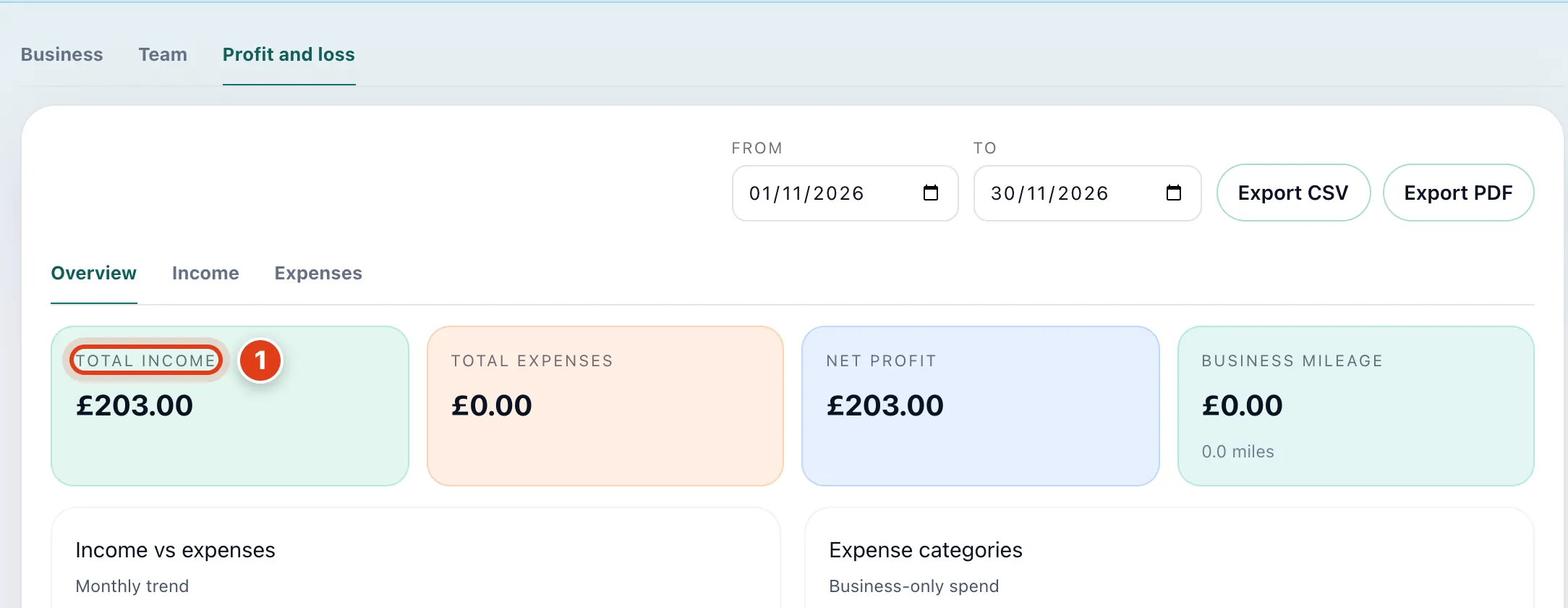
- Total income and Total expenses add up categorised bank transactions and mileage claims. For example, of £582 collected in November, Total income has the £203 paid in cash: Offlico categorises cash for you.
Part 4 Export your data
Step 6 Download your records
Go to Settings › Exports and click Download; Bank transactions, Receipts, Mileage and Calls show while Banking, Mileage or the AI Receptionist is on. Invoice PDFs: see How to send invoices and get paid.
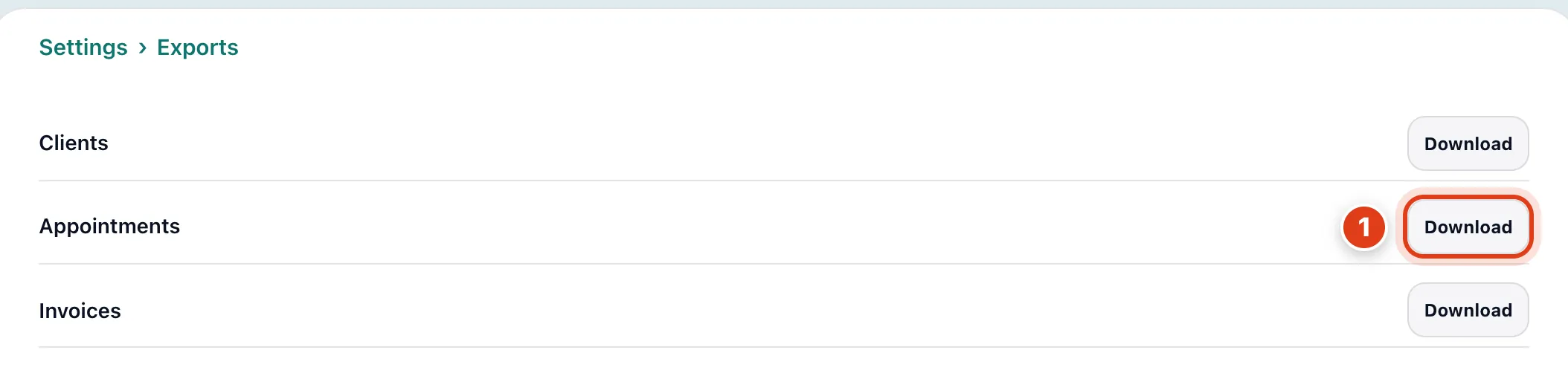
- Clients, Appointments and Invoices hold all your records, not just the dates in Reports, and Appointments gives prices in pence. For example, a £42 Routine foot care shows as 4200.
Part 5 VAT
Step 7 Charge VAT
Go to Settings › Taxes, set VAT registered to Yes, enter your VAT number, then Save: your invoices then show VAT and your VAT number.
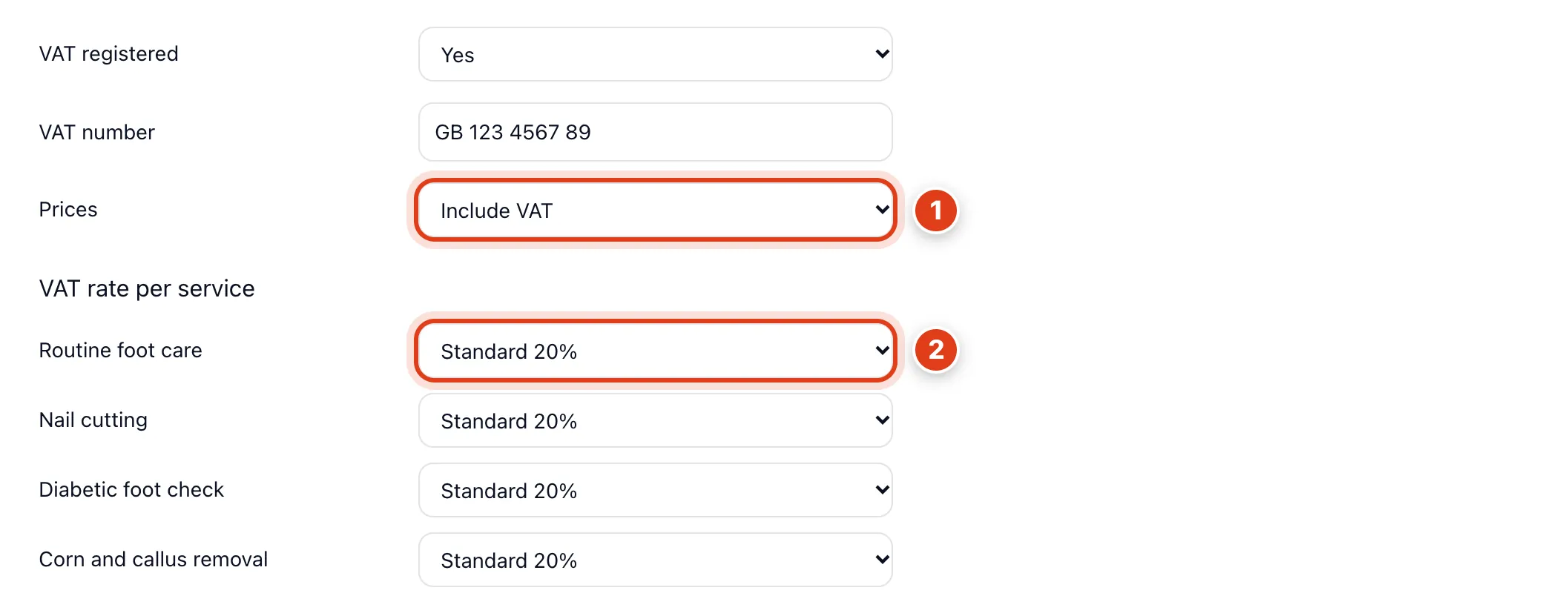
- Prices: with Include VAT your prices already hold the VAT; Exclude VAT adds it on top. For example, a £42 Routine foot care is £35 + £7 VAT, or £42 + £8.40 = £50.40.
- VAT rate per service sets each service's rate; a charge with no service, such as a travel charge, uses the standard rate. For example, Nail cutting set to Exempt has no VAT.