
How to connect your bank and match payments
Bring your bank transactions into Offlico and match payments to invoices.
Updated 17 November 2026
Part 1 Connect your bank
Step 1 Connect your bank
Switch on Banking in Settings › Features, go to Banking, choose your bank under Bank and click Connect bank. Your bank's own app or website asks you to agree.
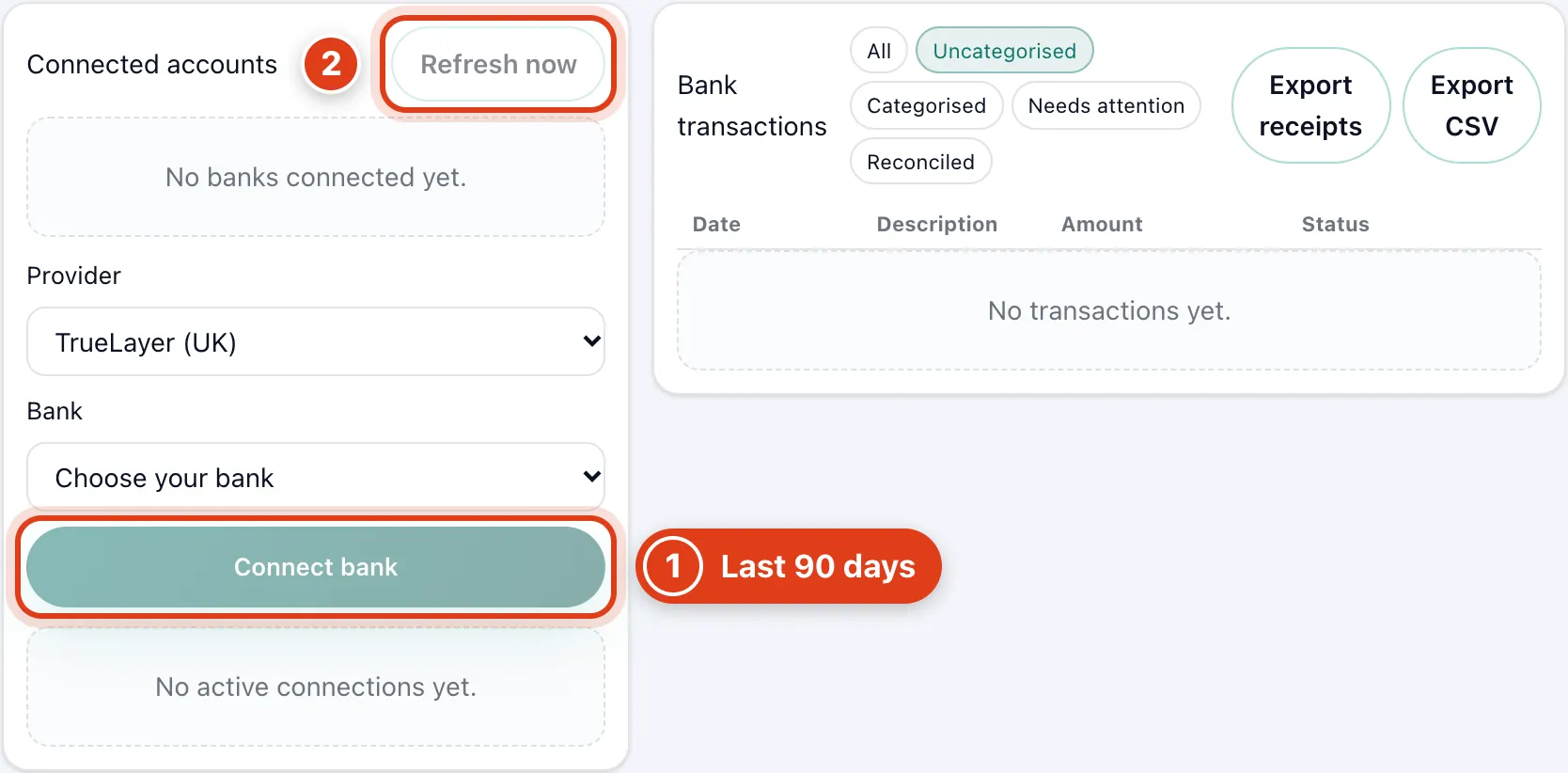
- Connect bank brings in the last 90 days of transactions once you agree. For example, connect on 17 Nov and everything from 19 Aug shows in Bank transactions.
- Refresh now fetches new transactions; Offlico never fetches in the background, only then or when you open Banking. For example, a payment made on Saturday shows when you open Banking on Monday.
Part 2 Add cash and other payments by hand
Step 2 Add cash and other payments by hand
Under Manual transaction, choose Income or Expense, fill it in and click Add manual entry.
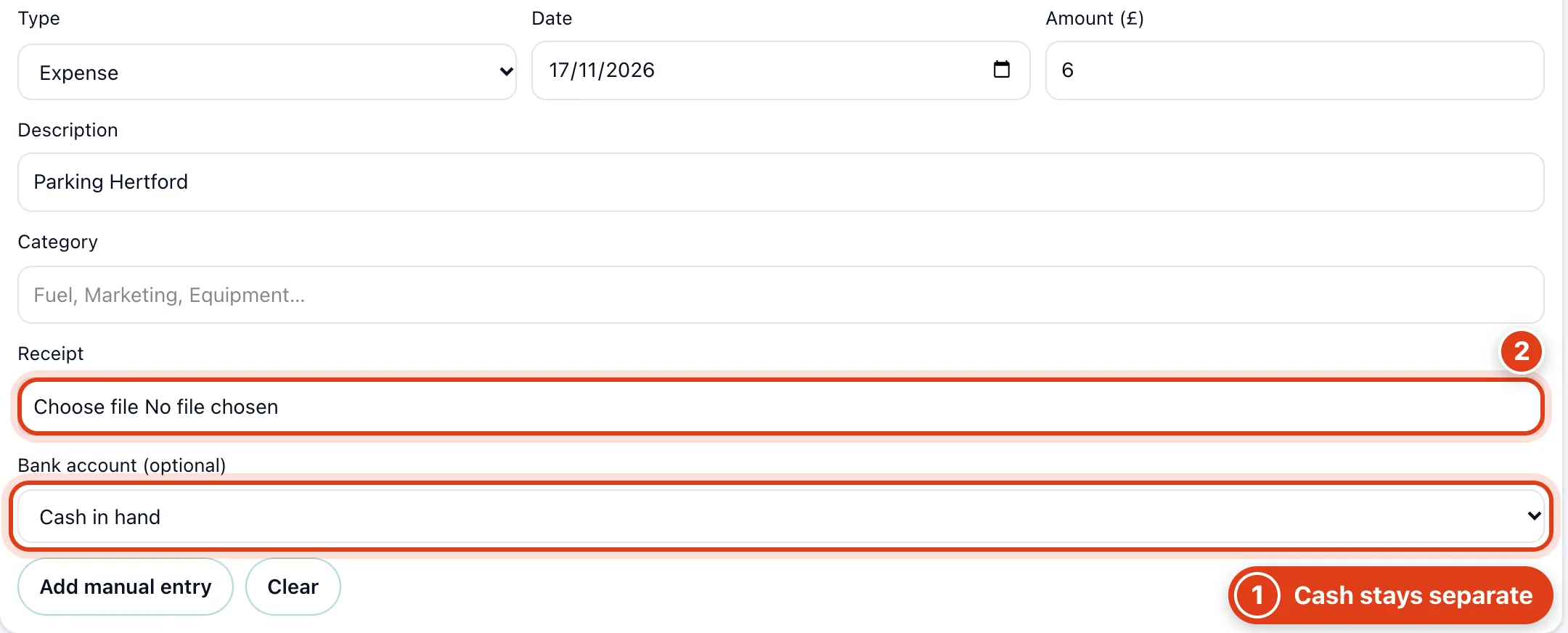
- Bank account (optional) on Cash in hand adds the entry to your Cash in hand total, not a bank's. For example, £6 parking paid in cash takes Cash in hand from £251.00 to £245.00.
- Receipt: an expense needs one unless its category is mileage, bank fees or interest; without it, it shows Receipt missing. For example, a £6 parking expense with no receipt shows Receipt missing.
Part 3 Categorise your transactions
Step 3 Categorise your transactions
Click a transaction in Bank transactions, type its Category, then Categorise & next, which opens the next uncategorised one. To change one later, click Edit categorisation.
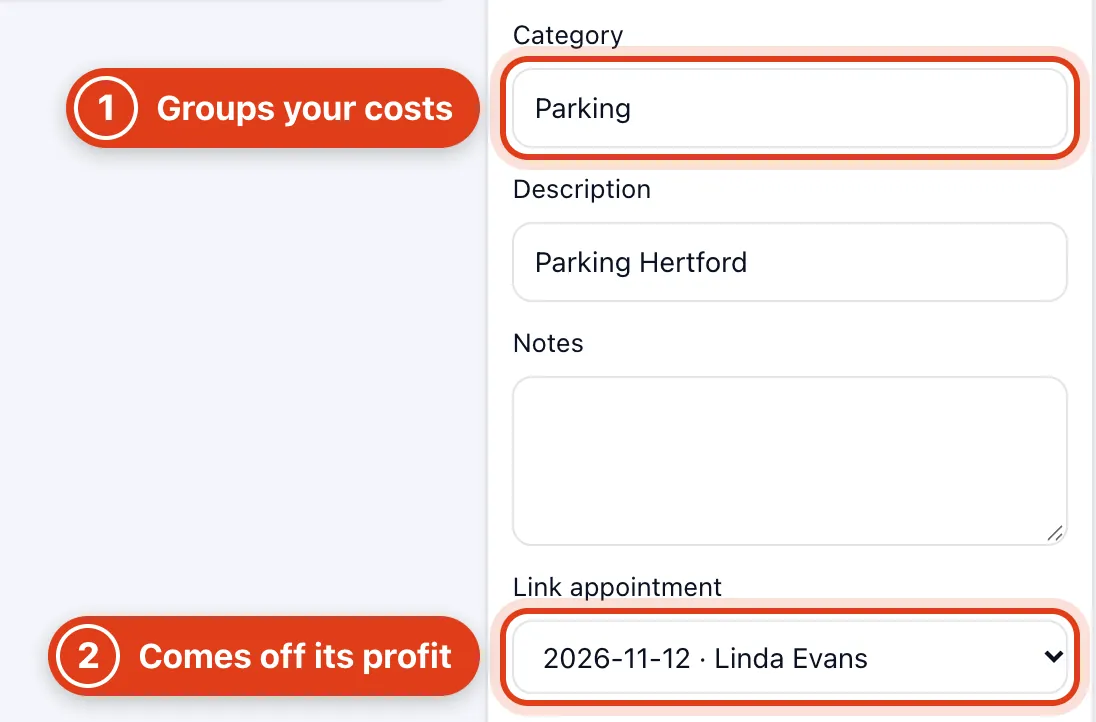
- Category: a categorised expense counts in Profit and loss, added up under Expense categories by these exact words. For example, £6 categorised as Parking joins the Parking row; Car park starts another.
- Link appointment (visits from the last 30 days) takes the expense off that visit's invoice Profit. For example, £6 parking linked to Linda Evans's 12 Nov visit leaves £29.00 profit on her £35 invoice.
Part 4 Match payments to invoices
Step 4 Match a payment to your invoices
Click an income in Bank transactions, choose an invoice under Choose an unpaid invoice and its Amount, click Add invoice for each other one, then Allocate payments.
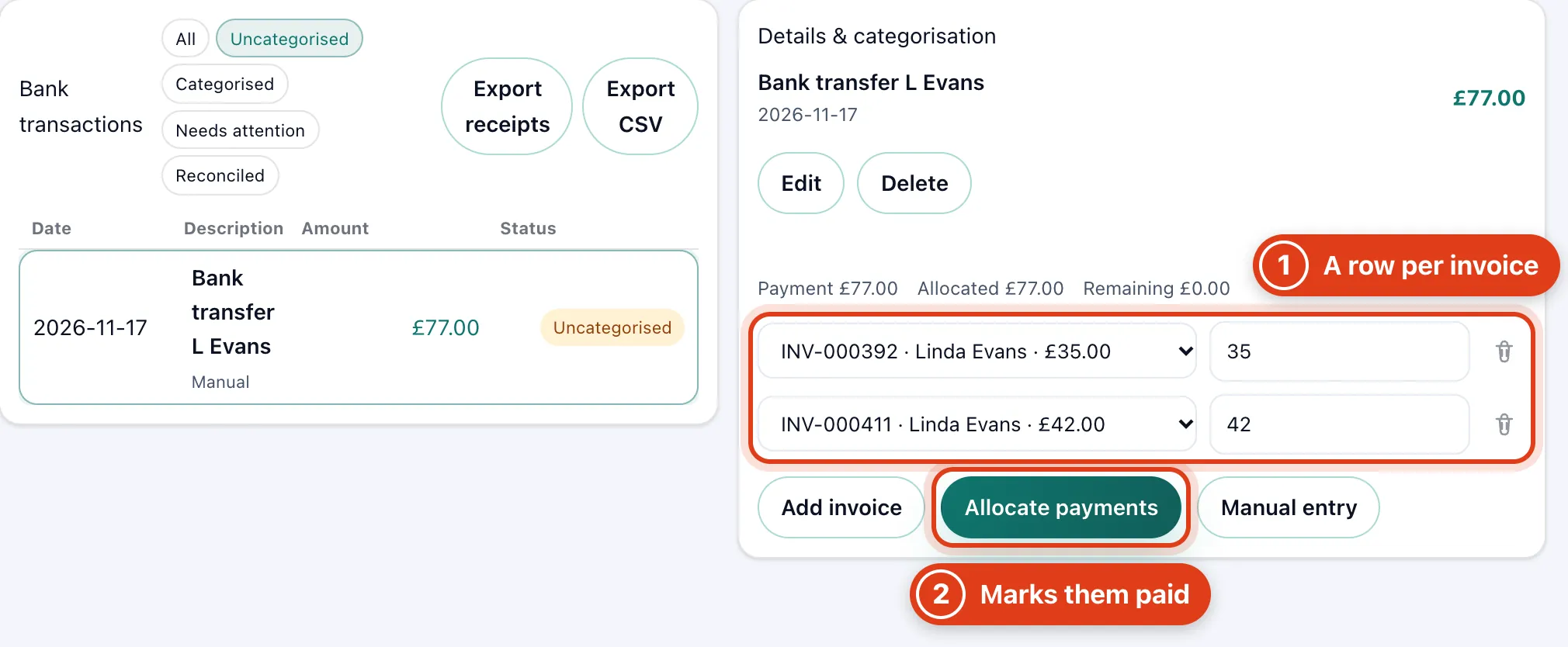
- Choose an unpaid invoice rows split one payment across invoices; together they can't exceed the payment or an invoice's balance. For example, a £77 transfer from Linda Evans pays both her open invoices, £35 and £42.
- Allocate payments marks each fully covered invoice paid; the payment then shows Matched, or Needs attention while part is unallocated. For example, £77 with only £42 allocated shows Needs attention.
Part 5 Banking settings
Step 5 Choose when Offlico refreshes and adds cash
Go to Settings › Banking & sync, choose both options, then Save.
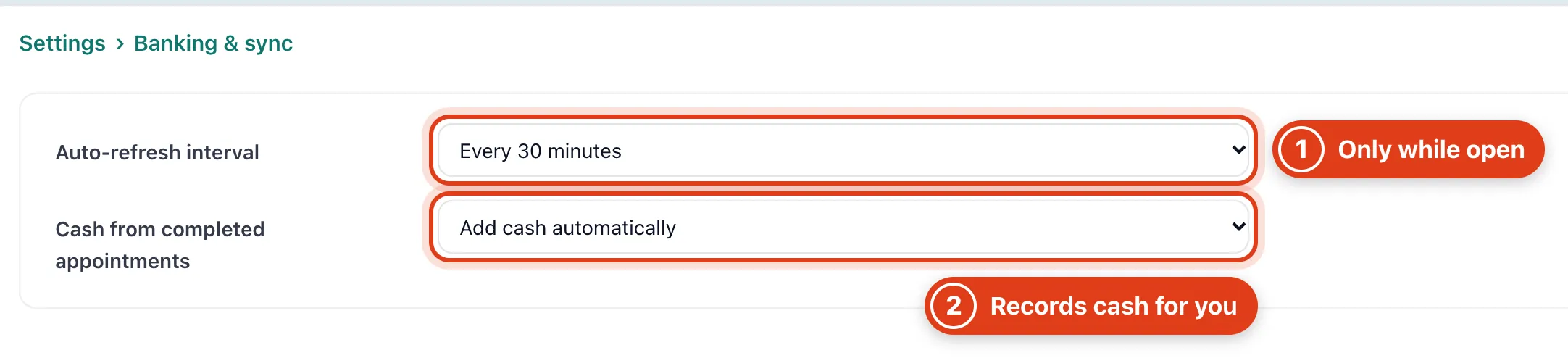
- Auto refresh interval refreshes your banks while Banking is open. For example, with Every 30 minutes, opening Banking at 09:45 refreshes a bank last fetched at 09:00; at 09:20 it waits.
- Add cash automatically records cash taken at a visit as income in Cash in hand. For example, when Linda Evans pays £42 in cash at her visit, a £42 Invoice payment entry is added.