
How to take deposits and set cancellation rules
Take deposits and set what cancelling or missing a visit costs.
Updated 16 November 2026
Part 1 Take a deposit when clients book online
Step 1 Choose what clients pay when they book
Go to Settings › Bookings › Payments and pick what clients pay online in When customers book, then Save. Online payments need Stripe connected first (see Take card payments).
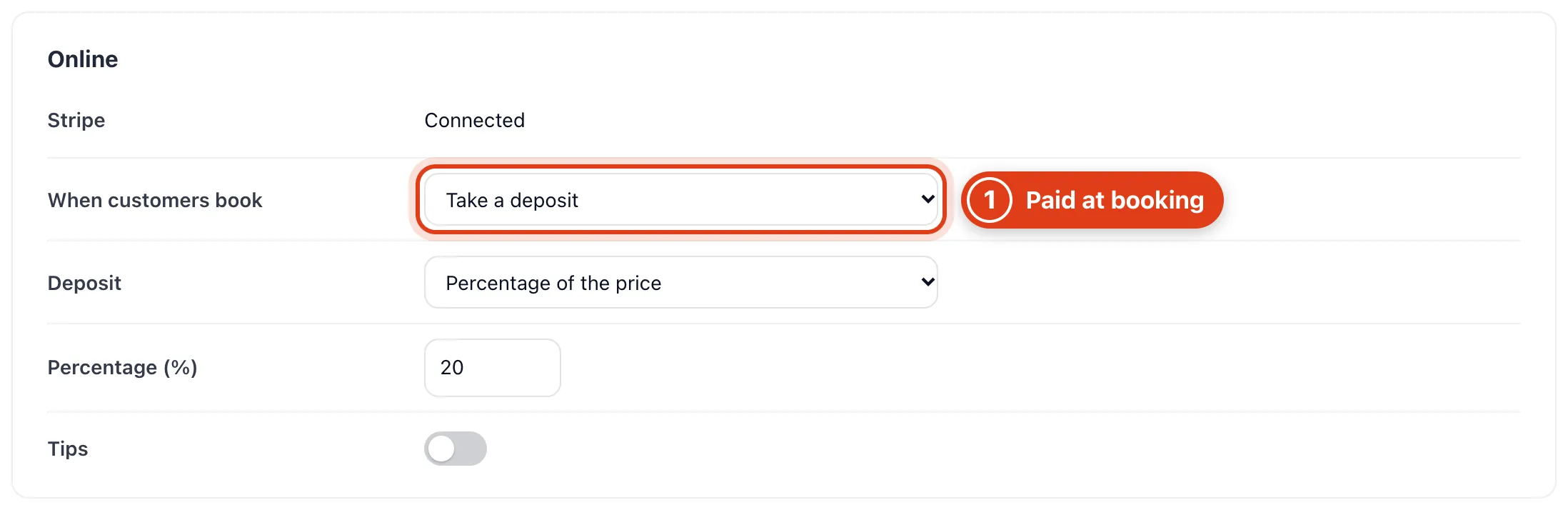
- Take a deposit charges part of the price when a client books online and Pay in full charges all of it: for example, Pay in full takes £42 when Linda Evans books Routine foot care.
Step 2 Set the deposit
Choose how the deposit is worked out in Deposit.
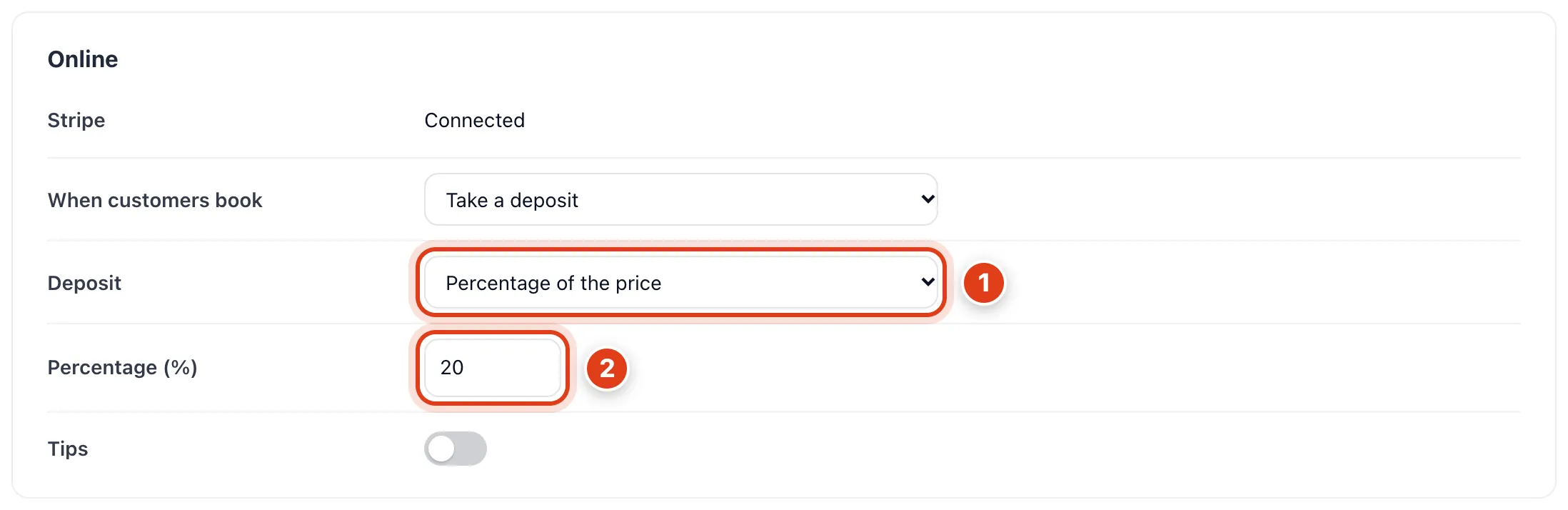
- Deposit is a share of the price or a Fixed amount, never more than the price: for example, a £40 fixed deposit takes the whole £35 for Nail cutting.
- Percentage (%) is rounded to the penny: for example, 20% of Routine foot care at £42 is £8.40.
Part 2 Set your cancellation rules
Step 3 Show your cancellation policy
Go to Settings › Bookings › Confirmations & cancellations, turn on Show the policy to clients and write it in Policy text.
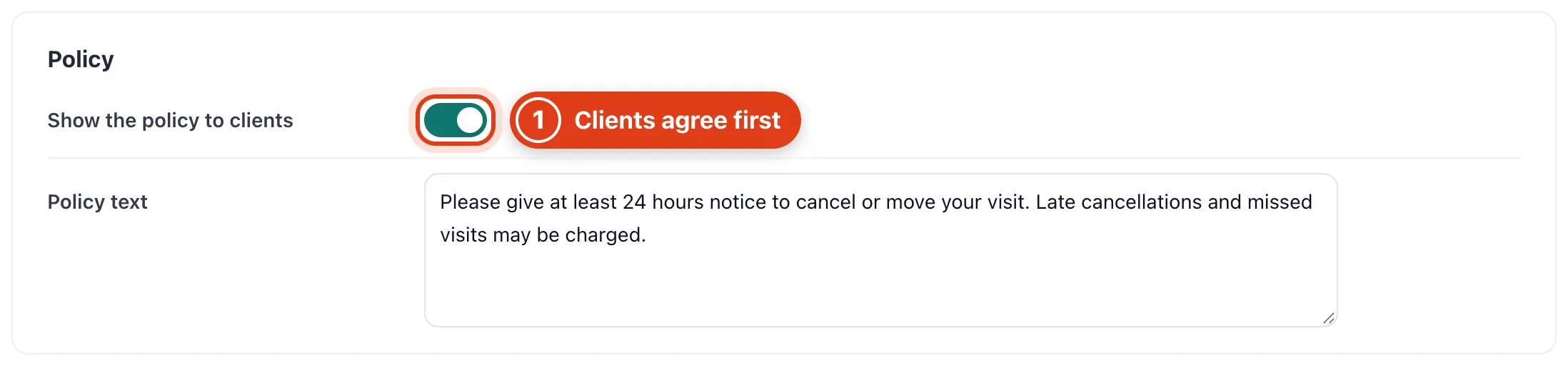
- With Show the policy to clients on and a Policy text, clients tick that they agree to your cancellation policy before they can book online.
Step 4 Set how much notice clients give
Pick the notice in Cancellation notice and whether to Ask clients for a reason.
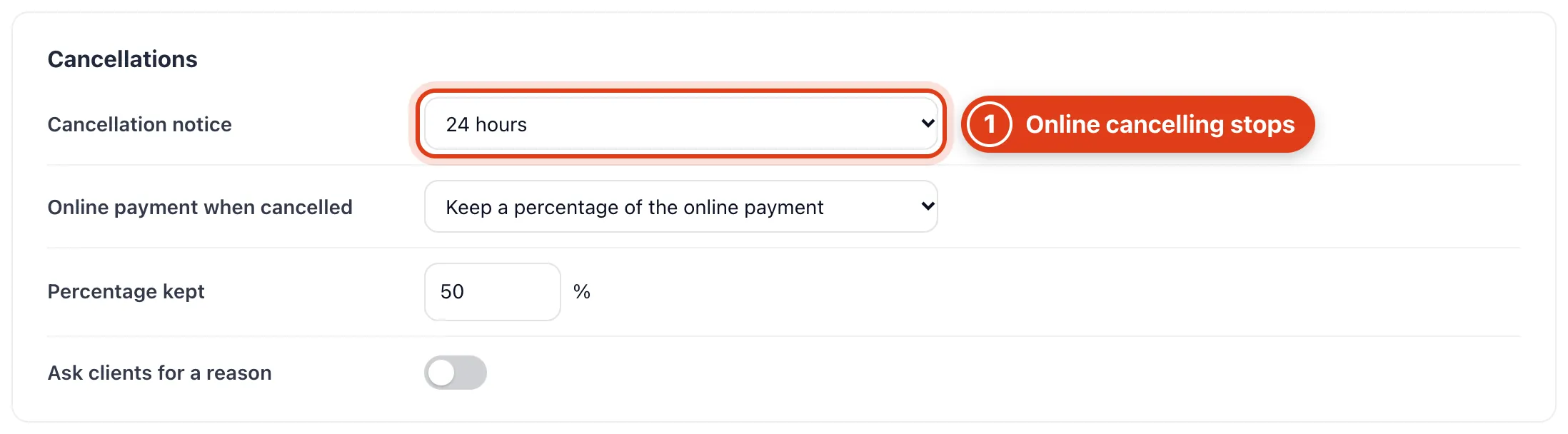
- Cancellation notice stops online cancelling inside it (clients are told to contact you; you can still cancel): for example, with 24 hours, a Tuesday 10:00 visit can be cancelled online until Monday 10:00.
Step 5 Choose what happens to a deposit when a client cancels
Choose what clients get back in Online payment when cancelled: Refund the full online payment, Keep a percentage of the online payment or Keep the full online payment.
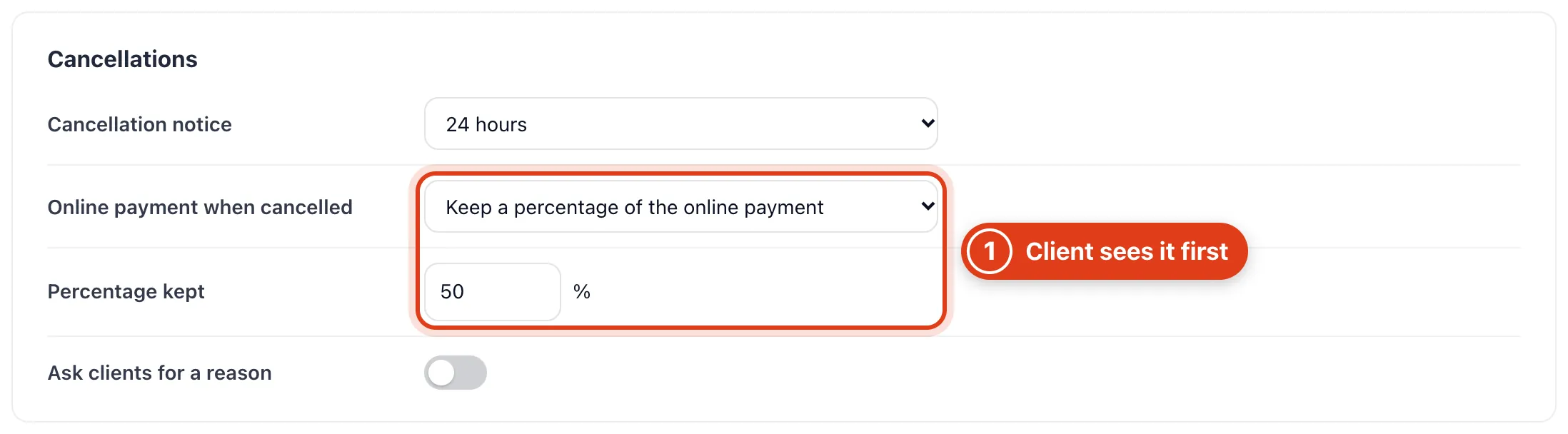
- It applies when a client cancels online in time, and they see what comes back before they confirm: for example, keeping 50% gives £4.20 of an £8.40 deposit back.
Part 3 No shows and card on file
Step 6 Choose what a no show costs
Pick what a missed visit costs in When a client doesn't turn up. No charge and Keep any online payment cancel an unpaid invoice when you mark the visit a no show, and never refund what was paid.

- Charge the full price keeps the visit's full price to pay when you mark it a no show: for example, Raj Patel's £42 visit with his £8.40 deposit paid still has £33.60 to pay.
Step 7 Save clients' cards for fees
Turn on Save the client's card at online booking and set the fees.
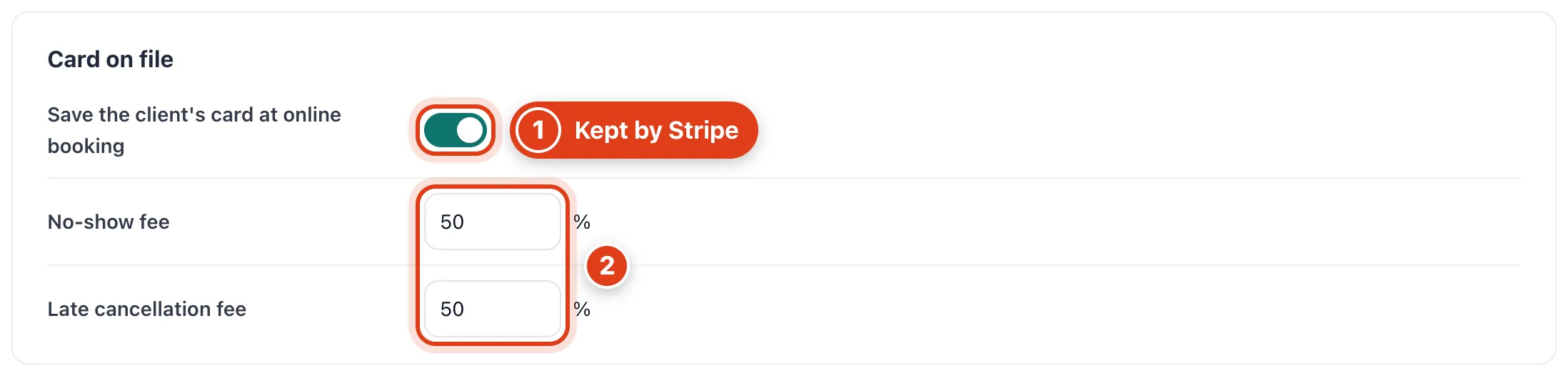
- Save the client's card at online booking keeps the card with Stripe; Offlico stores only its brand and last 4 digits.
- No show fee and Late cancellation fee are a share of the visit's price, and late means cancelled inside your Cancellation notice: for example, a 50% No show fee on £42 is £21.
Step 8 Charge a fee from the visit
Open the visit in your calendar and click Charge no show fee.
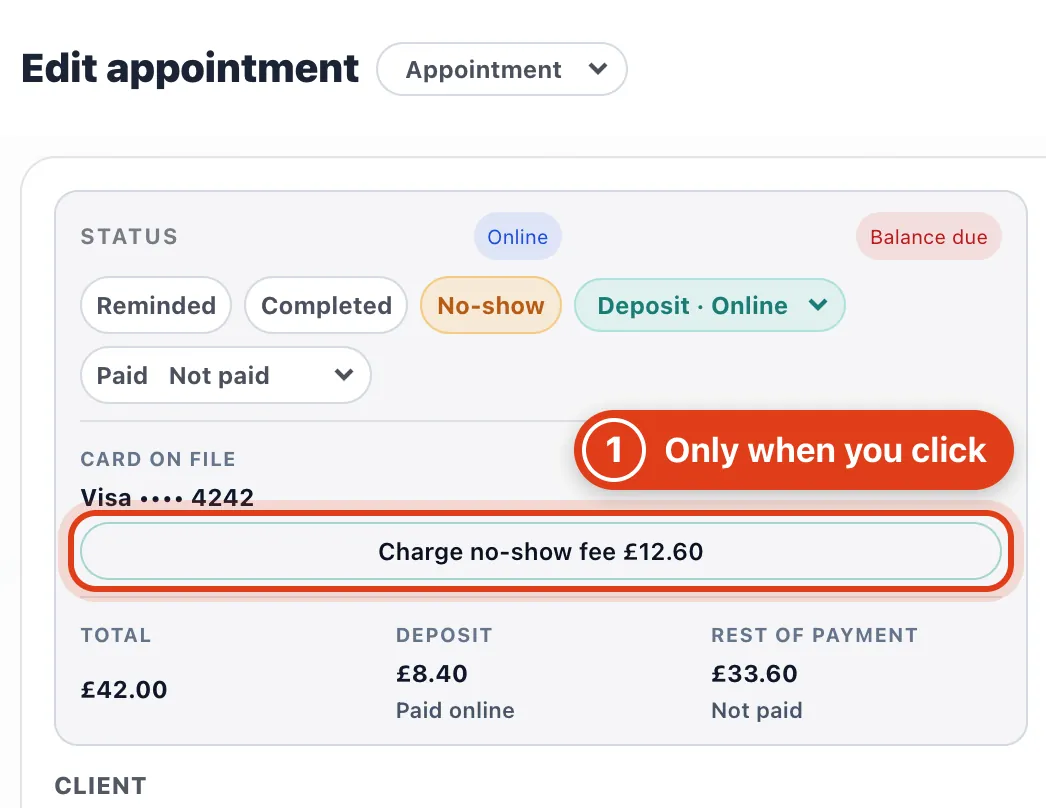
- Charge no show fee takes the fee less what the client already paid, only when you click: for example, Raj Patel paid an £8.40 deposit, so a 50% fee on his £42 visit charges £12.60.