
How to add time off, breaks and personal events
Block the time you can't work so nobody can book it.
Updated 17 November 2026
Part 1 Days off
Step 1 Take a day off
In Calendar, click a free time on the day, choose Day off and pick the Staff member, then Save. A Day off can't overlap a visit, so move that person's visits off the day first.
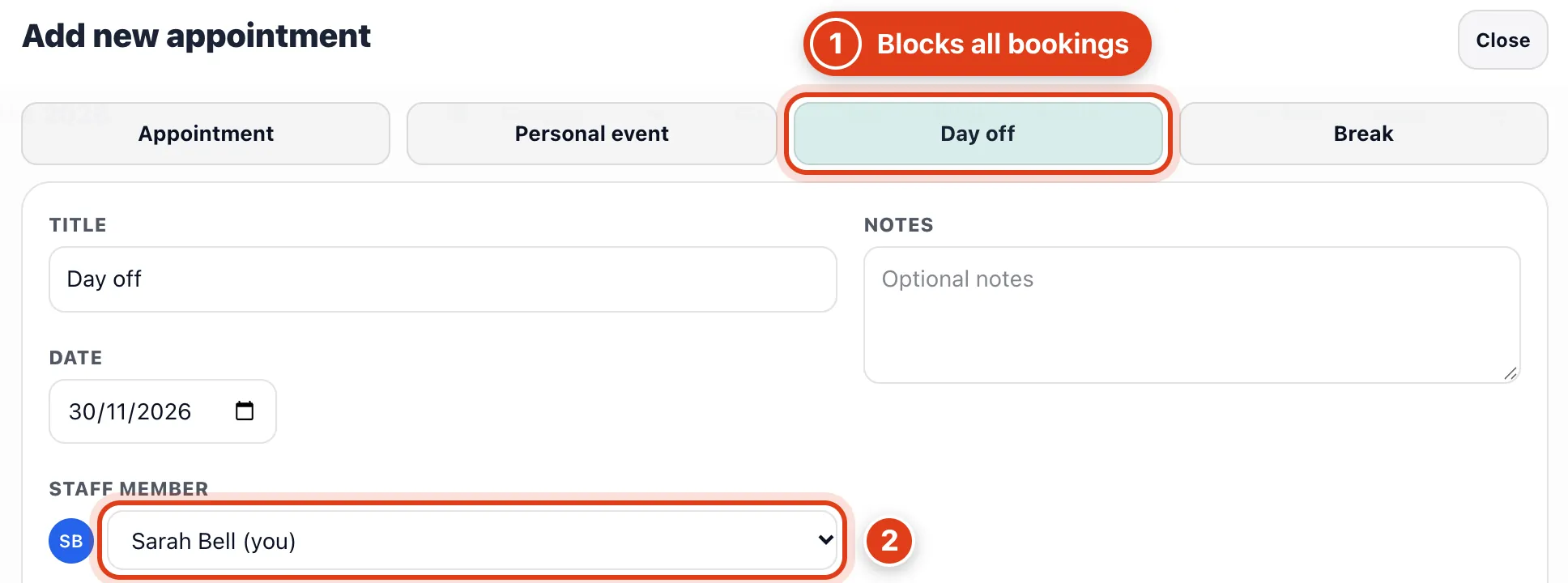
- Day off blocks that person's whole day online, for your receptionist and in Suggest times. For example, with a Day off on Monday 30 Nov, clients booking online see no times with Sarah Bell that Monday.
- Staff member is whose day it blocks. For example, a Day off for Priya Shah on Friday 20 Nov leaves Sarah Bell's Friday open to bookings.
Step 2 Take several days off
Add a Day off for each day you're away.
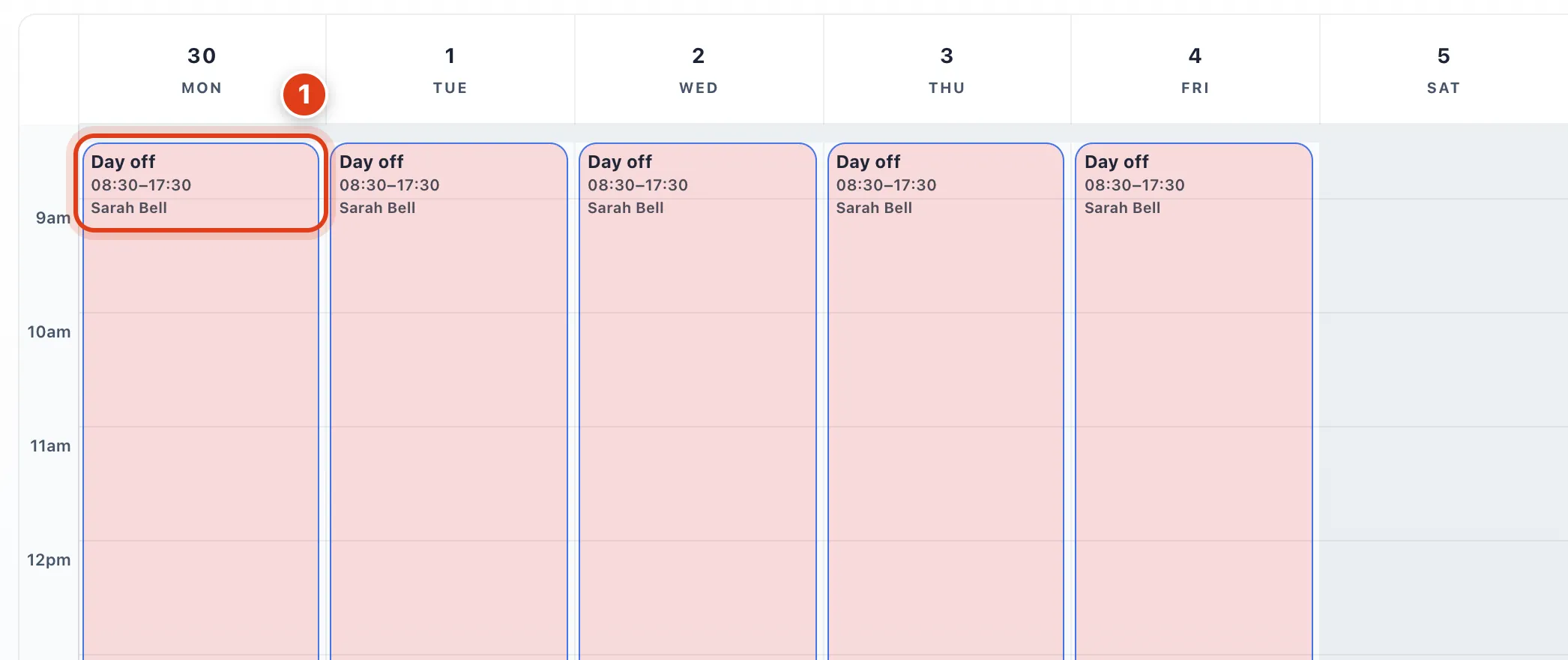
- Day off covers one date: it has no end date and doesn't repeat. For example, a week away from Monday 30 Nov to Friday 4 Dec is five Day off entries, one a day.
Step 3 Give a team member a day off from their page
Or go to Settings › Team, click Edit beside them and Hours, services and addresses; under Time off, click Add day off, pick the date, then Add.
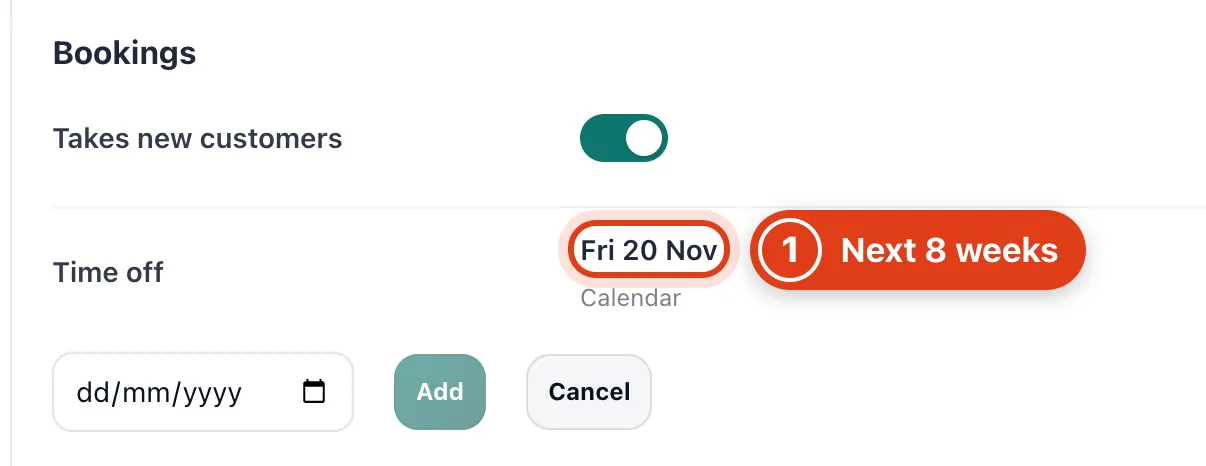
- Time off lists their days off for the next 8 weeks, the same entries as Day off in the calendar. For example, Priya Shah's Friday 20 Nov shows here; a date with one of her visits is refused.
Part 2 Breaks and your own appointments
Step 4 Add a break
Click a free time, choose Break and set its times, then Save. For a break at the same time every day, add it once in Settings › Hours & breaks › Daily breaks (see Set up your business).
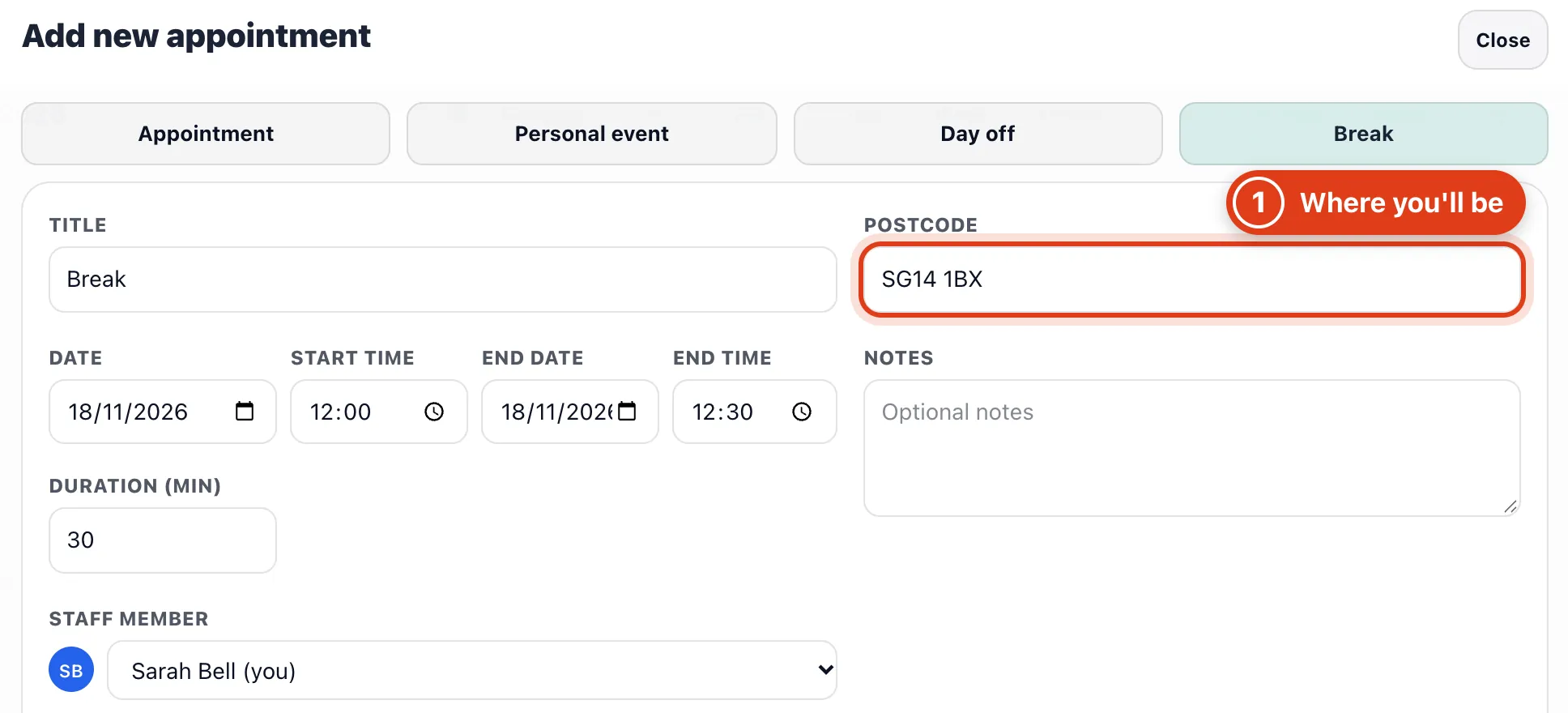
- Postcode is where you'll be in the break: the drive to your next visit is counted from there. For example, it fills in SG14 1BX, your start postcode, so after a break at home the drive starts in Hertford.
Step 5 Add a personal event
Click a free time, choose Personal event, give it a Title, its times and, if it's away from home, its address, then Save.
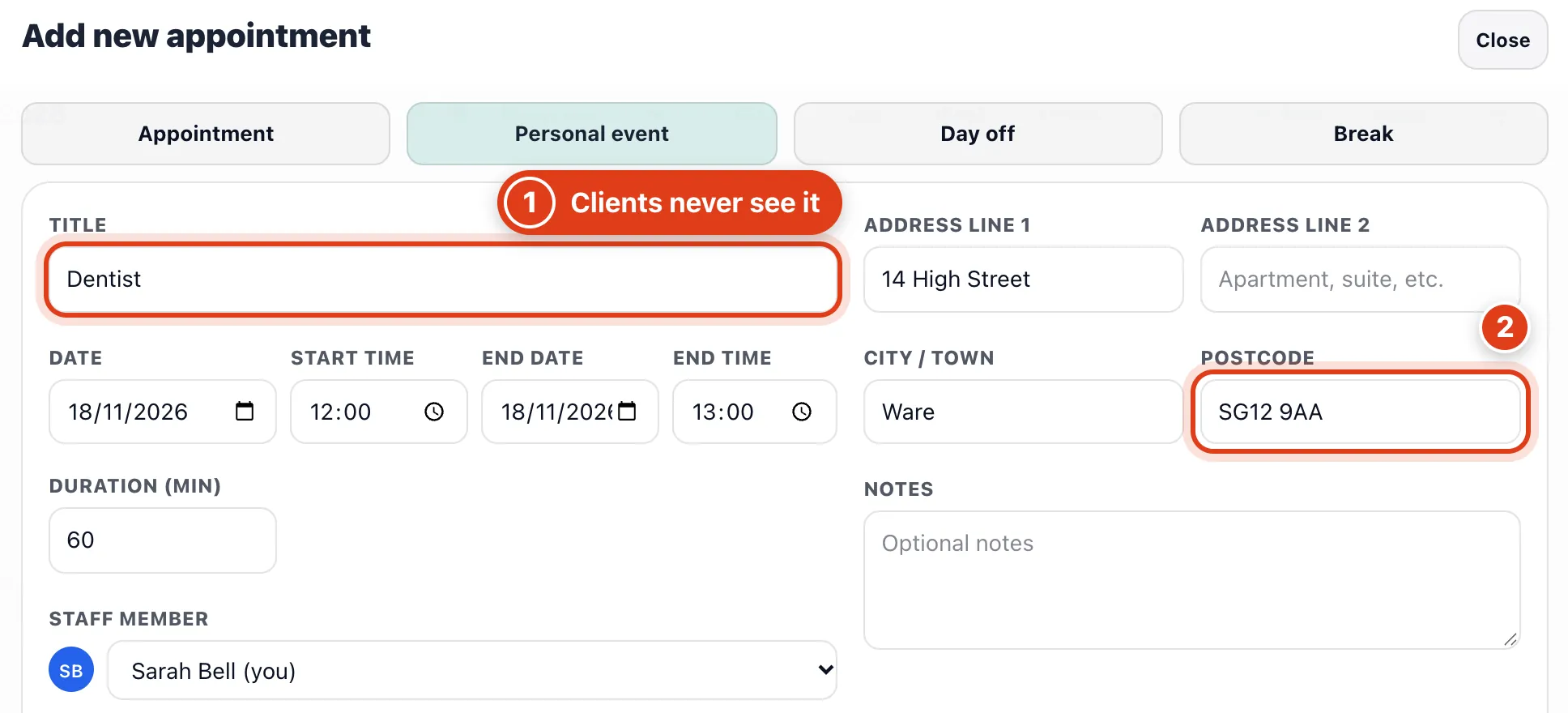
- Title is for you and your team: clients are just not offered those times. For example, a Receptionist sees Sarah Bell's 12:00 Dentist, but Priya Shah, who sees only her own visits, doesn't.
- Postcode counts the drive to and from it, like a visit's. For example, after a 12:00 to 13:00 Dentist in Ware, Suggest times counts the drive from Ware to your next client.