
How to move your clients to Offlico
Import your clients and visits from the system you used before.
Updated 17 November 2026
Part 1 Choose your files
Step 1 Choose your old system and its files
Export your clients and appointments from your old system. Then go to Settings › Imports, pick it in Coming from and click Choose files.
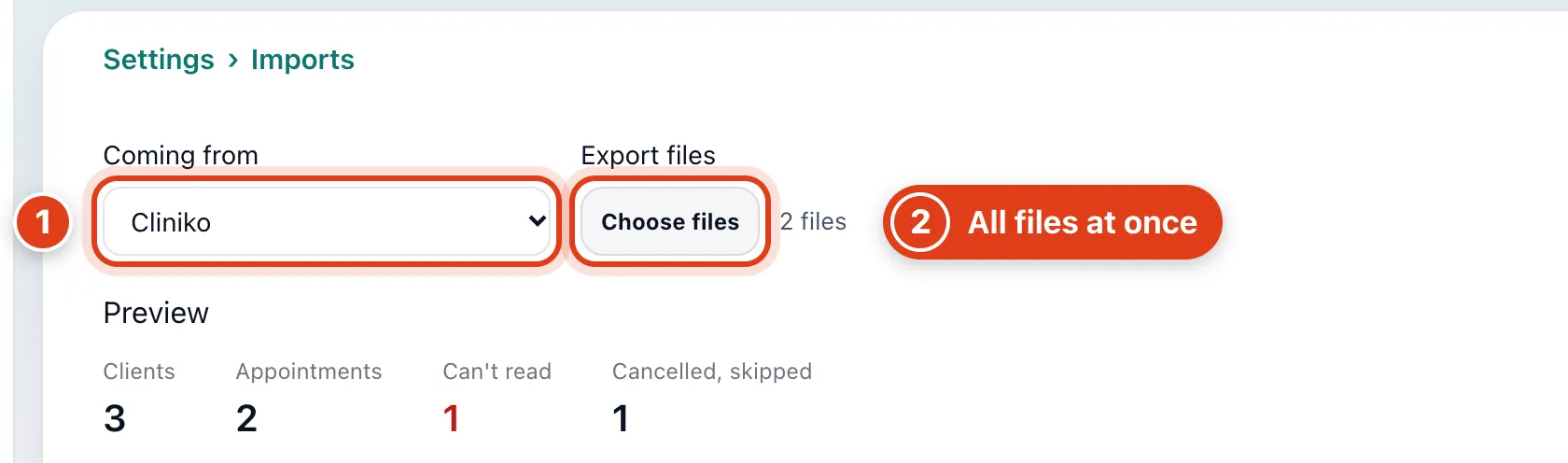
- Coming from only labels the import: files are read by their column names. For example, with Cliniko, Joan Price's Source reads Import Cliniko and her past visits go under Past appointments (Cliniko).
- Choose files takes all your export files at once: CSV, Excel or zip. For example, from appointments.csv alone Joan Price is added with only her name; with patients.csv too, she gets her email, phone and address.
Step 2 Check the rows it can't read
Check the Preview: nothing is saved until you import.
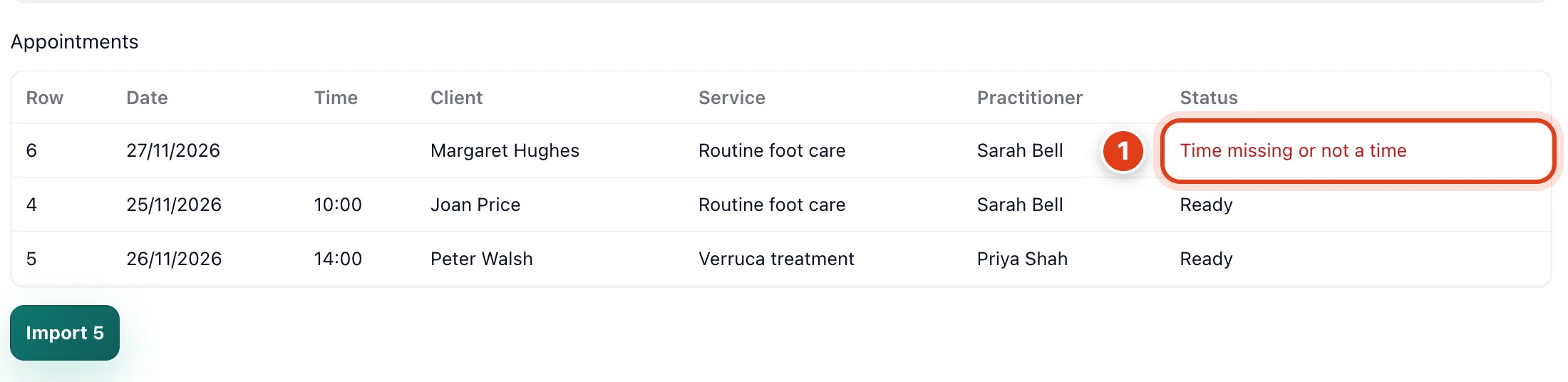
- Status gives the reason a row can't be read, and that row is left out. For example, Margaret Hughes's 27 November visit has no time: Time missing or not a time, so it isn't in Import 5.
Part 2 Import
Step 3 Keep past visits as notes
If your files have visits before today, choose what happens to them in Past appointments, then click Import 6.
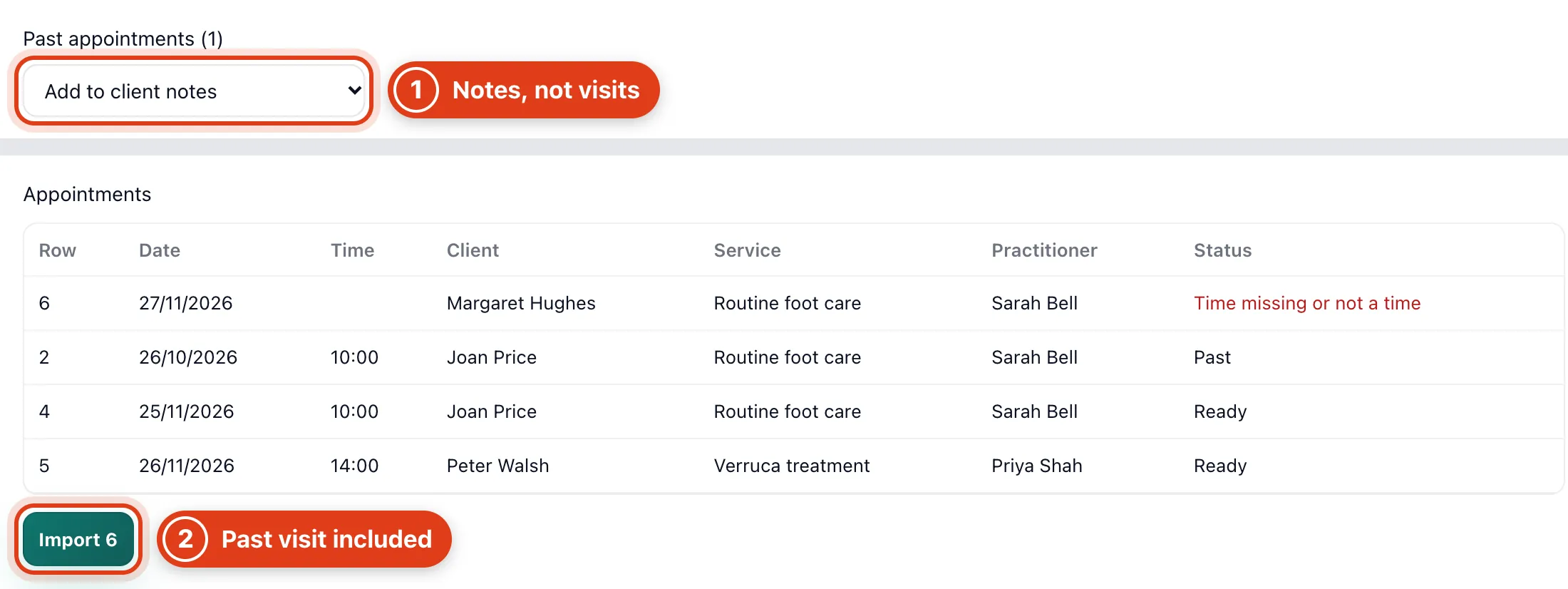
- Add to client notes writes each visit before today as a line in one note on the client's Notes tab. For example, Joan Price's 26 October visit becomes a line with 10:00, Routine foot care and Sarah Bell.
- Import 6 counts every row it will import or find already saved. For example, 3 clients and 2 future visits make 5, and Add to client notes adds Joan Price's past visit.
Step 4 Read the result
Nothing goes to your clients or team while it imports: no invoices, forms or alerts.
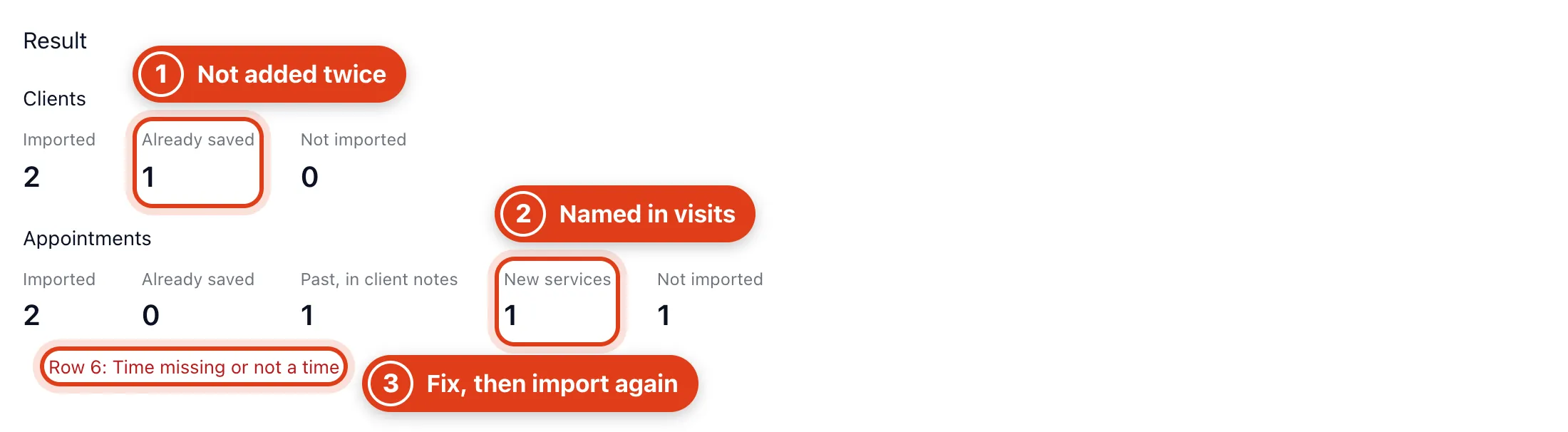
- Already saved counts clients you already have: they aren't added again and their saved details don't change. For example, Linda Evans's row has the same email as your Linda Evans.
- New services are ones your visits name that you didn't have, with the visit's length and any price in your file. For example, Verruca treatment comes in at 30 minutes, no price: add one in Services & prices.
- Not imported lists the rows to fix in your file; then import it again: rows already saved are skipped. For example, these files imported twice add nothing: Already saved 3 clients, 2 visits.
Part 3 Find what came in
Step 5 Find the imported visits
The future visits are in your Calendar, and your reminders go out before them as before any visit: for example, with reminders 24 hours before, Peter Walsh gets his at 14:00 on 25 November.
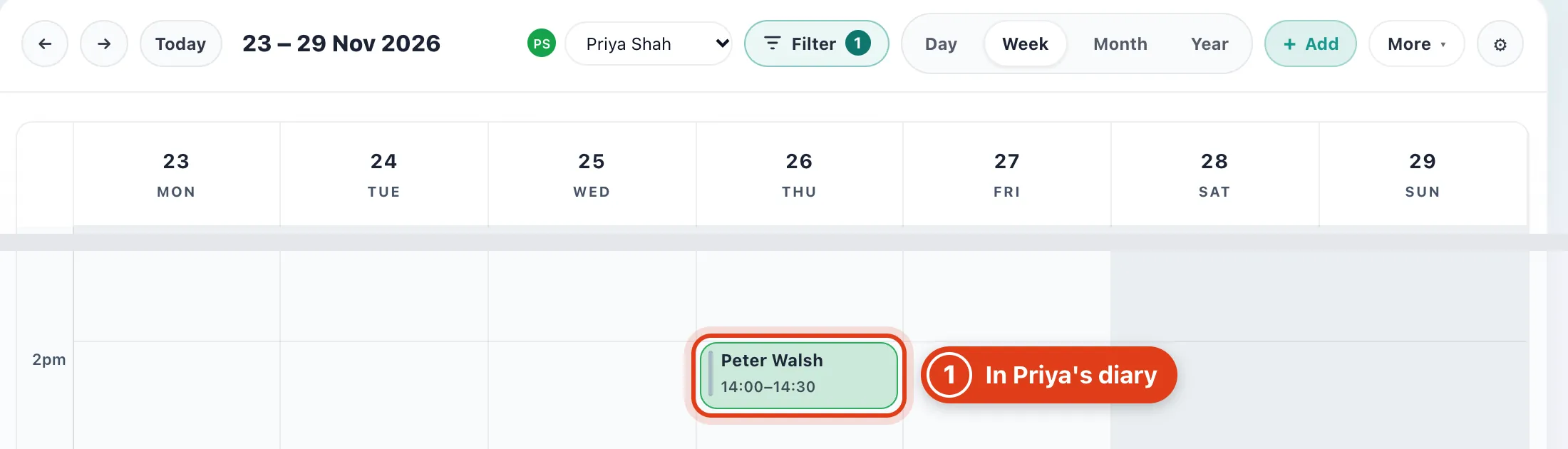
- Practitioner in your file picks the team member, by full name or a first name no one else has. For example, Peter Walsh's visit with Priya Shah, or just Priya, is hers; a name not on your team is Unassigned.
Step 6 Find a client's past visits
Open the client in Clients and click Notes.
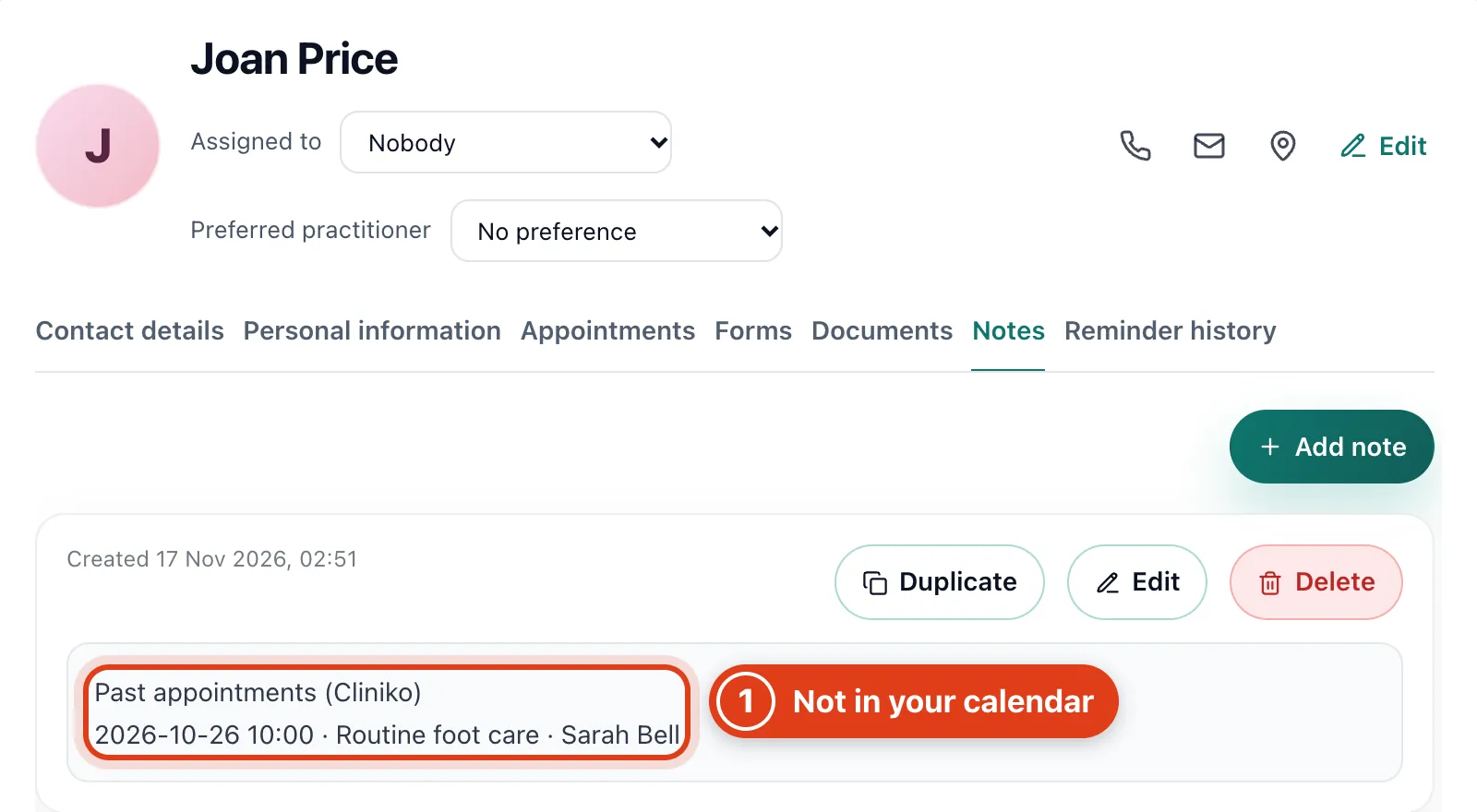
- Past appointments (Cliniko) is a note: its visits aren't in the Appointments tab, your calendar or reports. For example, Joan Price's Appointments tab still says No past appointments yet.