
How to set up the AI Receptionist
Set up your AI Receptionist to answer your calls, book visits and take messages.
Updated 17 November 2026
Part 1 Name it and get its number
Step 1 Name your receptionist and choose its voice
Go to Extensions and click Install on AI Receptionist, then open AI Receptionist from the menu. Name your receptionist, choose a voice and click Next.
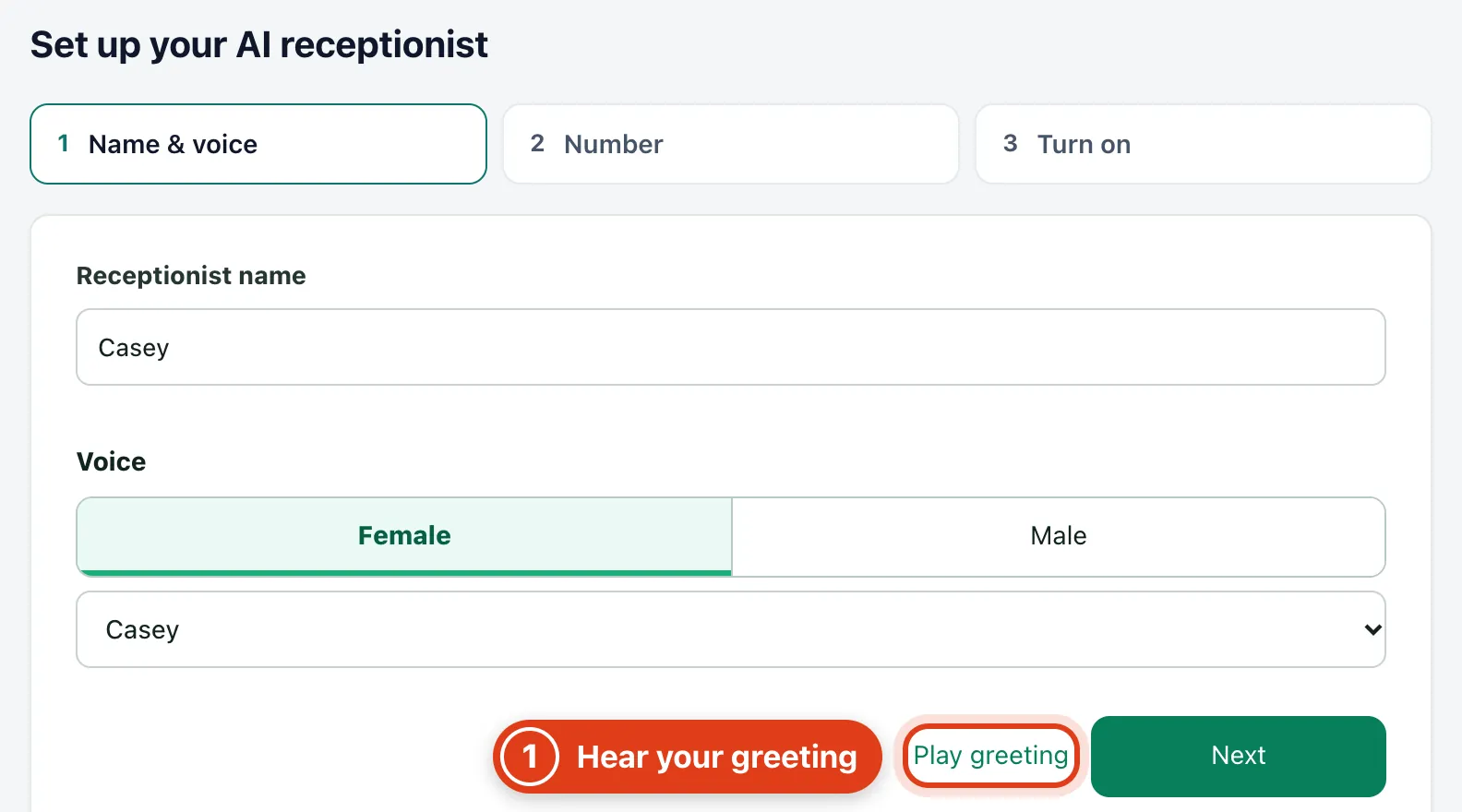
- Play greeting plays your opening message in the chosen voice. For example, Casey says "Thank you for calling Sarah Bell Foot Care. How can I help today?" until you change it.
Step 2 Get your number
Click Get your number and turn on. Once you have a number, Settings › AI Receptionist › Number shows how to forward your calls to it.
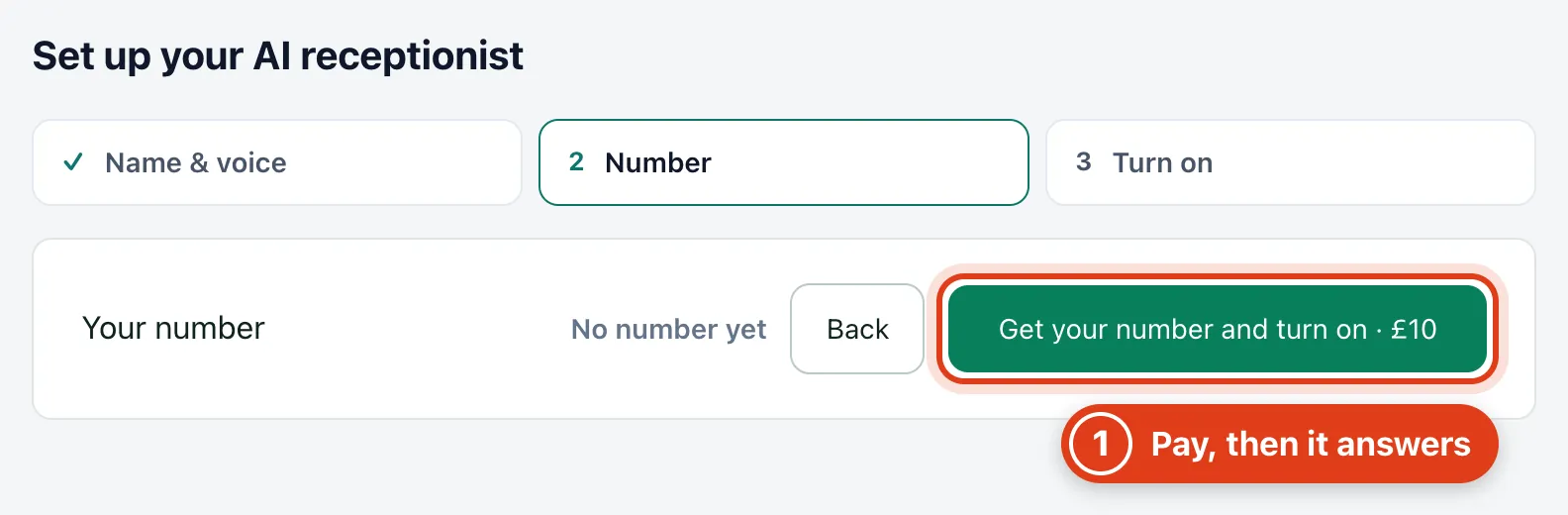
- Get your number and turn on buys your number and turns the receptionist on. For example, the £10 is £5 once for the number and £5 of call credit: 16 minutes 40 seconds of calls at 30p a minute.
Part 2 Tell it about your business
Step 3 Write what callers hear first
Go to Settings › AI Receptionist › Voice & name to change the name, voice and Opening message. If what it would say runs over 25 words, it says only the first sentence, then "How can I help?".
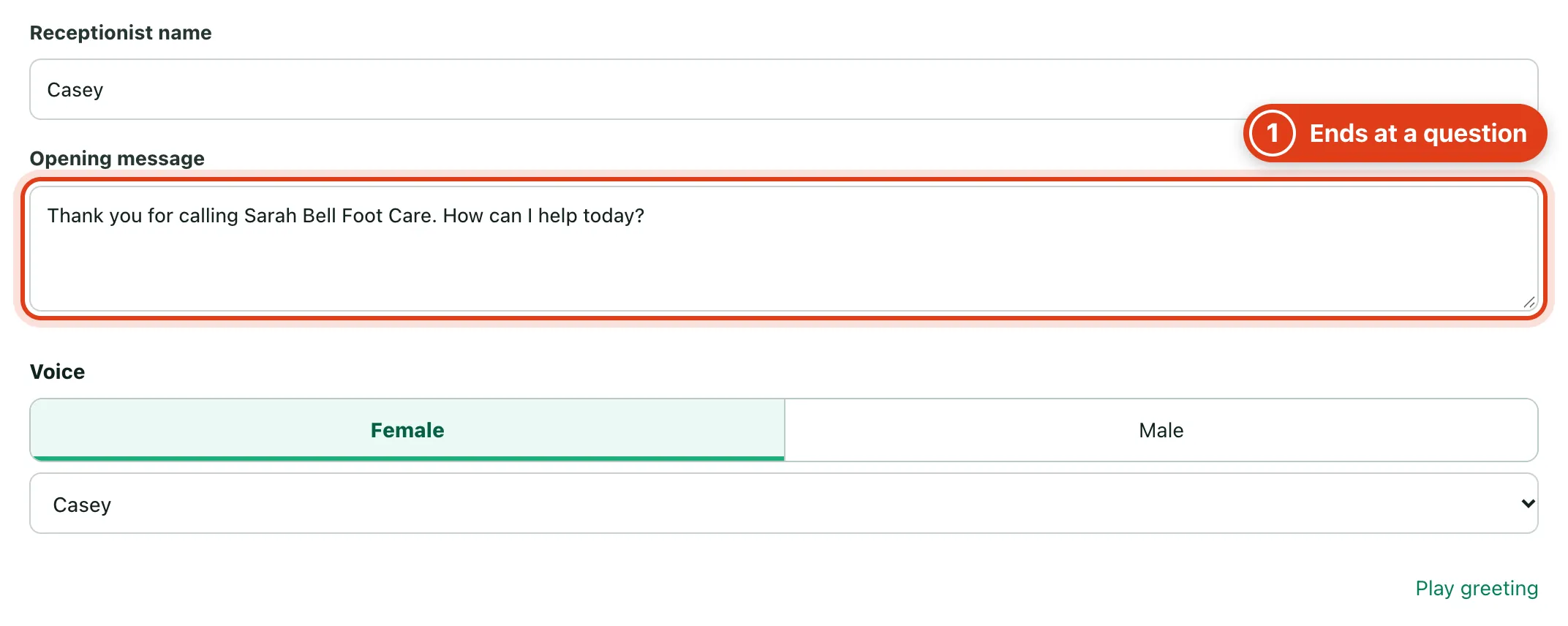
- Opening message is said up to its first question; with none, the first two sentences and "How can I help?". For example, "Hello. Casey speaking. We visit Hertford." becomes "Hello. Casey speaking. How can I help?"
Step 4 Write what it tells callers
Open What it knows from Settings › AI Receptionist, add a note under each topic and Save changes. Generate with AI drafts the notes once per account from your website or notes, for you to accept.
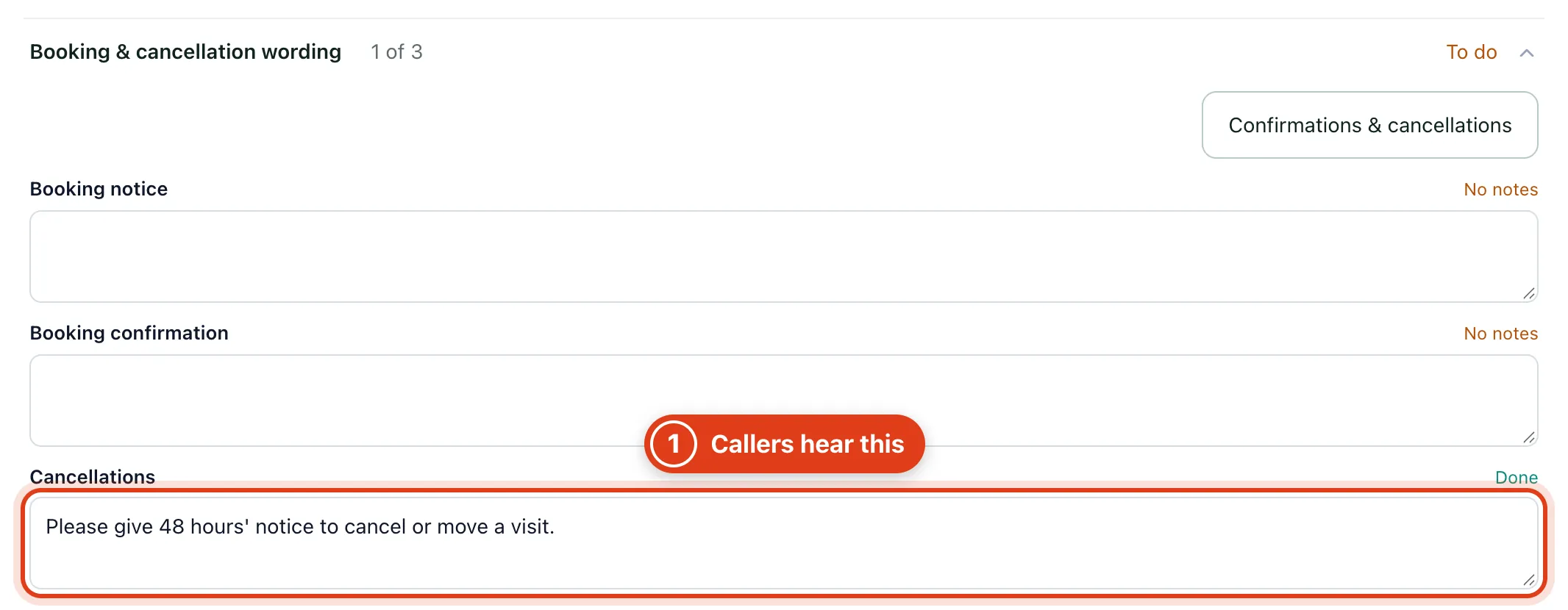
- Cancellations is what it says when a caller asks about cancelling. For example, with "Please give 48 hours' notice to cancel or move a visit.", Linda Evans asking to cancel hears that.
Step 5 Give it your own rules
Under Business, write the rules it must keep in Important instructions.
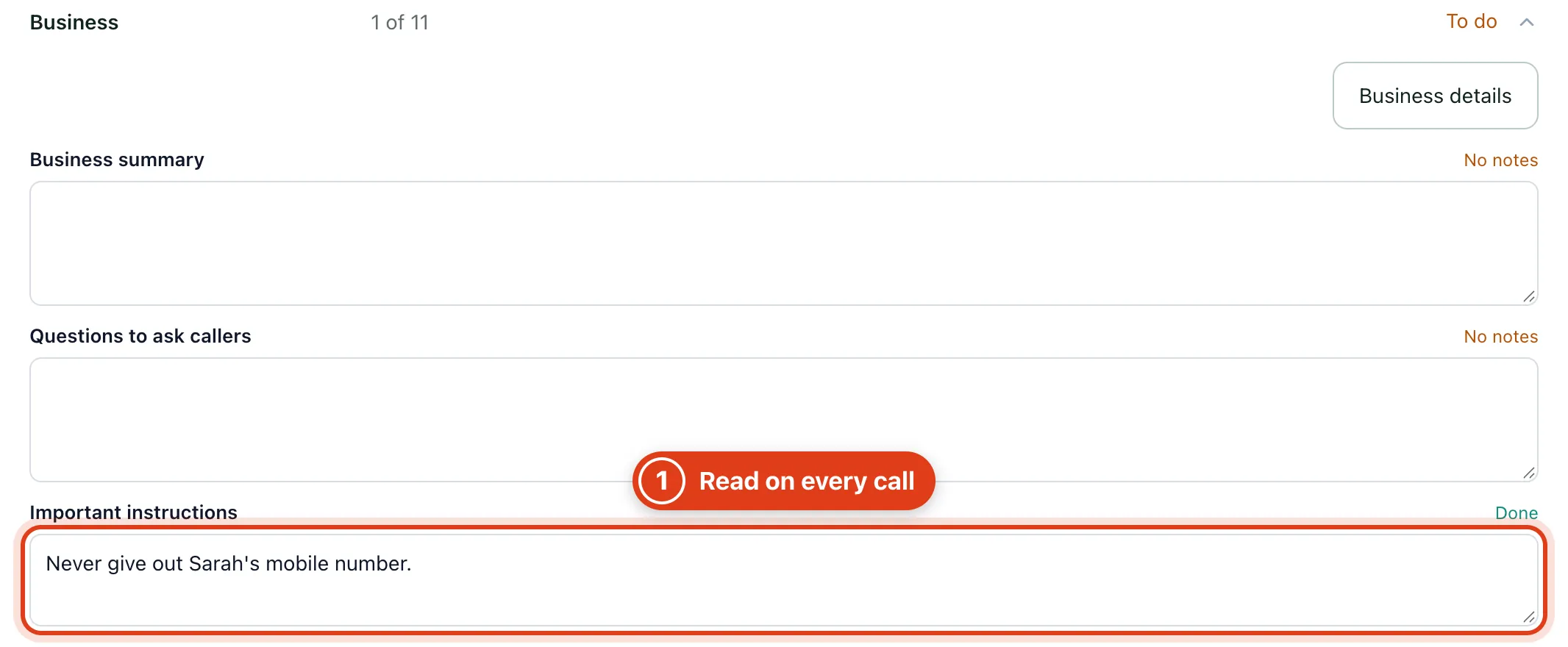
- Important instructions are read on every call as whole sentences, up to 600 of the box's 1,000 characters. For example, with three rules of 250 characters each, calls use only the first two.
Step 6 Answer the questions callers ask
Open Questions to answer, fill in the answers and use Add question for your own, then Save changes.
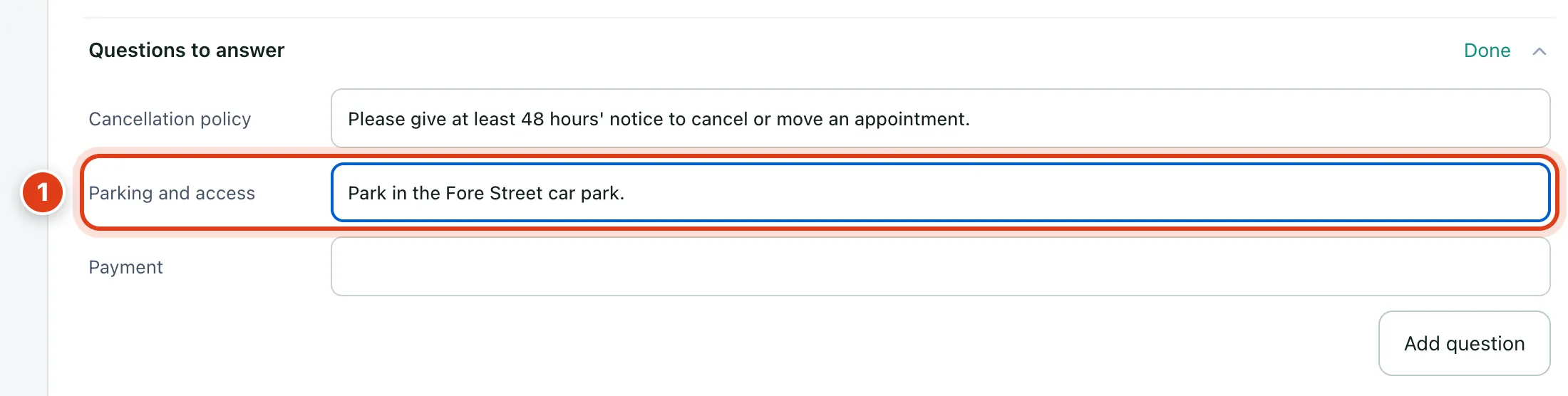
- Parking and access and the other answers are what it says when a caller asks. For example, with "Park in the Fore Street car park.", a caller asking where to park hears that.
Part 3 Choose what it does on calls
Step 7 Choose what it can do
Go to Settings › AI Receptionist › Calls & messages and switch on what it may do, then save. Bookings in the same list opens Settings › Bookings, which decides what new and returning clients can book with it.
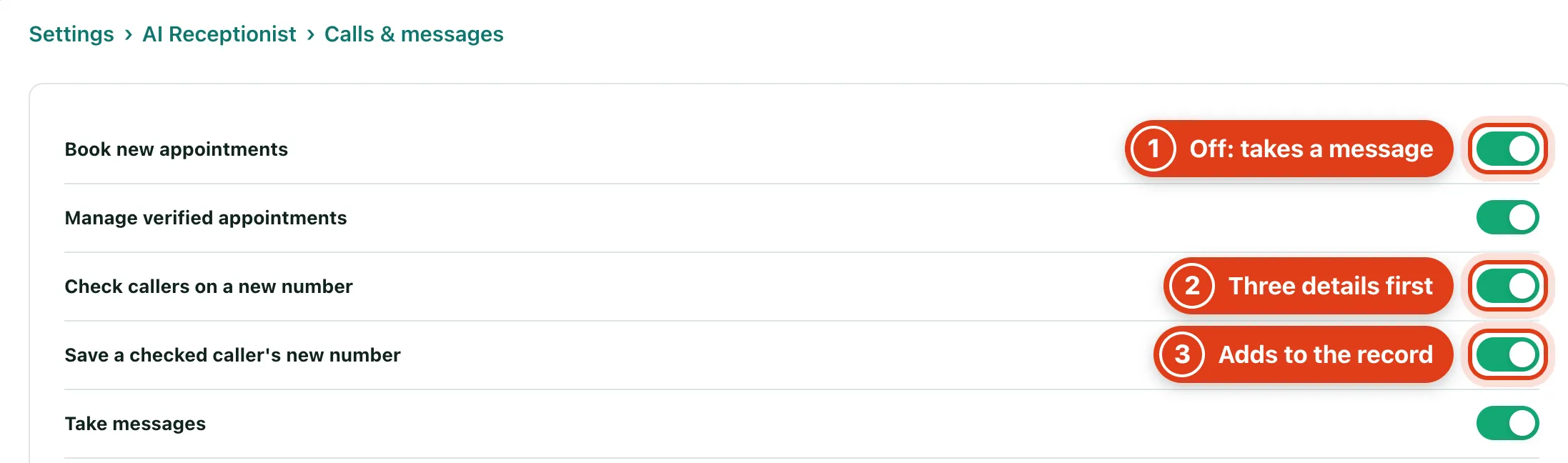
- Book new appointments off: a caller who wants to book is asked to leave a message, or to call back if Take messages is off. For example, Linda Evans hears Sarah will ring to arrange it.
- Check callers on a new number: a caller on a number not on the client's record gives their full name, postcode and house number first. For example, Linda Evans ringing from a friend's phone.
- Save a checked caller's new number adds the number they rang from to the client's record. For example, Linda Evans's son rings from his mobile; after the check, it's saved on her record.
Step 8 Decide what happens when no time suits
Choose what happens After a caller declines the available times, and whether it can put callers through to you. It searches in periods as long as your Suggest range, 1 week at first.
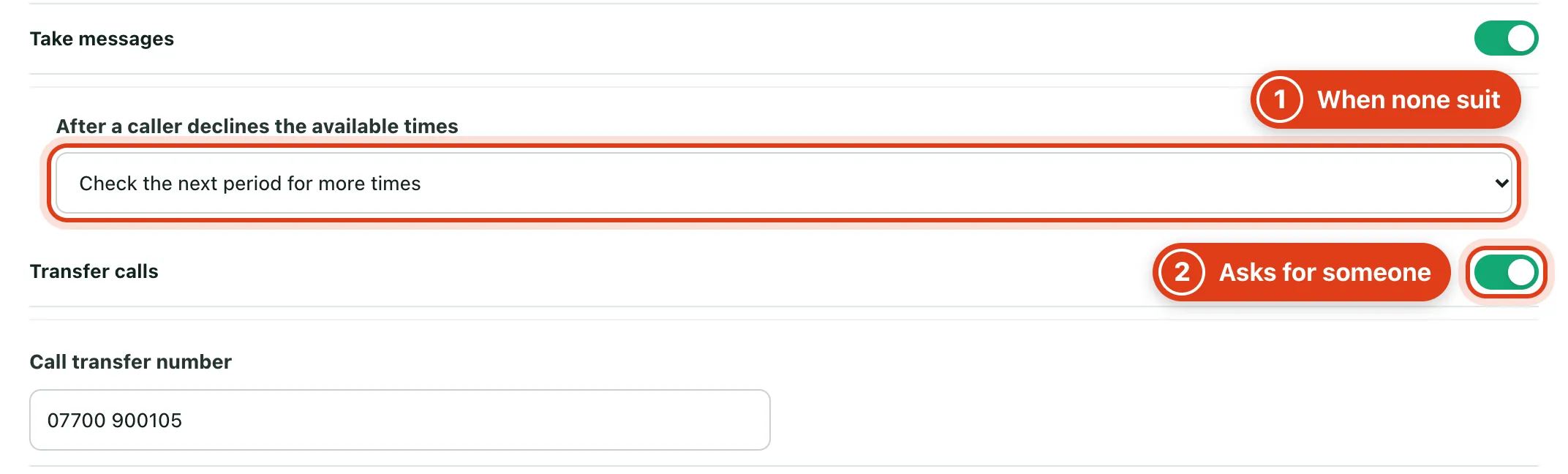
- Check the next period for more times offers the next week's times; Apologise and offer no more times asks for a day or week. For example, Linda Evans turns down this week's times and hears next week's.
- Transfer calls puts a caller who asks to speak to someone through to the number you save under it. For example, a caller asking for Sarah is put through to her mobile.
Step 9 Choose what it asks callers who book
Under Information to collect, choose what else it asks for; it always takes the caller's name and phone number.
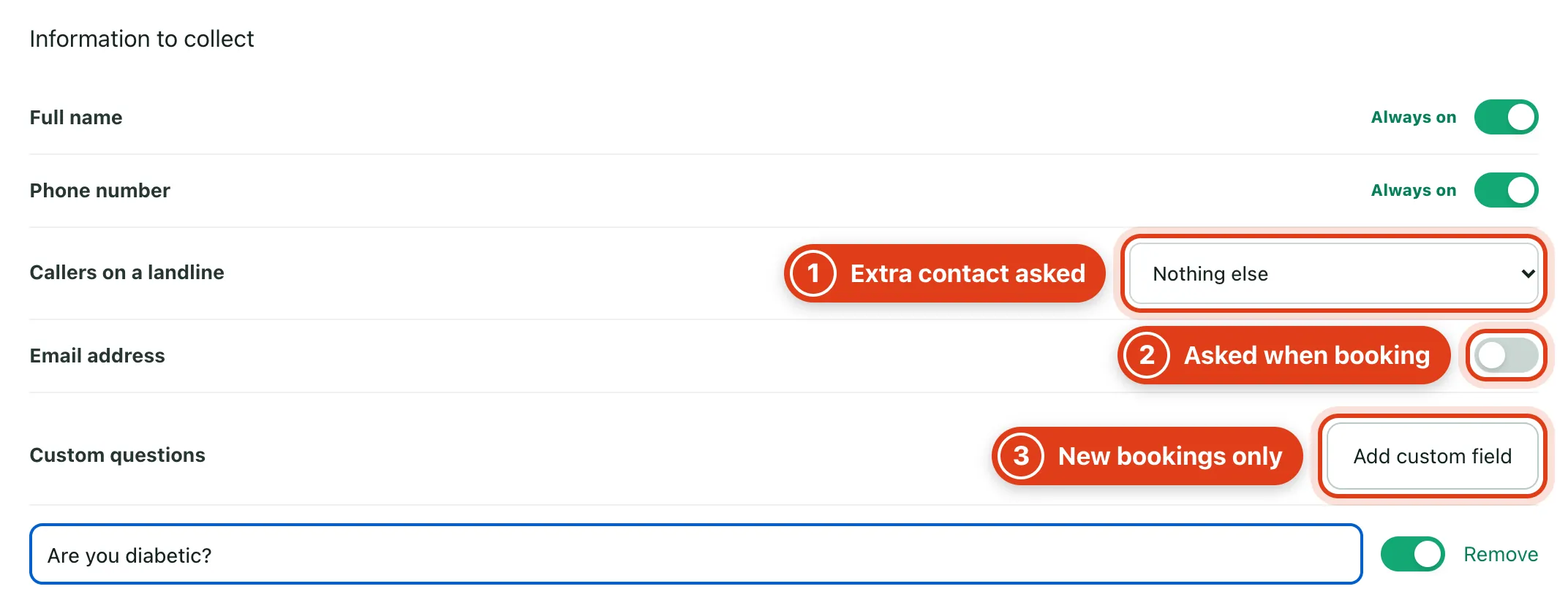
- Callers on a landline: what else it asks for when a caller books from a landline. For example, with A mobile number, a new client booking from a home phone is asked for their mobile.
- Email address on: it also asks callers who book for an email address, before it reads the booking back.
- Custom questions (up to 12) are asked on new bookings once the time is agreed; the answers go in the visit's Notes. For example, "Are you diabetic?" becomes "Is your mum diabetic?" when a son books for his mum.
Step 10 Get told about calls
In Notifications, choose how you hear about calls; every call also shows under Calls in the app.
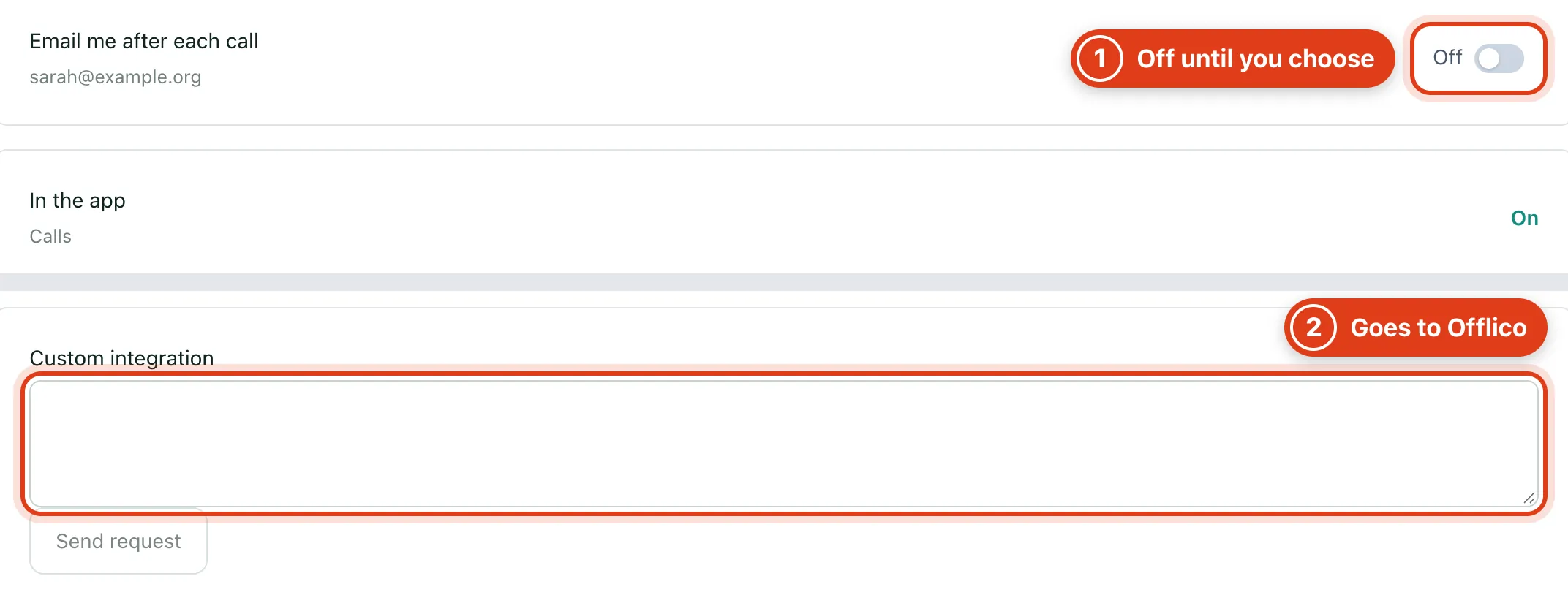
- Email me after each call is the same switch as Call summaries in My notifications, so turning either on or off changes both.
- Custom integration sends your request to the Offlico team; the date you sent it and its status then show above the box.