
How to send automatic reminders
Remind clients before every visit without doing it yourself.
Updated 16 November 2026
Part 1 Turn reminders on and choose when
Step 1 Turn on reminders and choose when they go
Go to Settings › Reminders & confirmations; new accounts start with Automatic appointment reminders on. On the Starter plan this page shows an upgrade screen instead.
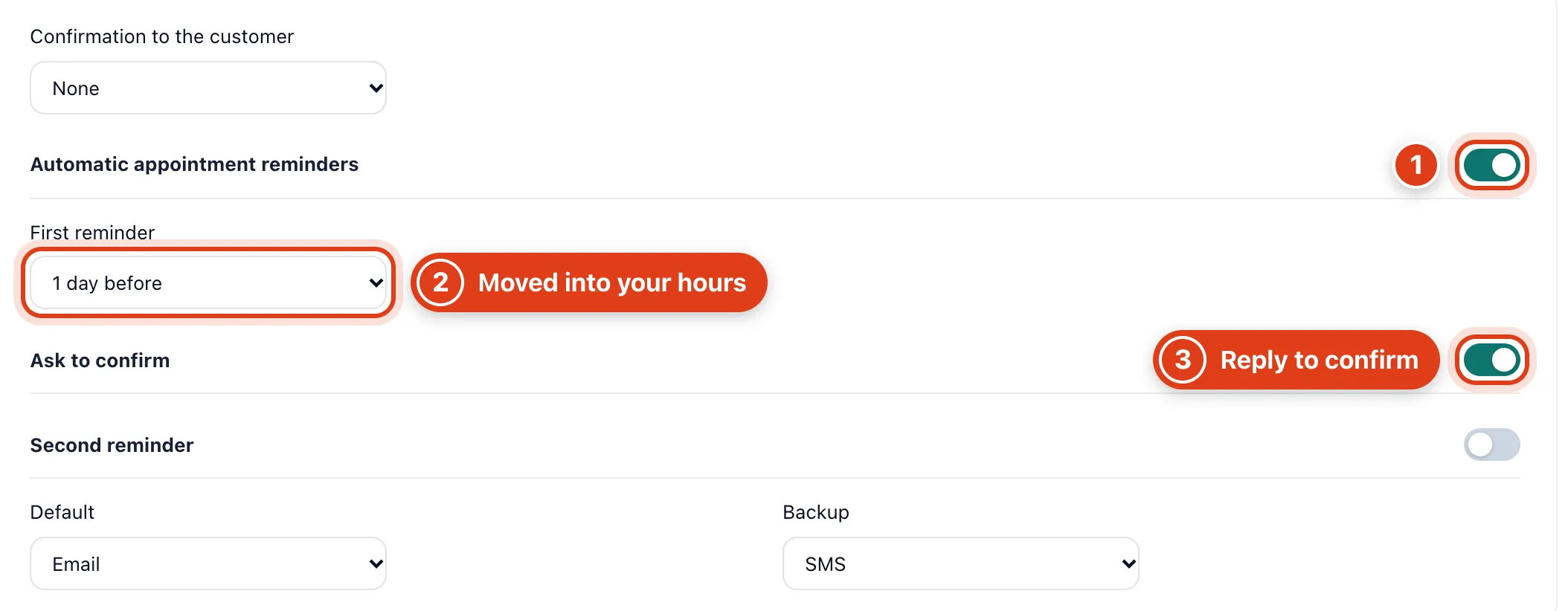
- Automatic appointment reminders skips online bookings still waiting for their deposit or payment. For example, a client who books online for Friday gets her reminder only once she has paid.
- First reminder goes this long before a visit, inside your Sending hours (08:00 to 20:00, Settings › Payment reminders). For example, with 1 day before, a Wednesday 07:30 visit gets it Tuesday at 08:00.
- Ask to confirm lets the client confirm or cancel from the reminder; with no answer the visit shows Not confirmed from 36 hours before. For example, a Wednesday 12:00 visit shows it from Tuesday at 00:00.
Step 2 Add a second reminder
Turn on Second reminder and choose when it goes, then Save. Set your Cancellation notice in Settings › Confirmations & cancellations.
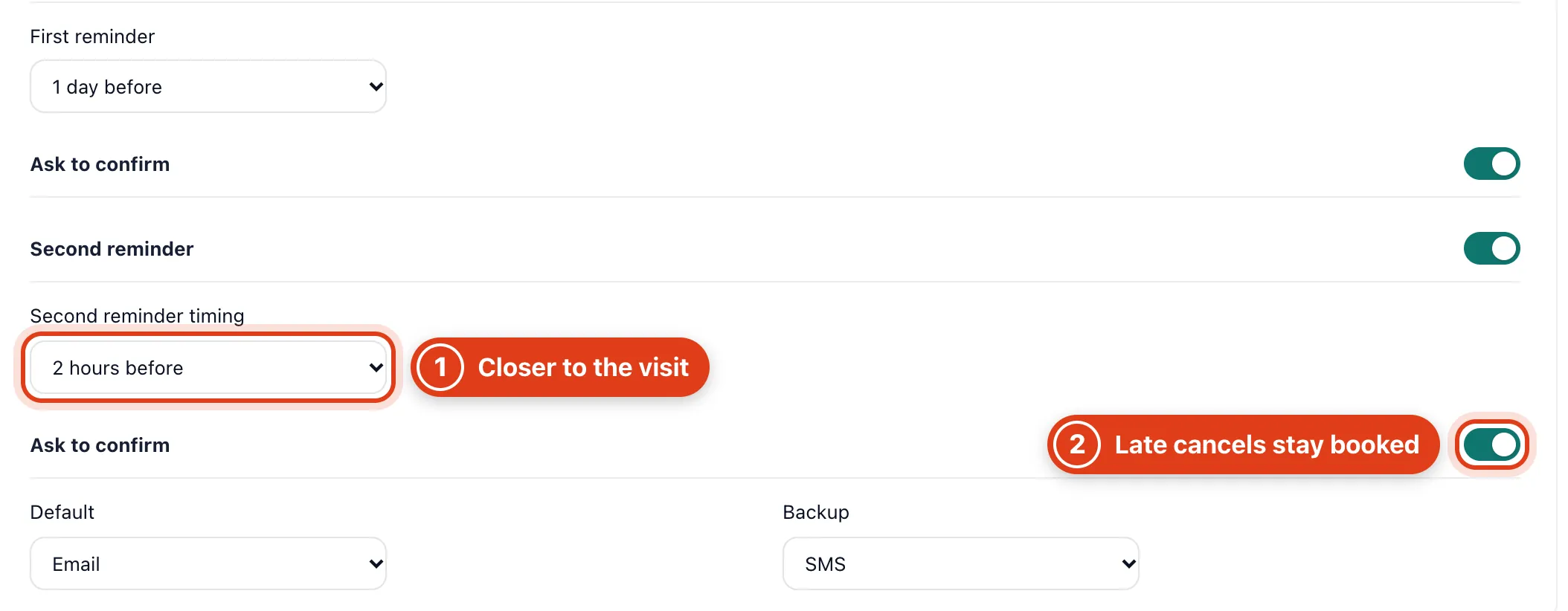
- Second reminder goes closer to the visit than the first. For example, 1 day before and 2 hours before remind Linda Evans on Tuesday at 12:00 and Wednesday at 10:00 for her Wednesday 12:00 visit.
- Ask to confirm: a cancel reply inside your Cancellation notice leaves the visit booked and tells you. For example, with 24 hours, a cancel sent Tuesday at 13:00 for a Wednesday 12:00 visit stays booked.
Step 3 Choose how they go
Choose Default and Backup, then Save.
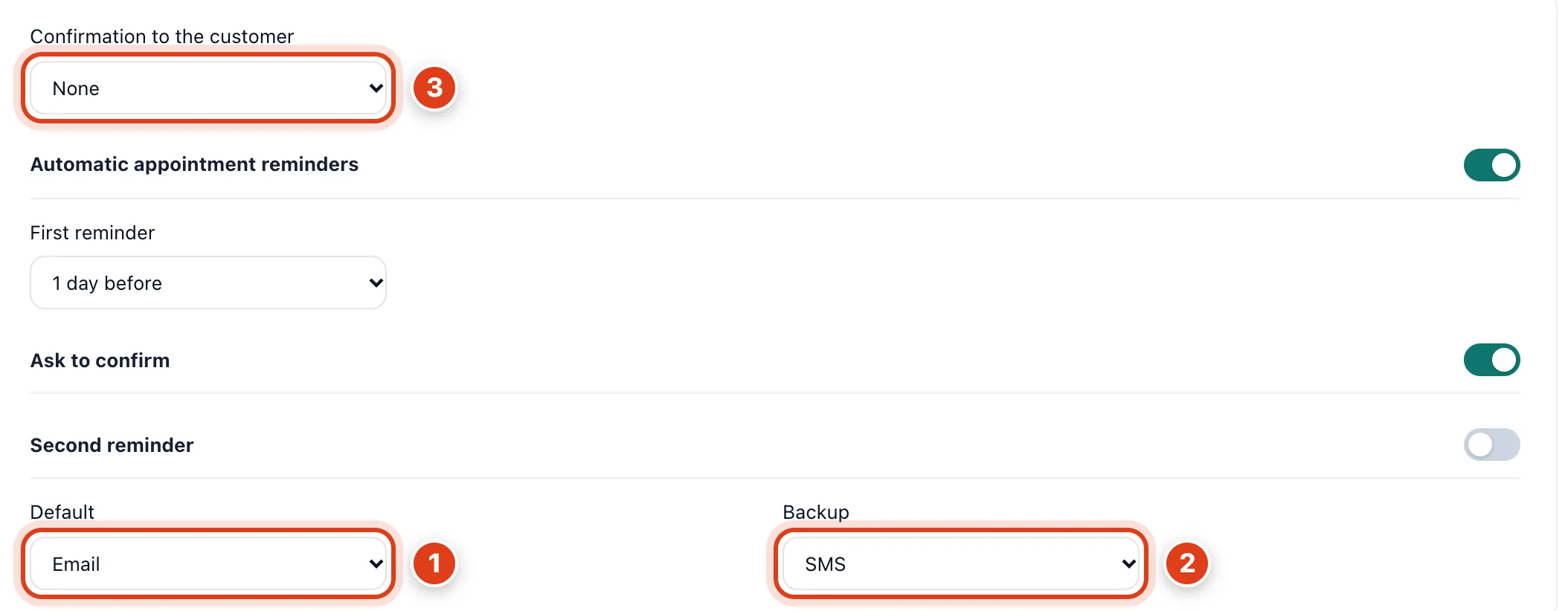
- Default is how reminders go for clients without their own method (step 5). For example, with Email, a new client who gives an email and a mobile gets emails, not texts.
- Backup is tried when a client has no email or mobile for Default. For example, with Email and backup SMS, a client with only a mobile, such as 07700 900461, gets a text from your credits.
- Confirmation to the customer is how clients who book online hear it went through; visits you add send none. For example, with SMS they get one text from your credits, or an email if it can't go.
Part 2 Change what reminders say
Step 4 Change the words
Go to Settings › Message templates, change the words of a reminder, then Save.
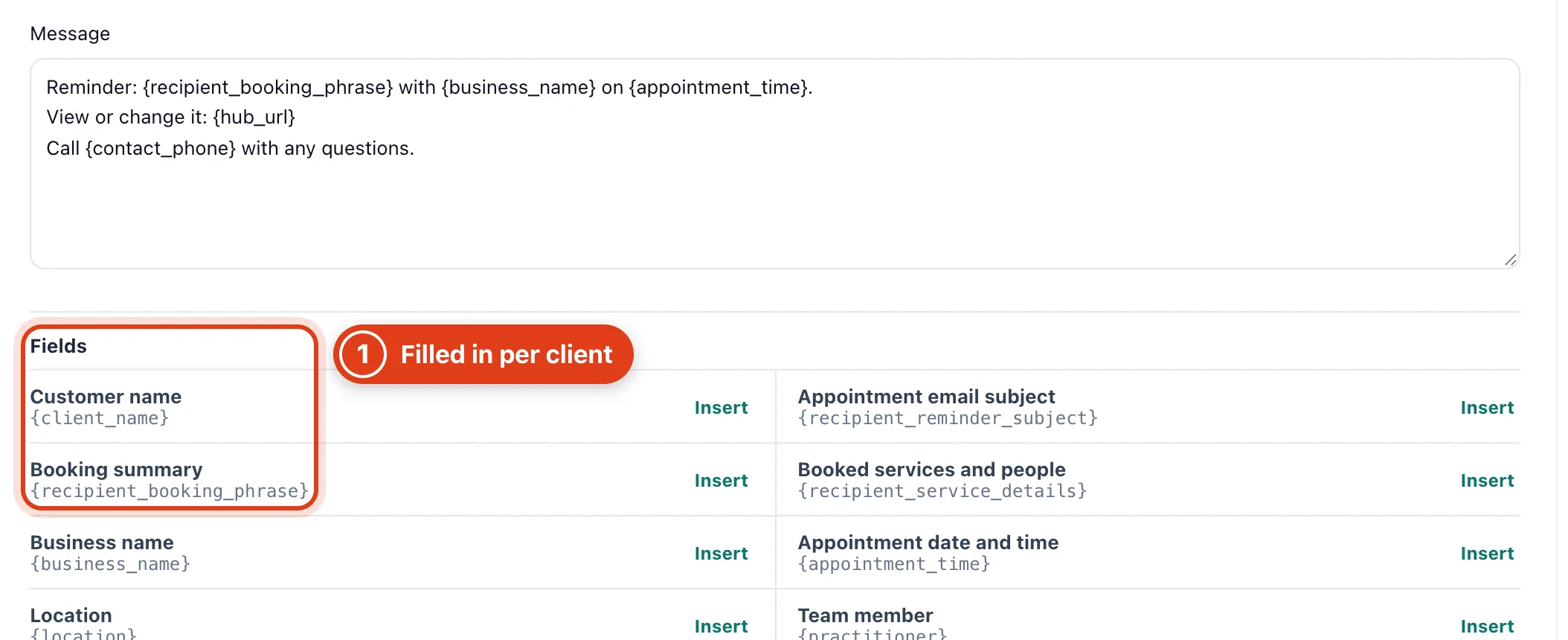
- {appointment_time} and the other words in braces are filled in for each client when the message goes. For example, Raj Patel's reminder reads "... Sarah Bell Foot Care on 17 Nov 2026, 10:45."
Step 5 Give one client their own method
Under Customer defaults, click Edit beside a client to set how their reminders go.
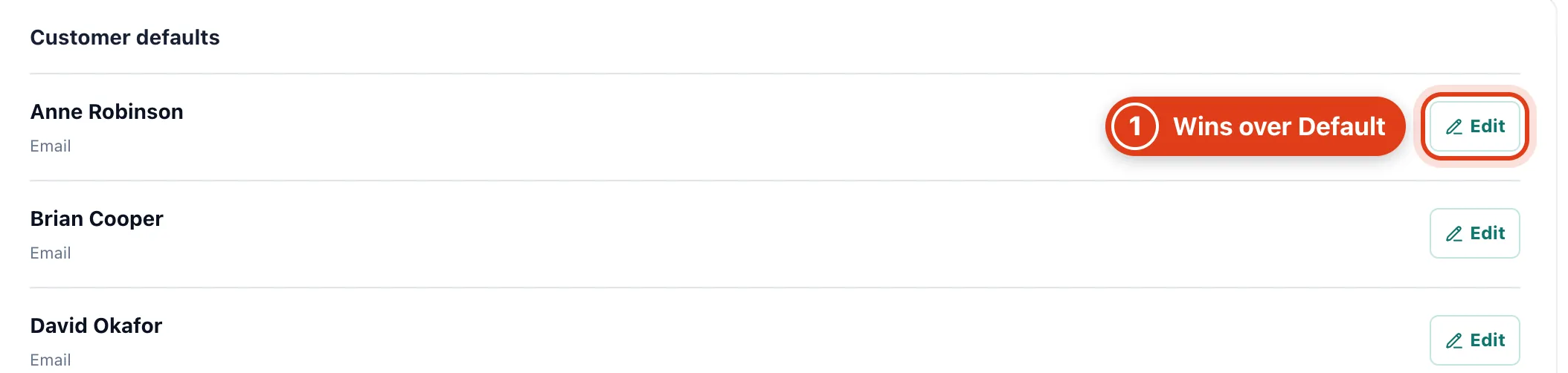
- Customer defaults lists clients with their own method; it wins over Default for all their reminders. For example, set Anne Robinson to SMS and she gets texts while Default stays Email.
Part 3 Check what is sent
Step 6 See every reminder
Go to Reminders in the menu.
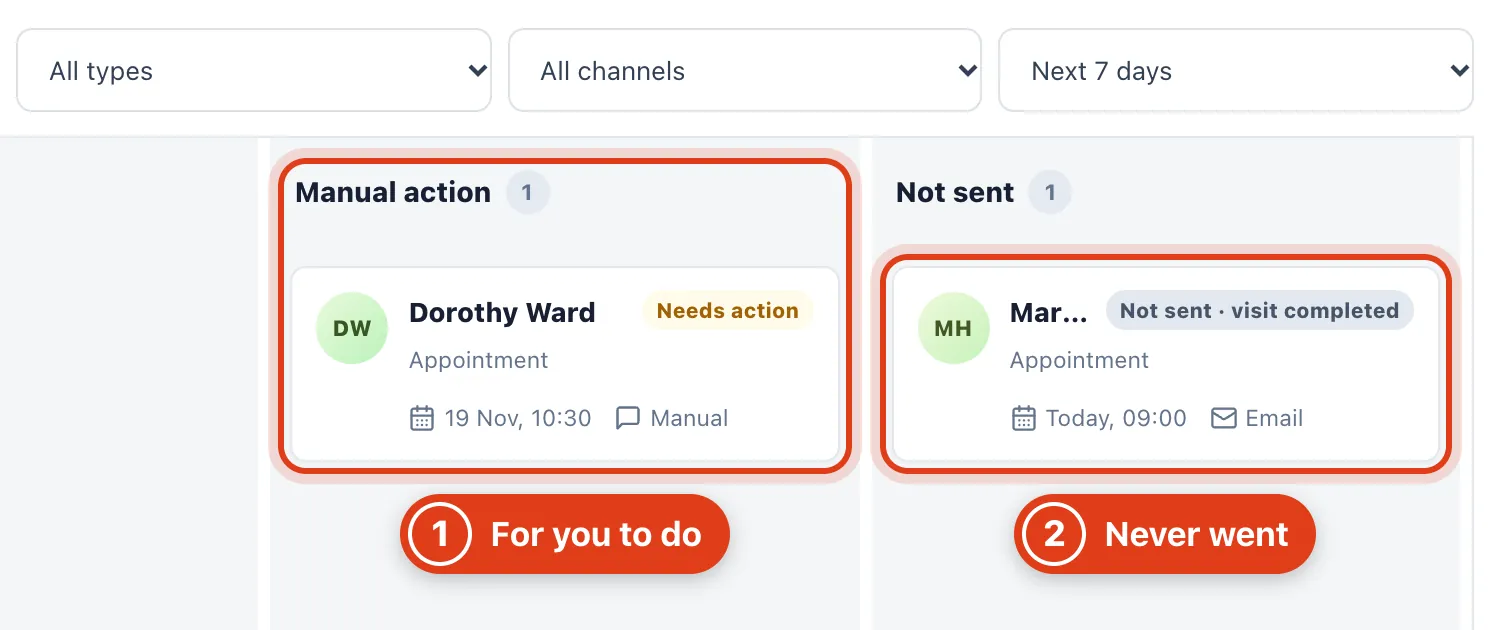
- Manual action holds reminders Offlico can't send for you, to call or text yourself. For example, Dorothy Ward has only a landline, so her reminder lands here.
- Not sent shows reminders that never went because the visit was cancelled, completed, a no show or had started; the card says which, such as Not sent · visit completed.
Step 7 Open one reminder
Click a reminder to open Reminder details.
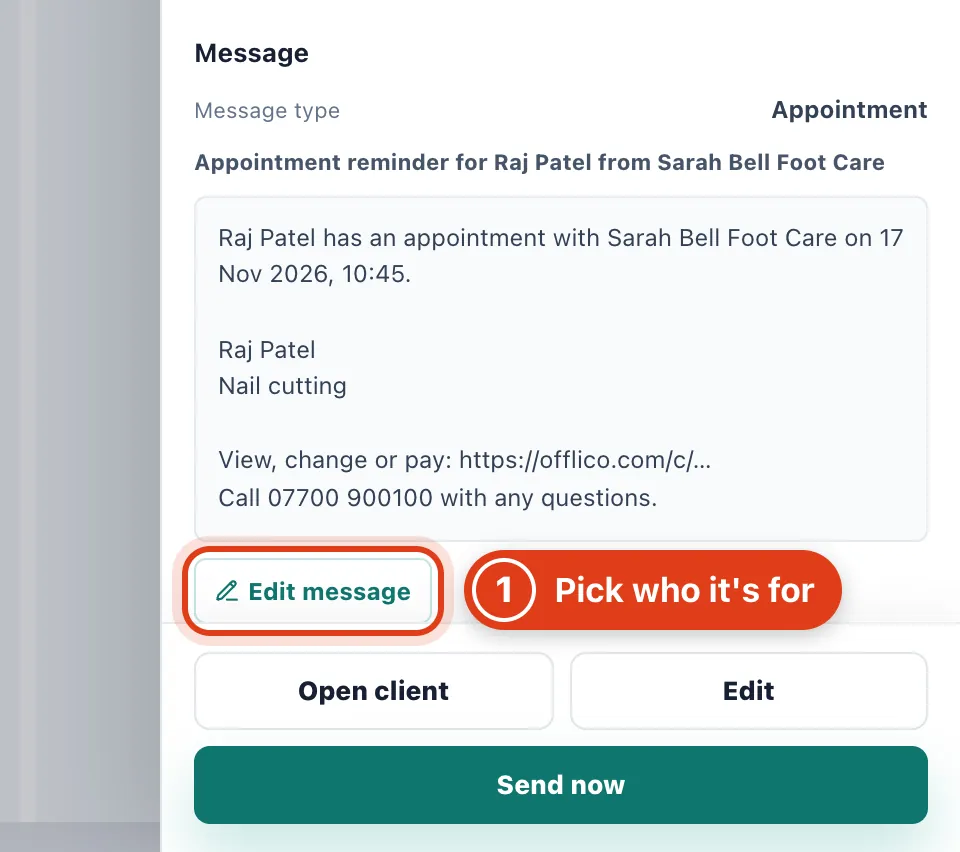
- Edit message saves new words for This reminder, This customer or Everyone (the Message templates words). For example, This customer changes every reminder Raj Patel gets.
Part 4 After the visit
Step 8 Ask for reviews
Go to Settings › Review requests, turn on Ask for a review after each visit and paste your Review link.
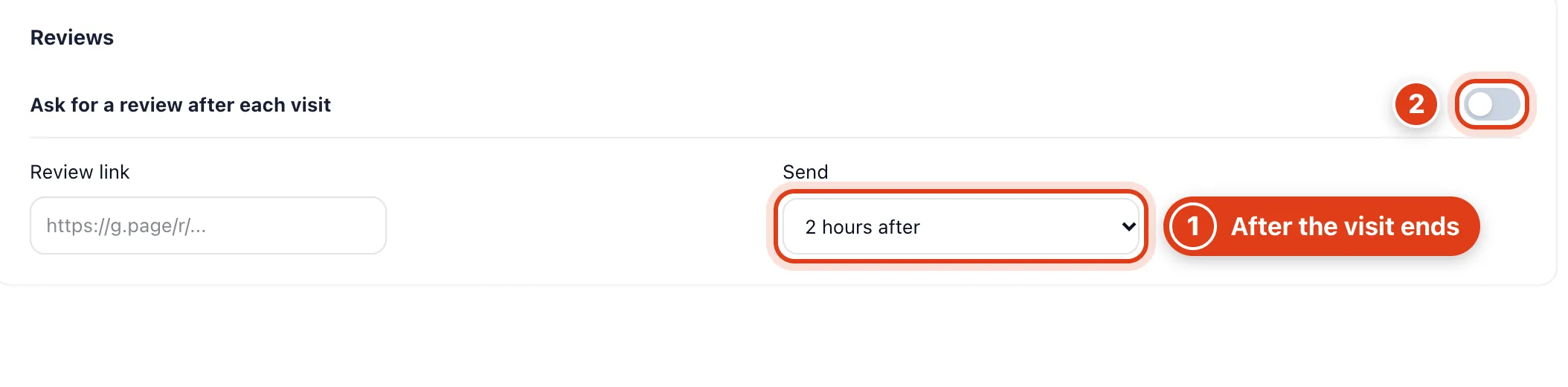
- Send counts from the end of the visit, inside your sending hours, and each client is asked once. For example, with 2 hours after, Linda Evans' 12:00 to 13:00 visit sends the request at 15:00.
- Ask for a review after each visit emails the client your Review link, or texts it from your credits when they have no email. For example, a client with only a mobile, such as 07700 900461, gets a text.
Step 9 Remind clients when they're due again
Go to Settings › Due again reminders and turn it on. A client's own Routine every wins over the services' Due again: with 4 weeks, Linda Evans' link after her 18 November visit goes on 16 December.

- Remind clients when they're due again sends one message with your booking link when nothing is booked. For example, with Every 6 weeks on Routine foot care, a visit on 18 November sends it on 30 December.