
Team settings explained
Share clients with a group and choose who hears about changes.
Updated 17 November 2026
Step 1 Team
Go to Settings › Team, click New group under Groups, give it a Group name and tick its Members, then Create group. Then choose the group in a client's Assigned to.
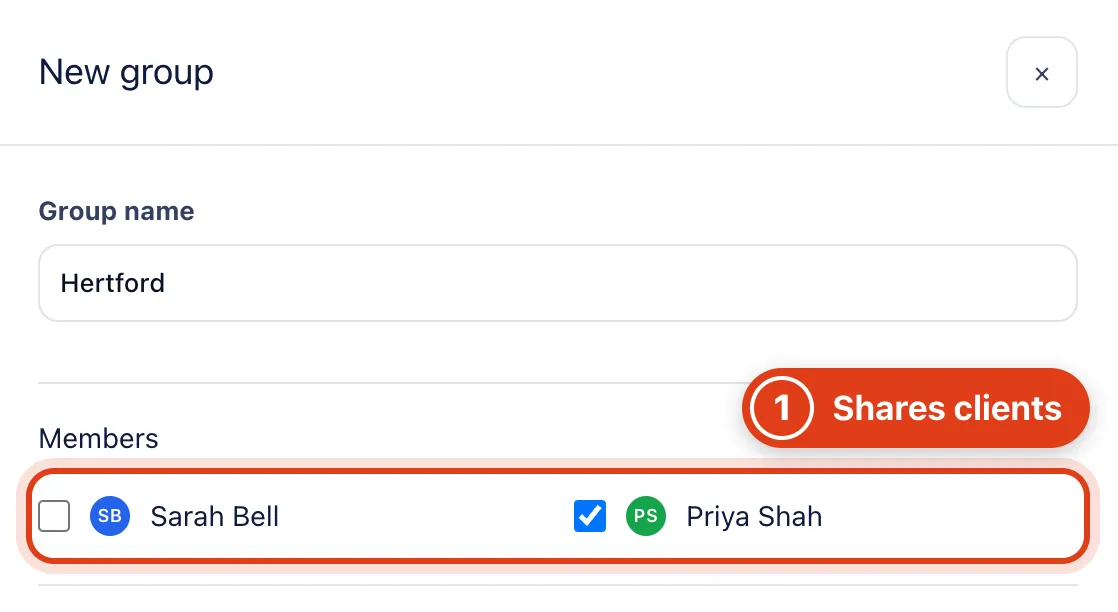
- Members see every client given to the group in Assigned to when their Clients access is Assigned, including people added later. For example, give Linda Evans to Hertford and Priya Shah sees her.
Step 2 Team emails
Go to Settings › Team emails and choose, for each person and notice, Email and in app or In app only, then Save. Emails only cover visits from today to 14 days ahead.
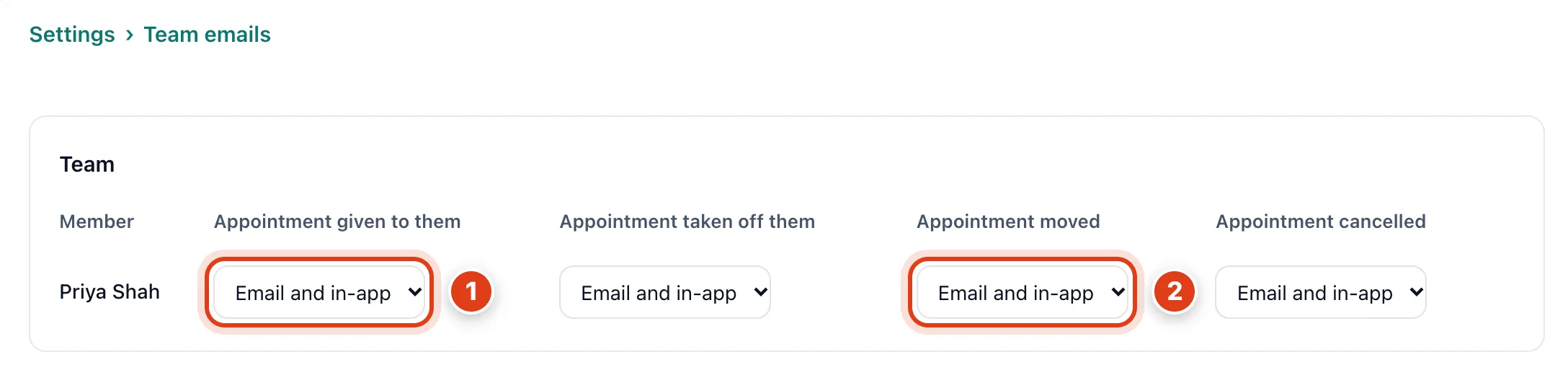
- Appointment given to them and the other notices only come from someone else's change. For example, Priya Shah is told when you give her your visit with Linda Evans, never when she moves her own.
- Email and in app emails them only once they turn that email on in their own My notifications (it starts off). For example, once Priya Shah has, her visit moved to Friday emails her; 3 weeks ahead it doesn't.
Step 3 Team notifications
Go to Settings › Team notifications, tick the events you want to hear about and choose Done by and Send to for each, then Save.
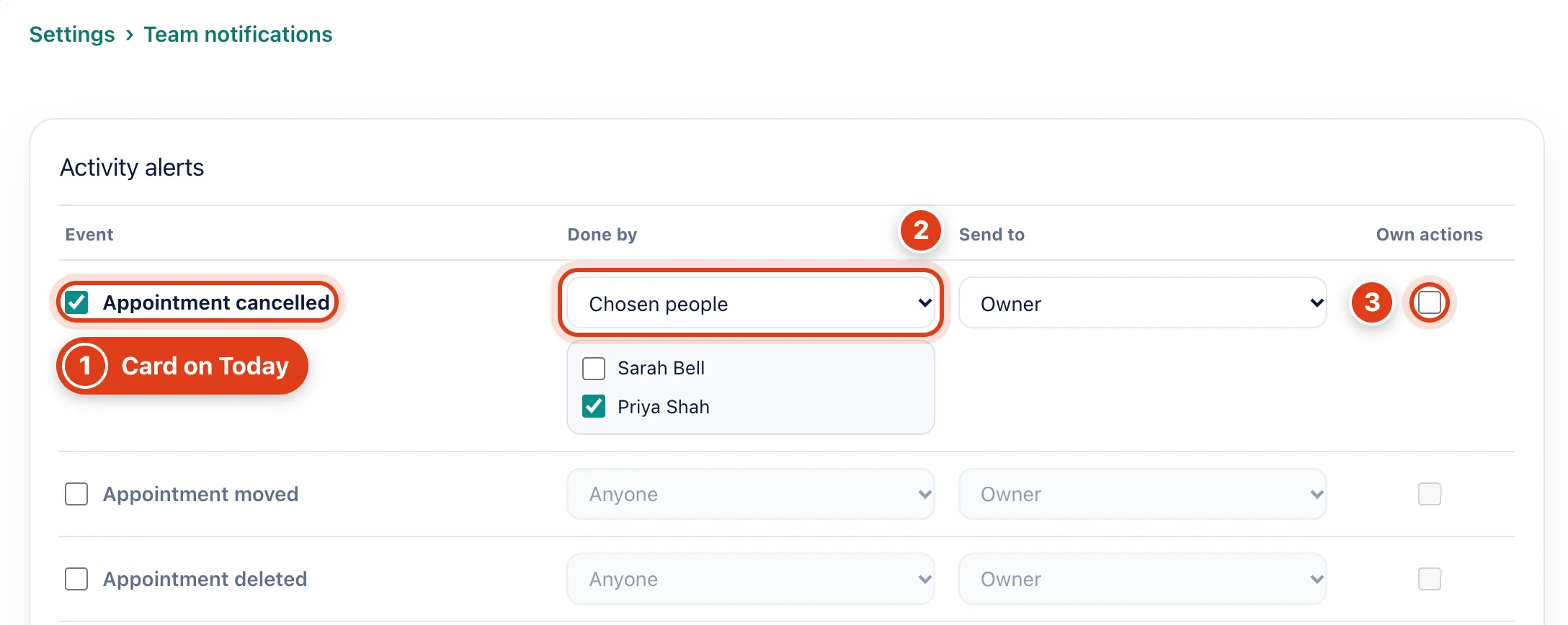
- Ticking Appointment cancelled or any event puts a card with an Open link on the Today board of everyone in Send to; all start unticked. For example, Sarah Bell sees "Priya Shah cancelled an appointment".
- Done by set to Chosen people counts only their actions, never a client's own online change. For example, with Priya Shah chosen, Linda Evans cancelling online makes no card; with Anyone it does.
- Own actions unticked, nobody gets a card for what they did themselves. For example, when Sarah Bell cancels a visit herself, she gets no card for it.