
Data settings explained
Connect other software with API keys and see who did what.
Updated 17 November 2026
Step 1 API keys
Go to Settings › API keys and click Create key. Developer documentation lists every request a key can make.
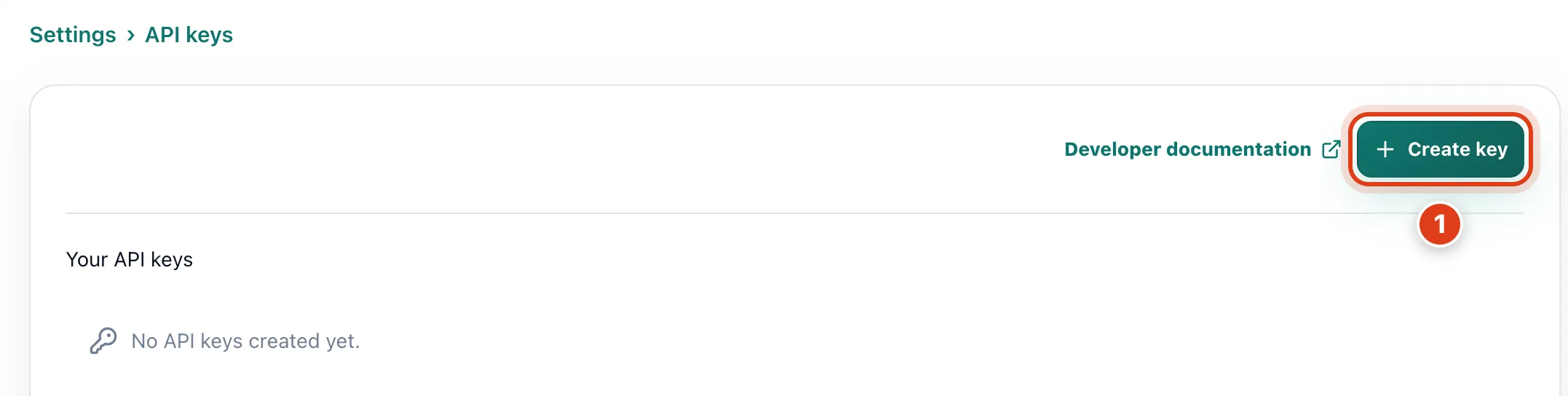
- Create key adds a key to Your API keys; its Create replacement keeps the permissions and the old key works until you Revoke it. For example, made on 17 Nov with 90 days, it runs to 15 Feb 2027.
Step 2 Create an API key
Tick the Permissions your software needs and choose its Expiration, then enter your Offlico password and click Create key. Each key shows when it was last used and by which software; Revoke stops it at once.
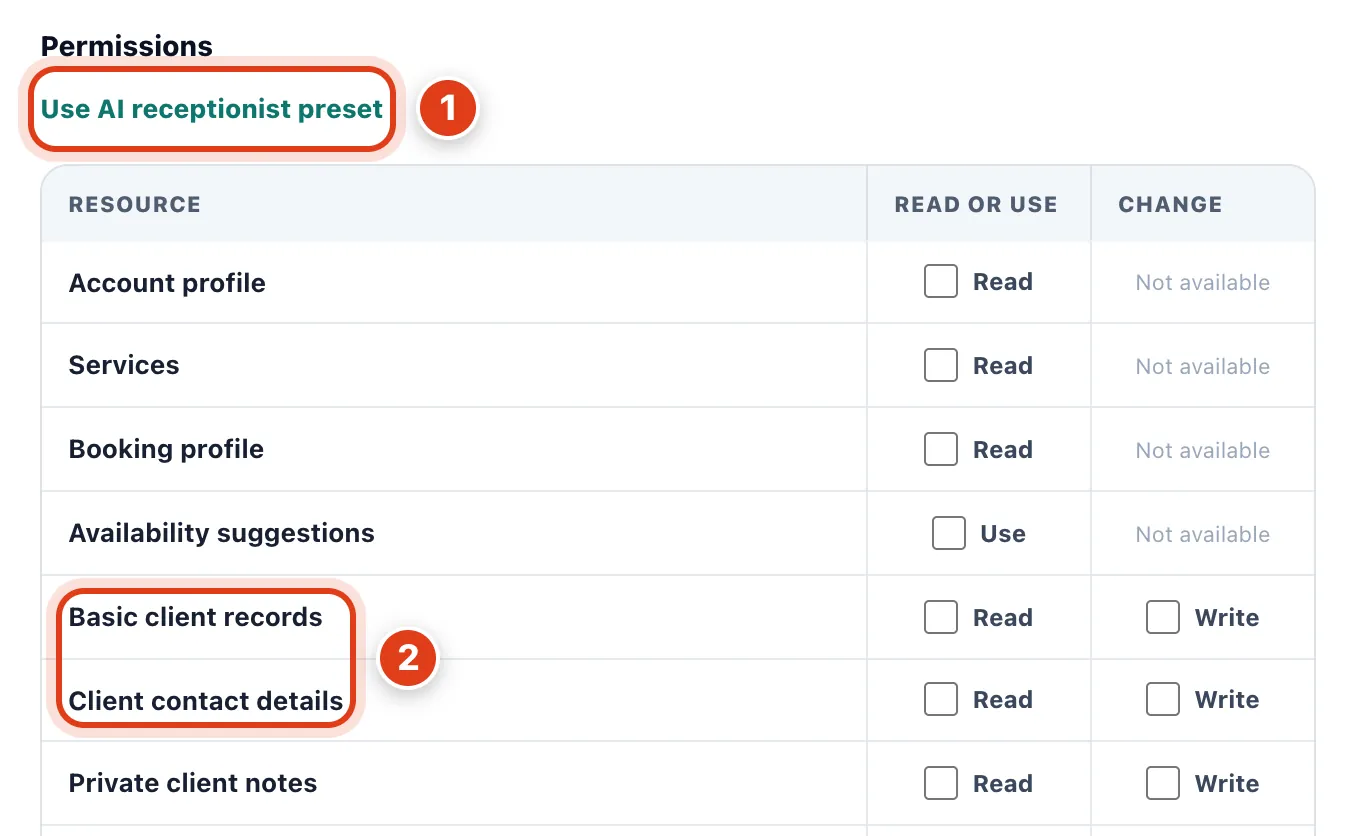
- Use AI receptionist preset ticks what an outside phone assistant needs to find times and book, move or cancel visits, but no private notes. For example, it can book Linda Evans in, never read her notes.
- Basic client records gives a key names only; email, phone and address also need Client contact details. For example, with only the first, a key reads Linda Evans but not her phone or postcode.
Step 3 Activity log
Go to Settings › Activity log to see who did what, newest first; click an entry for its details. Entries are kept for a year.
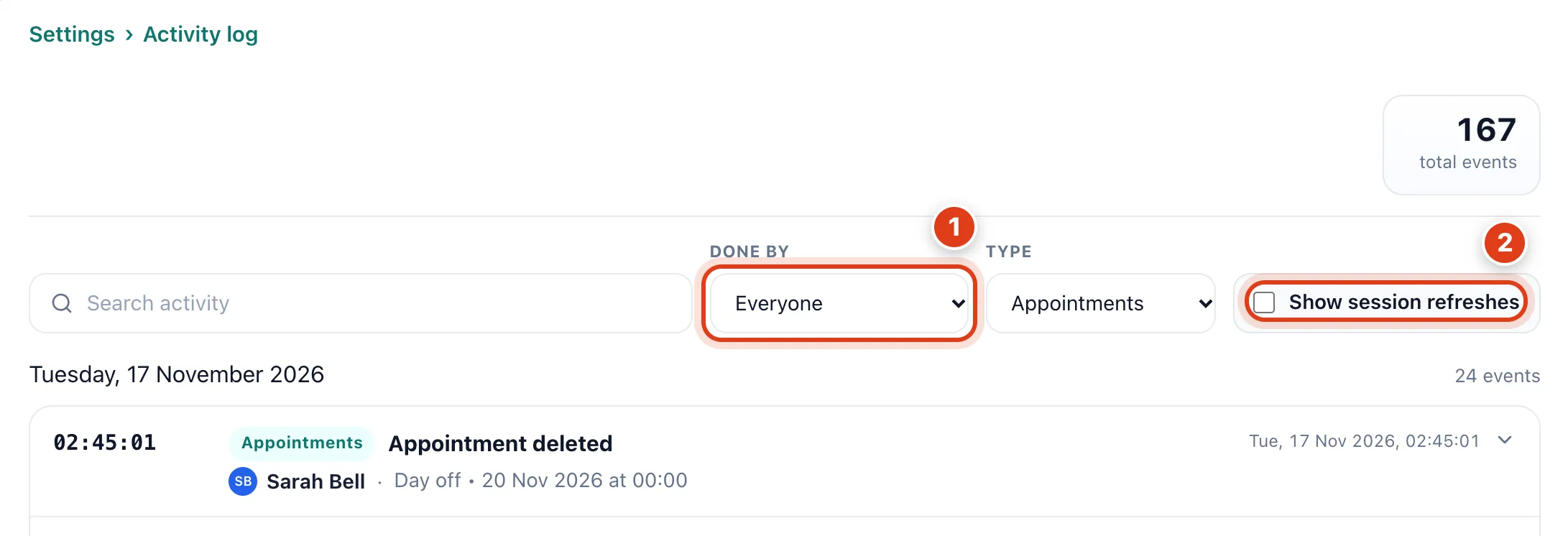
- Done by also offers Clients, for what clients do online, while entries by Offlico are automatic, such as reminders sent. For example, Linda Evans moving her visit online shows A client.
- Show session refreshes adds the Session refreshed entries made each time you open Offlico and every 2 hours you use it. For example, opening it at 08:30 and working to 17:30 adds about 5.