
How to message your clients
Write to your clients and your team from Messages.
Updated 17 November 2026
Part 1 Message a client
Step 1 Start a conversation
Go to Messages and click New message, then pick the client: search finds them by name or phone number.
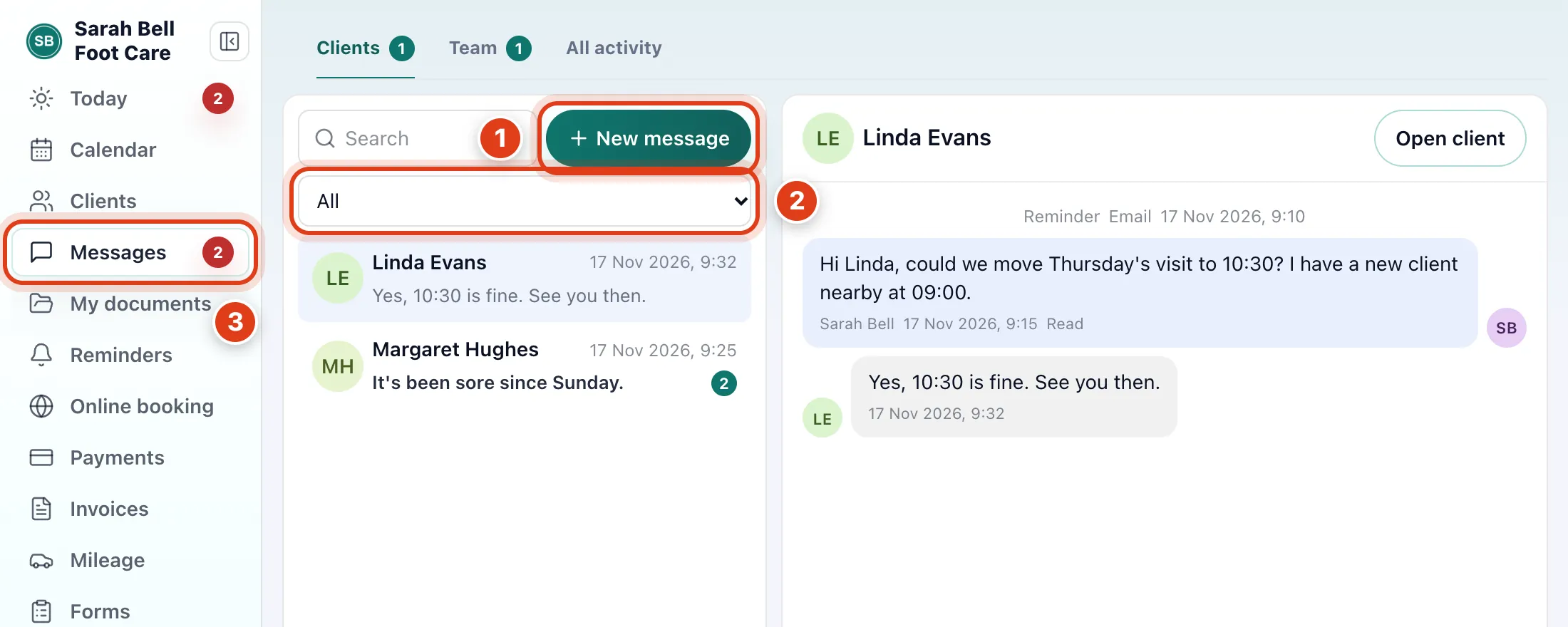
- New message works for clients with an email, a mobile or a LocalPickr account: for example, a client saved with only a name shows No email or mobile number instead.
- Show › Unread lists clients with messages you haven't opened, and Needs reply those who wrote last: for example, Margaret Hughes after asking about her heel.
- The number beside Messages counts each client with unread messages once, plus every unread team message: for example, two from Margaret Hughes and one from Priya Shah show 2.
Step 2 Write to the client
Enter sends; Shift and Enter starts a new line.
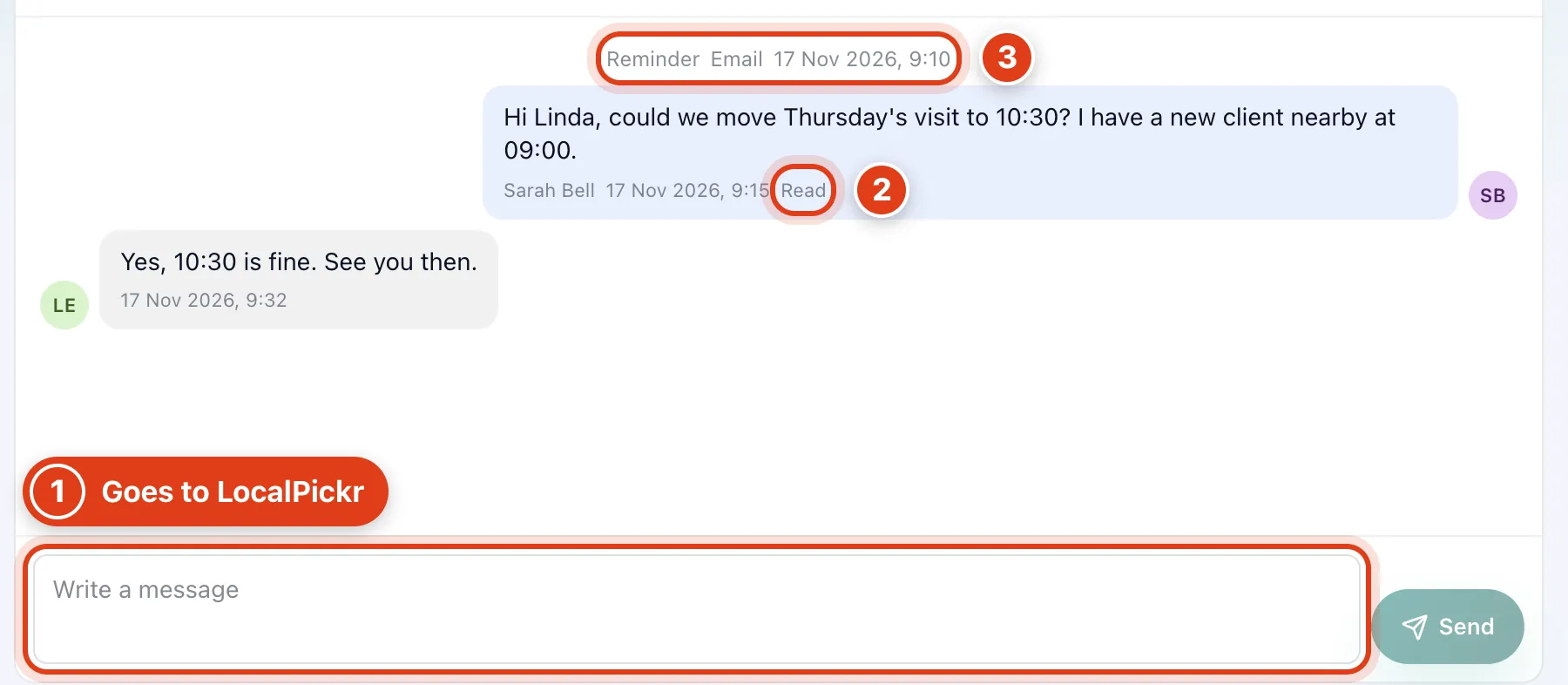
- Write a message goes to the client's LocalPickr account, not by text or email: Linda Evans reads and answers it there, and her answer shows here.
- Read shows under your message once the client has opened it in LocalPickr; without it, they haven't seen it yet.
- Reminders, confirmations and invoices sent to the client show here as small rows: for example, Reminder Email is the reminder for Linda Evans's next visit.
Part 2 Chat with your team
Step 3 Chat with your team
Click Team to message the people who work with you.
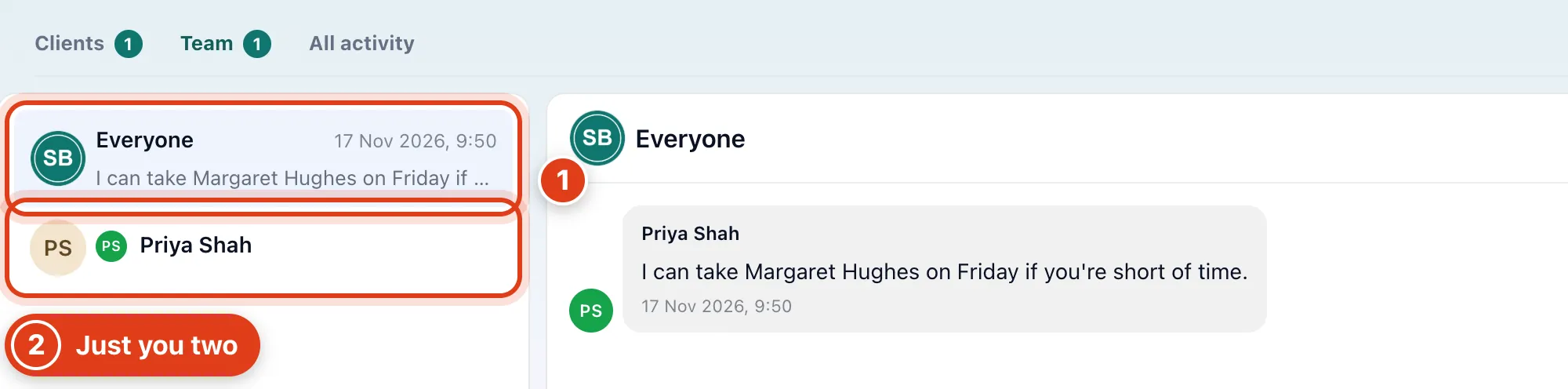
- Everyone is one chat for your whole team, and someone who joins later reads it from the start: for example, a new starter next month sees Priya Shah's message about Friday.
- Priya Shah is a chat only you and Priya see; a route or an AI note you share with her arrives here as a card.
Part 3 Send a one off text or email
Step 4 Pick who gets it
Go to Reminders › Manual and pick the client under Contact, or click New for someone who isn't a client yet.
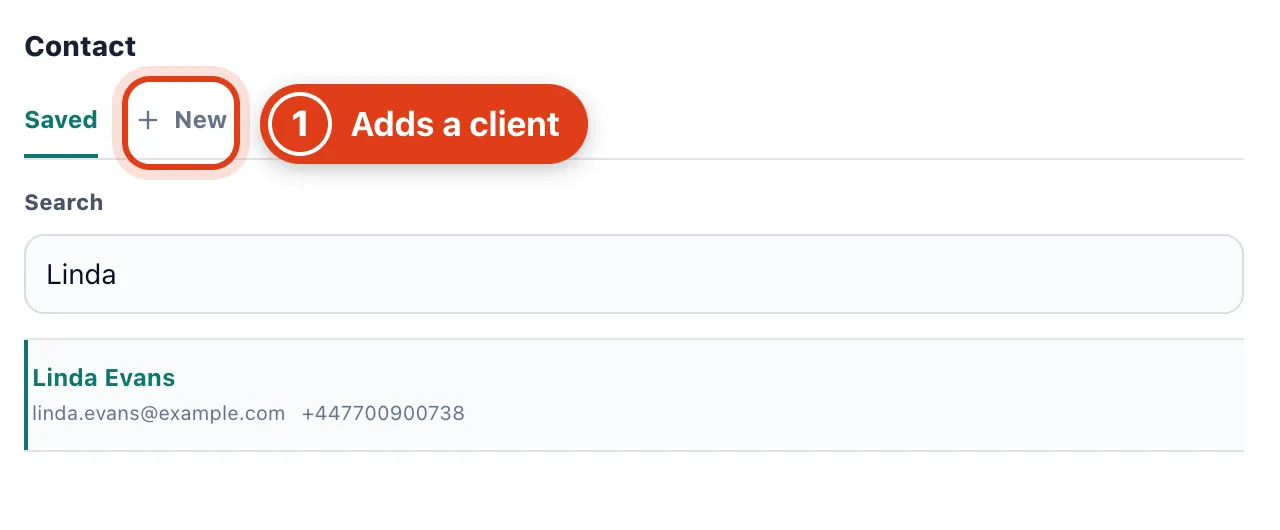
- New turns Send into Save & send, adding the person to your Clients: for example, someone who rang about a home visit is under Saved next time.
Step 5 Text or email it
Choose Text or Email under Send by, write the message (an email needs a Subject) and click Send. It shows in All activity and in the client's thread in Messages.
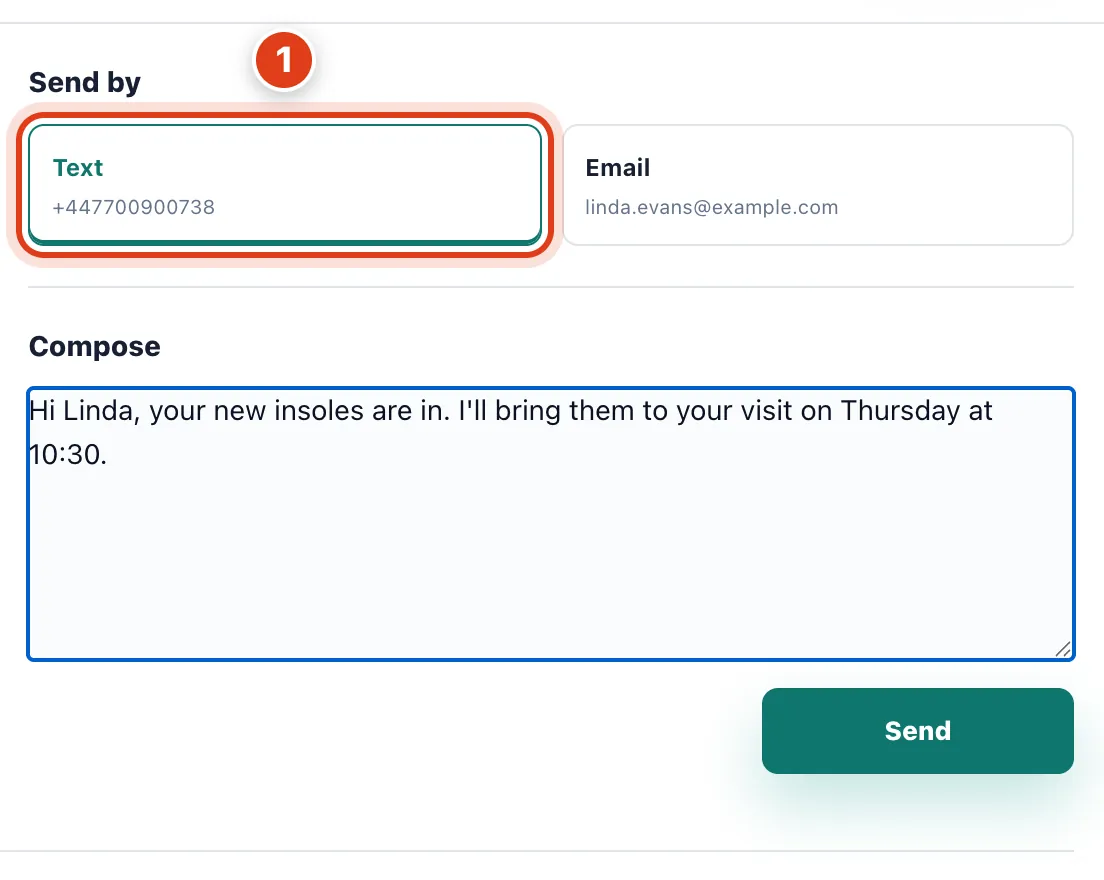
- Text goes to a UK mobile and uses your credits, one text whatever its length, while emails are free: for example, a 300 character note to Linda Evans is one text, 9p.
Step 6 See what was sent
Go to Messages › All activity for every text and email Offlico has sent your clients, newest first; your messages from Clients stay in their threads.
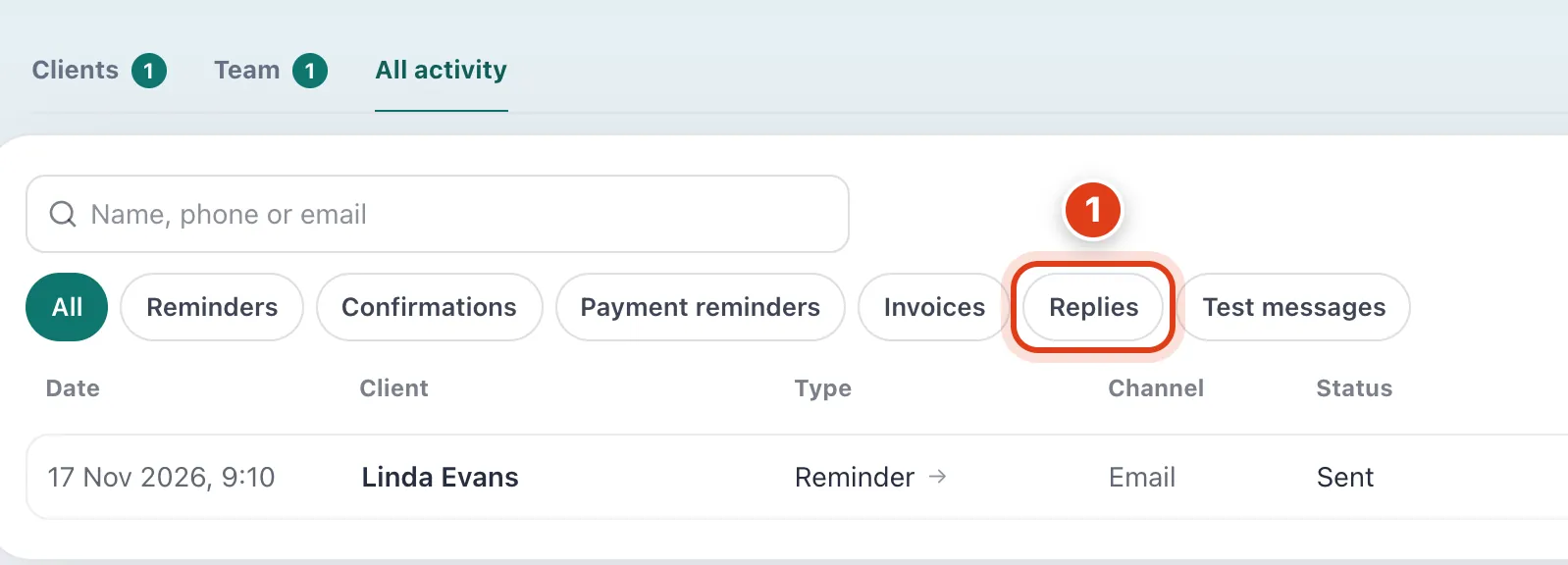
- Replies lists what clients texted back to your reminders: for example, Y from Margaret Hughes to her text reminder records Client confirmed by text on her visit.