
How to set up repeat bookings
Book a client's regular visits once and let them repeat.
Updated 16 November 2026
Part 1 Book a repeating visit
Step 1 Choose how often and when it ends
Click a free time in the Calendar, choose the client and service, then choose how often in Repeat and when it stops in Ends.
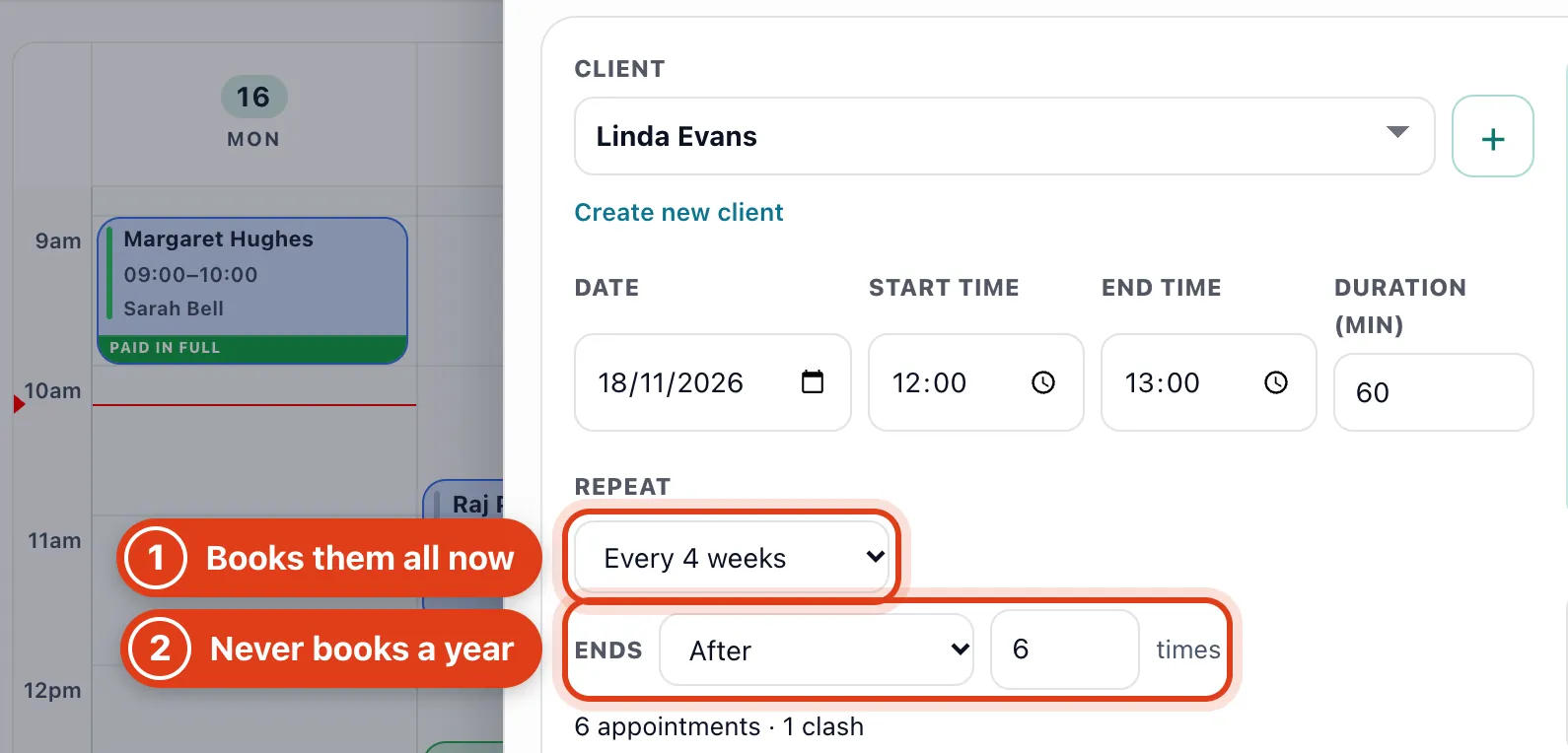
- Repeat books every visit at once, all at the same time even after the clocks change. For example, Every 4 weeks from Wednesday 18 November books Linda Evans at 12:00 on 16 December, 13 January and so on.
- Never books a year of visits and adds the next ones as time passes. For example, Every 4 weeks from 18 November books 14 visits, the last on 17 November 2027.
Step 2 Choose a gap of your own or an end date
For any other gap, choose Custom in Repeat and set Every; to stop on a date, choose On date in Ends.
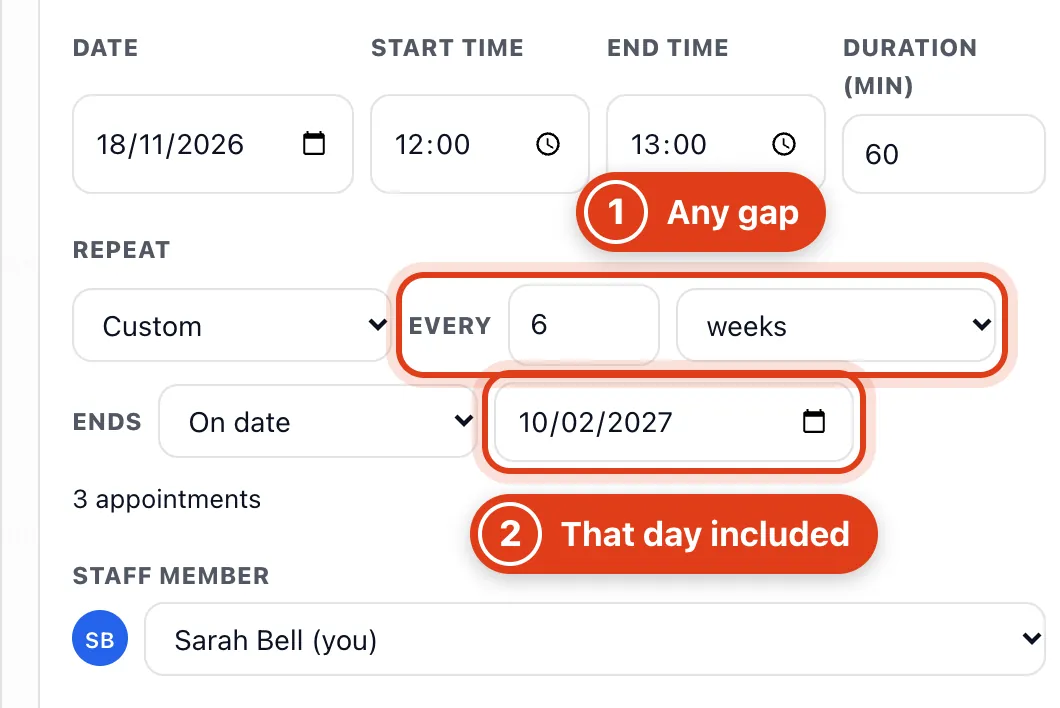
- Every takes days, weeks or months; a monthly gap keeps the day of the month, or the month's last day. For example, monthly from 31 January books 28 February, then 31 March.
- On date books up to and including that date. For example, every 6 weeks from 18 November until 10 February books 18 November, 30 December and 10 February.
Step 3 Sort out clashes
If a visit of the series clashes with another booking, choose what happens to it, then Save. On the Starter plan, a visit past the plan's 50 visits a month shows Over the plan's monthly limit and can only be skipped.
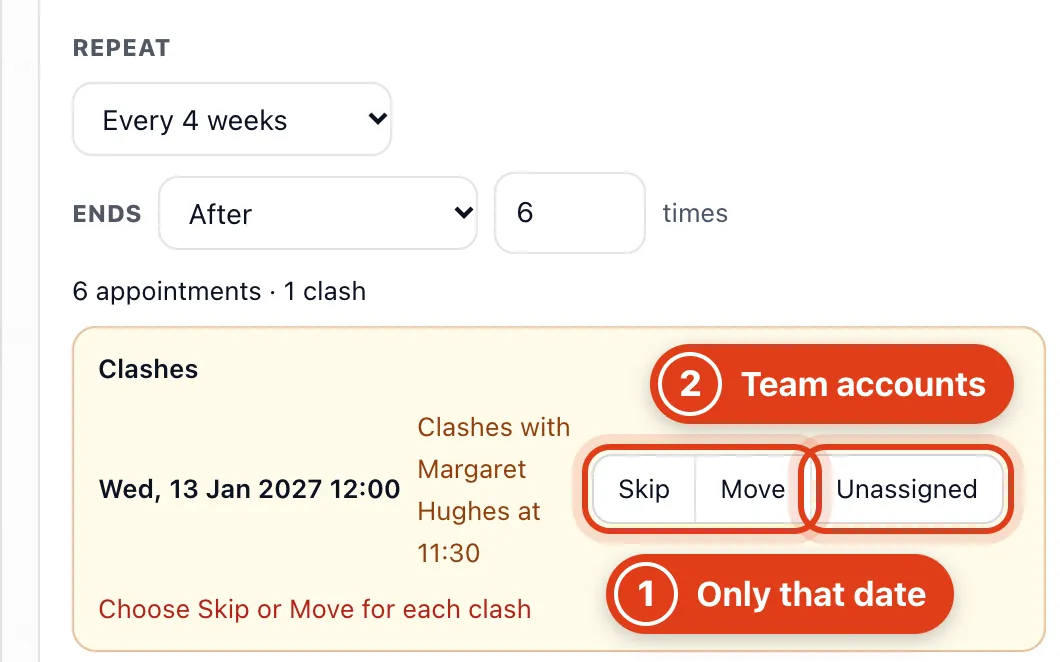
- Skip leaves that date out of the series; Move books it that day at the New start time you type. For example, Linda Evans' 13 January visit can move to 13:00, after Margaret Hughes.
- Unassigned books that visit for nobody yet, so you can give it to someone in your team later. For example, Priya Shah can take Linda Evans' 13 January visit.
Part 2 Change or delete repeating visits
Step 4 See the series in your calendar
After Save, every visit of the series is in your Calendar with the repeat mark; click one to change it.
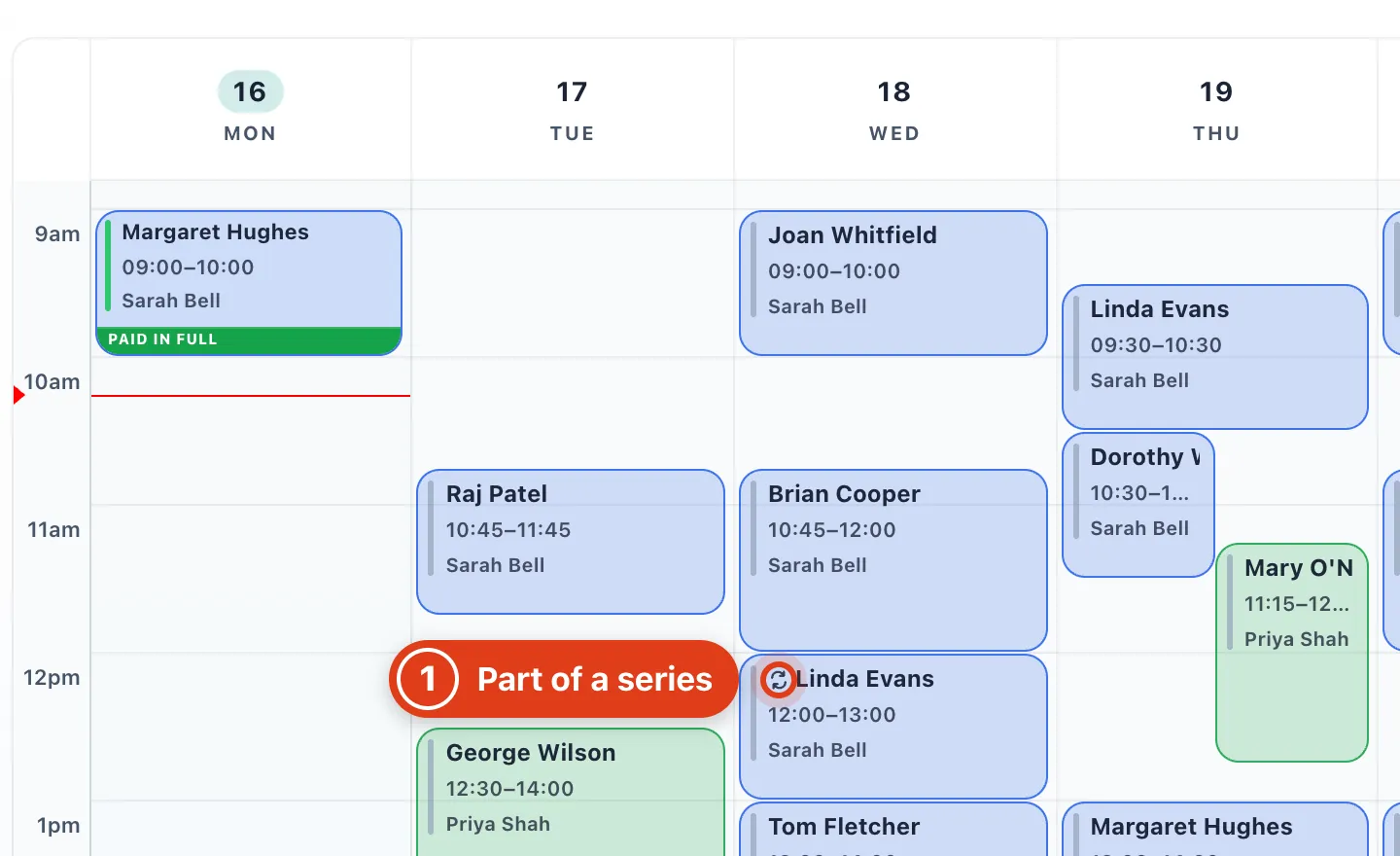
- Each visit with the repeat mark is a normal visit with its own reminder. For example, with First reminder at 1 day before, Linda Evans is reminded of 16 December on 15 December at 12:00.
Step 5 Change one visit or the rest
Open a visit of the series, make your change, choose which visits it applies to under Change, then Save.
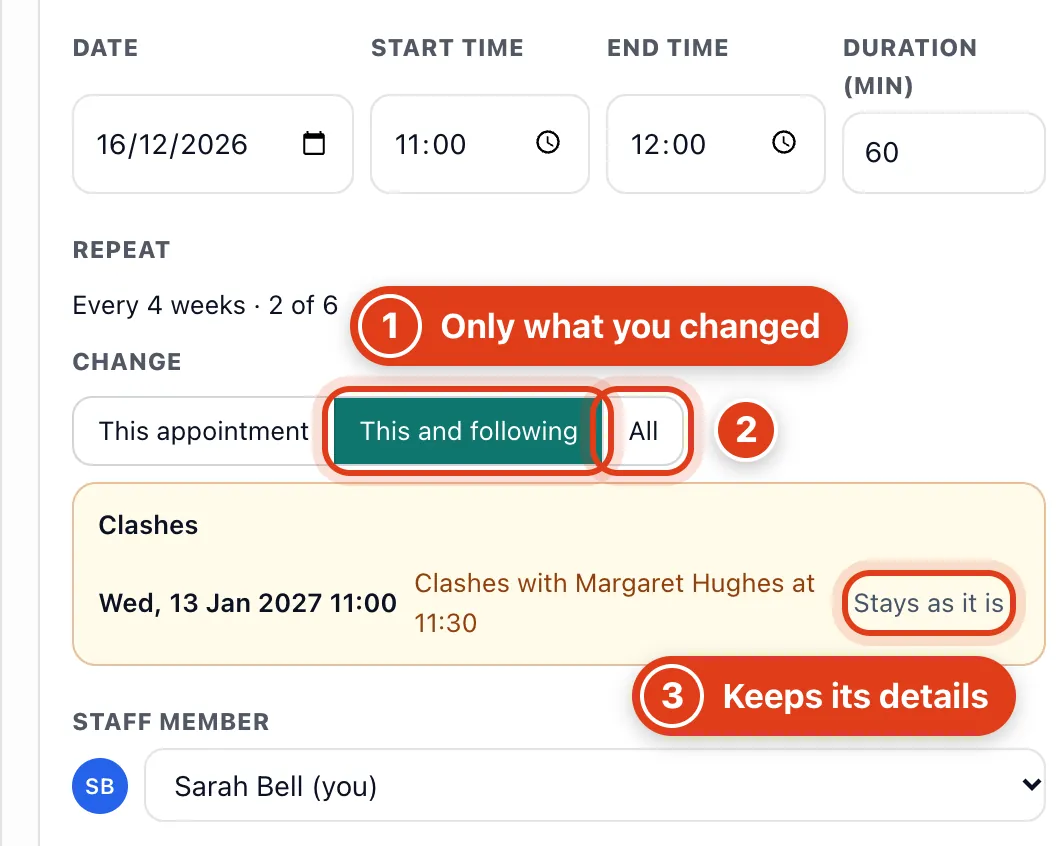
- This and following copies only what you changed to the later visits not yet done; a new date moves each by as many days. For example, moving 16 December to Thursday 17 December moves 13 January to 14 January.
- All also changes the earlier visits, except completed or cancelled ones. For example, a new Start time of 11:00 on 16 December moves 18 November to 11:00 too unless it is completed.
- Stays as it is: a later visit the change would clash with keeps its own details. For example, with 11:00 the later visits move, but 13 January stays at 13:00: Margaret Hughes is booked at 11:30.
Step 6 Delete one visit or the rest
Click Delete in the visit, choose which visits, then Confirm delete. A visit with a payment recorded can't be deleted: choose Cancel appointment instead and it stays, marked Cancelled.
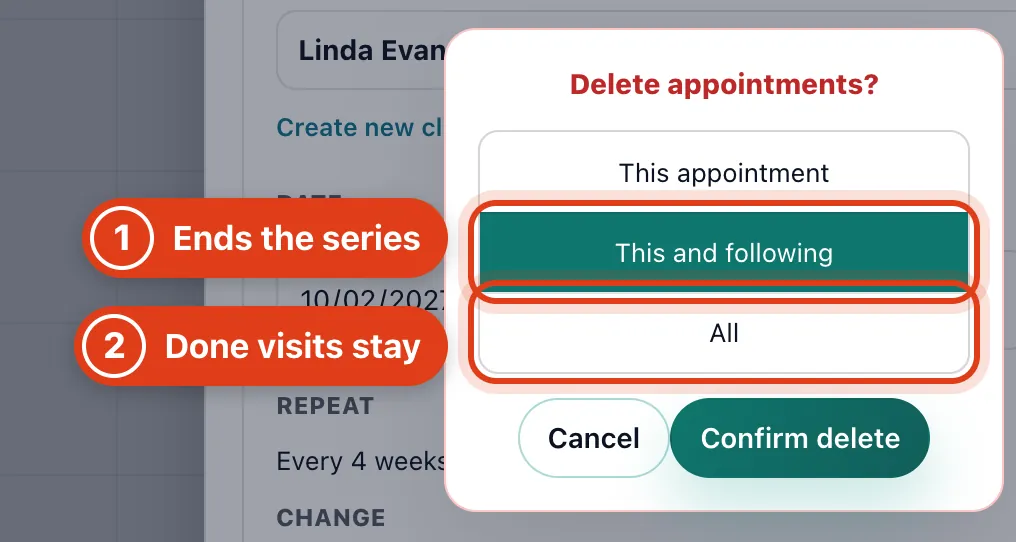
- This and following deletes this visit and the later ones not yet done, and the series books no more. For example, deleting 10 February this way also removes 10 March and 7 April; 18 November to 13 January stay.
- All deletes every visit of the series except completed or cancelled ones. For example, once 18 November is completed, All removes the other five and 18 November stays on record.
Part 3 Let clients book repeats online
Step 7 Let clients book a repeat online
Go to Settings › Bookings › Confirmations & cancellations and set Repeat bookings to On.
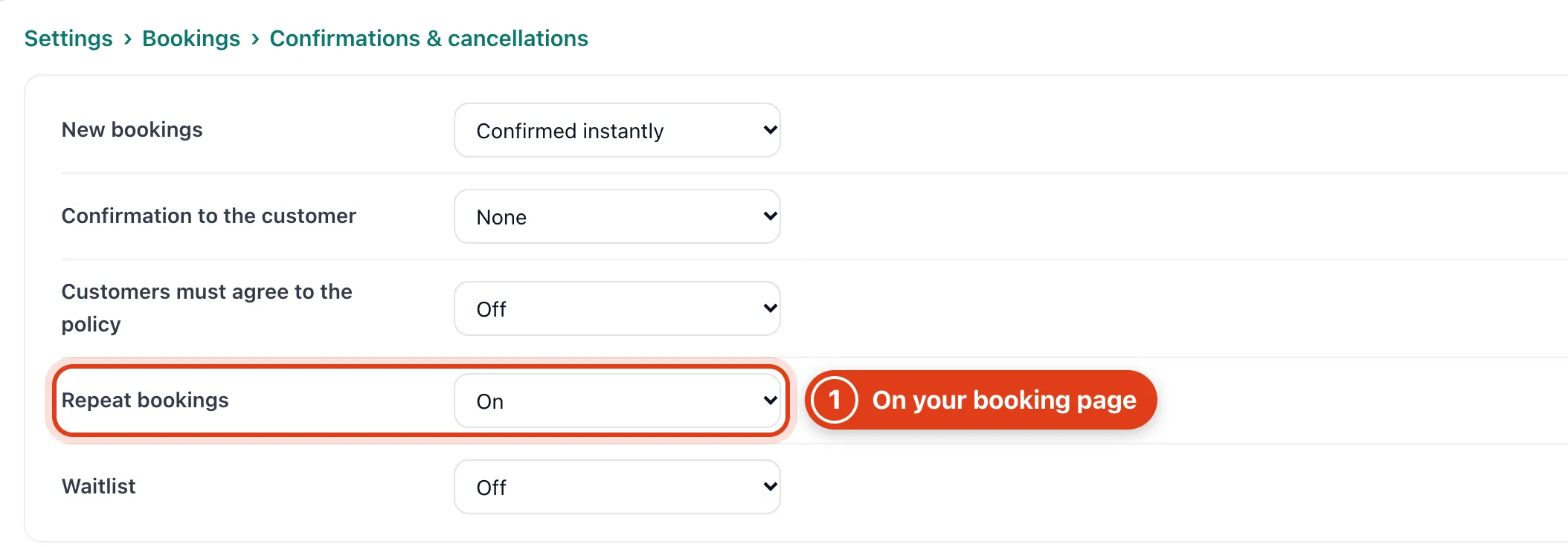
- Repeat bookings lets clients choose Repeat and Visits when they book: every week, 2 weeks, 4 weeks or month, 2 to 12 visits. For example, Linda Evans can book every 4 weeks for 6 visits at once.
Step 8 What your clients choose
On your booking page, Repeat and Visits show above Total once a client has picked a time; Visits starts at 4.
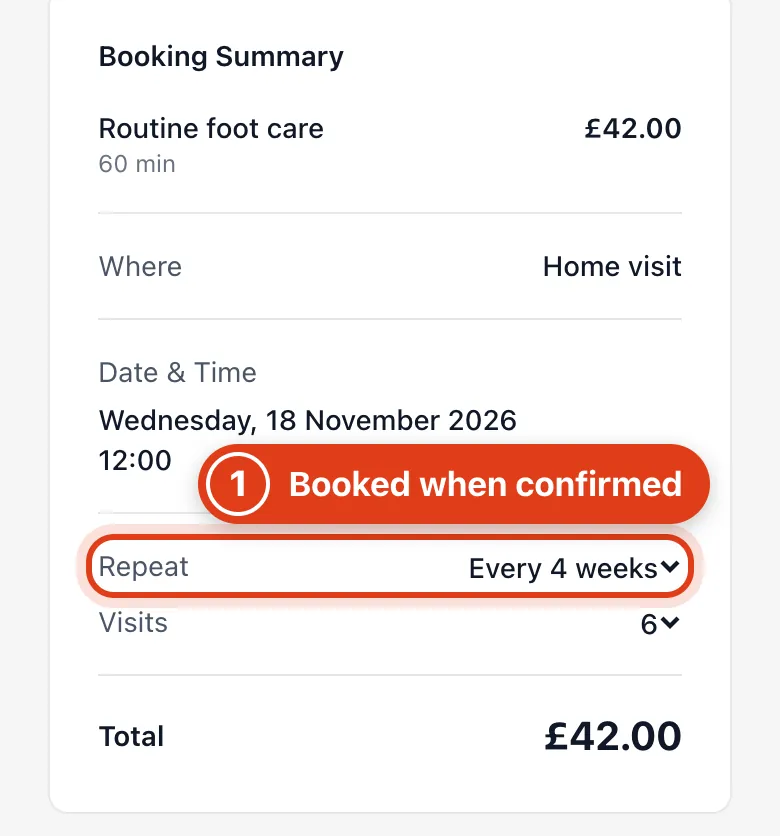
- Repeat: the rest are booked once the first visit is confirmed (at once, after its payment or when you accept it), leaving out dates that clash. For example, declining Linda Evans' first visit books none of the rest.