
How to add your services and prices
Add your services, their minutes and prices in Settings.
Updated 16 November 2026
Part 1 Add a service
Step 1 Start a new service
Go to Settings › Services & prices and click Add service. Remove beside a service deletes it for good; visits already booked stay in your calendar.

- Saved services show on your booking page straight away; to keep one off, untick Show on booking page below.
- Where do you see clients? sets every service at once: for example, Clinic turns home visits off for all of them. It goes once you have set where you work.
Step 2 Name it and choose a category
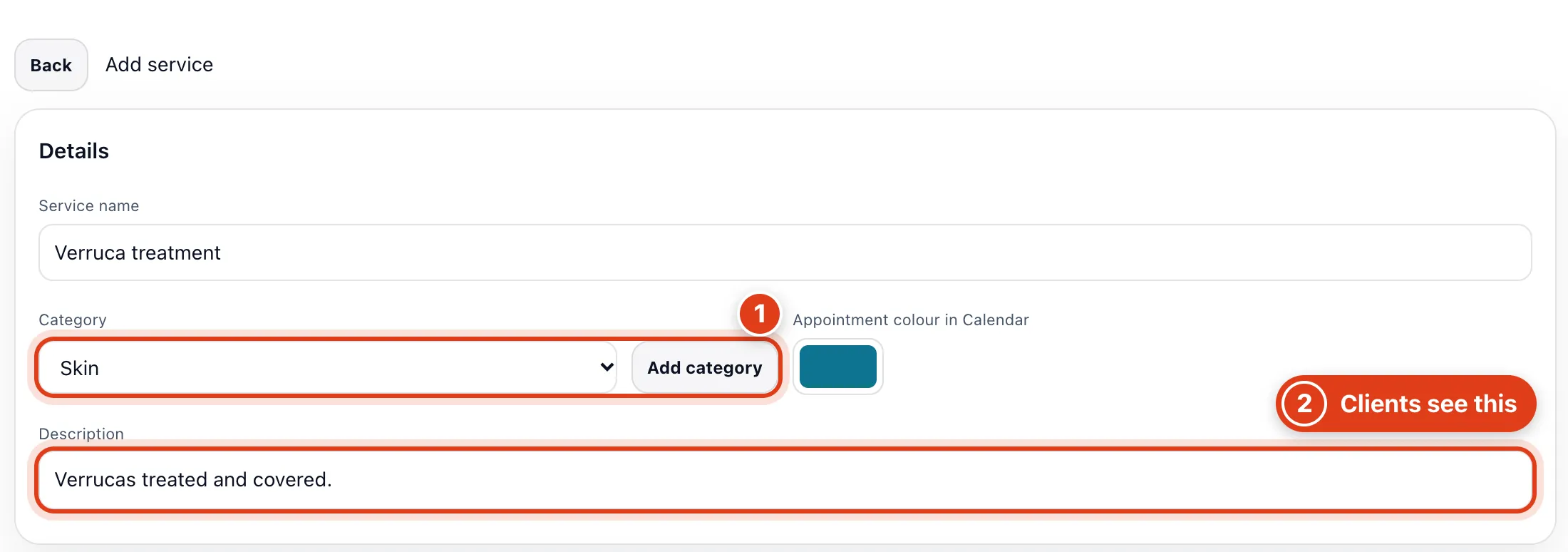
- Categories only group your list here: your booking page shows all your services in one list.
- Clients see the name and Description on your booking page.
Step 3 Set the minutes, price and online payment
Type the Duration (min) and Price, untick any days you don't offer it, and choose what clients pay online.
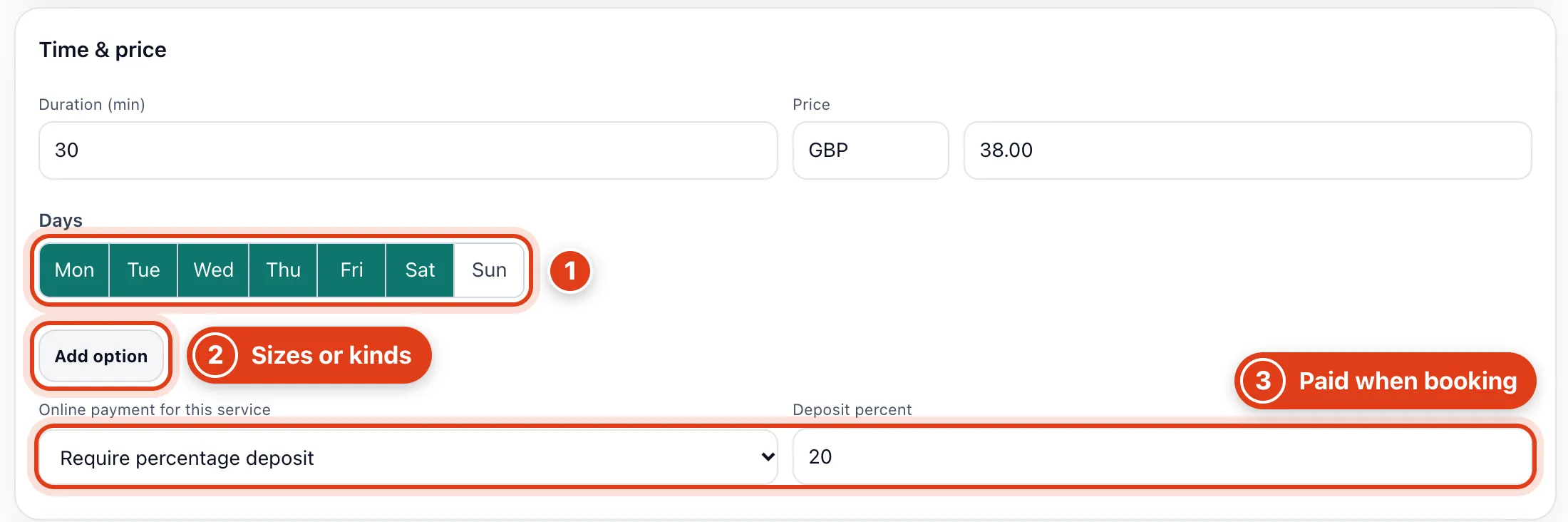
- Clients, your AI receptionist and Suggest times only offer these days, here not Sunday; you can still book any day yourself.
- Add option lets clients choose between versions with their own price and minutes, which replace the service's. For example, Two verrucas at £50 for 45 minutes.
- Paid by card when clients book online, here 20% of £38.00: £7.60. Use Settings default follows When customers book in Settings › Bookings › Payments.
Step 4 Choose where you do it and who does it
Tick where you do it and who does it. With no clinic yet, ticking Clinic asks for your clinic's address first.
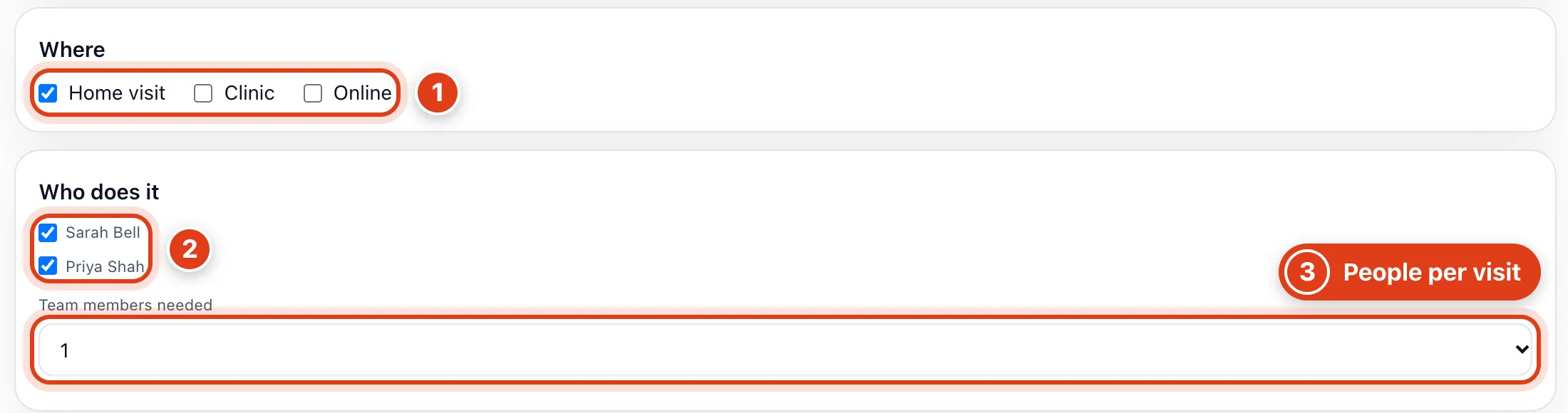
- Online puts your video room link from Locations & service area on the booking; Offlico doesn't make the link.
- Online, only the people ticked are offered; for example, untick Priya Shah and clients get Sarah Bell. You can still book anyone.
- Online, only times when this many of the people ticked are free are offered. For example, 2 books Sarah Bell and Priya Shah together.
Step 5 Choose how it shows on your booking page

- With Show on booking page unticked, clients and your AI receptionist can't book it and your list shows Hidden; you can still book it yourself.
- With Selected by default on the booking page, it is already chosen when clients open your booking page; your list shows Default.
Step 6 Set the extra options
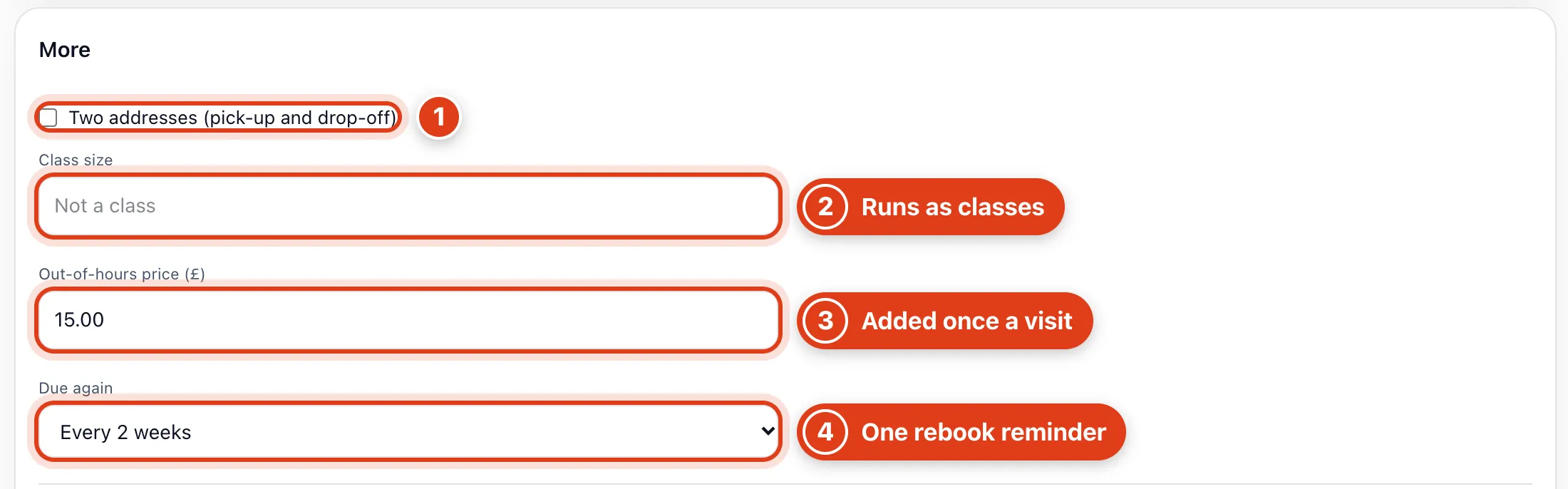
- Two addresses asks clients for a drop off address too, so set minutes that cover the drive between the two. For example, with a drop off in Ware, your next trip leaves from Ware.
- Class size makes it a class you schedule in Calendar › More › Classes; for example, 8 lets eight clients book each one.
- Out of hours price (£) is added once when a visit starts outside your hours. For example, with hours to 17:30, an 18:00 visit costs £38 + £15 = £53.
- Due again sends your booking link once, this long after the last visit, unless they have booked again; it needs Due again reminders on. For example, seen on 2 March, Linda Evans gets it on 16 March.
Step 7 Price it by distance
Tick Price changes with distance if longer trips cost more.
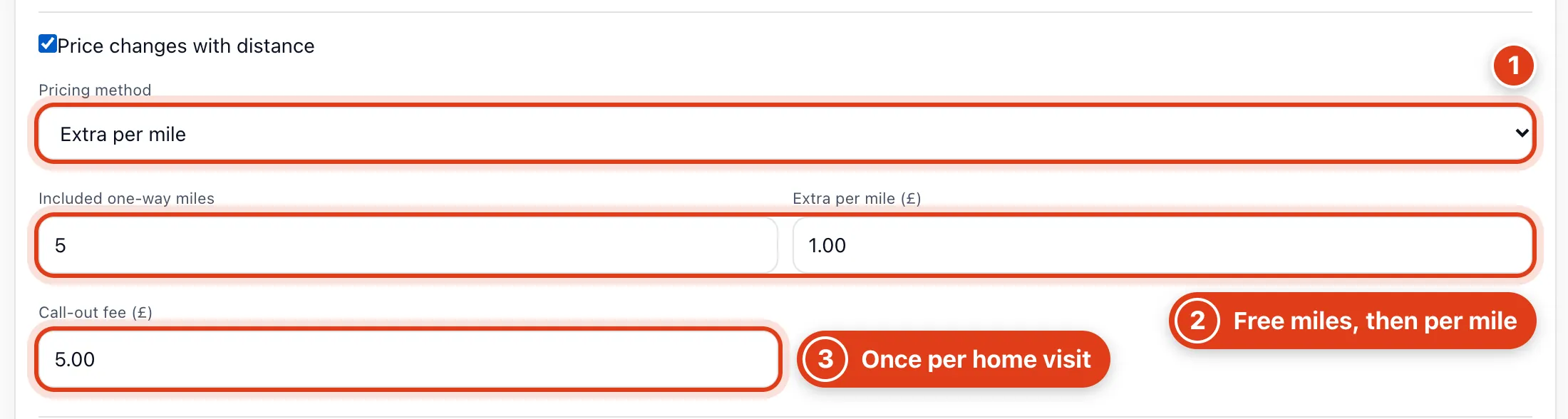
- Distance ranges sets one total price per band instead, for example £45 for 5 to 10 miles; outside them, the service's price applies.
- Miles past Included one way miles cost Extra per mile (£), estimated from your postcode; for example, 9 miles away pays £4 more.
- Call out fee (£) is added once to every home visit; clients see both as Travel fee. For example, 9 miles away: £4 + £5 = £9.
Step 8 Add stock and a form, then save
Add the stock it uses and its form, then Save. With the AI Receptionist on, Customer preparation shows here too: what it tells callers to do first.

- Items used come off your stock when a visit is marked Completed, times the quantity booked. For example, 1 pair of gloves on a visit booked with quantity 2 uses 2 pairs.
- The Default form template comes first under New form for these visits; if it is a treatment note, one is started after each visit.
- Send this form before the appointment emails it when the visit is booked, and again the day before if not filled in: booked Monday for Friday, it goes Monday and Thursday.
Part 2 Offer add ons
Step 9 Add an add on
Click Add add on above your services, then Add add on again under the form.
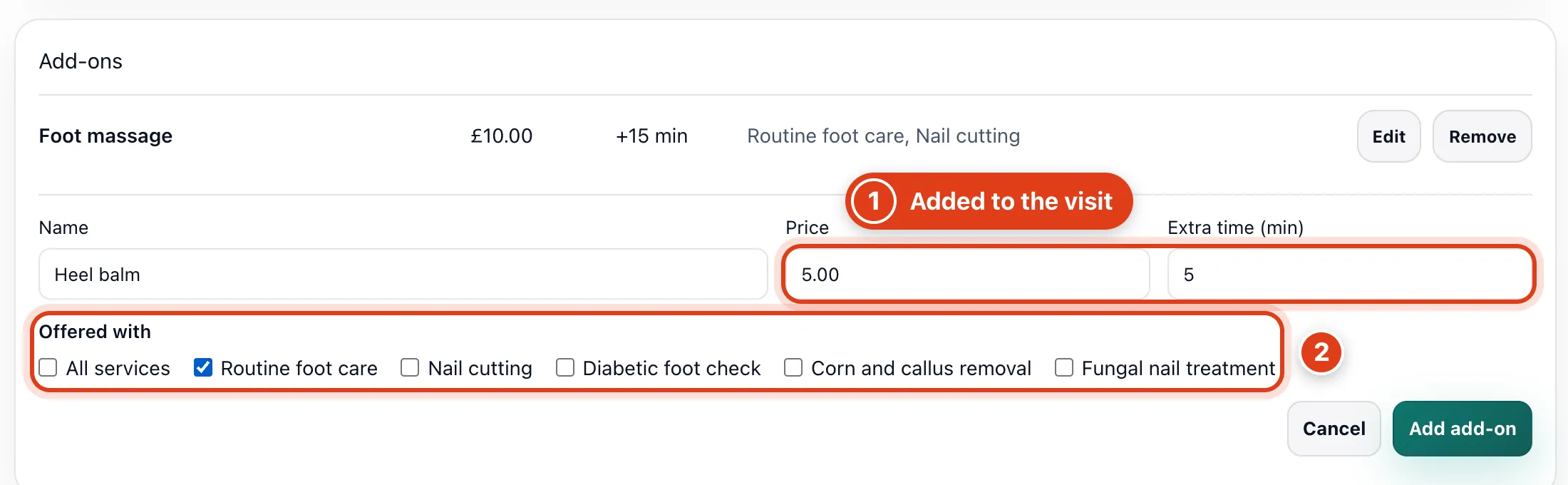
- Its Price and Extra time are added once to a visit when picked, online or in the calendar. For example, Heel balm makes Routine foot care 65 minutes for £47.
- Offered with sets which services show it when clients book; you can also tick it in a service's own Add ons.