
How to add your team and set what they can do
Invite your team and set what each person can see and do.
Updated 17 November 2026
Part 1 Invite your team
Step 1 Invite someone to your team
Go to Settings › Team, enter their email in Invite staff, choose their Role and click Send invite.
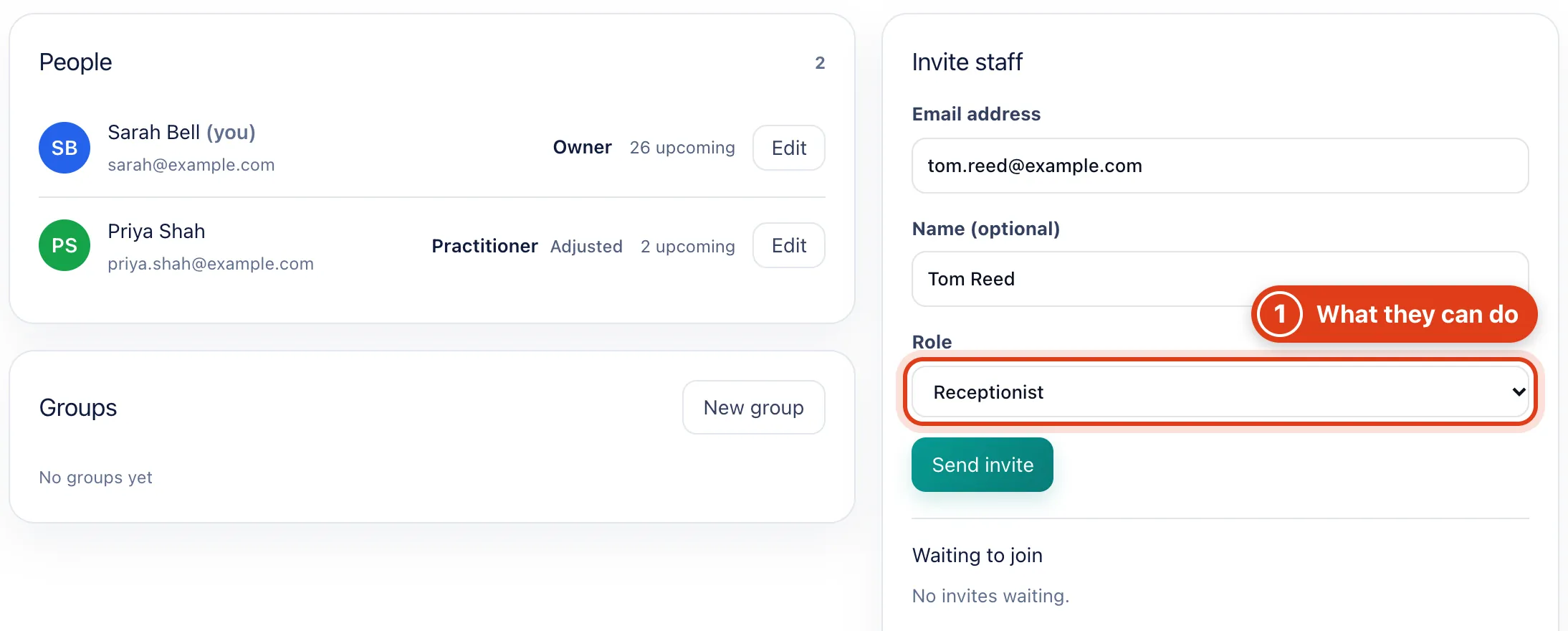
- Role sets what they can see and do; Practitioner and Senior practitioner join taking appointments, others don't. For example, a Receptionist sees the whole team's visits but has no calendar column.
Step 2 Resend or share the invite
They get an email with a link to join; once they create their login or sign in, they move from Waiting to join to People.
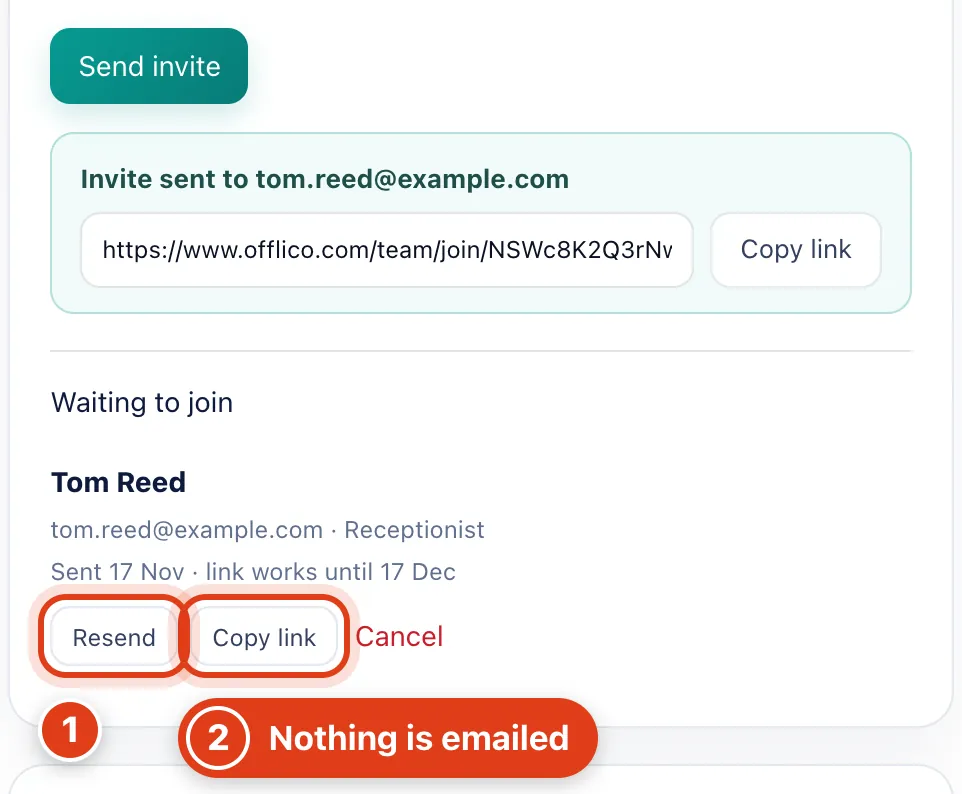
- Resend emails a new link that works for 30 days from then, and earlier links stop working. For example, if Tom Reed can't find the first email, the link in it no longer opens once you resend.
- Copy link copies the latest link without emailing it, also after the 5 sends a day an invite allows. For example, text it to Tom Reed if his email hasn't arrived.
Part 2 Decide what they can see and do
Step 3 Choose what a role can see and do
Go to Settings › Roles & permissions and click a role, or New role; set each Access row, then Save role.
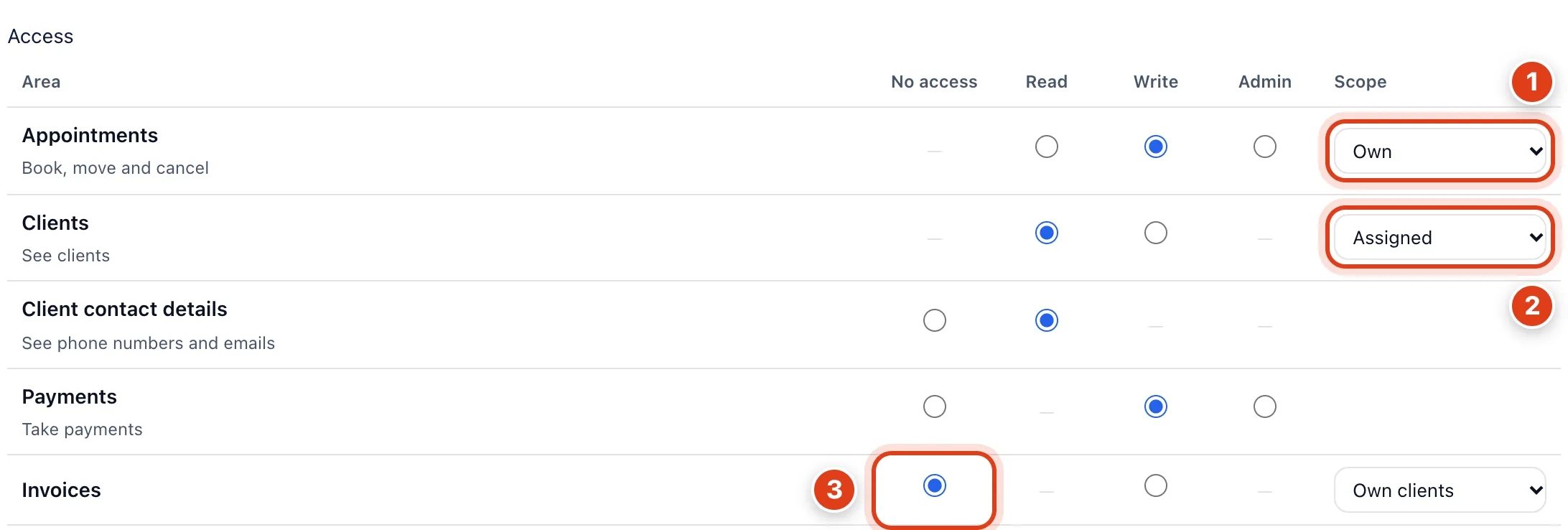
- Appointments set to Own shows them only the visits they do; Whole team shows everyone's. For example, Priya Shah, a Practitioner, sees her visit with George Wilson but none of Sarah Bell's.
- Clients set to Assigned shows them only clients they visit, added or were given; All shows every client. For example, Priya Shah sees George Wilson and Mary O'Neill but not Linda Evans.
- Invoices at No access keeps them out of Invoices, while Payments still lets them take payment. For example, Priya Shah can take payment for her visit with George Wilson but can't email him an invoice.
Step 4 Give one person different access
On Settings › Team, click Edit beside the person; under Access, change their Role or any row for them alone, then Save changes.
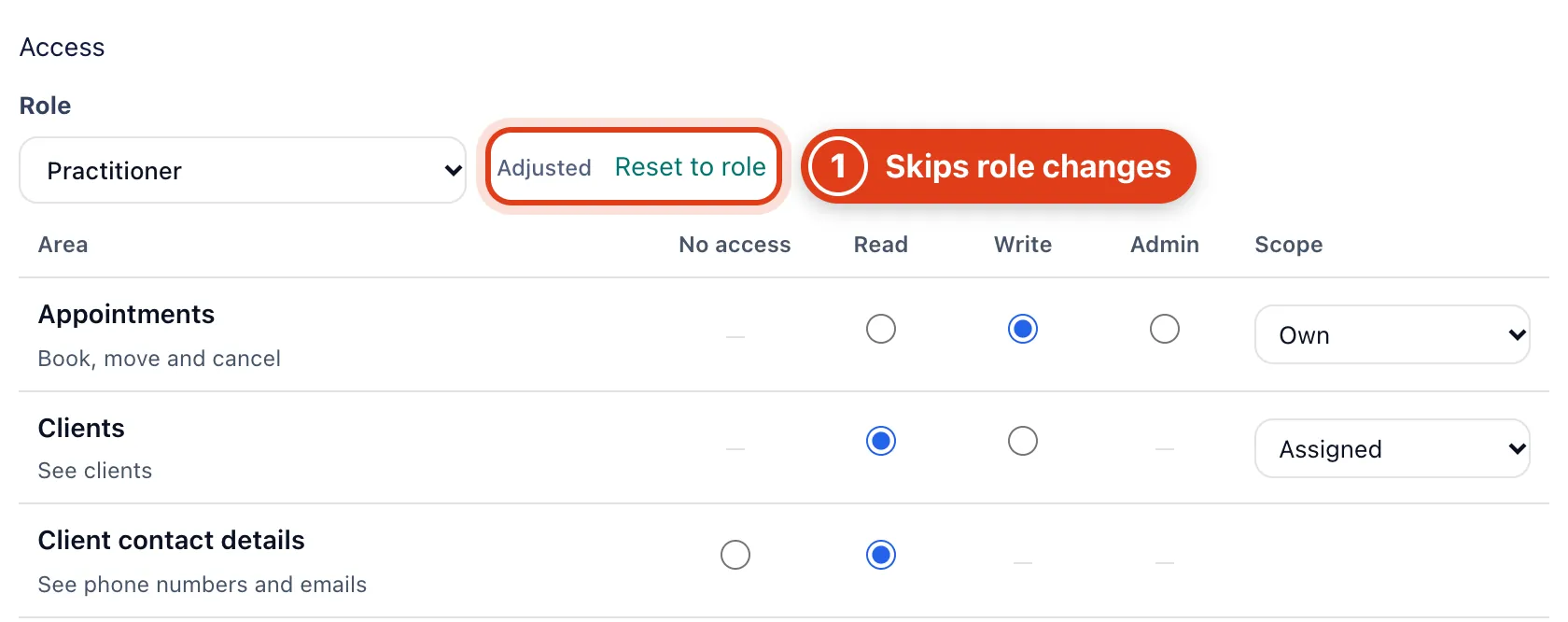
- Changing a row here marks them Adjusted, and later changes to their role skip them until you click Reset to role. For example, Priya Shah shows Adjusted, so changes to Practitioner don't reach her.
Part 3 Their appointments and how clients book them
Step 5 Choose who takes appointments
In the same Edit panel, set Takes appointments, then Save changes.
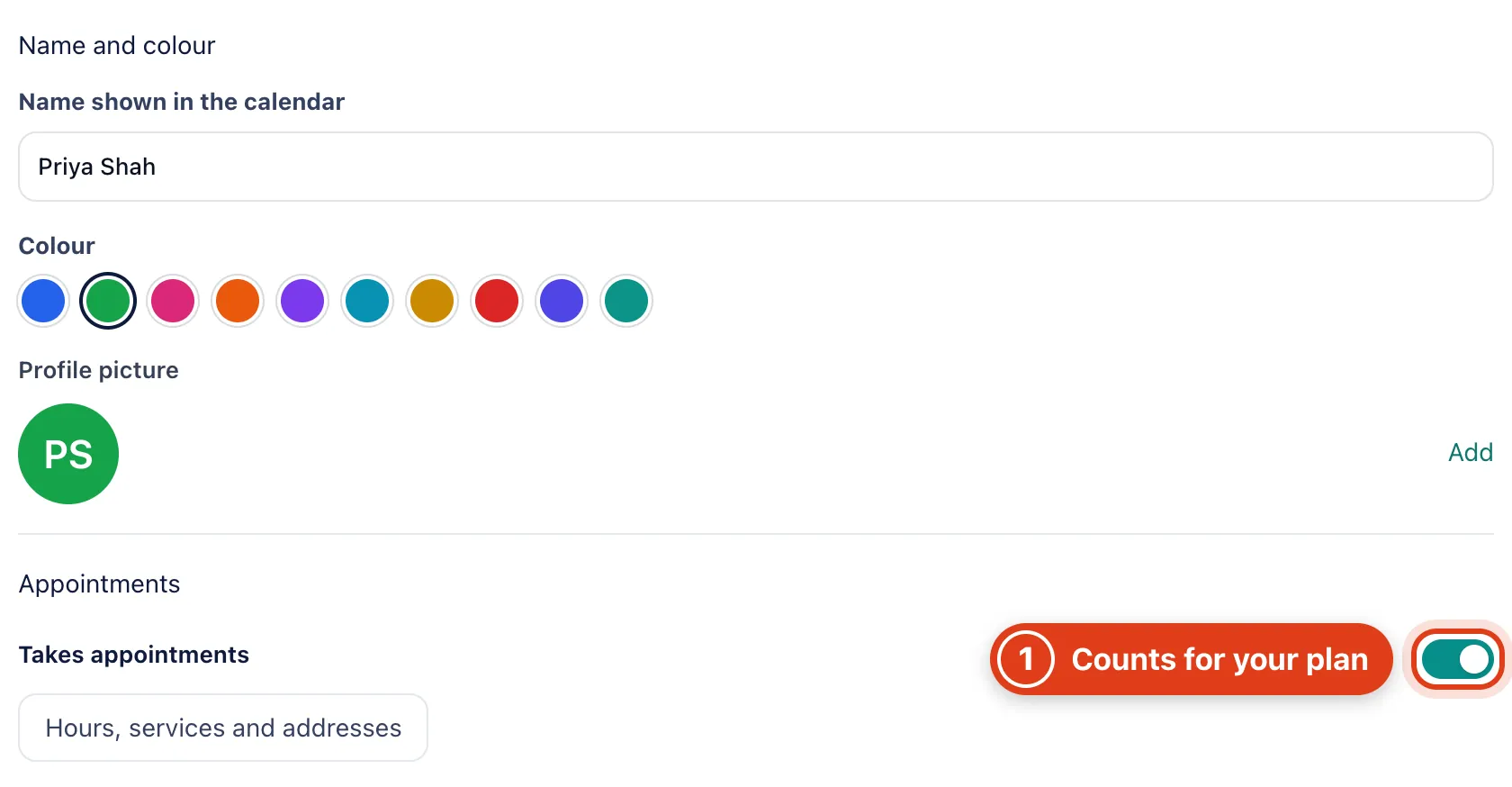
- Takes appointments gives them a calendar column and bookings, and only people with it on count towards your plan's team size. For example, Sarah Bell and Priya Shah make a team of 2; a receptionist adds nothing.
Step 6 Choose their services and prices
Click Hours, services and addresses in the Edit panel; their working hours and clinic days work as yours (see Set up your business, Parts 2 and 3).
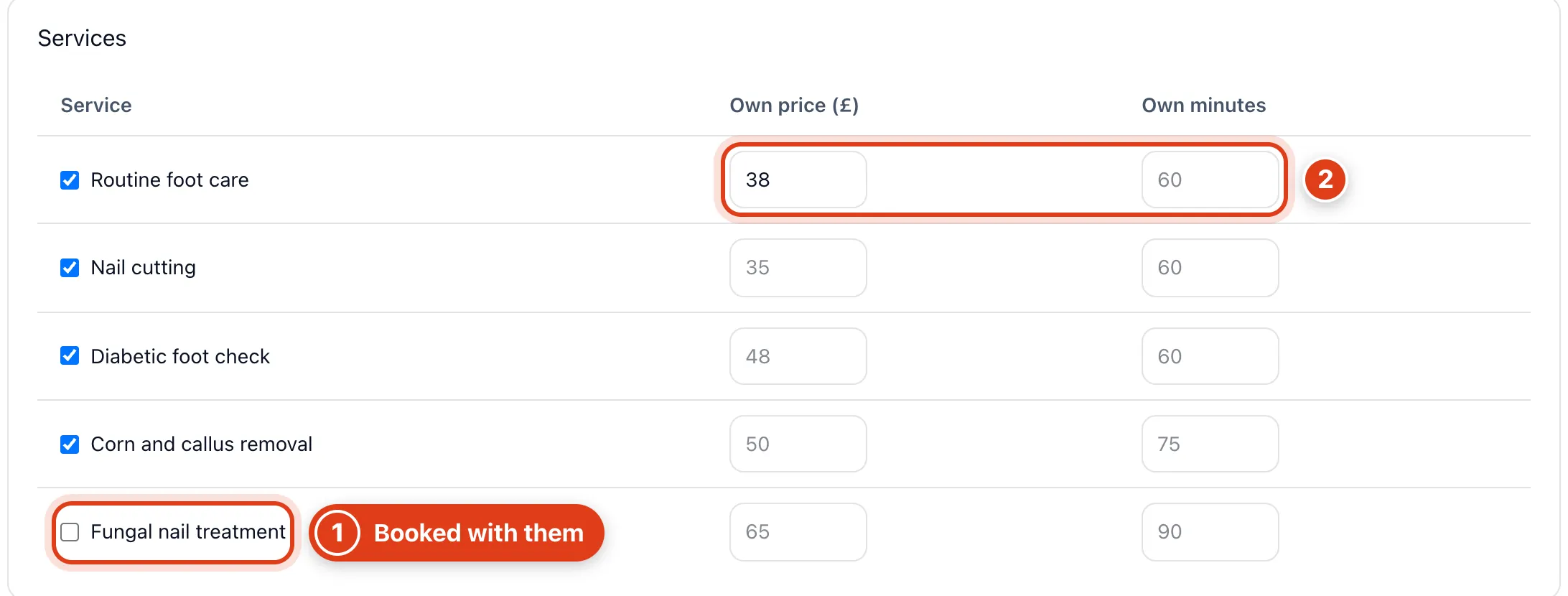
- Services: clients booking online are offered them only for the services ticked. For example, with Fungal nail treatment unticked for Priya Shah, it's booked online with Sarah Bell only.
- Own price (£) and Own minutes replace the service's for online bookings with them, and their invoice. For example, with 38, Priya Shah's Routine foot care books online at £38 instead of £42.
Step 7 Choose who and when clients can book them online
Further down their page, Bookings and Online booking set how clients book them online; you can still book them yourself in your calendar.
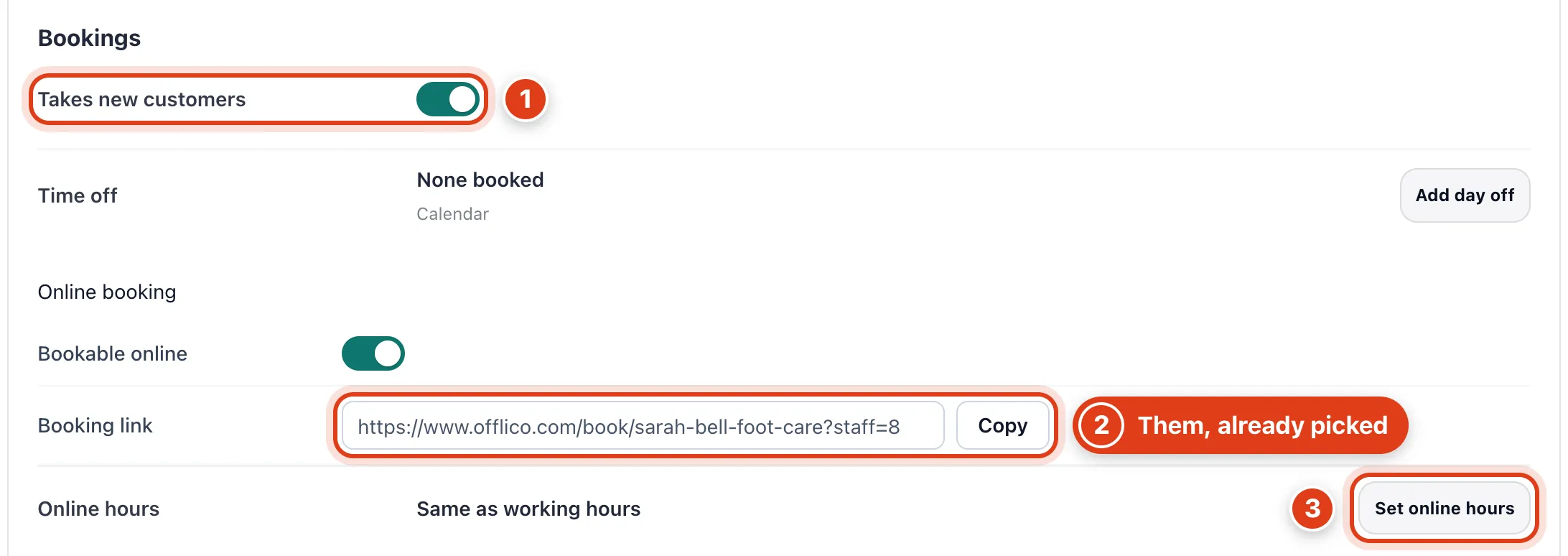
- Takes new customers off: only clients who've had a visit with you can book them online. For example, George Wilson can still book Priya Shah online, but a first time client is offered Sarah Bell.
- Booking link opens your booking page with them already picked, while Clients choose lets clients pick. For example, Priya Shah can share hers so her own clients book her straight away.
- Set online hours limits when clients can book them online. For example, with Friday 09:00 to 13:00, clients can't book Priya Shah online on a Friday afternoon, but you still can.
Step 8 Give them their own booking limits
Empty boxes use your business's settings, shown in grey; their home visit area is in Locations & service area (see Set up your business, Part 4).
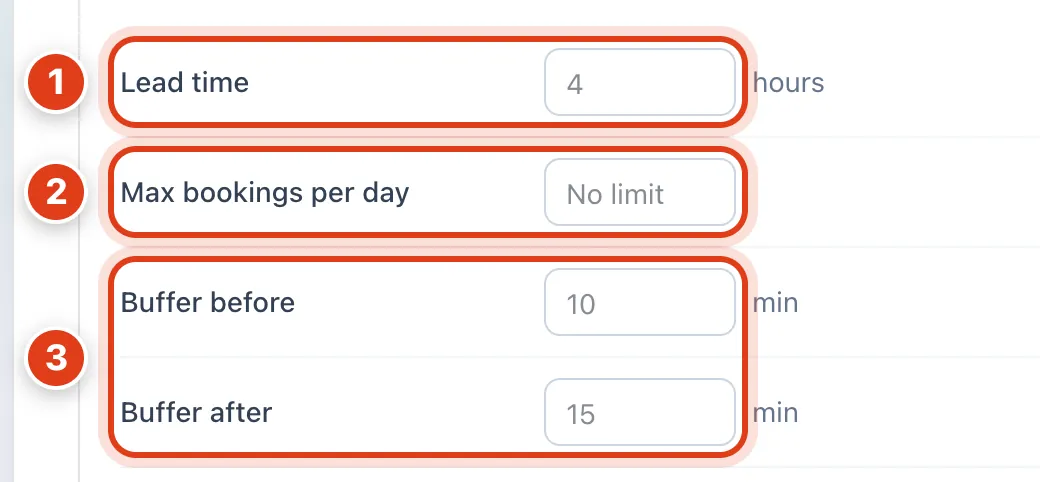
- Lead time is the notice clients must give to book them online; empty uses your 4 hours. For example, with 24, a client looking at 10:00 on Monday can book Priya Shah from 10:00 on Tuesday.
- Max bookings per day stops online bookings once they have that many visits that day, however booked. For example, with 4, a Thursday with 4 visits for Priya Shah offers no more online.
- Buffer before and Buffer after can only lengthen your own gaps: the longer one counts. For example, 30 after for Priya Shah leaves 30 minutes after each of her visits before online times; 5 still leaves 15.
Part 4 Hours and pay
Step 9 Track hours and pay
Go to Settings › Timesheets: everyone clocks themselves in and out with Clock in, and you can Add shift for anyone.
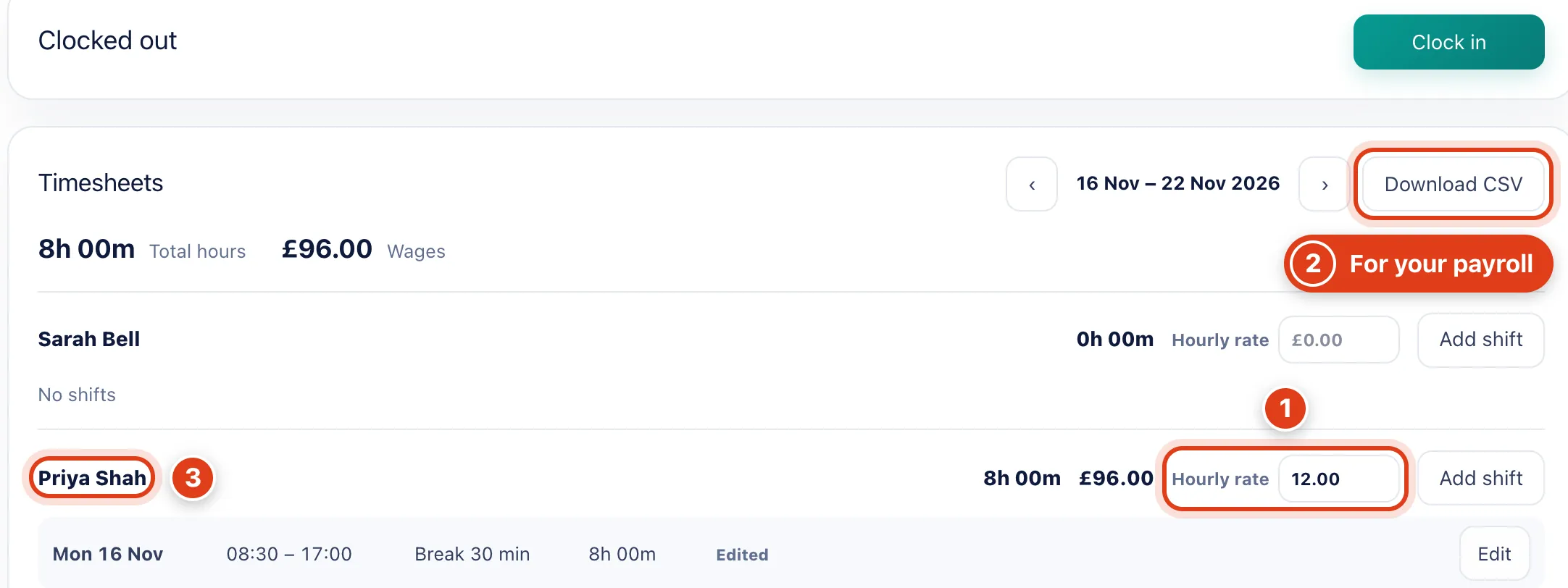
- Hourly rate turns their hours into pay, with breaks taken off. For example, Priya Shah's 08:30 to 17:00 shift with a 30 minute break is 8 hours, so £96.00 at £12.00.
- Download CSV gives the week's shifts, one row each, with hours worked, rate and pay. For example, Priya Shah's Monday comes out as 8.00 hours worked and 96.00 pay.
- Your team see only their own shifts, unless their role has Team at Admin, Reports & bookkeeping, or Reports for the Whole business. For example, Priya Shah, a Practitioner, sees only her row.