
How to set up your business details
Fill in your business details, hours and the places you work.
Updated 16 November 2026
Part 1 Your business details
Step 1 Check your name and contact details
Go to Settings › Business details. Everything on this page saves together with Save at the bottom.
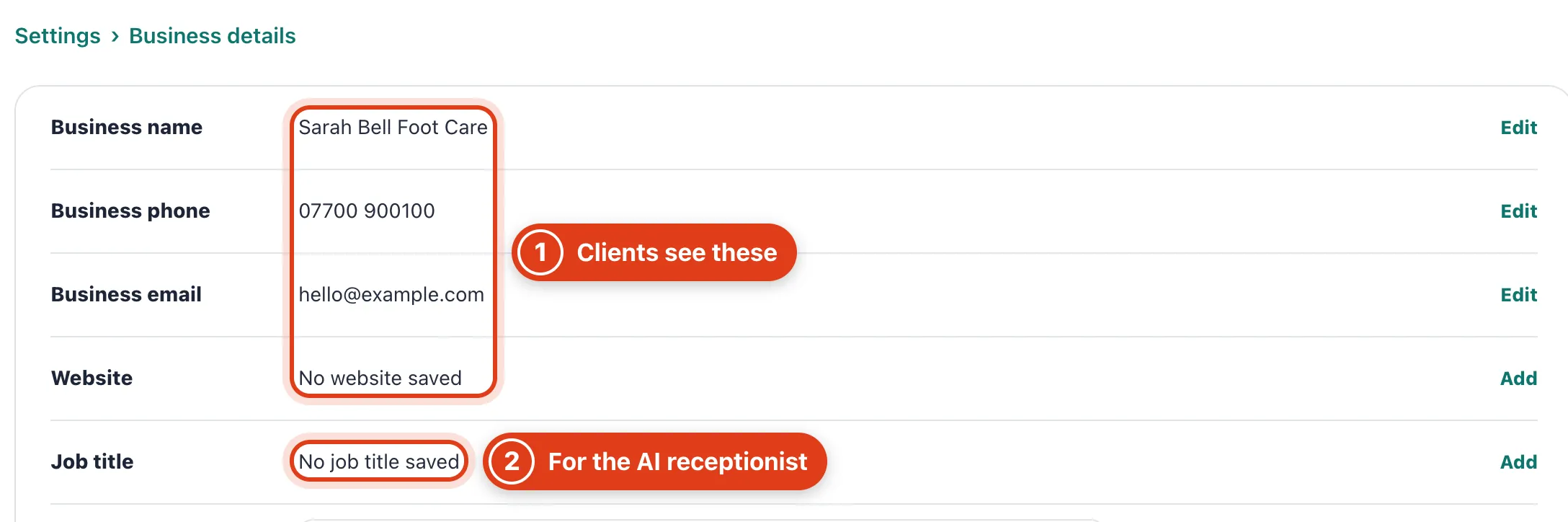
- Business name, Business phone, Business email and Website show on your booking page and booking emails; invoices and receipts show all but the website.
- Job title is only used by your AI receptionist, in place of your main profession. For example, with Foot care specialist it tells callers Sarah Bell is the foot care specialist who provides the service.
Step 2 Choose your professions
Search for each profession you offer and tick it.
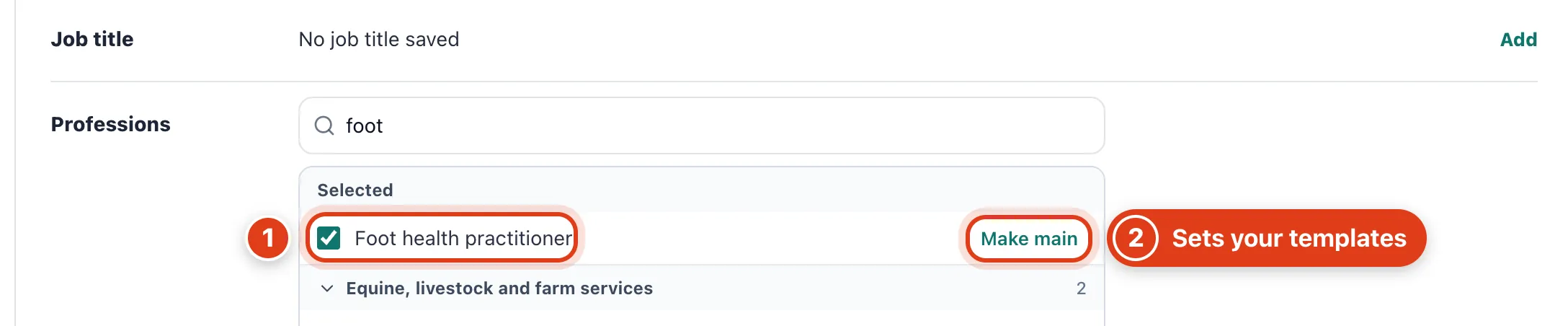
- Foot health practitioner and every other ticked profession lists you on its page in the directory and in search. For example, tick Reflexologist too and you're listed under reflexologists.
- Make main sets your message templates, your client record fields and your booking page's default picture.
Step 3 Set your business address and travel base
Click Edit beside Business address, search for your address or type it in, then Save address. Invoices and receipts print it.
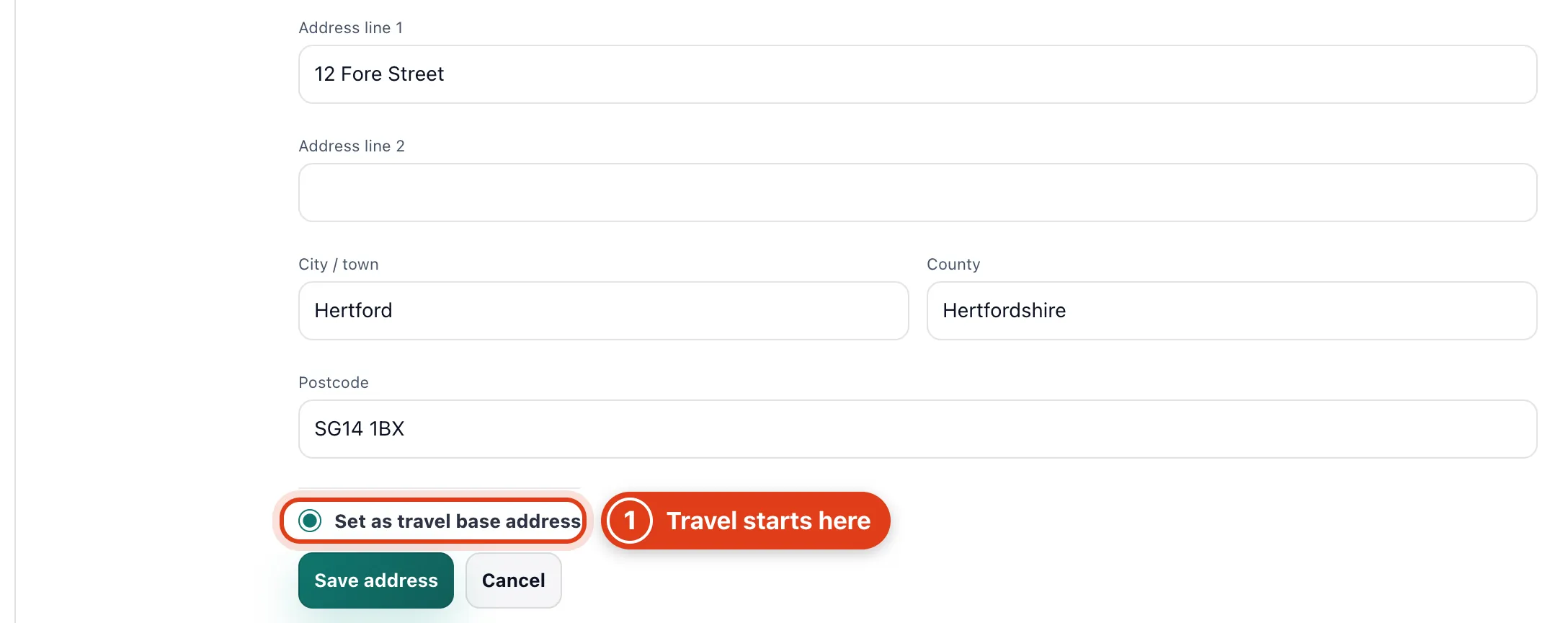
- Set as travel base address: online booking and Suggest times measure your travel from here. For example, if you set off from home each morning, tick it on your home address instead.
Step 4 Add your logo and check your region
Click Change logo, choose your file, then Save logo.
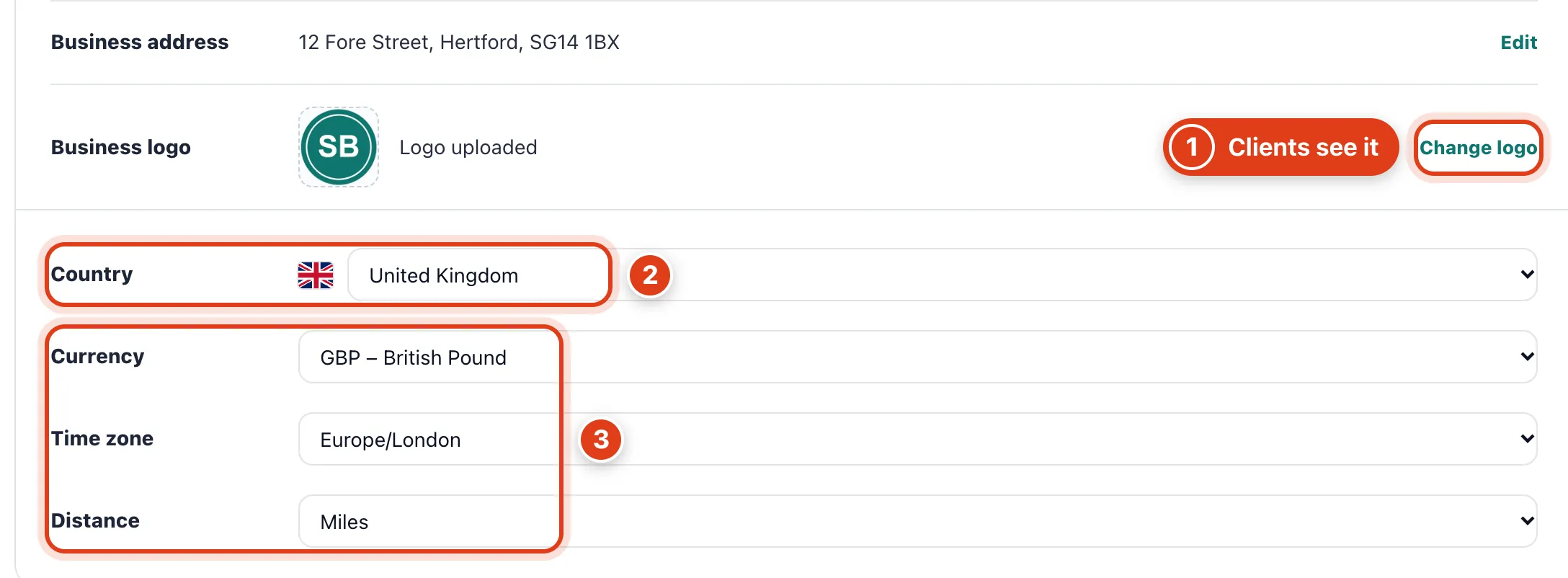
- Change logo: your booking page, booking emails and directory listing show your logo as a circle; zoom and drag it to fit.
- Country resets the other three to its defaults and changes which features you get, such as texts and card payments. For example, Ireland sets euros, Europe/Dublin and kilometres.
- Currency relabels your prices without converting them, for example £42 becomes €42; Time zone sets when reminders go out; Distance is your travel unit.
Part 2 Your working hours and breaks
Step 5 Set your working days and hours
Go to Settings › Hours & breaks and tick your working days. Changes here save with Save at the bottom of the page.
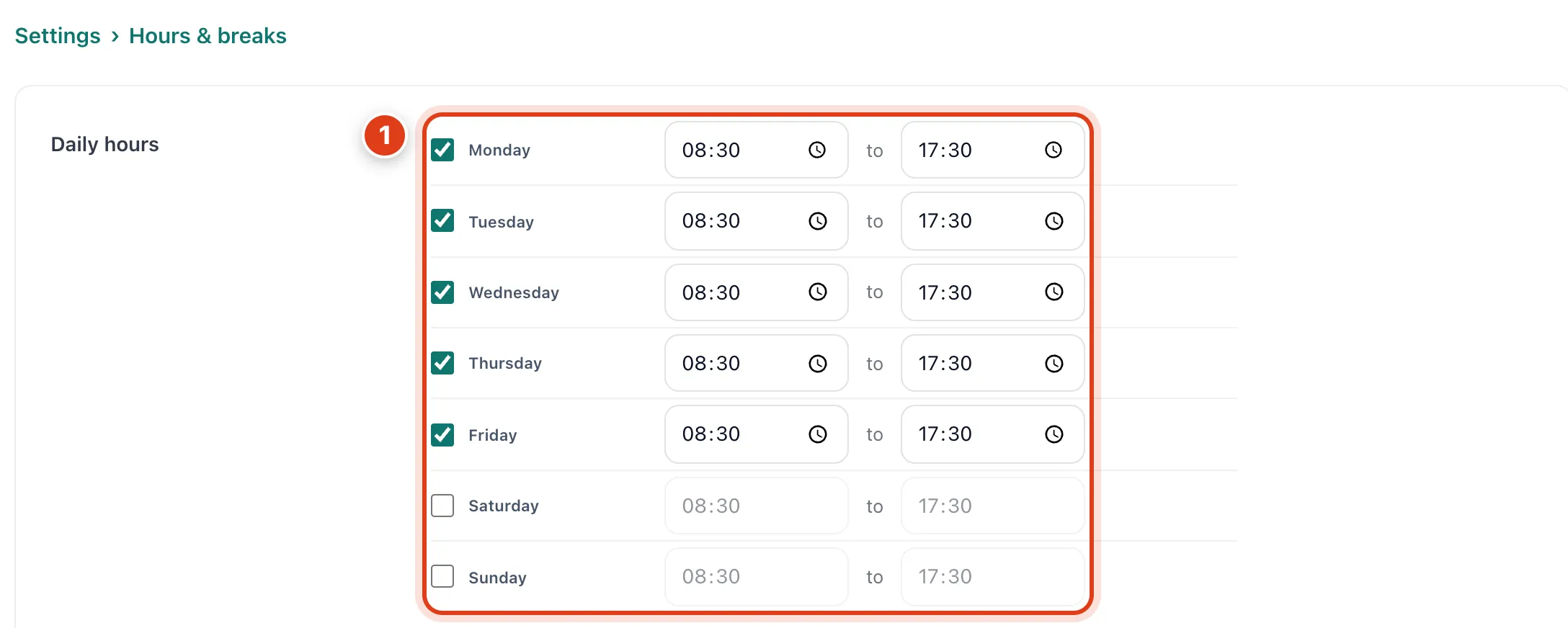
- Daily hours: online booking, Suggest times and the AI receptionist keep to them; a visit starting outside them gets any out of hours price, for example at 17:30 or on Saturday, not at 17:00.
Step 6 Set each person's hours and your breaks
A day you change in Team hours saves with its own Save there.
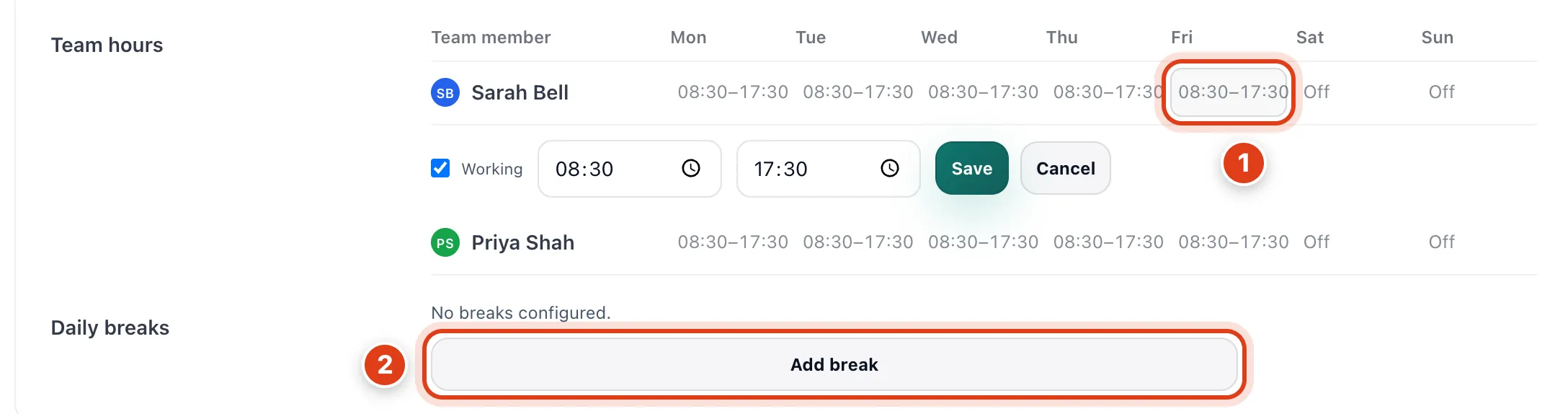
- Team hours: changing a day gives that person their own week, which Daily hours changes no longer reach. For example, once Sarah Bell's Friday ends at 13:00, a new 09:00 start in Daily hours misses her.
- Add break: breaks stay free of online and suggested times, but only for people on the Daily hours. For example, a 12:30 to 13:00 break holds for Priya Shah, not for Sarah Bell with her own week.
Part 3 Your clinics and home visits
Step 7 Add your clinics and turn on home visits
Go to Settings › Locations & service area and click Add clinic to find its address and add its rooms. Changes here save with Save at the bottom of the page.
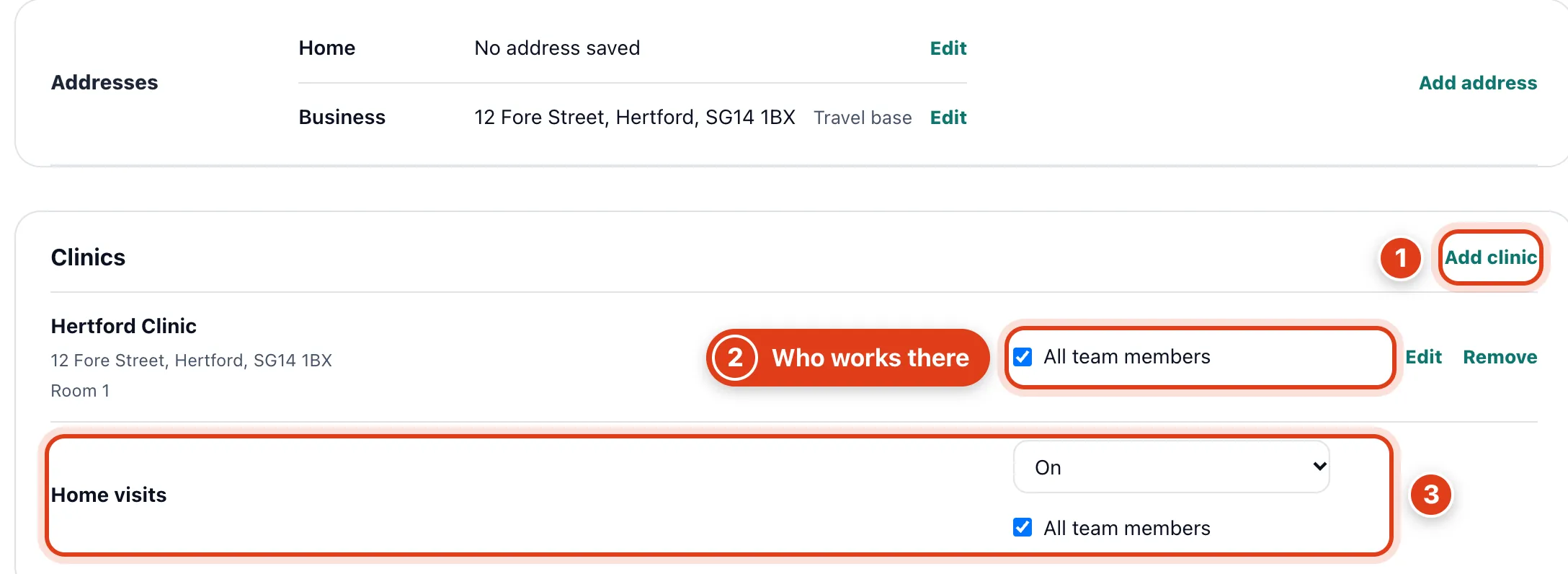
- Add clinic: clinics are offered as a visit's Where when the service allows it. Booking by hand, a booked room can't be picked twice: for example, Room 1 can't take a second 10:00 visit.
- All team members: untick to choose who works here; the others aren't offered at this clinic online or by the AI receptionist. For example, with only Sarah Bell ticked, clients can't book Priya Shah there.
- Home visits: On adds the address and area check to online bookings; untick its All team members to choose who does them. For example, with only Sarah Bell ticked, online home visits are with her.
Step 8 Set your clinic days
Clinic days shows below Home visits once you have a clinic.
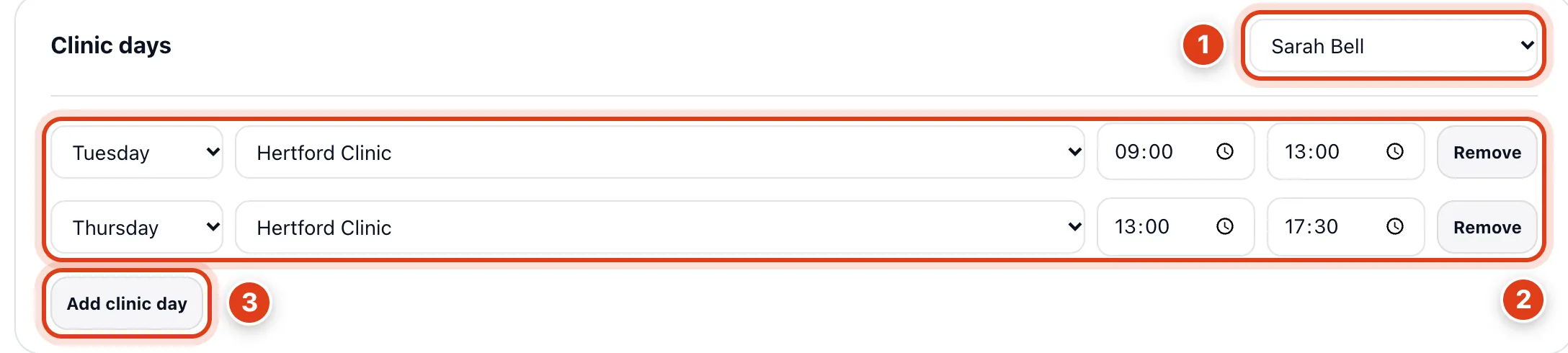
- Team member: each person has their own clinic days, and only the business owner changes them; for example, Sarah Bell sets Priya Shah's.
- Clinic days: online and AI receptionist clinic visits must fit inside them. For example, Sarah Bell's online clinic visits fit in Tuesday 09:00 to 13:00 or Thursday 13:00 to 17:30.
- Add clinic day: once anyone has clinic days, a person without any can't be booked online at a clinic. For example, while Priya Shah has none, online clinic visits go to Sarah Bell only.
Part 4 Home visit areas and travel limits
Step 9 Set your home visit area
Click a person, here Sarah Bell. Online, an address outside everyone's area gets Find someone else instead of times.
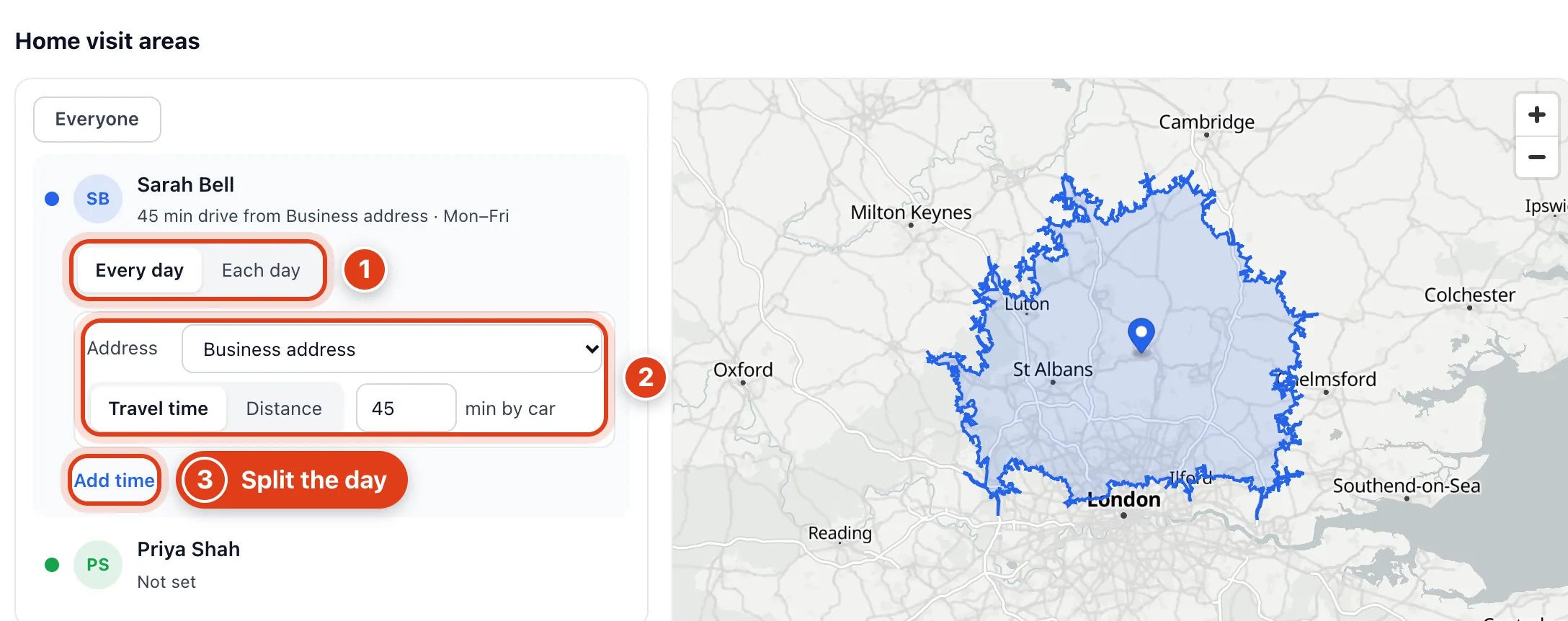
- Each day gives each weekday its own start for Suggest times, for example Monday from home and the rest from your Business address.
- Address and Travel time: the area is everywhere she can drive to in 45 minutes from there, for example St Albans and Luton but not Cambridge or Chelmsford; Distance draws a circle in miles.
- Add time splits the day into windows with their own start, for example 08:30 to 12:00 from home and 12:00 to 17:30 from your Business address; Suggest times plans each from its start.
Step 10 Set your travel limits
Miles count with the Distance based suggestion method, where new accounts start; minutes with travel times. The AI receptionist and your booking page's suggested times keep to these limits too.
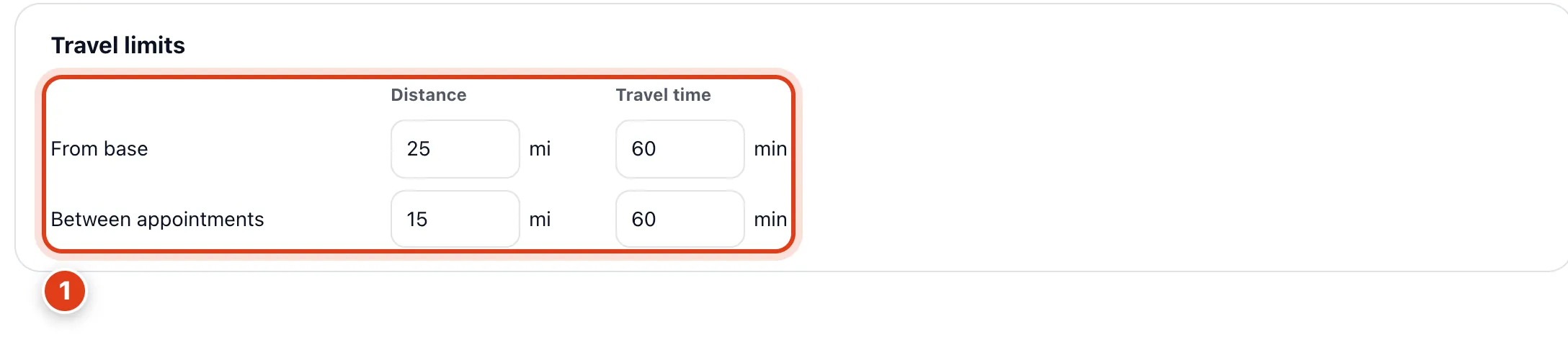
- From base covers the first trip of the day and the last one home; Between appointments the rest. For example, a client 30 miles from base can't be your first or last visit, but can come between two near them.