
How to send forms and write treatment notes
Send clients forms before a visit, read their answers, and write your treatment notes.
Updated 17 November 2026
Part 1 Make a form
Step 1 Make a form
Go to Forms › Templates, click New template, name it and add your questions with Add question, then Save.
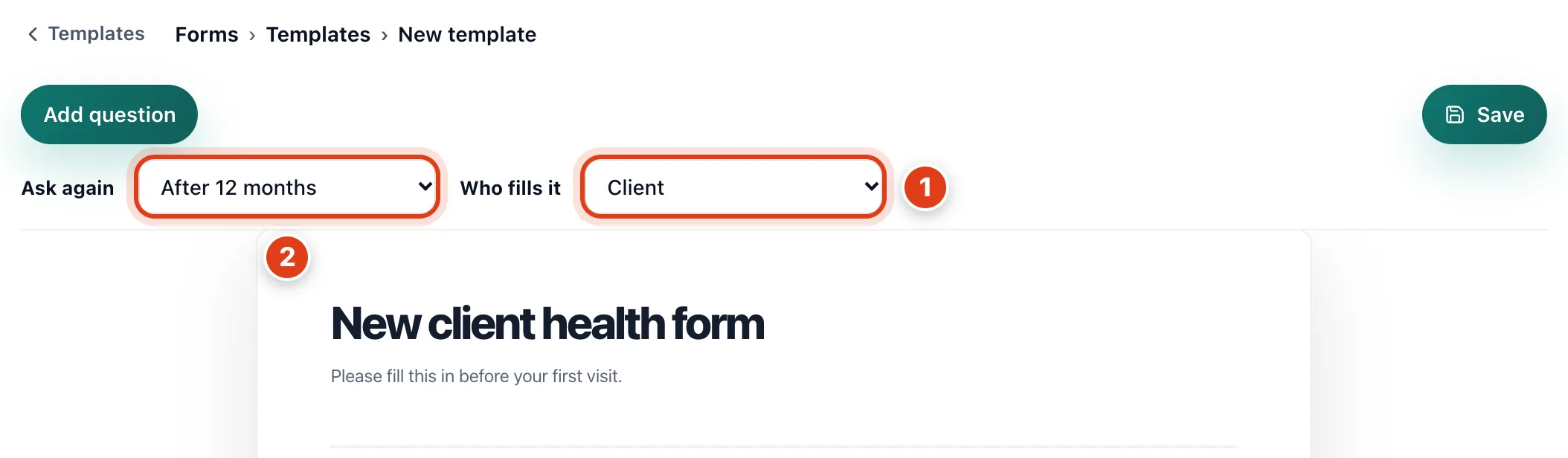
- Who fills it: Client forms are sent to your clients, Staff forms are treatment notes your team writes after each visit of a service that uses them, and Both does both.
- Ask again stops automatic sends to a client who has filled it in. For example, with After 12 months, Linda Evans fills it in on 16 November 2026, so her visits before 16 November 2027 don't send it again.
Part 2 Send forms to clients
Step 2 Send a form before every visit of a service
In Settings › Services & prices, Edit the service, pick a client form as its Default form template, turn on Send this form before the appointment and Save. Clients with no email on file aren't sent it.
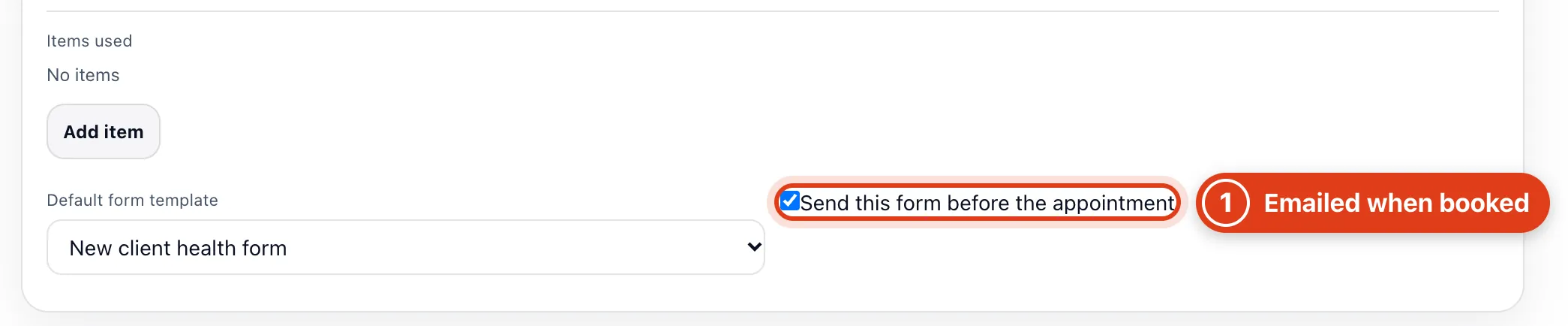
- Send this form before the appointment emails it once a visit is booked, by you or online, and chases it once 24 hours before if unfinished: Linda Evans's Thursday 09:30 form at 09:30 Wednesday.
Step 3 Send a form yourself
Go to Forms, click New form, choose the form and the client, then Send. A visit's Forms and a client's Forms tab open the same panel.
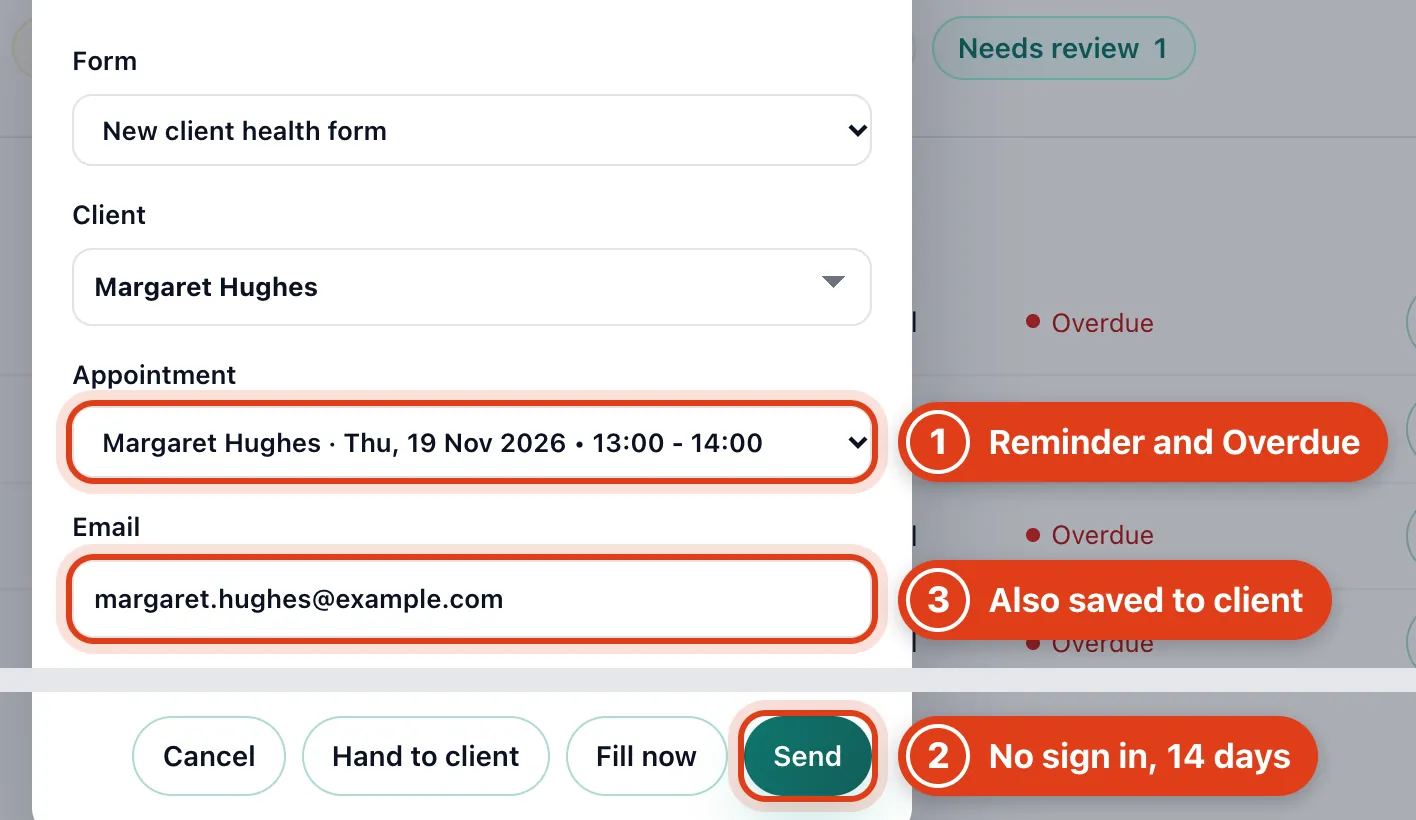
- Appointment links the form to a visit, so it gets the reminder and turns Overdue when the visit starts. For example, for Margaret Hughes's Thursday 13:00 visit, she's chased at about 13:00 on Wednesday.
- Send emails your client a link to the form that needs no sign in and works for 14 days.
- Typing a different Email also changes the email address on the client's record.
Step 4 What your client fills in
Click Hand to client instead of Send: the form opens in a new tab with nothing emailed. Hand your phone or tablet to your client to answer the questions and tap Send form.
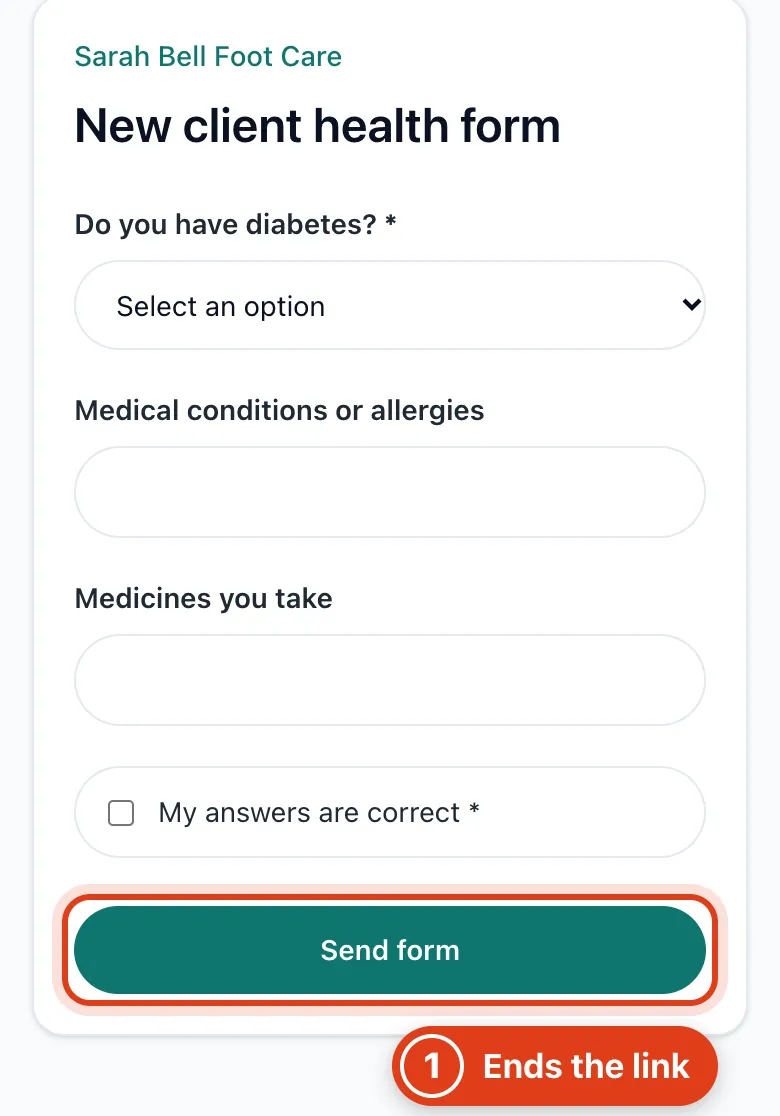
- Send form puts the answers straight into Needs review and Responses and ends the link; an unsent link also stops after two hours, so nobody can open it later.
Part 3 Read the answers
Step 5 See what's waiting
Forms opens on To do: every form and note that needs you or your client.
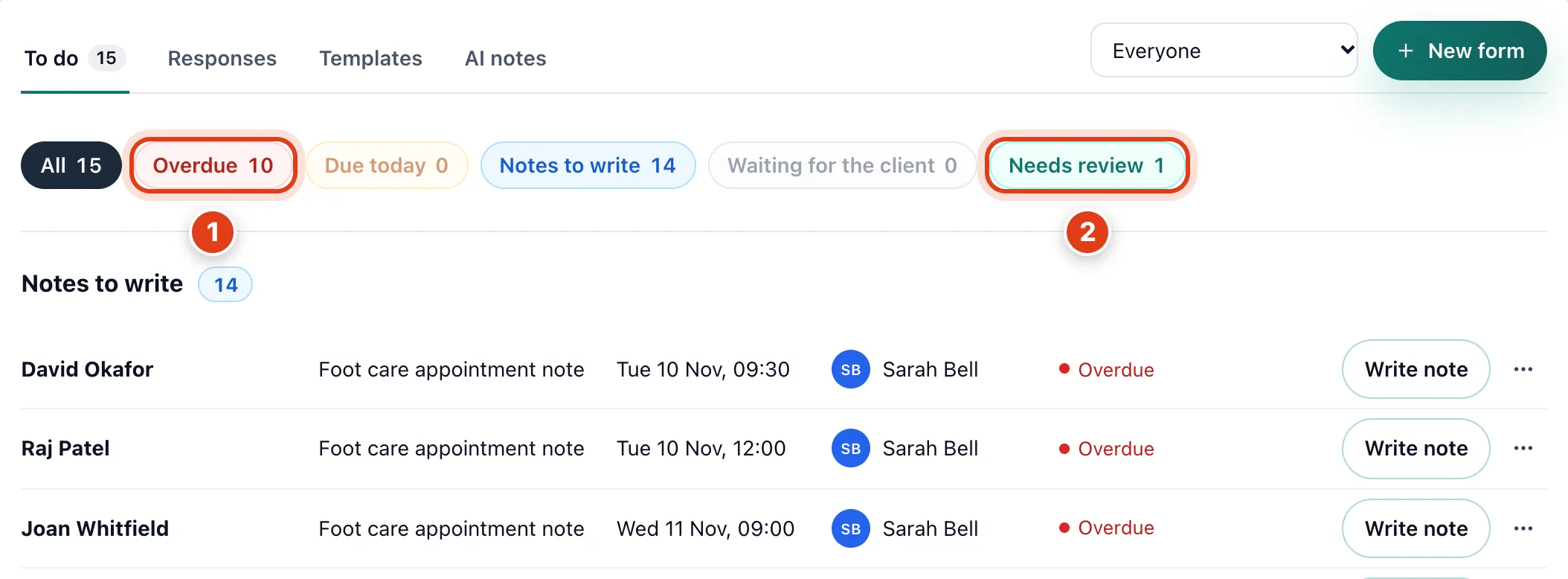
- Overdue lists forms still unanswered once the visit starts or the 14 day link runs out; Send again emails a new link. For example, Linda Evans's form is Overdue from 09:30 on Thursday if she hasn't sent it.
- Needs review lists forms your clients have filled in until someone marks them reviewed.
Step 6 Find a client's answers
Go to Forms › Responses and click Open beside the form.
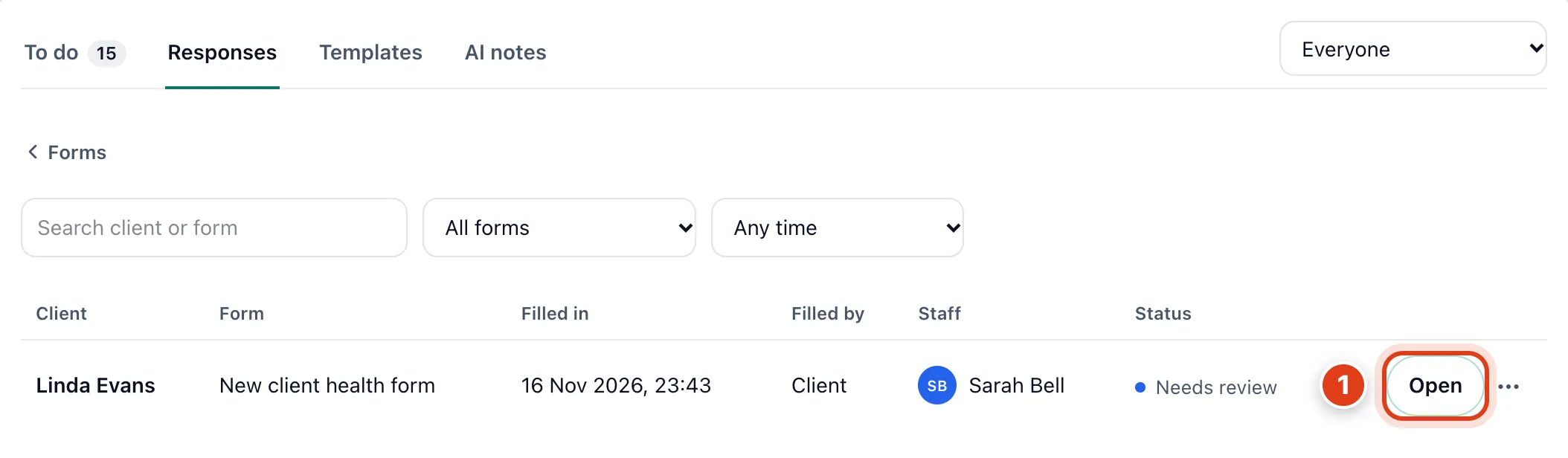
- Responses keeps every filled in form and every treatment note your team wrote.
Step 7 Mark the answers reviewed
Read the answers, then click Mark as reviewed.
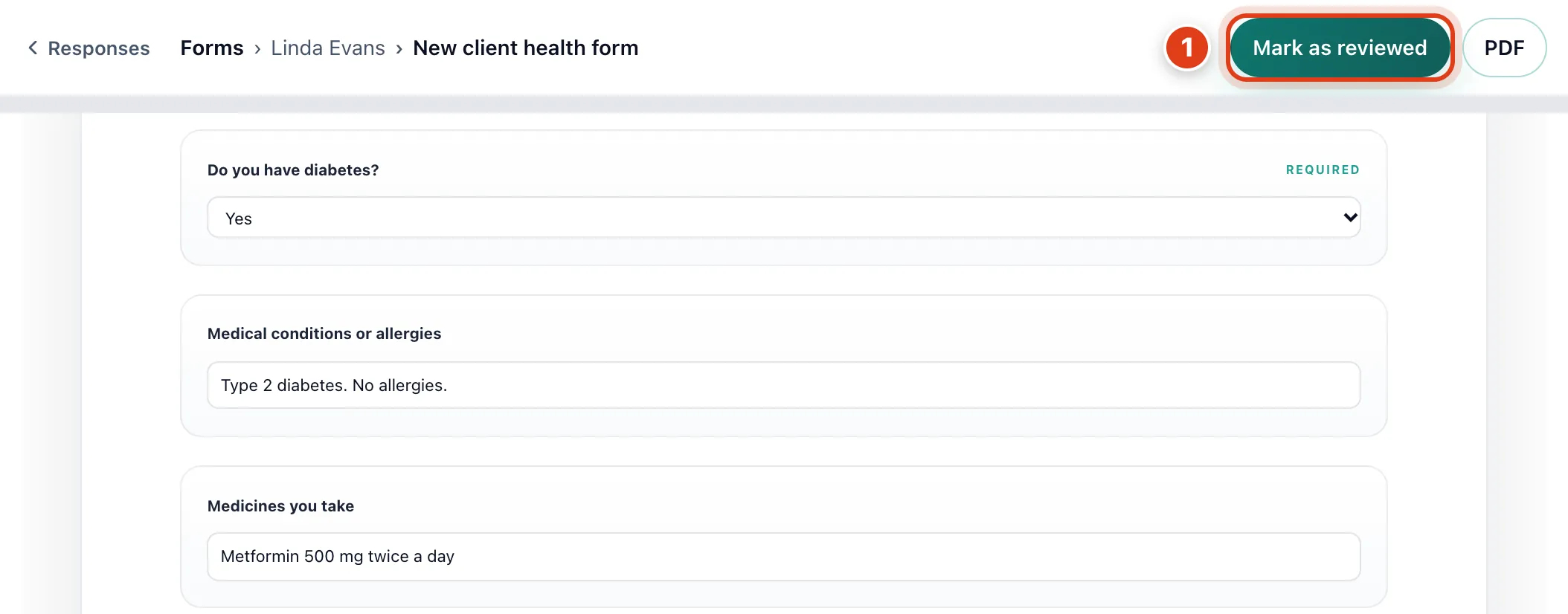
- Mark as reviewed takes the form off Needs review, and Responses then shows who reviewed it. For example, Reviewed by Sarah Bell.
Part 4 Treatment notes
Step 8 Write a treatment note
Under Notes to write in Forms, click Write note beside the visit, fill it in, then Save to client record. With AI notes on, Draft with AI notes drafts it from your AI credits.
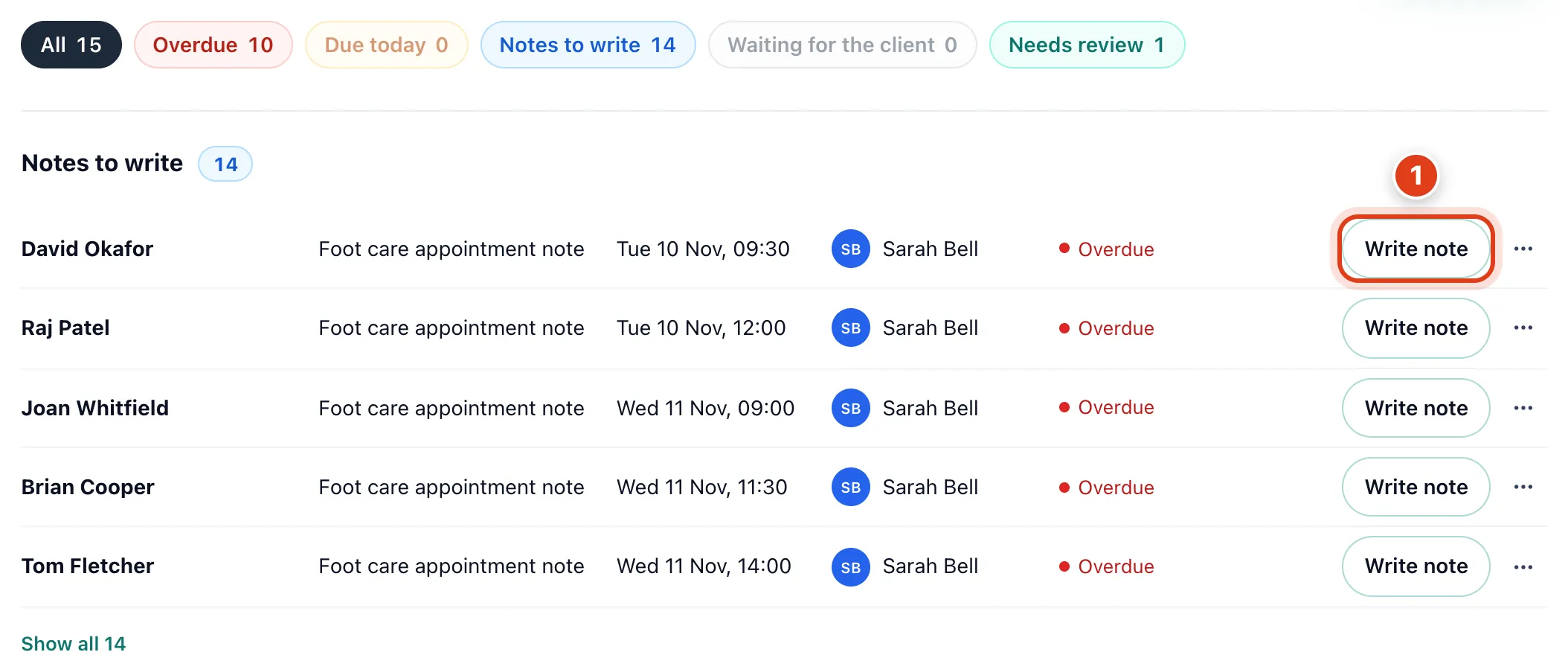
- A note is due when the visit ends and Overdue a day later; whoever did the visit is reminded once at each. For example, a visit ending at 10:30 on Monday is Overdue from 10:30 on Tuesday.
Step 9 See your team's notes
Click Notes overview under Notes to write to see everyone's notes by member, client or service.
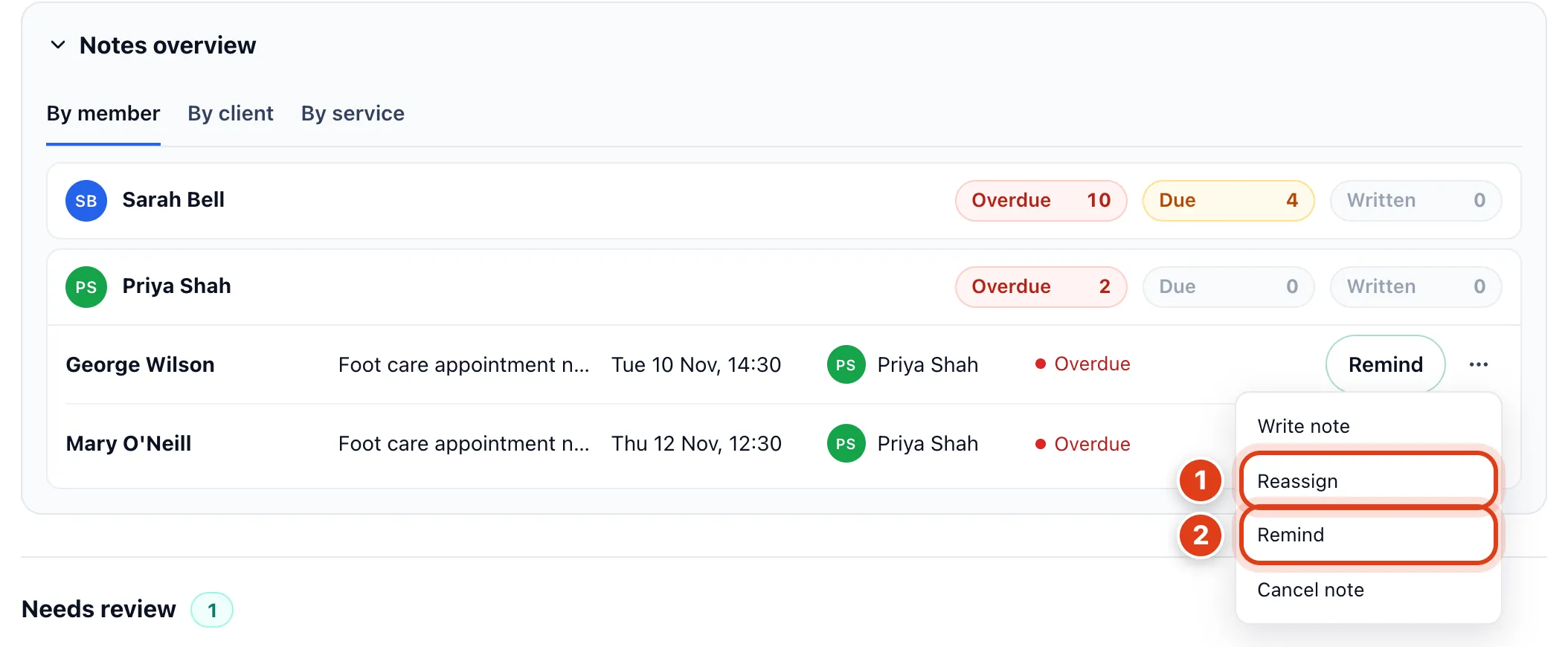
- Reassign gives the note to another team member, who is told and gets the reminders from then on.
- Remind sends the member a notice in Offlico and an email now, as their My notifications allow.