
How to change, complete or cancel an appointment
Move, complete or cancel a visit from your calendar.
Updated 16 November 2026
Part 1 Move a visit
Step 1 Drag it to a new time
Drag a visit to its new time in your calendar, then Confirm in Move appointment. To change its length, drag its bottom edge instead.
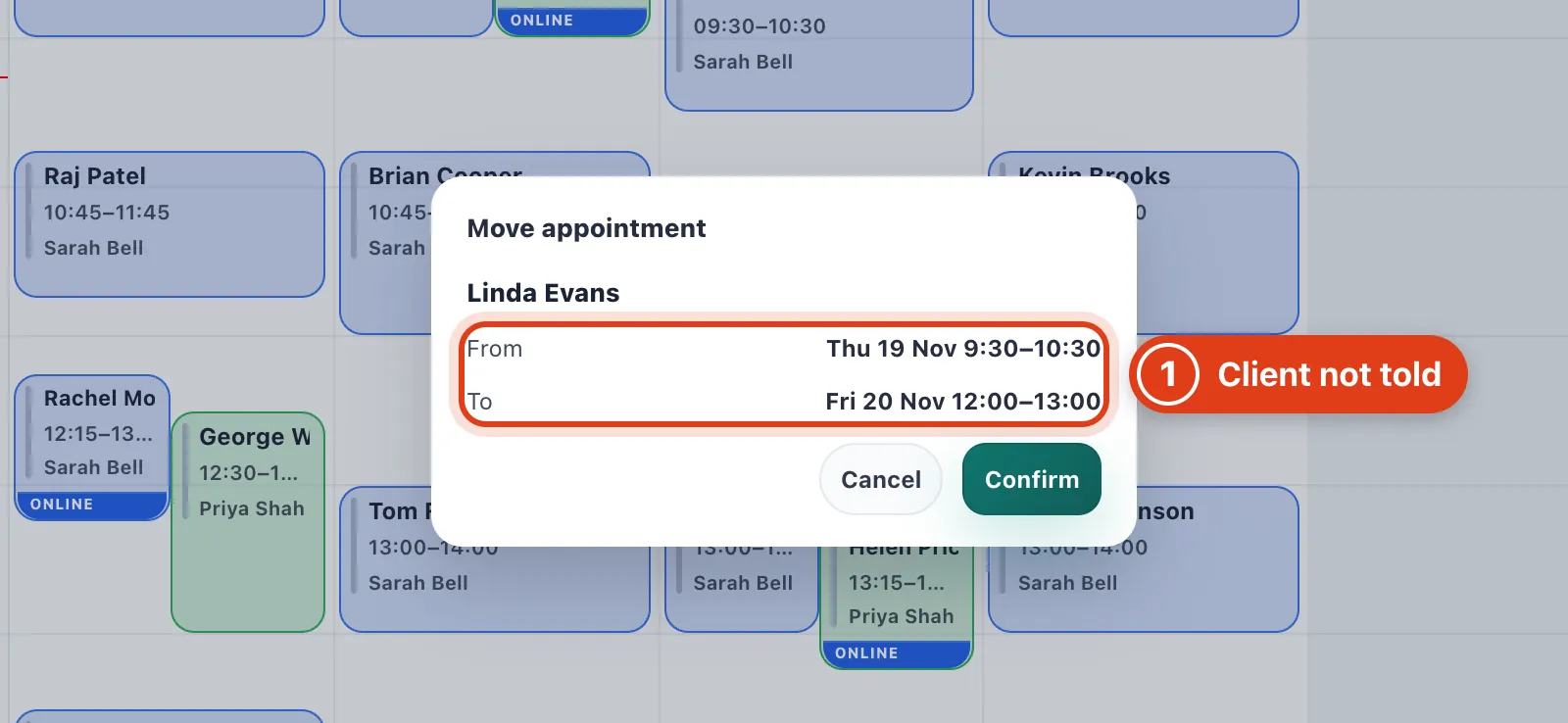
- Move appointment doesn't tell the client, so let them know yourself. Their reminder, if it hasn't gone yet, follows the new time: move Linda Evans to Friday and it comes before Friday's visit.
Step 2 Find a better time
Open the visit and click Reschedule: it suggests times with the same client, services and team member. Book one. To search other days, change Settings › Rescheduling.
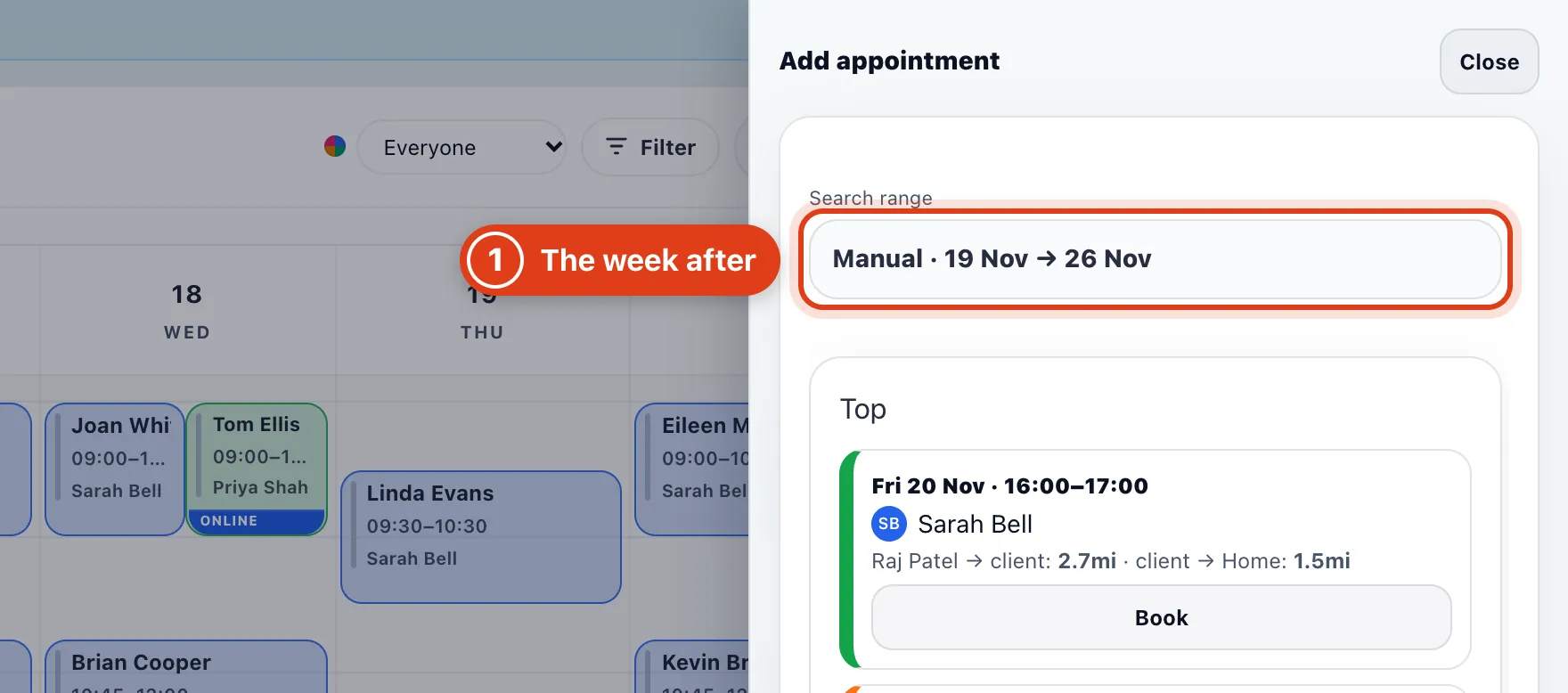
- Reschedule searches the 7 days after the visit, skipping the visit's own day. For example, for Margaret Hughes's Thursday 19 November visit it suggests times from Friday 20 to Thursday 26 November.
Step 3 Keep or clear the old visit
After you book the new time, choose what happens to the old visit.
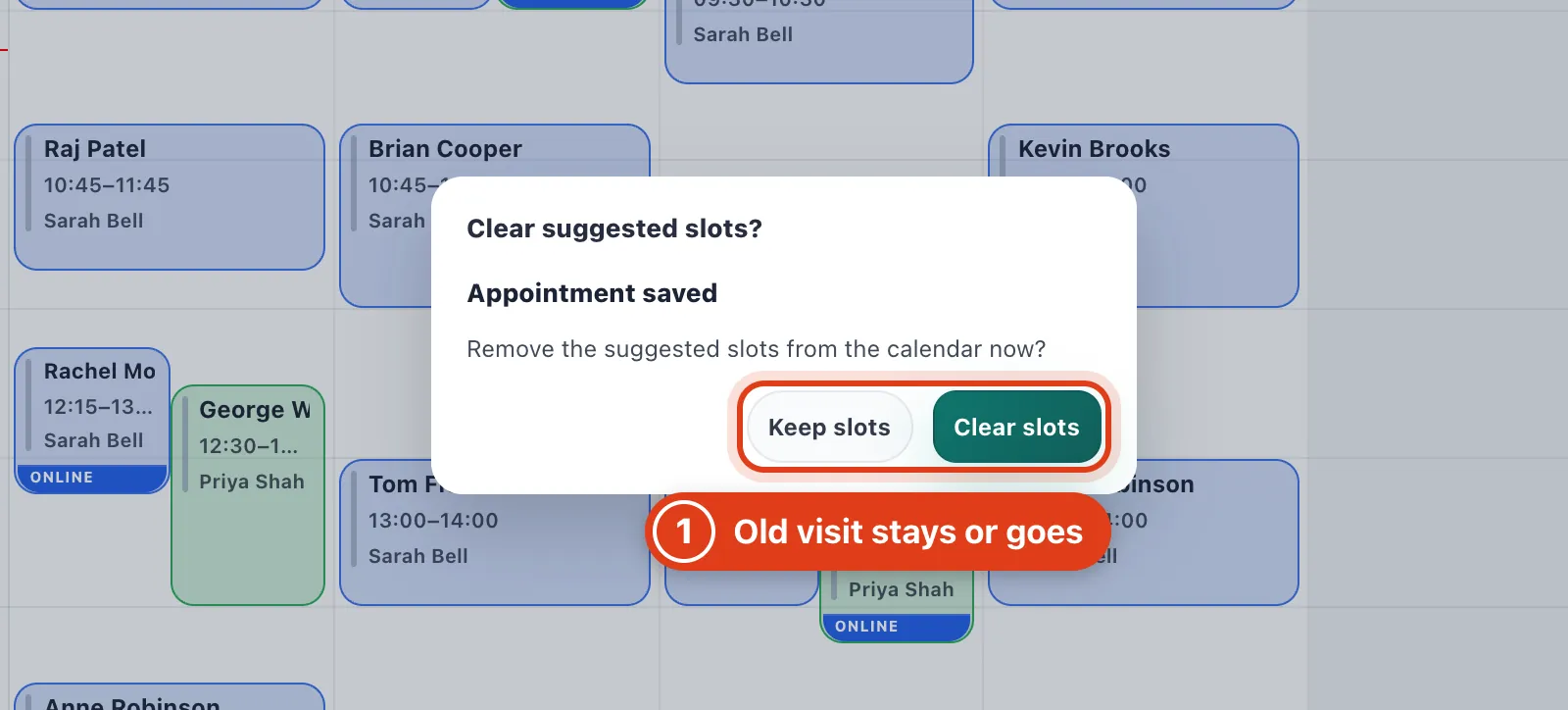
- Clear slots deletes the old visit; Keep slots leaves it in your calendar too. For example, rebook Margaret Hughes for Friday and choose Keep slots, and she has both visits.
Part 2 On the day
Step 4 Tell the client you're on your way
Open the visit, click On my way, choose Arriving in, then Send.
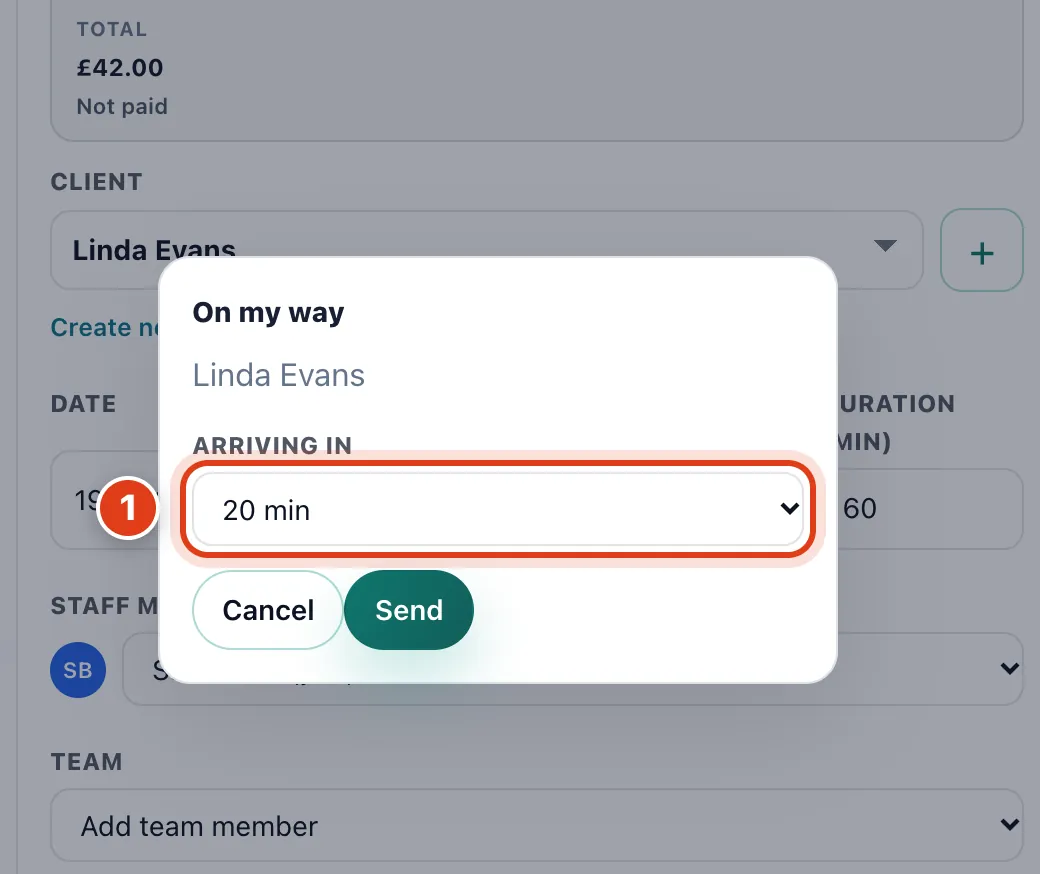
- Arriving in sets the arrival time Offlico texts the client, or emails if they have no mobile. For example, sent at 09:10 with 20 min, Linda Evans reads that you should arrive at about 09:30.
Step 5 Mark how the visit went
Under Status, click Completed when the visit is done, or No show if the client didn't come, then Save.
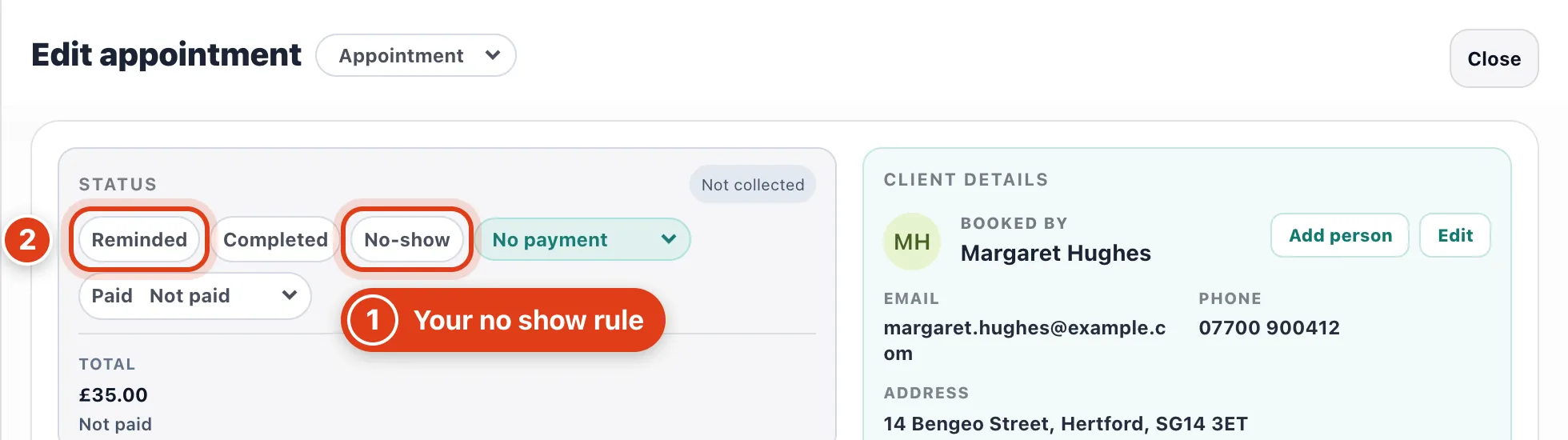
- No show applies your When a client doesn't turn up rule (Settings › Confirmations & cancellations); no card is charged. For example, with Charge the full price, Margaret Hughes still owes £35.
- Reminded lights up once the automatic reminder has gone; click it yourself and none is sent. For example, click it after phoning Linda Evans about Thursday.
Step 6 Record how the client paid
Choose the method under Paid, then Save.
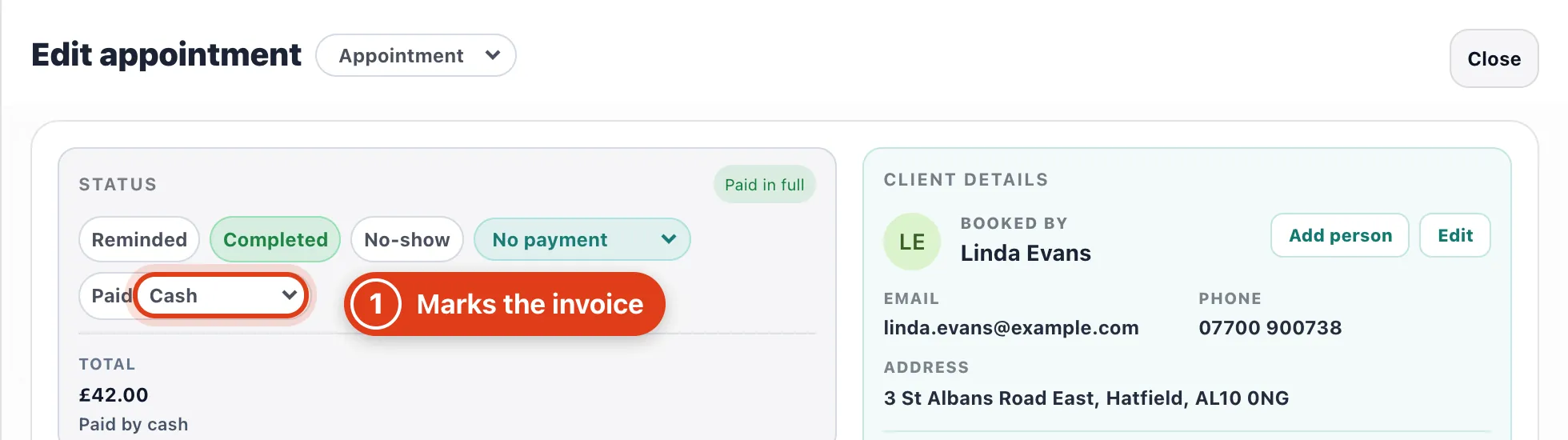
- Paid marks the visit's invoice paid, making one if needed. For example, with Send invoice email on When marked complete, marking Linda Evans's £42 visit Completed with Cash emails her a paid invoice.
Part 3 Photos, the client's link and cancelling
Step 7 Add before and after photos
In the visit, under Photos, click the camera beside Before or After; on a phone it opens the camera. For notes, click Add note (see How to send forms and write treatment notes).
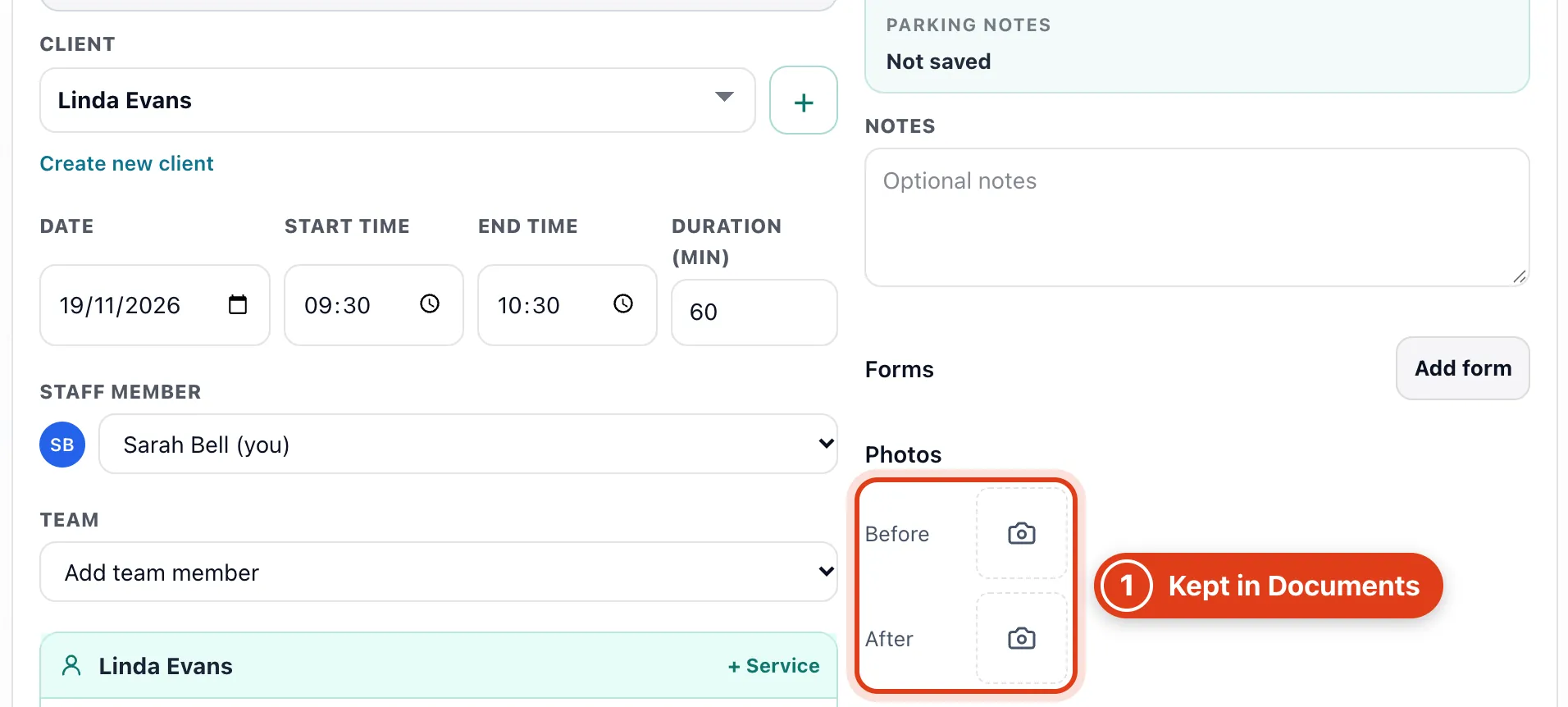
- Before and After photos also go in the client's Documents tab; the client sees a photo once you click Send to Hub beside it there.
Step 8 Send the client their link
Click Share appointment link at the top of the visit and copy the Appointment link. Clients can move or cancel there until your Cancellation notice (Settings › Confirmations & cancellations).
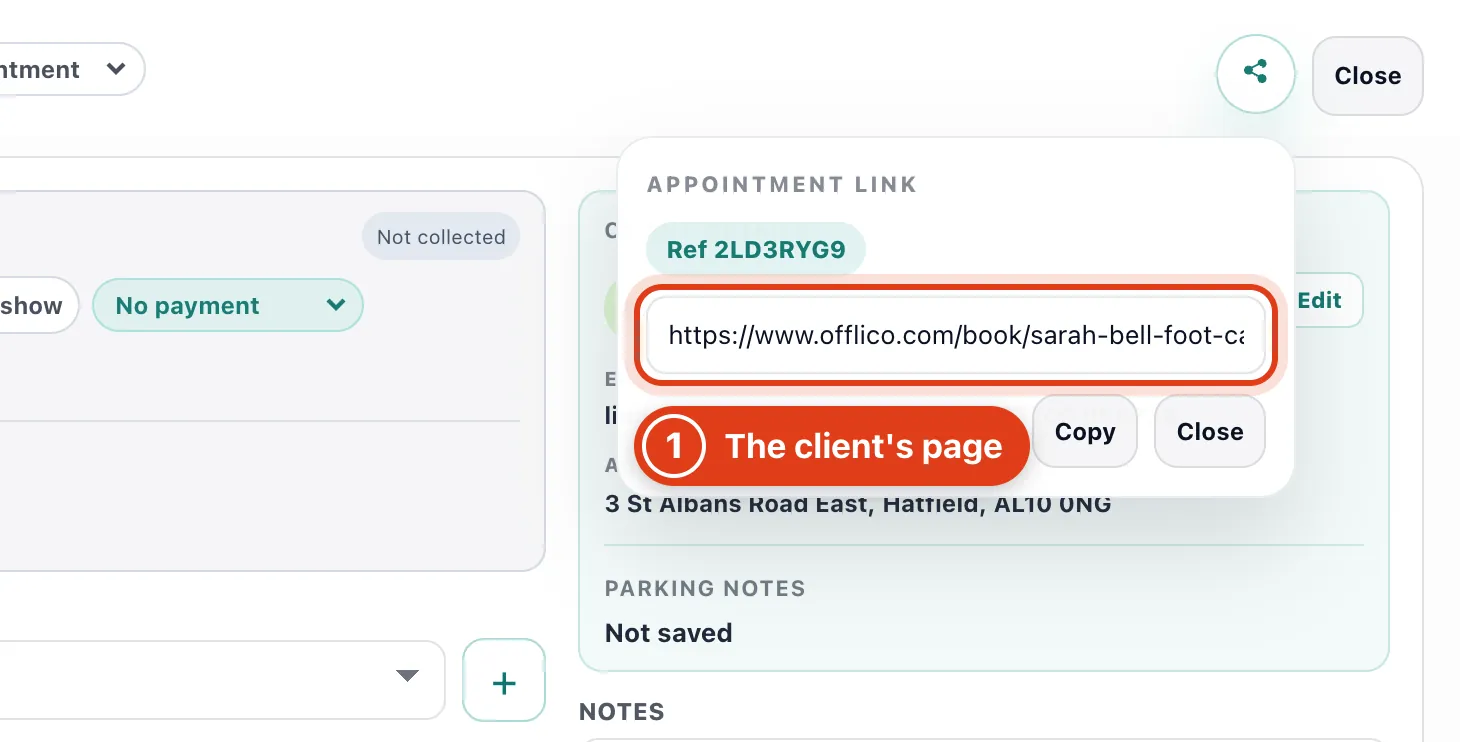
- Appointment link is the client's own page for this visit, no sign in needed. For example, with a 24 hours notice, Linda Evans can Reschedule Booking or Cancel Booking until 09:30 on Wednesday.
Step 9 Cancel or delete a visit
Open the visit and click Delete, then Confirm delete. Cancel appointment keeps the visit in your calendar as Cancelled. Offlico doesn't tell the client, whether you delete or cancel.
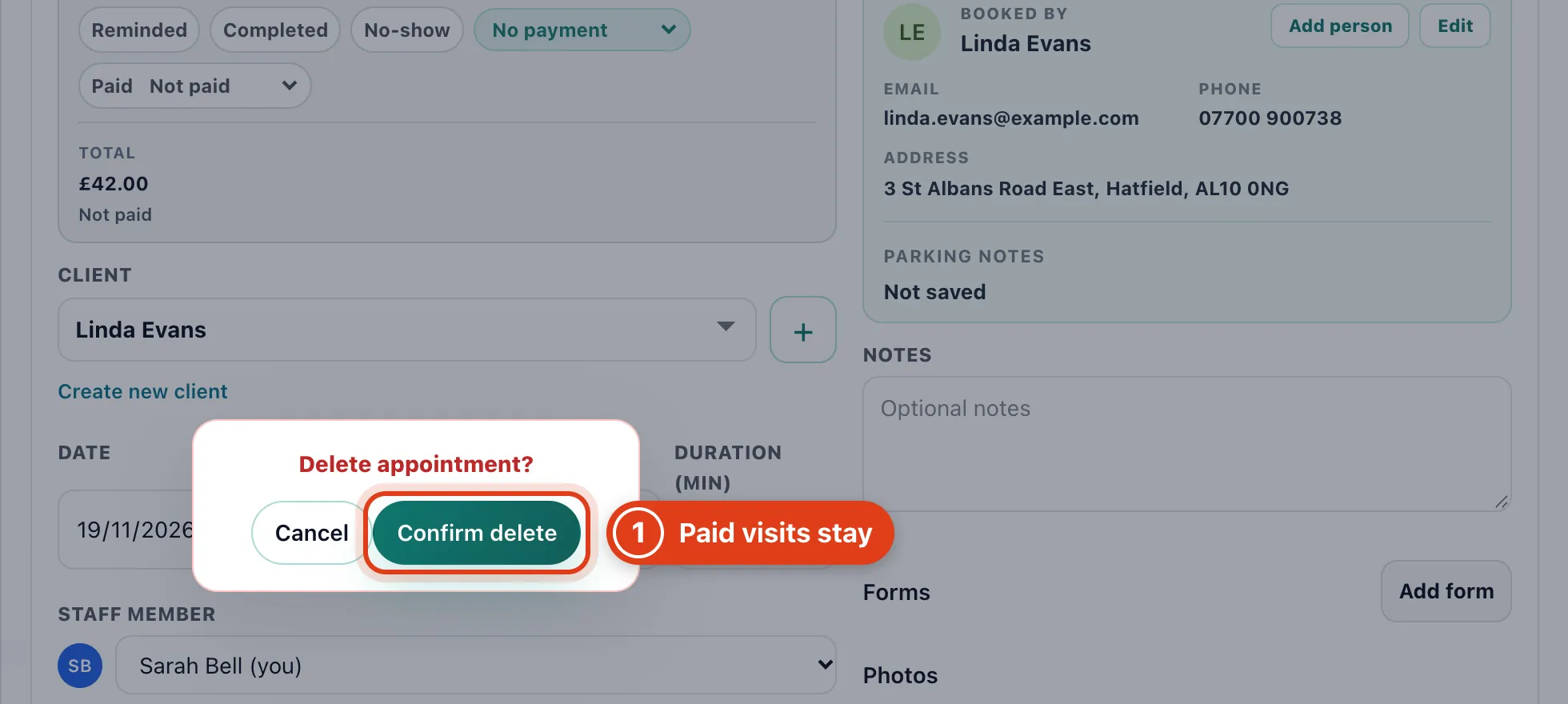
- Delete is refused once a payment is recorded on the invoice, and offers Cancel appointment. For example, a visit only marked Cash under Paid still deletes: Delete takes that payment off first.