
How to send a quote and book the job
Price a job, send the quote and book it once your client says yes.
Updated 17 November 2026
Part 1 Price the job
Step 1 Start a quote
Go to Invoices › Quotes, click New quote and choose the Client.
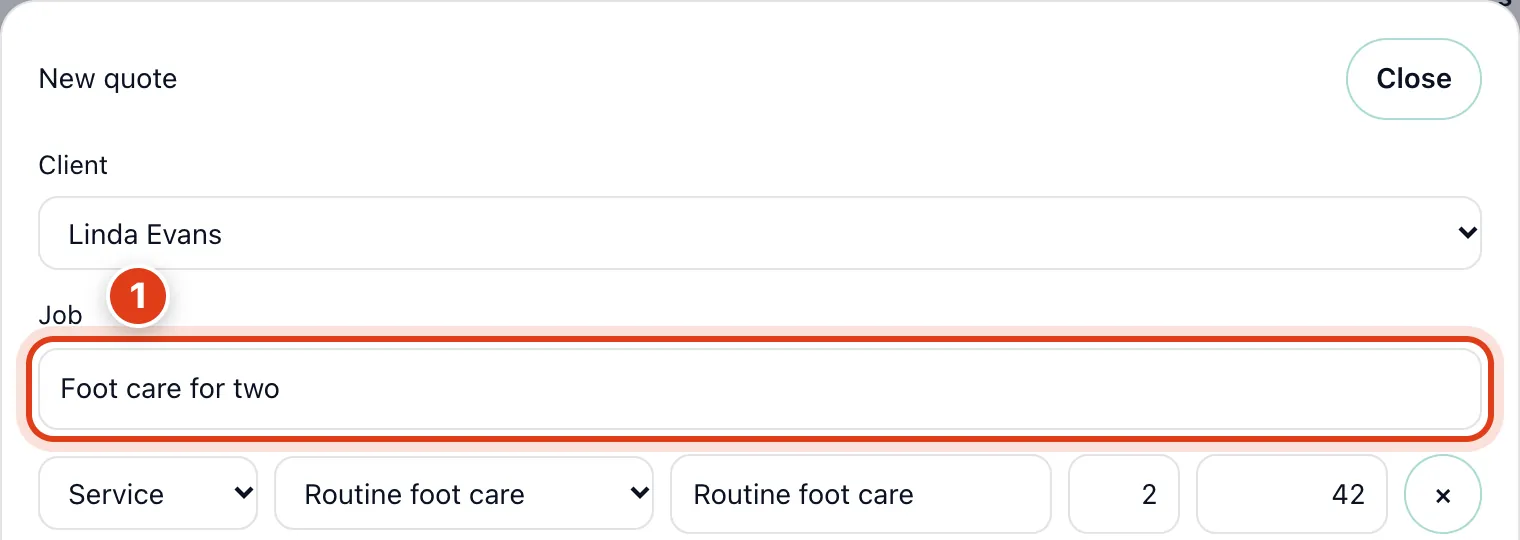
- Job is the heading your client sees on the quote, in the email and on its page: for example, Foot care for two.
Step 2 Add what it costs
Add a line for each service, part or extra you'll charge for.
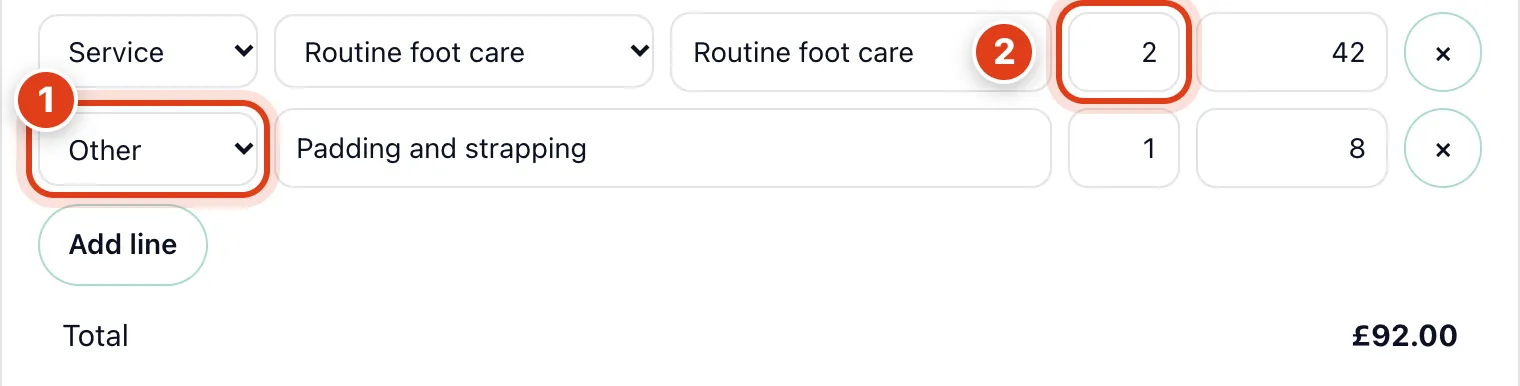
- Service fills in one of your services with its price, Part picks a Product from your stock and Other is anything you type: for example, Other for padding and strapping at £8.
- Quantity multiplies the line's price, and a service's time when you book: for example, 2 x Routine foot care at £42 is £84 and books 120 minutes.
Step 3 Set a deposit and how long it stands
Fill in Deposit and Valid until if you need them, then Save quote. Notes show on your client's page too.
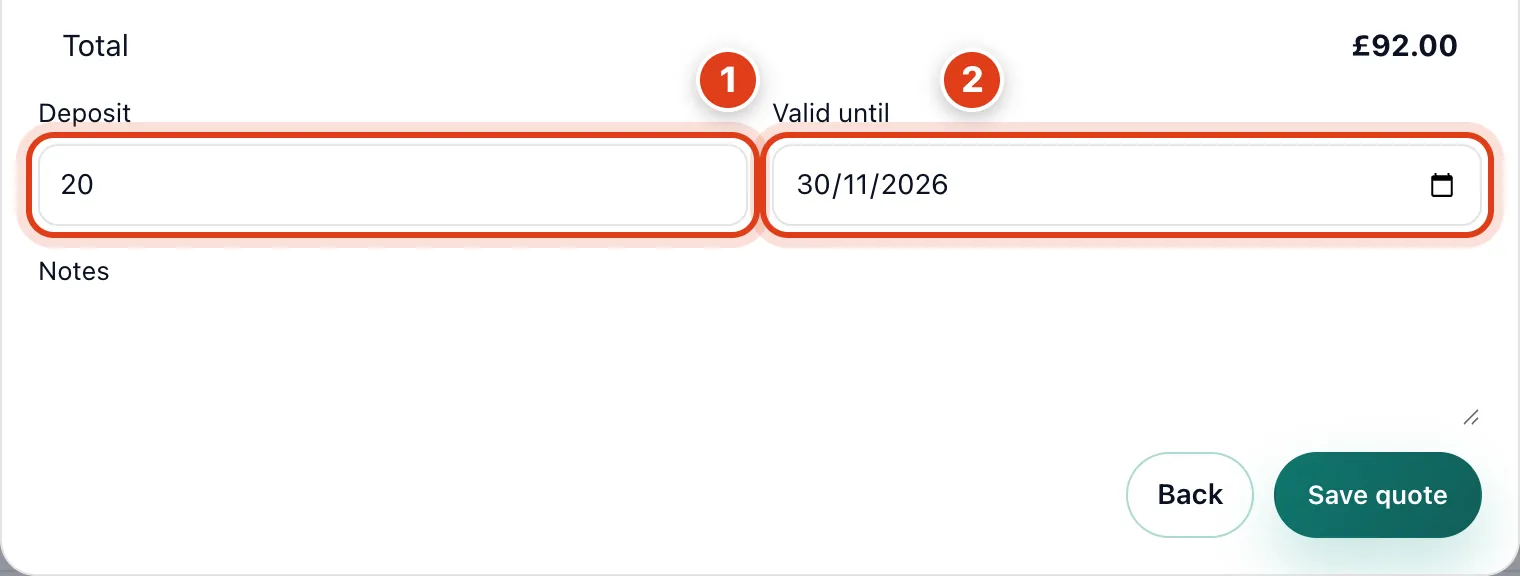
- Deposit: with card payments connected, your client accepts by paying it, and it goes onto the visit's invoice when you book: for example, £20 of Linda Evans's £92.
- Valid until is the last day your client can accept online: for example, with 30 November, Linda Evans can accept on the 30th but not on 1 December.
Part 2 Send it and book the job
Step 4 Send the quote
Open the quote in Quotes and click Send; to change it first, click Edit.
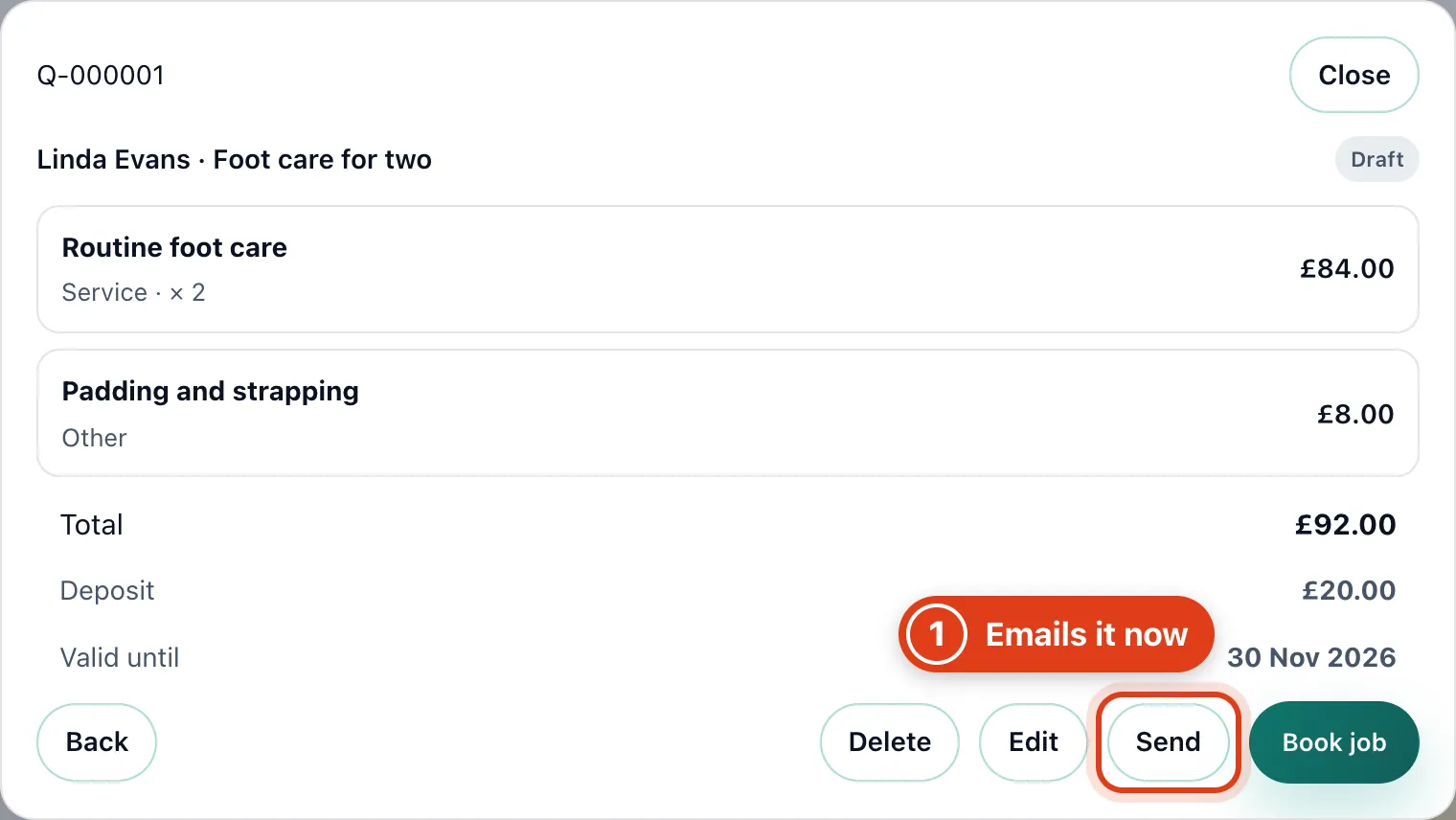
- Send emails the Job, total, any deposit and a link to the quote's page, and marks it Sent: for example, Linda Evans gets Foot care for two, £92, a £20 deposit and the link; resending waits 10 minutes.
Step 5 What your client sees
Your client opens the link in the email, with no sign in, and accepts or declines.
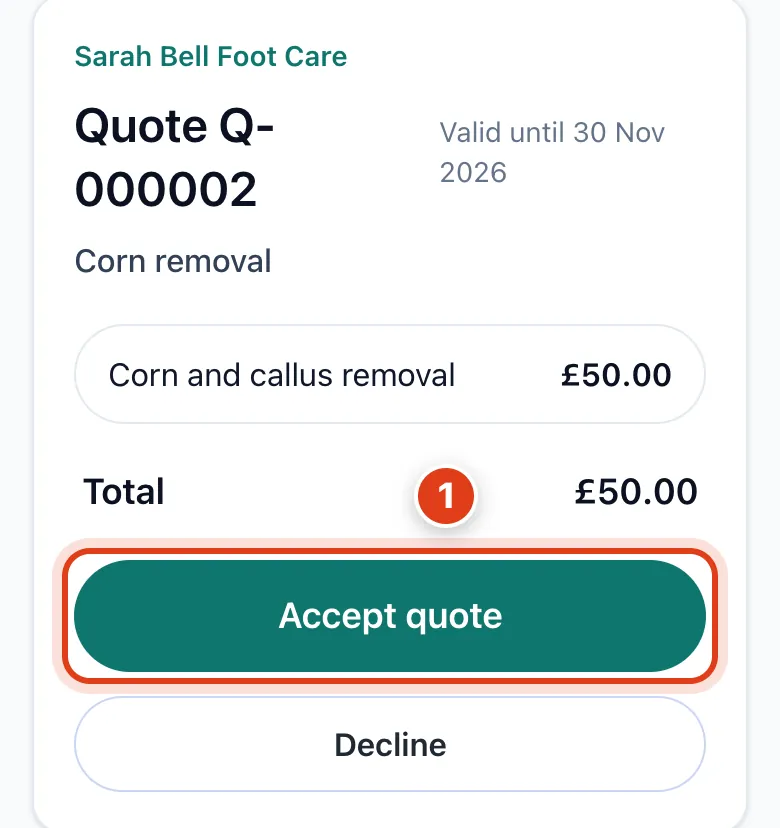
- Accept quote reads Pay deposit and accept when the quote has a deposit and card payments are connected; paying accepts it: for example, Linda Evans pays her £20 by card and her quote shows Accepted.
Step 6 Record the answer and book the job
A quote shows Accepted or Declined in Quotes once the client answers online. Click Book job and choose the day and time to book it into your calendar.
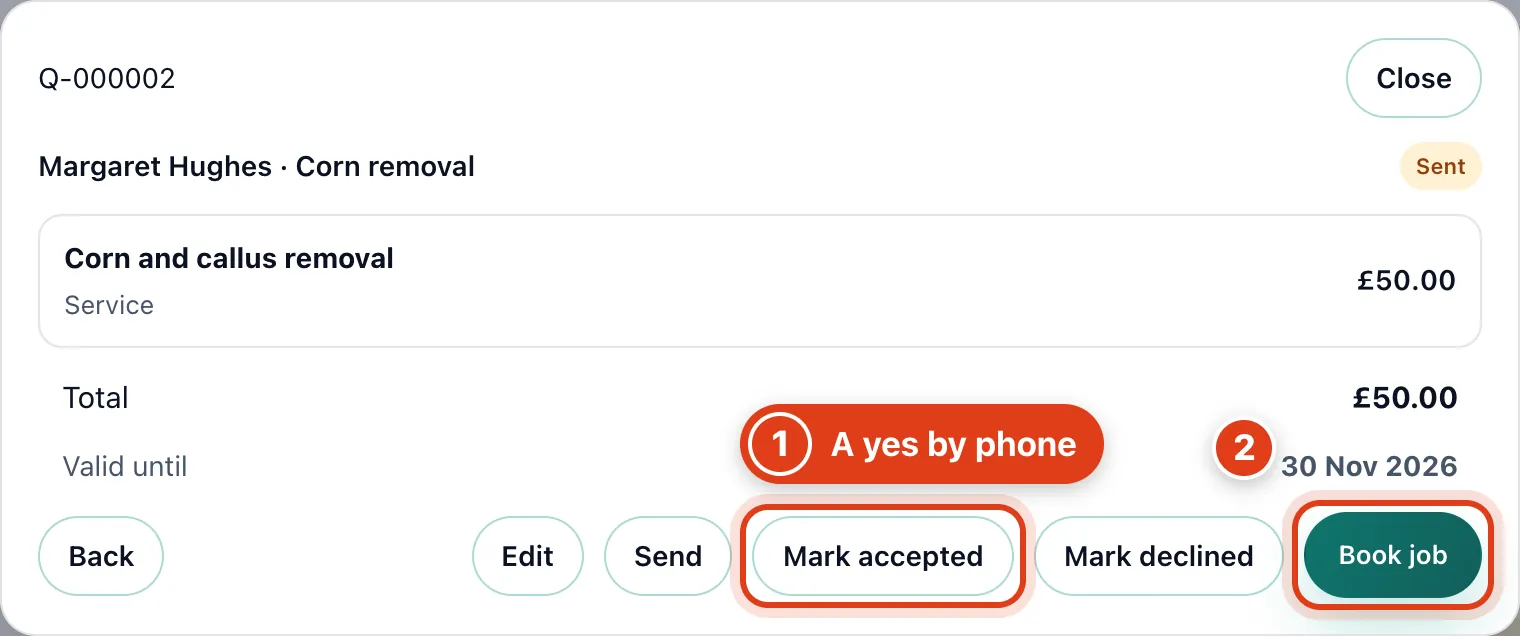
- Mark accepted records a yes given by phone or in person, even after Valid until: for example, Margaret Hughes rings on 2 December and you can still book her job.
- Book job books the quote's client and services, and the visit's invoice gets the quote's lines and any deposit paid: for example, Linda Evans's invoice shows £92 with £20 paid.